


If your team is juggling “request → draft → approve → sign → archive” across inboxes and folders, an Airtable → Google Docs → OneDrive → PandaDoc pipeline turns that chaos into one trackable, repeatable system. You capture clean data in Airtable, generate a consistent document in Google Docs, store a controlled copy in OneDrive, and send it to PandaDoc for legally binding e-signatures.
Then, you’ll want the setup that matches your reality: a no-code workflow (fast to launch, easier to maintain) or an API-driven workflow (more control, better for scale and edge cases). The right choice depends on volume, compliance needs, and how many systems must sync status back to the source of truth.
You’ll also need a reliable operating model: templates that don’t break, permissions that don’t leak, and a status loop that prevents “signed but lost” outcomes—especially when multiple signers, revisions, and renewals enter the picture.
Introduce a new idea: once this signing pipeline is stable, you can reuse the same pattern for other automation workflows—like incident triage and scheduling—without rebuilding your entire process every time.
What is an Airtable → Google Docs → OneDrive → PandaDoc document signing workflow?
An Airtable → Google Docs → OneDrive → PandaDoc document signing workflow is a document-automation system that turns structured records into signable documents, routes them for e-signature, and automatically archives the finalized files—so every agreement has a single source of truth and an auditable trail.
Then, to make this concrete, it helps to picture the pipeline as four “jobs” that happen in order:


- Airtable (system of record): who the document is for, what variables must appear (names, pricing, terms), who must sign, deadlines, and internal approval status.
- Google Docs (document assembly): a human-readable agreement/proposal generated from a template.
- OneDrive (controlled storage): drafts, “sent” versions, and signed PDFs stored by consistent naming and retention rules.
- PandaDoc (signature execution): recipients sign, you track completion, and you collect proof-of-signature.
What problem does this workflow solve for document signing?
It solves three persistent problems: version sprawl, status ambiguity, and storage inconsistency.
Then, here’s what that means in day-to-day operations:
- Version sprawl goes away because the template is centralized and each record generates one authoritative doc version (with explicit versioning rules).
- Status ambiguity goes away because the record has defined states (Draft → Approved → Sent → Viewed → Signed → Archived), instead of “I think it’s done?” messages.
- Storage inconsistency goes away because archiving is automated and predictable, not dependent on someone remembering where to upload a PDF.
To make the impact tangible, a university foundation documented measurable turnaround improvement after adopting e-signature tooling: in 2020, a case study by Iowa State University Foundation from its IT Operations and Network Security leadership reported saving more than 13 days on average turnaround time after implementing e-signatures in their agreement process. (adoption.microsoft.com)
Which teams benefit most from this workflow?
Ops, sales ops, HR, legal ops, procurement, and finance benefit most—because they all run document processes that are repetitive, time-sensitive, and audit-sensitive.
Then, the “best-fit” signal is simple: your team repeatedly asks any of these questions:
- “Which version did we send?”
- “Has the client signed yet?”
- “Where is the final PDF?”
- “Who approved the latest terms?”
If you hear those weekly, this workflow is a strong match.
How do you set up Airtable as the source of truth for signing requests?
You set up Airtable by designing a base that captures document variables, signer routing, and status transitions—so the record can generate the document, send it, and receive signing outcomes without manual re-entry.
Then, treat Airtable like a controlled database (not a spreadsheet). The difference is that every field should have a job in the workflow.
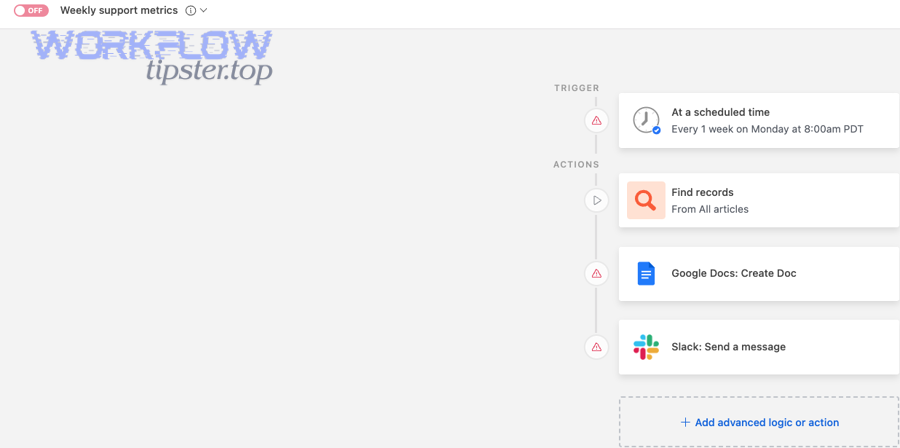
What data should live in Airtable to generate a signable document?
You should store only the data needed to generate and route the document, not the entire document itself.
Then, structure your table into five field groups:
- Identity fields : Request ID, Doc Type, Request Owner, Department, Created Date
- Recipient & signer fields: Client/Employee Name, Email, Role, Signing Order, CC list
- Document variables: Pricing, dates, address, scope, payment terms, renewal terms, policy links
- Workflow controls: Status, Internal Approver, Approval Timestamp, Due Date, SLA category
- System linkage: Google Doc URL, OneDrive file path, PandaDoc Document ID, Audit log URL
Tip that prevents 80% of breakages: make every variable explicit. If a value might be “sometimes blank,” define rules (default text, optional clauses, or conditional sections).
How do you connect Airtable to Google Docs generation reliably?
You connect Airtable to Google Docs by using an automation or integration that can take a record and create a document from a template—mapping Airtable fields into placeholders. Airtable’s documentation describes generating Google Docs from records via its document generation approach. (support.airtable.com)
Then, reliability comes from three design choices:
- Lock your template placeholders (never rename them casually).
- Freeze field types once the workflow goes live (changing “number” to “text” later breaks mapping).
- Use deterministic naming for output docs (e.g.,
{{RequestID}} - {{Company}} - {{DocType}} - v{{Version}}).
How do you generate Google Docs automatically from Airtable records?
You generate Google Docs automatically by building a reusable Google Docs template and mapping Airtable fields into that template—so each approved record outputs a consistent, ready-to-send document.
Then, focus on document assembly discipline more than tooling. Most failures happen because templates are messy, not because integrations are weak.
How do you create a Google Docs template that won’t break?
You create a durable template by separating fixed legal language from variable business fields, and by using a consistent placeholder convention.
Then, use this template pattern:
- Header block: Document title + Request ID + version + “Generated on” date
- Parties block: Names, addresses, roles
- Commercial block: Pricing table, term length, renewal date
- Legal block: Standard clauses (mostly fixed)
- Signature block: Signing roles and signer names (even if signatures happen in PandaDoc later)
For placeholders, pick a style and never deviate, such as:
{{CompanyName}}{{Signer1Email}}{{StartDate}}
If you need conditional text (e.g., “Net 30” vs “Due on receipt”), don’t hide logic in the doc. Put the logic in Airtable and generate the correct clause text into one placeholder like {{PaymentTermsClause}}.
How do you generate and review docs before sending to signature?
You generate and review by enforcing a gate: only “Approved” records can create a doc, and only validated docs can move to “Ready to Send.”
Then, use a practical 3-step QA pass:
- Field completeness check (Airtable): required fields present, emails valid, numbers in range.
- Document rendering check (Google Docs): formatting, table alignment, correct clause insertion.
- Pre-send snapshot (OneDrive): save a “Sent-Version” copy before PandaDoc sends, so you can prove what was sent if disputes arise.
How do you store generated docs in OneDrive and keep versions organized?
You store generated docs in OneDrive by using a strict folder taxonomy and naming convention, and by writing back the final OneDrive location into Airtable—so any teammate can find the correct file in seconds.
Then, treat OneDrive as the archive of record (what was sent and what was signed), while Airtable remains the data of record (why it was sent, to whom, and what happened).
Should you store drafts, sent versions, and signed PDFs separately?
Yes—because separating versions reduces legal and operational risk for at least three reasons: audit clarity, rollback safety, and access control.
Then, implement a simple structure:
/Agreements/{Year}/{Client}/Drafts//Agreements/{Year}/{Client}/Sent//Agreements/{Year}/{Client}/Signed/
Drafts can be editable; sent versions should be locked (or at least versioned); signed PDFs should be immutable.
How do you name files so search and reporting stay accurate?
You name files with stable identifiers first, then human context.
Then, use this format:
{RequestID} - {ClientName} - {DocType} - {EffectiveDate} - v{Version}.{ext}
Example: AG-10482 - Northwind - MSA - 2026-02-01 - v3.pdf
This naming convention makes OneDrive search reliable, Airtable linking precise, and monthly reporting easier (you can group by DocType/Date without guessing).
How do you send documents from OneDrive/Google Docs into PandaDoc for signature?
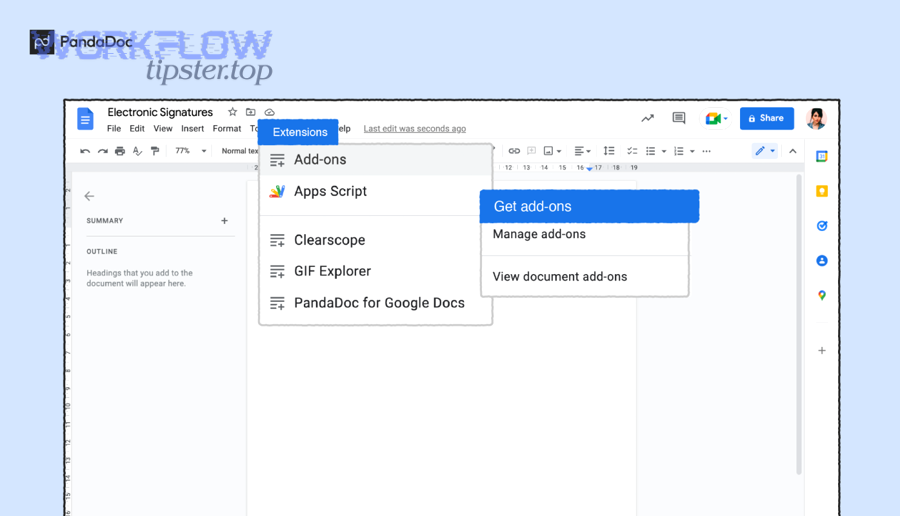
You send documents into PandaDoc by creating a PandaDoc document (from a template or uploaded file), assigning roles to recipients, and initiating a signature request—either through a no-code connector (like Zapier) or the PandaDoc API. PandaDoc’s OneDrive integration approach describes connecting PandaDoc to OneDrive through Zapier for file movement and automation. (pandadoc.com)
Then, decide first: Template-based or Upload-based.
- Template-based (recommended): PandaDoc template contains variables/roles; you push data in.
- Upload-based: you upload the generated PDF/DOCX; PandaDoc adds fields for signatures.
How do you create PandaDoc templates and roles for repeatable signing?
You create PandaDoc templates by defining reusable sections and assigning signer roles (Client, Internal Approver, HR, etc.) so the routing stays consistent across documents.
Then, a role design that scales looks like this:
- Role: Client Signer (name/email from Airtable)
- Role: Company Signer (fixed signer or chosen from a roster)
- Role: Finance CC (optional)
- Role: Legal Reviewer (internal approval step before sending)
If your workflow includes approvals before sending, keep approvals in Airtable (or an internal approval tool), and send to PandaDoc only after approval is complete.
How do you initiate signing and track recipients without manual follow-ups?
You initiate signing by sending the document and letting PandaDoc handle reminders/status—then syncing key events back to Airtable.
Then, you have two common options:
- No-code: Use an integration platform to create/send PandaDoc documents and update Airtable when status changes.
- API: Use PandaDoc webhooks to receive “document viewed/signed/completed” events and update Airtable automatically.
Here’s one practical training video you can embed into internal docs for onboarding:
How do you track signing status and sync the final PDF back into Airtable?
You track signing status by storing the PandaDoc document ID in Airtable, listening for status updates (via integration triggers or webhooks), and writing the final signed PDF link (OneDrive URL) back to the originating record.
Then, your goal is to make Airtable answer this question instantly: “What is the current truth of this document?”
How do you track document status milestones end-to-end?
You track milestones by defining a strict status model and updating it only through events—not opinions.
Then, use a status ladder like:
- Draft (record created, not approved)
- Approved (ready to generate doc)
- Generated (Google Doc created)
- Archived (Sent Copy) (OneDrive “Sent” version saved)
- Sent for Signature (PandaDoc created + sent)
- Viewed (optional milestone)
- Signed / Completed (all required signatures done)
- Archived (Final) (signed PDF saved + linked)
How do you handle failures, retries, and duplicate documents?
You handle failures by designing idempotency and retry rules into the workflow.
Then, implement these safeguards:
- Idempotency key: Use
{RequestID}as a unique external ID so the system can detect duplicates. - Retry policy: If document generation fails, retry only after validation (e.g., missing required fields fixed).
- Duplicate prevention: Block “Send” if a PandaDoc Document ID already exists for the record unless “Version++” is explicitly triggered.
- Human override: Create a “Manual Intervention Required” status when automation cannot safely decide.
This is also where teams often generalize the pattern into other automation workflows—for example, routing “github to jira to google chat devops alerts” using the same status-and-event logic: trigger → enrich → notify → confirm → log.
How do you optimize governance, security, and scale for this signing pipeline?
You optimize governance by choosing the right build approach (no-code vs API), enforcing permissions and retention, and establishing operational rules for templates, audits, and change management.
Then, treat this as a product—not a one-off integration. The workflow should survive staff changes, template edits, and tooling updates.
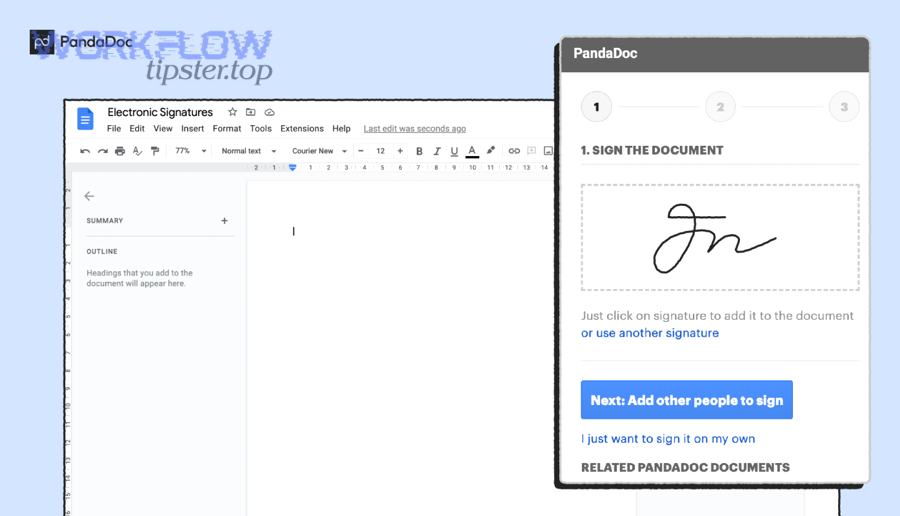
No-code vs API: Which approach is better for your signing workflow?
No-code wins in speed, API wins in control, and a hybrid is optimal for scale.
Then, use this comparison lens:
- No-code (best for ops teams launching fast):
- Pros: faster deployment, lower maintenance burden, easier troubleshooting
- Cons: limited customization, edge cases can be painful, connector limits
- API (best for engineering-led scale):
- Pros: full control, robust logic, better observability, strong idempotency
- Cons: build time, engineering ownership, long-term support required
- Hybrid (common in real orgs):
- No-code for document creation + routing
- API/webhooks for status sync, logging, and compliance-grade audit trails
A good hybrid example: keep your signing pipeline no-code, but implement an API-based event bus that also supports other processes like “calendly to calendly to microsoft teams to trello scheduling,” so scheduling and signing share governance patterns (permissions, logging, retries).
How should you design permissions across Airtable, OneDrive, and PandaDoc?
You design permissions by applying least privilege at each layer and preventing cross-system overexposure.
Then, set these baseline rules:
- Airtable:
- Editors only for request owners and ops
- View-only for stakeholders who just need status
- Separate tables (or bases) for sensitive clauses if needed
- OneDrive:
- Restrict Signed folder access to legal/ops
- Disable broad sharing links for finalized documents
- Use retention policies where available
- PandaDoc:
- Limit template edit permissions
- Control who can send documents externally
- Ensure recipients only see what they must sign
What compliance and audit practices should you add for document signing?
Compliance practices depend on your industry, but every team should implement baseline auditability: who generated, who approved, who sent, who signed, and where the final artifact is stored.
Then, add an “audit log” pattern in Airtable:
- Timestamped events (Generated, Sent, Signed, Archived)
- Actor (user or automation)
- Artifact link (Doc URL / OneDrive path / PandaDoc ID)
- Notes for exceptions (manual override reason)
How do you scale templates and avoid breaking changes as volume grows?
You scale by versioning templates intentionally and separating “template evolution” from “in-flight documents.”
Then, follow these rules:
- Template versioning: clone templates for major clause changes (
MSA v4) and only use the new version for new requests. - Field contract: treat Airtable fields as an API contract—renaming fields requires a change process.
- Release cadence: batch changes weekly/monthly, not ad hoc.
- Observability: update failure notifications, dashboards, and exception queues so ops can fix issues fast.
If you do this well, your signing workflow becomes a repeatable automation asset—one you can replicate across departments, not a fragile chain that breaks every time someone edits a template.