


An automated eSignature document signing workflow is the fastest way to turn a single Airtable record into a ready-to-sign agreement—generated in Google Docs, stored in Dropbox, sent through DocuSign, and tracked back to the same record without manual handoffs.
Next, this guide shows what you must set up first (fields, permissions, templates, and storage rules) so your team can generate consistent documents that don’t break when a record changes or a signer replies late.
Then, you’ll learn the practical “how” behind each stage—document generation, file organization, sending envelopes, and updating status—so your workflow stays reliable even as volume grows and more stakeholders join the process.
Introduce a new idea: once the core workflow is working, you can harden it against real-world edge cases like duplicate sends, version confusion, and compliance retention—so the automation remains trustworthy, not just fast.
MAIN CONTENT
What is an automated eSignature document signing workflow from Airtable to Google Docs to Dropbox to DocuSign?
An automated eSignature document signing workflow is a repeatable system that converts structured Airtable data into a Google Docs-based document, stores the final file in Dropbox, sends it to recipients via DocuSign, and writes signing status back to Airtable.
To connect that definition to real operations, the key is to treat “data → document → file → envelope → status” as one continuous chain where each step produces an output the next step can trust.
When teams skip the “chain” mindset, they usually end up with three common failures: templates that don’t match data, files that can’t be found later, and signature requests that cannot be reconciled to the original record. A well-designed workflow prevents these failures by enforcing consistency at the handoff points.
A practical way to visualize the workflow is as a document lifecycle:
- Record created/updated in Airtable (source of truth)
- Draft document generated (templated output)
- Exported PDF stored in Dropbox (stable file location)
- DocuSign envelope sent (signature event)
- Status + signed PDF returned (audit-ready completion)
What are the core components inside this workflow (data, template, file, envelope, status)?
The workflow has five core components—data, template, file, envelope, and status—because those parts are the minimum set required to generate a document, secure it, send it for signature, and prove it was completed.
To keep the chain intact, each component needs a single owner:
- Data (Airtable): owns truth (customer, pricing, signer details, dates).
- Template (Google Docs): owns structure (clauses, formatting, variables).
- File (Dropbox): owns storage (folder location, naming, version trace).
- Envelope (DocuSign): owns the signing event (recipients, roles, order).
- Status (Airtable): owns the timeline (sent, viewed, completed, declined).
If you design those five components explicitly, you can also scale safely. For example, you can add more templates without changing your storage conventions, or add more signers without changing your data model.
Is an automated workflow better than manual sending for recurring agreements?
Yes—an automated Airtable → Google Docs → Dropbox → DocuSign document signing workflow is better than manual sending for recurring agreements because it reduces human rework, improves consistency, and creates faster, trackable turnaround.
Then, the decision becomes clear when you compare automated vs manual based on three operational realities:
- Consistency pressure: recurring agreements demand consistent terms, formatting, and signer routing; automation enforces this.
- Volume pressure: as requests increase, manual steps become bottlenecks; automation keeps throughput stable.
- Visibility pressure: leadership wants “where is the contract right now?”; automation writes status back into Airtable.
That does not mean automation is always the right first move. If your agreements are highly bespoke and change every time, you may start with a standardized “minimum template” and automate only the repeatable pieces (recipient routing, file storage, status tracking).
What do you need before building the workflow (accounts, permissions, templates, fields)?
You need a prepared data model, correct permissions, a stable Google Docs template strategy, and a Dropbox folder architecture before you build the workflow—because automation can only be as reliable as the inputs and access rules it depends on.
Next, treat setup as a checklist you complete once, then reuse across every contract type your team sends. That’s how the workflow becomes a long-term asset instead of a one-off scenario.
At a minimum, you must align four things:
- Identity: who is allowed to trigger sending?
- Data quality: are required fields always present?
- Template integrity: do all placeholders have clean values?
- Storage permission: can your automation create and retrieve files?
Which Airtable fields should you prepare to generate accurate contracts or proposals?
There are 2 main groups of Airtable fields you should prepare—required fields and governance fields—based on whether they affect the document’s correctness or the workflow’s control.
Then, define a strict “required fields” set so the workflow never generates an incomplete agreement.
Required fields (document correctness):
- Customer/company legal name
- Contact (signer) full name
- Signer email address
- Deal/product name
- Pricing (amount, currency)
- Term length and renewal language (if applicable)
- Start date / effective date (or logic to calculate)
- Contract owner (internal)
- Agreement type (to pick the right template)
- Jurisdiction or governing law (if standardized)
Governance fields (workflow control):
- Status (Draft / Ready / Sent / Completed / Declined / Error)
- Template version (v1, v2, etc.)
- File link (Dropbox URL)
- Envelope ID (DocuSign identifier)
- Sent timestamp, completed timestamp
- Error message / last run notes (for debugging)
- “Ready to send?” checkbox or approval flag (prevents accidental sends)
A high-performing structure is to separate “content fields” (used in the document) from “control fields” (used to run the automation). That way, sales reps can update deal values without unintentionally changing the workflow’s safety rules.
What permissions and access controls should you set to keep documents secure?
You should set least-privilege permissions for Airtable, Google Docs, Dropbox, and DocuSign so only approved roles can generate, send, view, and retrieve signed files.
Then, connect access control to responsibility:
- Sales Ops / Admin: can run automation, send envelopes, and correct mapping errors.
- Sales reps: can edit business fields but cannot trigger sending until approved.
- Legal / Finance: can approve templates and receive notifications for exceptions.
- Executives: can view status dashboards without editing underlying records.
Concretely, you protect the workflow by preventing the two most common security failures: (1) files being stored in a shared folder with broad access, and (2) envelopes being sent by users without a clear audit trail. Even if you trust your team, automation multiplies the impact of mistakes—so permission discipline is a core part of “workflow correctness.”
How do you generate a DocuSign-ready document from Airtable data using Google Docs templates?
You generate a DocuSign-ready document by mapping Airtable fields into a Google Docs template, producing a clean final version, and exporting it to PDF so formatting remains stable when the signer opens it.
Then, you keep the workflow robust by designing templates that tolerate missing optional fields while failing fast on missing required fields.
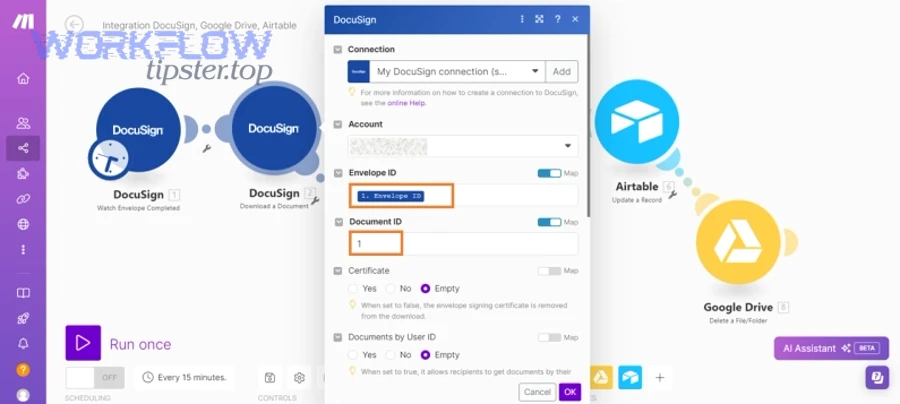
A good generation step produces the same output every time for the same inputs. That sounds obvious, but it’s exactly what prevents disputes such as “the version the customer signed doesn’t match the internal record.”
How do merge fields and placeholders work in a Google Docs template for automation?
Merge fields and placeholders work by reserving clearly named “slots” in the template that your automation replaces with Airtable values, so the same document structure can be generated for many deals.
Next, use a placeholder strategy that is predictable and reviewable:
- Use consistent naming:
{{CustomerName}},{{SignerEmail}},{{Price}},{{TermMonths}} - Avoid ambiguous labels: don’t use
{{Name}}if you have multiple names (company, signer, internal owner). - Separate formatted vs raw values: if you need
$1,250.00, store both raw numeric and formatted display output, or format in the automation layer. - Plan for optional sections: add conditional blocks for add-ons, discounts, or regional clauses.
A practical “template integrity” rule is this: every placeholder must have exactly one source field and exactly one expected format. If two sources can populate the same placeholder, you will eventually ship the wrong content.
Should you export to PDF before sending for signature?
Yes—you should export to PDF before sending for signature because PDF preserves layout across devices, reduces accidental edits, and creates a stable artifact that matches the signer’s view.
Then, keep DOC formats only when you have a controlled internal review step that happens before the signature stage. In most signing workflows, the “document for signing” must be the final version, not a version that can change because someone opened it in a different editor.
In practice, exporting to PDF also simplifies auditing. A PDF stored in Dropbox is easy to reference later, while a live document can be edited and complicate “what was signed.”
How do you store and organize generated documents in Dropbox before sending for signature?
You store and organize documents in Dropbox by creating a consistent folder structure and naming convention that separates drafts, sent versions, and signed copies—so anyone can retrieve the correct file without guesswork.
Next, Dropbox becomes more than storage: it becomes your “document ledger,” where every file’s location implies its workflow stage.
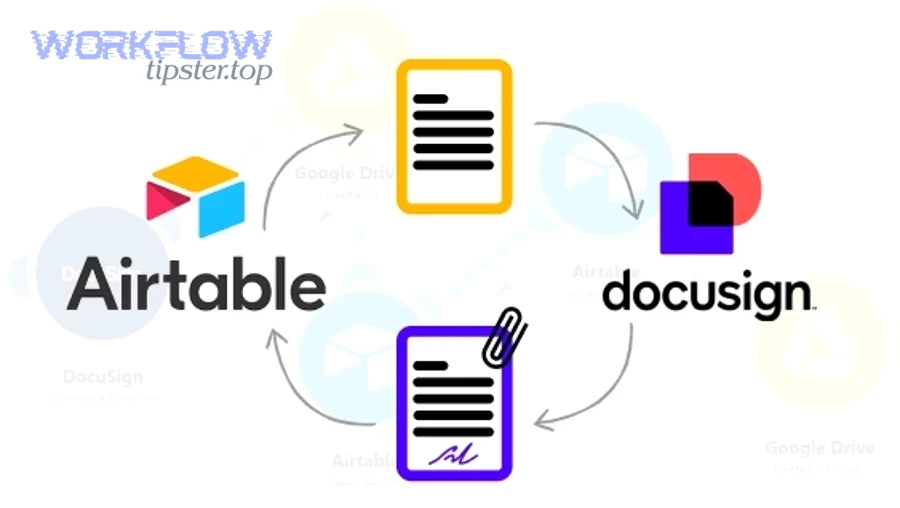
A strong Dropbox strategy answers three questions instantly:
- Where is the latest version?
- Which version was sent for signature?
- Where is the signed copy with the audit trail?
What folder structure prevents lost files and makes signed agreements easy to find?
There are 3 main folder structures that prevent lost files—deal-based, customer-based, and period-based—based on how your team searches for agreements in real life.
Then, choose the structure that matches your retrieval behavior:
- Deal-based (best for Sales Ops):
/Agreements/{Year}/{DealID}-{CustomerName}/Draft//Agreements/{Year}/{DealID}-{CustomerName}/Sent//Agreements/{Year}/{DealID}-{CustomerName}/Signed/
- Customer-based (best for Account Management):
/Customers/{CustomerName}/Agreements/{Year}/Draft//Customers/{CustomerName}/Agreements/{Year}/Signed/
- Period-based (best for Finance reporting):
/Agreements/{Year}/{Month}/Sent//Agreements/{Year}/{Month}/Signed/
Most operational teams succeed with deal-based folders because the Deal ID is unique and reduces naming collisions. The workflow can create the folder automatically and store the Dropbox link back into Airtable so the record remains the navigation hub.
How do you handle versioning when a document is regenerated or revised?
You handle versioning by treating one file as “the signing artifact,” incrementing versions only before sending, and freezing the exact PDF that was sent so the signed result always matches a specific version.
Then, enforce a version rule such as:
- Draft versions:
Agreement-{DealID}-v1-draft.pdf,v2-draft.pdf - Sent version (frozen):
Agreement-{DealID}-v3-sent.pdf - Signed result:
Agreement-{DealID}-v3-signed.pdf
This is where many workflows silently break: teams regenerate documents after sending, then overwrite a file, and later cannot prove what the signer saw. A simple versioning policy prevents that entire category of operational risk.
How do you send, track, and complete DocuSign envelopes automatically?
You send, track, and complete DocuSign envelopes automatically by creating an envelope with mapped recipients and roles, sending it to the signer, listening for status changes, and updating the Airtable record while storing the signed file back in Dropbox.
Then, treat the envelope as the “signature transaction” and Airtable as the “system of record” for its status, timestamps, and next actions.
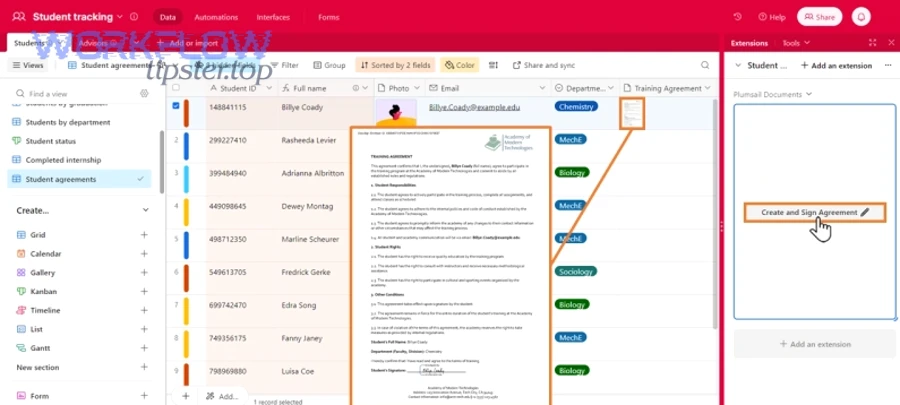
At scale, envelope tracking is not optional. If you cannot answer “who is holding up the signature?” your workflow is only half automated.
How do you map recipients, roles, and signing order from Airtable fields to a signature request?
You map recipients, roles, and signing order by converting Airtable fields into a recipient list that includes each signer’s identity, role, and routing order so DocuSign sends the right request to the right person at the right time.
Next, use a role model that aligns with your business process:
- Signer (Customer): name + email from Airtable
- Counter-signer (Internal): contract owner or finance approver
- CC recipients: stakeholders who need visibility but do not sign
A reliable mapping strategy includes validation rules before sending:
- Confirm signer email is present and properly formatted.
- Confirm signing order is explicit (1, 2, 3) if sequential.
- Confirm the template uses matching role names (e.g., “CustomerSigner”, “CompanySigner”).
If you store “Recipient Role” and “Routing Order” in Airtable, you can also support more complex workflows (multi-signer, regional approvers) without rewriting logic.
What statuses should you track so teams can act at the right time?
There are 7 main statuses you should track—Draft, Ready, Sent, Viewed, Completed, Declined, and Error—based on what action your team must take next.
Then, make status actionable by attaching “what we do next” guidance:
This table explains the recommended workflow statuses, what each status means operationally, and the next action a team should take so the process remains predictable.
| Status | What it means | What the team does next |
|---|---|---|
| Draft | Not ready to send | Finish fields, review template |
| Ready | Approved to send | Trigger automation/send envelope |
| Sent | Envelope created and sent | Wait, monitor timeline |
| Viewed | Signer opened it | Follow up if stalled |
| Completed | Signed and finished | Store signed copy, notify stakeholders |
| Declined | Signer refused | Review reason, revise terms |
| Error | Automation failed | Fix mapping/permissions, retry safely |
This table matters because it turns “status” into operations. A dashboard is only useful when the statuses are consistently defined and drive consistent actions.
How can you build this workflow step-by-step with no-code tools (and what does each step do)?
You can build the workflow with no-code tools by implementing a chain of 7 steps—trigger, fetch record, generate document, export PDF, upload to Dropbox, send DocuSign envelope, and update Airtable—so a single “ready” signal produces a signed agreement with full traceability.
Then, the key to success is field mapping discipline: every step must pass forward only what the next step needs, and every step must write important outputs back to Airtable.
To make the flow concrete, think in “inputs” and “outputs”:
- Inputs: Airtable record fields
- Outputs: Dropbox file URL + DocuSign envelope ID + status timestamps
What is a practical step-by-step build using Make (scenario) for this exact chain?
A practical Make scenario uses a record-trigger, document generation, storage modules, and a DocuSign send module to produce a signed agreement while updating Airtable with the envelope ID and status.
Then, implement it as a clear runbook:
- Trigger: Airtable record enters “Ready” status (or checkbox checked).
- Fetch details: Get full record, linked fields, and computed values.
- Generate document: Create Google Docs document from template + merge fields.
- Export PDF: Convert to PDF for signing stability.
- Upload to Dropbox: Save to
/Agreements/{Year}/{DealID}-{CustomerName}/Sent/. - Send DocuSign envelope: Assign recipients/roles, attach PDF, set signing order.
- Update Airtable: Save Dropbox URL + envelope ID, set status to “Sent.”
- Webhook/status listener (optional but recommended): On “Completed,” retrieve signed PDF and store to
/Signed/, then update Airtable.
The reason Make tends to work well here is its flexibility for multi-step transformations and its visibility into intermediate outputs—useful when debugging mapping problems.
What is a practical step-by-step build using Zapier (zaps) for this exact chain?
A practical Zapier build uses a trigger in Airtable, a document creation step, a Dropbox upload step, and a DocuSign action to send the envelope and update the record.
Then, structure the Zap in a way that avoids “hidden” complexity:
- Trigger: Airtable record matches condition (Ready = true).
- Formatter/Validation: Ensure required fields exist; stop if missing.
- Create doc: Generate from template (or create Google Doc and fill fields).
- Export: Create a PDF version of the document.
- Dropbox upload: Upload PDF to the designated folder and capture the file link.
- DocuSign action: Send envelope using file + recipients from Airtable.
- Airtable update: Write envelope ID + file link + Sent timestamp.
Zapier often shines when your workflow is straightforward and your team values fast implementation over deep customization. The tradeoff is that multi-branch logic can become harder to manage, so keep the first version simple and stable.
Also, “automation workflows” become easier to govern when you document each step in the Airtable record itself—so the record tells the story of the agreement, not the automation tool.
How do you validate and maintain the workflow after launch?
You validate and maintain the workflow by testing edge cases, monitoring failures, and applying governance rules (template versioning, permissions, and safe retries) so the workflow keeps producing correct documents and consistent signing outcomes over time.
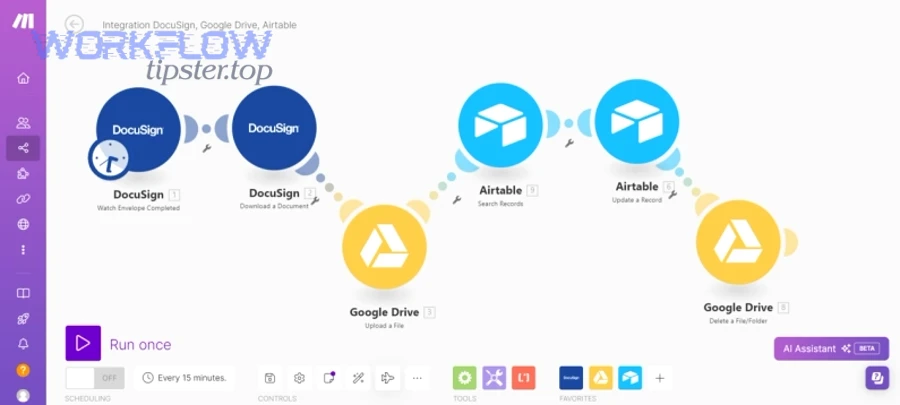
Then, treat maintenance as a routine, not an emergency. Most workflow breakdowns happen after “small changes”—a renamed Airtable field, a moved Dropbox folder, or a template placeholder edited without updating mapping.
What tests confirm the workflow works before you roll it out to the whole team?
There are 6 essential test cases that confirm the workflow works—based on whether your system can prevent bad sends, recover from errors, and produce the correct signed artifact.
Then, run them in a controlled test environment:
- Happy path: all required fields present; signer completes successfully.
- Missing signer email: workflow blocks send; status becomes Error with message.
- Template placeholder missing: workflow fails fast; no file is sent.
- Dropbox permission mismatch: file upload fails; workflow logs error.
- Wrong signer role/order: DocuSign rejects envelope or routes incorrectly; you detect it via validation.
- Signer declines: status becomes Declined; internal team receives a clear next action.
The goal is not just “it works once,” but “it fails safely when it should.”
How do you monitor failures and prevent duplicate sends over time?
You monitor failures and prevent duplicate sends by logging every run, writing envelope IDs back to Airtable, and applying an idempotency rule that checks for an existing envelope before creating a new one.
Then, implement duplicate prevention with three safeguards:
- Envelope ID lock: if Airtable already has an envelope ID, do not send again.
- Status gating: only allow sending when status is Ready (not Sent/Completed).
- Run logging: store last run timestamp + last run result in Airtable.
This is also where operational metrics help. For example, you can track time-to-complete from “Sent” to “Completed” and identify deals that consistently stall.
According to a study by The California State University (San Francisco State University program team), in 2020, six selected cases showed that electronic signatures reduced average turnaround time by 73% versus manual processes, and 78% of transactions were completed in less than one week.
SUPPLEMENTARY CONTENT
How do you troubleshoot and harden an automated eSignature workflow in real-world conditions?
You troubleshoot and harden the workflow by identifying failure points across data, templates, storage, and envelope sending, then adding safeguards like validation, retries, duplicate prevention, and clear fallbacks so the system remains reliable under stress.
Next, think of hardening as the “antonym layer” of automation: not just making it faster, but making it resilient when something goes wrong.
This is also where related workflow chains become helpful mental models. If your team can run “calendly to outlook calendar to microsoft teams to basecamp scheduling,” you already understand the discipline required to keep a multi-app chain stable—clear triggers, clean data, consistent outputs, and visible status.
This is also where you can extend your semantic coverage: your workflow logic is portable. For instance, if you later add a sales enablement stage or pre-sign review, you can reuse the same patterns you learned here.
As a related example, “airtable to docsend to onedrive to docusign document signing” uses the same architecture even though the storage and delivery layer differs—data truth in Airtable, document stage, file stage, signature stage, and status stage.
What are the most common failure points across data, templates, storage, and signature sending?
There are 4 main failure points—data gaps, template mismatches, storage errors, and signature routing mistakes—based on which system fails first in the chain.
Then, address each category with targeted checks:
- Data gaps (Airtable): missing required fields, invalid emails, inconsistent currency formatting.
- Template mismatches (Google Docs): placeholder name changed, conditional clauses not handled, formatting breaks on export.
- Storage errors (Dropbox): folder missing, permission denied, file overwritten, link not captured.
- Signature sending issues (DocuSign): role mismatch, routing order wrong, recipient rejected, envelope created without correct attachment.
A useful technique is to add “pre-flight validation” before generating any document. If the record fails validation, you stop early and write a human-readable error back to Airtable.
How do you design retries, idempotency, and duplicate-prevention for DocuSign sends?
You design retries, idempotency, and duplicate prevention by using one unique workflow key per Airtable record and ensuring the automation checks for an existing envelope ID before it creates a new envelope.
Then, implement safe retries in layers:
- Retry the stage, not the whole chain: if Dropbox upload fails, retry upload without regenerating the document unless needed.
- Use idempotency keys: treat
{DealID + TemplateVersion}as the unique “send fingerprint.” - Store immutable outputs: once you have a “sent PDF,” don’t overwrite it—create a new version and send only after approval.
This approach prevents the classic failure where a workflow runs twice due to a transient error and sends two envelopes to the same signer.
When should you choose Zapier vs Make vs a custom API integration for this workflow?
Make wins in flexibility, Zapier is best for fast simple builds, and a custom API integration is optimal for strict governance and high volume—so the right choice depends on complexity, scale, and control requirements.
Then, use a decision framework:
- Choose Zapier when: the flow is linear, the team wants speed, and exceptions are rare.
- Choose Make when: you need branching, complex mapping, or robust run history for debugging.
- Choose custom API when: you need advanced controls (fine-grained retries, deeper logging, complex compliance) or expect heavy volume and strict SLAs.
What compliance and retention practices matter for signed agreements and audit trails?
Compliance and retention practices matter because signed agreements must be retrievable, tamper-resistant, and access-controlled over time, especially when legal, finance, or audit teams need proof of what was signed and when.
Then, focus on four essentials:
- Access control: limit who can view signed documents; review access regularly.
- Retention policy: define how long to keep signed files and how they are archived.
- Audit trail preservation: store the signed PDF and associated audit materials in a stable location.
- Change control: lock template versions and document generation rules so “what we send” is consistent.
When compliance is treated as a workflow stage (not an afterthought), you reduce risk without slowing down the team—because the workflow is designed to produce audit-ready outputs automatically.