


If you want a reliable, no-touch document signing pipeline, the most effective approach is to treat Airtable as your system of record, generate a clean “ready-to-sign” PDF, route it through DocSend and Dropbox with consistent naming/version rules, then send and track the DocuSign envelope back in Airtable.
Next, the key to making this workflow actually usable for Sales & Ops is clarity: you need one agreed lifecycle (Draft → Generated → Shared → Sent → Completed) and one owner for each step, even if the step is automated.
Then, you’ll also need an implementation choice that matches your reality—Zapier for speed, Make for complex routing, or a custom API for high scale and strict governance—because the wrong platform is how “no manual steps” quietly turns into daily firefighting.
Introduce a new idea: once the foundation is in place, you can harden the workflow with guardrails (validation, idempotency, monitoring) and add security/compliance controls so your automation stays fast without becoming risky.
What is an Airtable → DocSend → Dropbox → DocuSign document signing workflow (and what does “no manual steps” actually mean)?
An Airtable → DocSend → Dropbox → DocuSign document signing workflow is an automated agreement pipeline that turns a structured Airtable record into a signable document, routes it for sharing and storage, sends it for eSignature, and syncs outcomes back—without human handoffs.
To better understand what “no manual steps” means, you need to define the workflow as a chain of state changes, not a chain of apps.
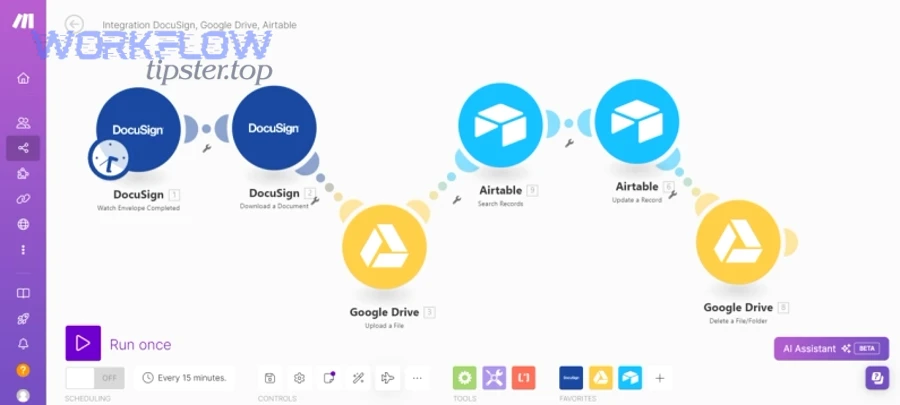
In practice, “no manual steps” does not mean “no humans involved.” It means humans don’t have to push the process forward. Sales and Ops still decide what should be sent and to whom—but once a record meets readiness criteria, the system runs the steps and reports the outcome back to Airtable.
A clean way to frame the system is by roles:
- Airtable is the system of record for deal/customer data, signer roles, and status.
- Doc generation is the transformation step that converts structured data into a PDF.
- DocSend is the delivery and visibility layer (controlled sharing + engagement signals).
- Dropbox is the canonical file store (versioned, permissioned, and searchable).
- DocuSign is the execution layer for signatures and audit artifacts.
The “end-to-end” promise only holds if each hop has two things: (1) a stable identifier (record ID, document version, envelope ID), and (2) a status update that returns to Airtable so the chain stays visible and measurable.
What data should live in Airtable to support automated document signing?
The most reliable answer is: keep only the data that drives routing and document generation, and make every field auditable and validated.
Specifically, Airtable should store the minimum dataset required to (1) generate the document, (2) address the signers, and (3) track progress.
Core fields (almost always required):
- Primary key: Deal/Contract ID (immutable)
- Signer 1 email, name, role (e.g., Customer signer)
- Signer 2 email, name, role (e.g., Internal approver) if needed
- Company / account name
- Document type (NDA, MSA, Order Form)
- Template ID (maps to the correct document template)
- Document language / region (if your templates vary)
- Status (Draft, Ready, Sent, Completed, Declined, Expired)
- Envelope ID (once created)
- Signed date / Completed timestamp
Validation fields (the guardrails that prevent bad sends):
- Readiness checklist (all required fields present = true)
- Approval flag (legal/manager approval complete = true)
- Version number (increments when terms change)
Optional but high-value fields:
- CC recipients (Sales manager, Deal desk)
- Expiration date / signing deadline
- Renewal date (for lifecycle automation later)
- A “Do Not Resend” boolean (prevents duplicates)
When these fields live in Airtable, Ops can see the pipeline at a glance, and the automation tool can reliably decide what to do next.
What are the exact workflow stages from “record created” to “signed PDF stored”?
There are 6 stages in a durable workflow: Draft, Generated, Shared, Sent to Sign, Completed, Archived—based on where the “source of truth” for the document lives at that moment.
Below is how each stage maps to an automated action and an Airtable status update.
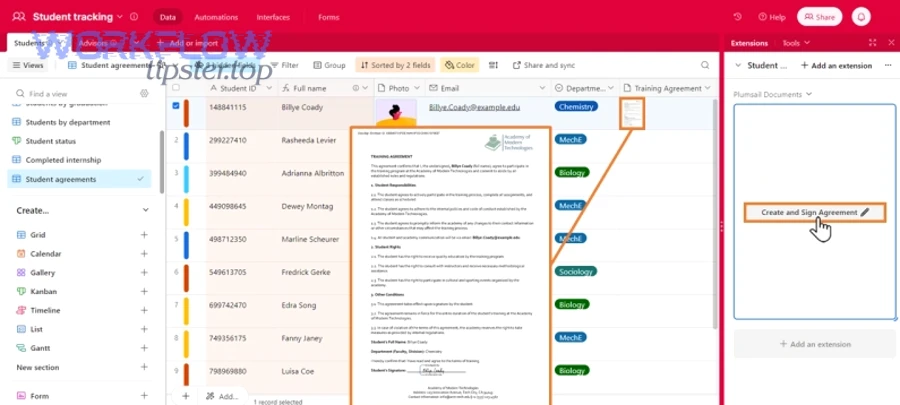
- Draft (Airtable)
- Human inputs deal data and selects document type/template.
- Automation checks readiness and approval flags.
- Generated (Document created)
- System merges Airtable fields into a template and exports a PDF.
- PDF is named using a standard pattern (e.g.,
ACME_NDA_v3_2026-02-02.pdf).
- Shared (DocSend)
- System uploads the PDF to DocSend and generates a controlled share link.
- Airtable stores the DocSend link (and optionally engagement fields later).
- Stored (Dropbox canonical copy)
- System saves the same PDF to Dropbox in a structured folder (Account → Deal → Drafts).
- Airtable stores the Dropbox file path or shared link as the canonical location.
- Sent to Sign (DocuSign envelope created)
- System creates a DocuSign envelope from the PDF, assigns signer roles, and sends.
- Airtable stores the envelope ID and sets status to Sent.
- Completed (Signed PDF returned)
- System receives completion event (webhook/poll) and downloads the signed PDF + completion certificate.
- Signed artifacts are stored in Dropbox (Account → Deal → Signed).
- Airtable status changes to Completed with timestamps.
If you can’t explain which stage your workflow is currently in, you don’t have an end-to-end workflow—you have a set of disconnected actions.
How do you set up the workflow step-by-step using automation tools (Zapier/Make) without manual steps?
The best method is to implement the workflow in 6 steps—data validation, document generation, DocSend sharing, Dropbox storage, DocuSign sending, and status sync—so the Airtable record becomes both the trigger and the dashboard outcome.
Then, you’ll want to build it “thin-first,” meaning you ship a minimal version that works reliably before adding optional branches.
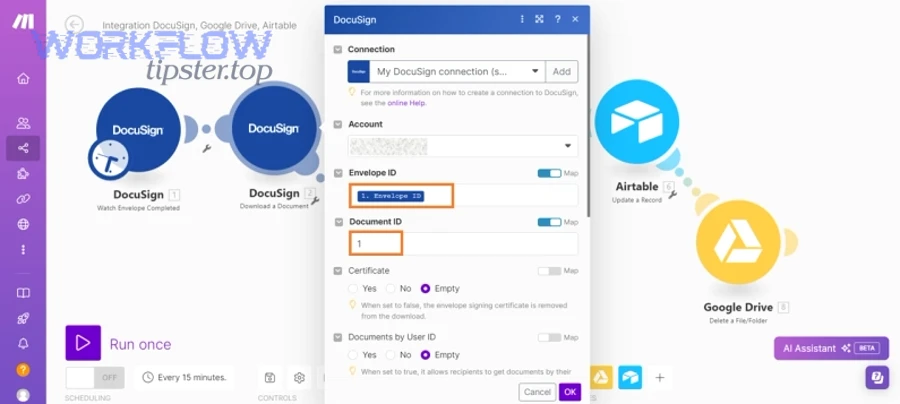
How do you generate the document from Airtable data before it goes to DocSend/Dropbox/DocuSign?
You generate the document by mapping Airtable fields into a template, exporting a PDF, and locking a version number so every later step references the same immutable file.
More specifically, document generation is where most automation workflows fail—because teams treat templates like “nice-to-have” instead of system infrastructure.
- Choose a template engine
- Google Docs templates (simple, fast, familiar)
- Microsoft Word templates (common in legal-heavy orgs)
- A PDF generation tool (best for pixel-perfect forms)
- Define your variable map
- Every Airtable field that appears in the document must have a clear field name, a data type (text, date, currency), a formatting rule (date format, currency symbol), and a fallback if blank.
- Export to PDF
- PDF is the safest “handoff format” for storage + signing.
- Store the PDF output link/ID back into Airtable immediately.
- Apply naming + version rules
- Use a consistent naming pattern that includes account + document type + version.
- Increment version when terms change; don’t overwrite.
Common cautions that prevent rework:
- Don’t generate if readiness checks fail (missing email, missing legal entity).
- Don’t regenerate if status is already Sent (you’ll break the audit trail).
- Don’t mix “draft sharing” and “signing copy” unless you clearly label them.
This is also where many teams choose an alternate chain such as Google Docs to Google Drive to Dropbox Sign for simpler agreements—like in “airtable to google docs to google drive to dropbox sign document signing”—but the discipline around versioning and readiness still applies.
How do you route the file through DocSend and Dropbox before sending it to DocuSign?
You route the file by treating Dropbox as the canonical storage layer and DocSend as the controlled distribution layer, so you can share and track engagement without losing file governance.
In addition, this routing decision removes a common Ops headache: “Which PDF did we actually send?”
Suggested routing pattern:
A) Store first (Dropbox as source of truth)
- Upload the generated PDF into Dropbox:
/Accounts/ACME/Deals/2026-Q1-NDA/Drafts/ACME_NDA_v3.pdf
- Return the Dropbox file ID/path to Airtable.
B) Share second (DocSend as controlled access)
- Upload the same PDF (or link to it, depending on your setup) to DocSend.
- Create a DocSend share link with link permissions, expiry options (if used), and viewer restrictions where appropriate.
C) Record linkage back to Airtable
- Store the DocSend link, Dropbox canonical path, document version, and generated timestamp.
Why this matters:
- DocSend can be excellent for controlled sharing and insight, but it is not always your long-term archive.
- Dropbox is ideal for permissions, retention, and organized storage.
- Airtable becomes the “index” that ties everything together.
How do you send a DocuSign envelope automatically and write the status back to Airtable?
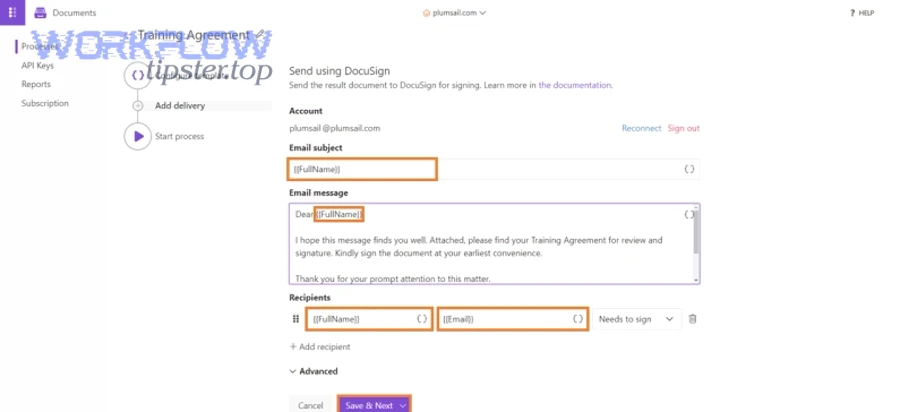
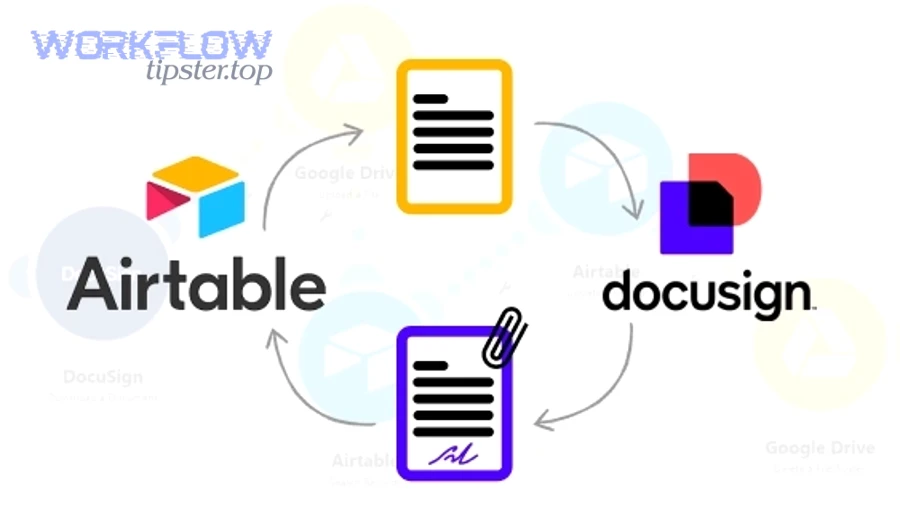
You send a DocuSign envelope by creating the envelope from the generated PDF, assigning recipients and signing order, sending it, and storing the envelope ID in Airtable so every later update references the same transaction.
Moreover, envelope ID is your golden key—without it, you can’t reliably prevent duplicates or reconcile outcomes.
- Create envelope
- Input: PDF file + metadata (subject, email message)
- Recipients: signer name/email, role (Customer signer, Internal signer), signing order (if sequential)
- Add tabs/fields
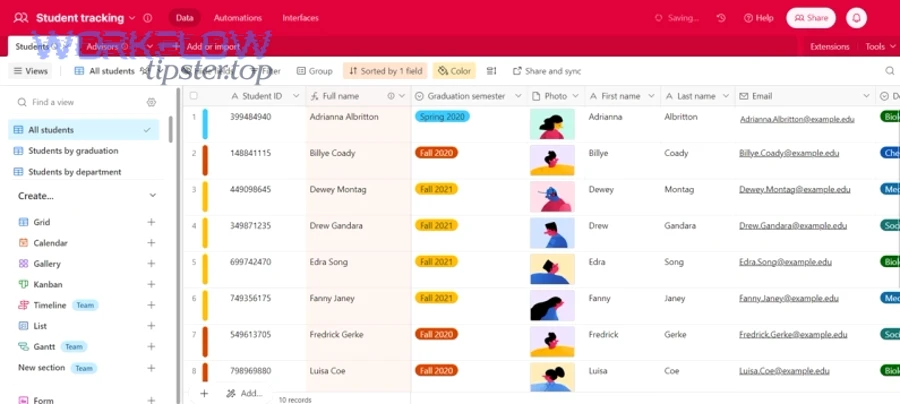
- Use a template if possible so signature/date fields are pre-defined.
- If dynamic, place fields predictably (this is harder and less reliable).
- Send envelope
- Capture response data: envelope ID, sent timestamp.
- Sync status back to Airtable
- Update Airtable fields: status = Sent, envelope ID, DocuSign status (Sent/Delivered/Completed/Declined/Void/Expired).
- Listen for completion
- Preferred: webhook/callback (fast, reduces polling)
- Backup: scheduled polling by envelope ID (reliable but slower)
Here’s one helpful walkthrough video you can use for the DocuSign “send envelope” mechanics (embed only):
Should Sales & Ops teams automate this workflow—yes or no?
Yes—Sales & Ops teams should automate an Airtable → DocSend → Dropbox → DocuSign document signing workflow because it reduces cycle time, prevents status ambiguity, and standardizes compliance artifacts, especially when agreements are high-volume, template-based, and time-sensitive.
However, the best results appear when you automate the routine path and deliberately isolate exceptions.
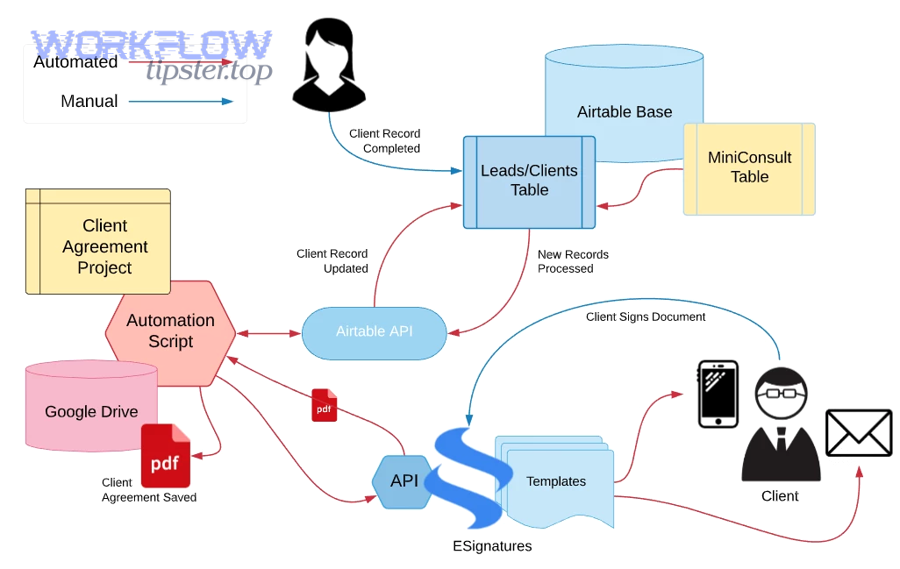
- Reason 1: Speed with fewer handoffs — Automation eliminates “waiting-room work” like chasing emails, exporting PDFs, renaming files, and updating spreadsheets.
- Reason 2: Visibility for operations control — Airtable becomes the live pipeline view where every record has a current stage, owner, and next action—without Slack archaeology.
- Reason 3: Consistency for risk reduction — Automations enforce templates, signer roles, naming conventions, and storage locations, which prevents the “wrong version signed” failure.
According to a study by Université de Montréal from the Département de Radiologie, in 2011, implementing electronic signature reduced the median time from transcription to final signature from 11 days to 3 days for abdominal ultrasound reports and from 10 days to 5 days for chest radiographs.
Yes: What use cases benefit most from automation?
There are 4 main types of agreements that benefit most from automation: high-volume, low-variance, time-sensitive, and repeatable renewals, based on how consistently you can template the content.
Next, focus on documents where the “send-to-sign” action should happen the moment a record is ready.
- NDAs that follow a standard template
- Order forms pulled from a pricing table
- Renewal addendums with predictable terms
- Onboarding forms where the signer set is known upfront
Operationally, these documents share the same pattern: the cost of manual handling is higher than the cost of building automation once.
No (or not yet): When should you keep manual steps?
There are 3 main situations where you should keep manual steps: negotiated terms, uncertain signer routing, and high-risk exceptions, based on the likelihood that a human must intervene to prevent a mistake.
Then, instead of forcing full automation, you create a controlled “manual gate” stage.
- Redlines are expected (legal negotiation)
- Signers change frequently or depend on internal approvals
- Attachments vary (multiple exhibits, custom SOW)
- Jurisdictional complexity (special clauses, local requirements)
In these cases, your best outcome is “automation with guardrails,” not automation at all costs.
What’s the best way to implement it: Zapier vs Make vs custom API?
Zapier wins in speed-to-launch, Make is best for complex routing and data transformation, and a custom API is optimal for strict governance and scale—so the “best” option depends on your workflow complexity, volume, and compliance needs.
To illustrate the trade-offs clearly, compare the options by ownership, logic complexity, monitoring, and risk tolerance.
Before the table, here’s what it covers: the table below compares Zapier, Make, and a custom API build across the operational criteria that most affect Sales & Ops document signing workflows.
| Criterion | Zapier | Make | Custom API |
|---|---|---|---|
| Build speed | Fast | Medium | Slow |
| Routing complexity | Low–Medium | High | Very high |
| Data transforms | Light | Strong | Unlimited |
| Monitoring & logs | Basic–Medium | Strong | Depends on your stack |
| Governance & controls | Medium | Medium–High | High |
| Best for | Standard playbooks | Multi-branch workflows | Scale + compliance |
A useful mental model:
- If your flow looks like a straight line, Zapier is often enough.
- If your flow looks like a router with many branches, Make is usually better.
- If your flow looks like a product (SLA, audit, strict controls), build it.
This is also why teams that already run automations in other domains—like calendly to outlook calendar to zoom to linear scheduling (“calendly to outlook calendar to zoom to linear scheduling”)—tend to prefer workflow tools that support branching, retries, and a clean audit trail. The same muscle matters for document signing.
How does Zapier compare for speed-to-launch and maintenance?
Zapier is best when you want a stable, low-maintenance workflow quickly, because it excels at simple triggers/actions and predictable paths without heavy data transformation.
Specifically, Zapier fits teams that want value this week, not a platform project this quarter.
- Where Zapier shines:
- Fast setup from Airtable triggers (new/updated record)
- Straightforward “if this, then that” signing flows
- Easy handoff notifications to Slack/Email
- Where you must be careful:
- Complex branching can become hard to maintain
- Advanced error handling may require workarounds
- Heavy document transformation is better done outside Zapier
A practical rule: if you can describe the workflow in one paragraph, Zapier is probably fine.
How does Make compare for complex routing and data transformations?
Make is best when your workflow needs routers, iterators, and rich transformations, because it can handle multi-path logic while keeping the entire scenario visible end-to-end.
Moreover, Make tends to “feel” more like a flowchart, which is helpful when Ops needs to understand what’s happening.
- Route signers by region, deal size, or product line
- Generate multiple documents per record (NDA + Order Form)
- Use conditional branches (e.g., “If legal approval required, pause”)
- Review detailed run logs for troubleshooting
The trade-off is ownership: Make workflows can be powerful, but they require more deliberate documentation and version control, especially when the org grows.
When is a custom API workflow the right choice?
Yes—a custom API workflow is the right choice when you need strict control over security, idempotency, rate limiting, and auditability, and you have sufficient engineering support to build and operate it reliably.
On the other hand, if your team can’t commit to ongoing monitoring and maintenance, a custom build can create more risk than it removes.
- You process high volume (and need strong rate-limit management)
- You require deep DocuSign features beyond connector defaults
- You must enforce strict access control and logging
- You need a formal SLA and measurable reliability
If your signing workflow is “mission-critical infrastructure,” treat it like engineering infrastructure.
How do you make the workflow reliable (and truly “no manual steps”) in real life?
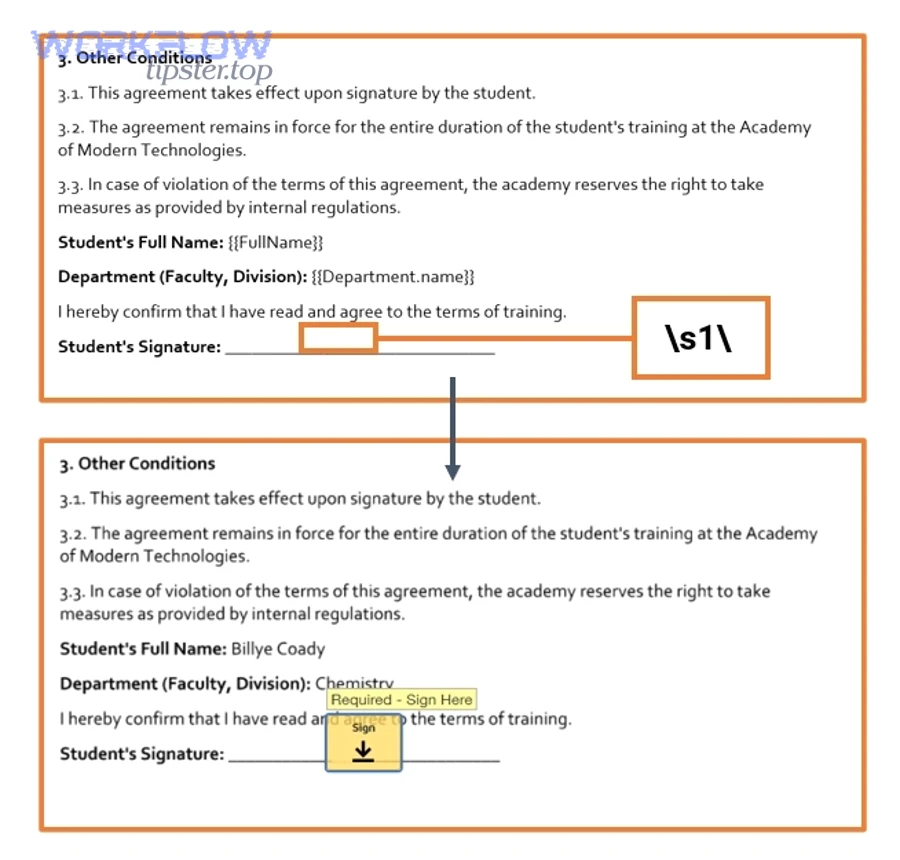
You make the workflow reliable by adding 5 reliability controls—validation, version locking, idempotency, retries, and monitoring—so the system can recover from errors without humans pushing it forward.
More importantly, reliability is not a feature you add at the end; it’s how you prevent the workflow from collapsing at scale.
What are the most common failure points and how do you prevent them?
There are 6 common failure points: missing signer data, template mismatch, document version confusion, file permission errors, integration timeouts, and status desync—based on where the workflow depends on external systems.
Next, the fix is to prevent bad runs before they start.
- Failure point 1: Missing signer email or wrong role mapping
- Readiness checks in Airtable
- Email format validation
- Required fields locked before Ready status
- Failure point 2: Template mismatch (wrong doc type sent)
- Template ID tied to document type
- A “preview” stage for internal review when needed
- Failure point 3: Wrong version signed
- Immutable version numbers
- “Do not resend” flag once Sent
- Signed artifacts stored separately from drafts
- Failure point 4: Dropbox permission problems
- Service account with explicit folder permissions
- Pre-created folder structure
- Automated checks that confirm write access
- Failure point 5: DocSend link settings break access
- Standard link policy (expiry rules, viewer constraints)
- Store both link and file reference in Airtable
- Failure point 6: Status desync (Airtable says Sent but DocuSign completed)
- Webhooks where possible
- A daily reconciliation job that checks envelope IDs
The theme is simple: you reduce surprises by pushing uncertainty into validation, not runtime.
How do you handle retries, duplicates, and idempotency across multi-step automations?
You handle retries and duplicates by using an idempotency key (Record ID + Document Version + Document Type), storing the envelope ID immediately, and making every downstream step conditional on that envelope ID.
Thus, even if your automation reruns, it does not create a second envelope.
- Idempotency key: deal_id + doc_type + version
- Lock point: Once envelope ID exists, no “create envelope” step may run again
- Retry policy: Retry transient errors (timeouts, 429s) with backoff
- Dead-letter handling: If retries fail, set status = Error and log the reason
Practical “no duplicates” rules:
- If Airtable status is Sent/Completed, block regeneration.
- If envelope ID exists, only perform status checks and artifact downloads.
- If a new version is needed, explicitly increment version and create a new envelope tied to the new version.
This is the reliability spine that keeps automation workflows safe as volume grows.
What are the security, compliance, and edge-case considerations for Airtable → DocSend → Dropbox → DocuSign automation?
Security, compliance, and edge-case readiness come down to controlling access, preserving document integrity, and storing audit artifacts, so your automated signing workflow stays fast while still meeting internal and external requirements.
Besides speed, this is where “no manual steps” must be balanced against “manual review gates” for high-risk exceptions.
How do you set permissions and access controls across Airtable, DocSend, Dropbox, and DocuSign?
There are 4 main permission layers—record access, link access, folder access, and signing authority—based on where sensitive data can leak or be misused.
Then, you implement least privilege at each layer so one compromise doesn’t expose everything.
- Airtable (record access)
- Separate bases or views for sensitive data
- Limit who can edit signer fields
- Restrict automation credentials to service accounts where possible
- DocSend (link access)
- Use controlled links rather than open links
- Consider expiration and viewer restrictions for sensitive documents
- Avoid embedding PII in link metadata if it’s public-facing
- Dropbox (folder access)
- Predefine folder structure with explicit group permissions
- Store signed artifacts in a locked “Signed” folder with tighter access
- Ensure audit artifacts are not editable by broad teams
- DocuSign (signing authority)
- Define who can send envelopes and what templates they can use
- Use templates with locked fields when possible
- Monitor sending permissions to prevent unauthorized sends
If you want to move fast without fear, permissions must be systematic—not negotiated in Slack every time.
What audit artifacts should you store (envelope IDs, completion certificates, final PDFs) and where?
There are 3 core audit artifacts you should always store: envelope ID, signed PDF, and certificate of completion—based on what you need to prove who signed what, when, and under which terms.
More specifically, the question is not “Should we store them?” but “Where do we store them so they stay consistent?”
- Airtable: envelope ID, signer identities, timestamps, status, canonical Dropbox paths
- Dropbox: final signed PDF + certificate of completion, placed in
/Signed/with immutable naming - DocSend: optional engagement trail (views, time), used for commercial visibility—not long-term record
Suggested naming convention for signed artifacts:
ACME_NDA_v3_SIGNED_2026-02-02.pdfACME_NDA_v3_CERTIFICATE_2026-02-02.pdf
This structure gives Ops a dashboard (Airtable) and gives Legal/Finance a durable archive (Dropbox).
How do you handle advanced signer routing (conditional recipients, signing order, fallback signers)?
There are 4 main routing patterns—sequential signing, parallel signing, conditional signers, and fallback signers—based on how approvals and responsibilities differ by deal type.
Next, you encode the routing rules in Airtable fields so the automation engine can act deterministically.
- If deal value > threshold → add Finance signer
- If region = EU → use EU-specific template + add GDPR addendum signer
- If customer is public sector → add compliance reviewer
- If primary signer bounces → route to fallback signer and alert owner
- Store signer “roles” in Airtable, not just emails, so templates map cleanly.
- Keep a routing matrix table in Airtable (Document Type × Region × Required Roles).
- Log the routing decision back into Airtable for auditability.
Advanced routing is where Make or custom APIs can outperform simpler tools, but the real success factor is rule clarity.
DocSend eSignature vs DocuSign: when should you use each (or both)?
DocSend can be useful for controlled sharing and engagement visibility, while DocuSign is typically the better choice for robust signing workflows, templates, and enterprise-grade audit artifacts—so using both often means DocSend for pre-sign sharing and DocuSign for the actual signature event.
Meanwhile, your decision should be driven by governance needs, not by convenience.
- Use DocSend primarily when:
- You want to share a document securely and measure engagement
- You want a controlled pre-sign review step
- Use DocuSign primarily when:
- You need standardized templates and consistent signing fields
- You require completion certificates and structured audit trails
- You want strong lifecycle events (sent, delivered, completed, declined)
- Use both when:
- Sales wants engagement insight and Ops needs strict signed artifact governance
- You need a “review link” stage before sending a formal envelope
When you align the tools with their strengths, your end-to-end Airtable → DocSend → Dropbox → DocuSign document signing workflow stays fast, visible, and defensible.