


Automating an Airtable → Confluence → Dropbox → DocuSign document signing workflow means you capture structured request data once, generate a consistent agreement packet, store a single source of truth, and route it for signature without chasing email threads or printing paperwork.
Next, you’ll see how each system plays a specific role: Airtable acts as your intake and tracking database, Confluence becomes the living “spec + policy + decision log,” Dropbox stores the finalized document artifact, and DocuSign turns that artifact into a legally executed, trackable agreement.
Then, you’ll learn what makes this flow reliable in real operations: clear field mapping, document templating, predictable file naming, a defined approval gate, and status sync so stakeholders can see “where it is” without asking you.
Introduce a new idea: once the core workflow works end-to-end, you can harden it with audit trails, retries, role-based permissions, and modular sub-flows so it scales to more teams and more document types.
What is an Airtable → Confluence → Dropbox → DocuSign document signing workflow?
An Airtable → Confluence → Dropbox → DocuSign document signing workflow is a multi-system automation pipeline that collects request data, documents context, produces a final file, stores it in a governed repository, and routes it for legally binding e-signature—without manual handoffs.
To better understand why this chain is so effective, start by separating data, context, artifact, and signature into distinct “stations” that pass a baton forward.
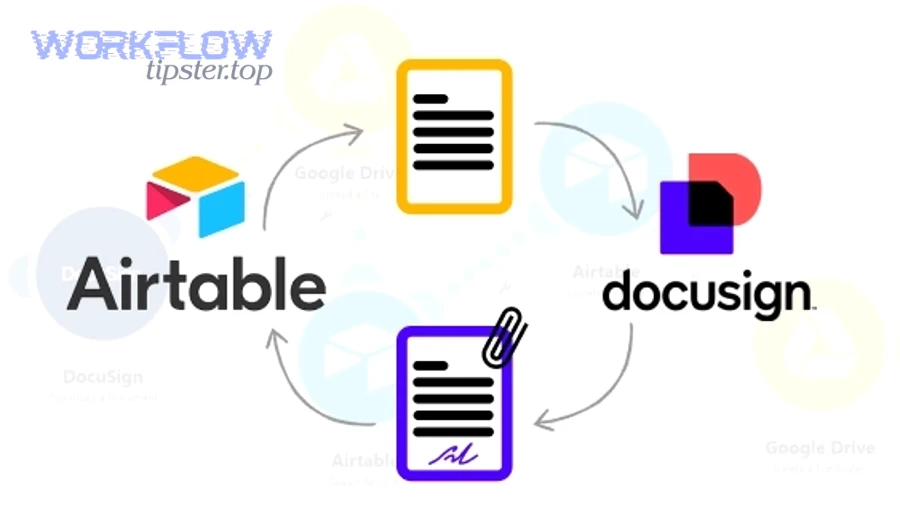
In practice, this workflow is not “one automation.” It’s a repeatable operational system:
- Airtable = structured intake + status tracking
You store normalized fields: requester, counterparty, doc type, effective date, pricing, jurisdiction, signer roles, and required attachments. - Confluence = narrative and governance layer
You store the “why” and the “rules”: policy references, approvals, exception notes, and a running change log. - Dropbox = the document artifact repository
You store the actual generated PDF/DOCX files in predictable folders, with consistent names and stable links. - DocuSign = signature execution + proof
You route the artifact to the right signer order, collect signatures, and retain an audit trail.
The biggest advantage is conceptual: you stop treating “signing” as a one-off task and instead treat it as an operational lifecycle with inputs, controls, outputs, and evidence.
What are the core building blocks of an automated document signing workflow?
There are 6 main building blocks of an automated document signing workflow: (1) trigger, (2) data model, (3) context page, (4) document generation, (5) file storage, and (6) signature routing—based on the criterion “what must exist before the next step can run.”
More specifically, the workflow succeeds when every block has a clear owner and a clear definition of “done.”
Here’s how to think about the building blocks in operational terms:
- Trigger (event that starts work)
Example: a new “Agreement Request” record is created, or a status changes to “Ready for Draft.” - Data model (fields that power decisions)
You define required fields, optional fields, validations, and enums (e.g., Agreement Type = NDA/MSA/SOW). - Context page (human-readable spec)
A Confluence page that explains what’s being signed, why, what changed, and who approved it. - Document generation (artifact creation)
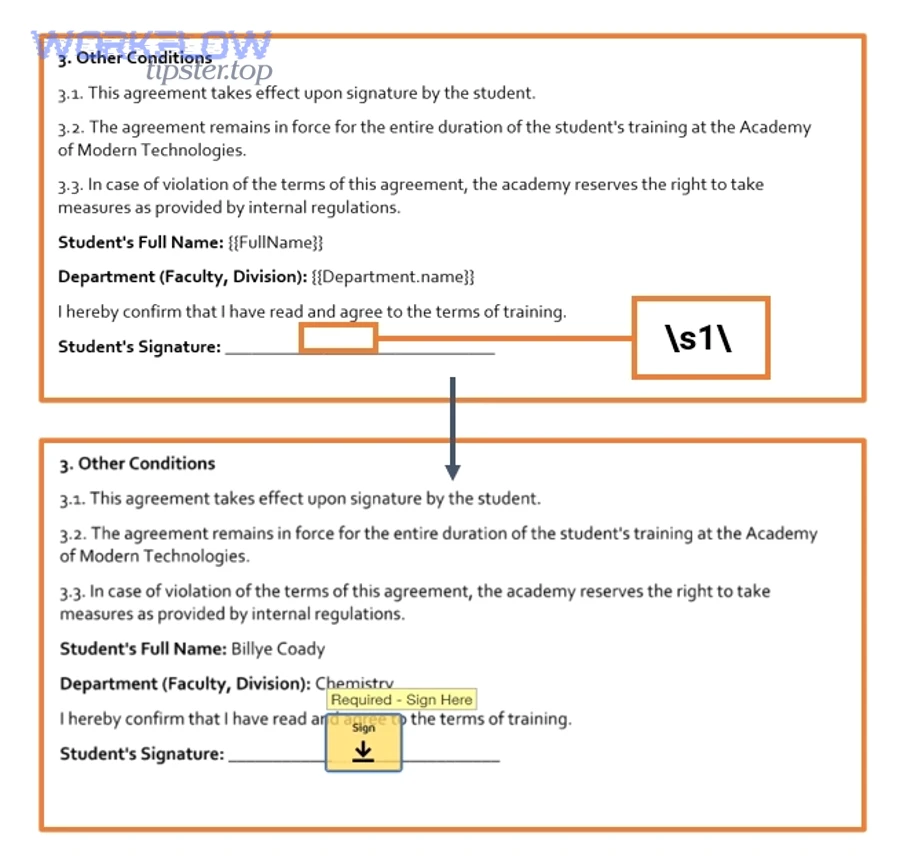
Turn fields into a PDF/DOCX using a template system; attach exhibits; calculate totals; render signature blocks. - File storage (single source of truth)
Store the exact file that will be signed, not “a draft in email.” Naming + foldering matters here. - Signature routing (execution + audit)
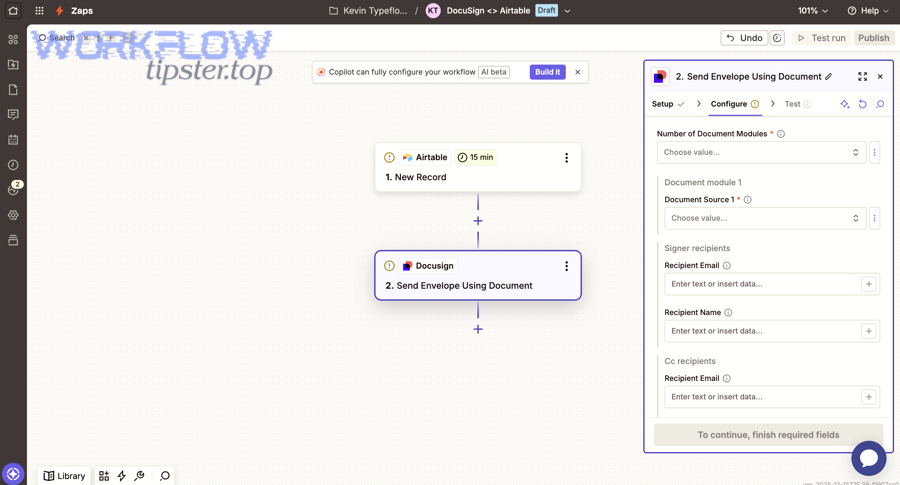
Send the stored artifact for signature using a defined signer order, reminders, and completion events.
If any block is ambiguous (for example, “where does the final PDF live?”), the workflow becomes fragile under scale.
Do you need an automation platform to connect Airtable, Confluence, Dropbox, and DocuSign?
Yes—you usually need an automation platform to connect Airtable, Confluence, Dropbox, and DocuSign because it reduces handoffs, centralizes retries/logs, and standardizes credentialed API calls; the three biggest reasons are reliability, visibility, and maintainability.
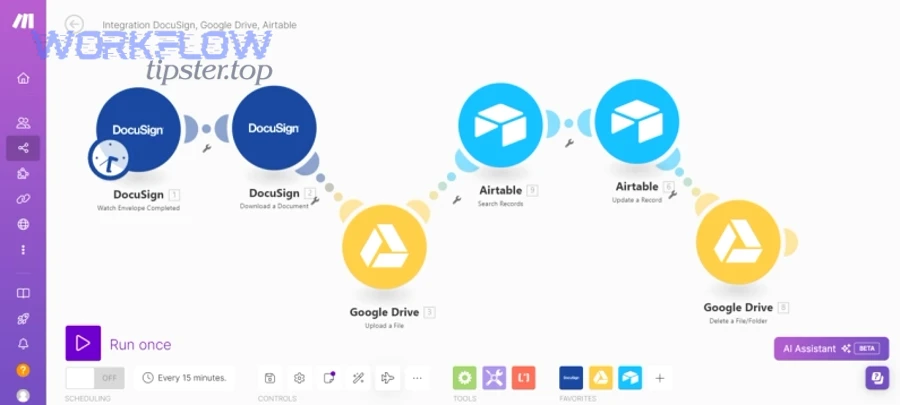
More importantly, the “right” platform depends on whether you prioritize speed to launch, advanced branching, or developer control.
A practical way to choose is to map the complexity of your flow:
- Low complexity (linear path, few doc types): no-code automation is often enough.
- Medium complexity (branching, approvals, multiple signers): you want robust routing, error handling, and reusable sub-flows.
- High complexity (compliance, custom templates, heavy volumes): you may need custom code plus an orchestration layer.
If your team wants an easy on-ramp, platforms like Zapier are designed to connect thousands of apps; Zapier states it works across “8000+ apps” and is “trusted by 3 million+ businesses.”
This is also where you’ll start hearing people talk about automation workflows as products, not projects: versioned, monitored, and improved over time.
How do you design the workflow steps from Airtable to Confluence to Dropbox to DocuSign?
Design the workflow by using 7 steps—intake, validate, document context, generate file, store file, send for signature, and sync status—to achieve the outcome “a signed document with a traceable audit trail and a stable file link.”
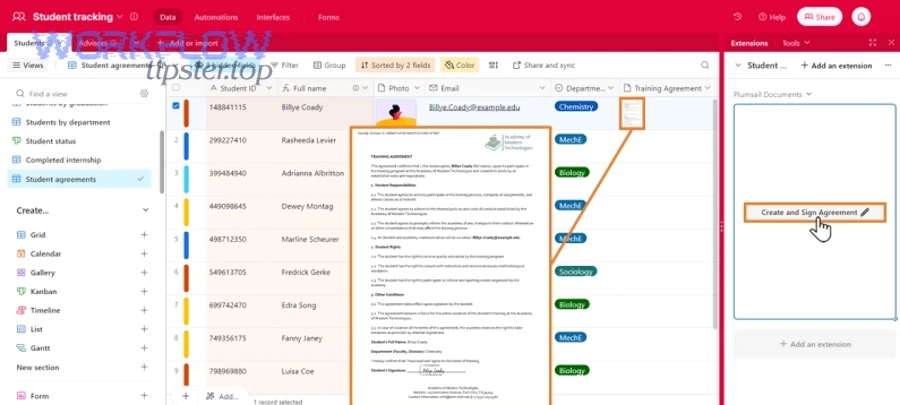
To begin, treat each step as a contract: inputs required, action performed, outputs produced, and failure behavior.
How do you map Airtable fields to Confluence page structure?
You map Airtable fields to a Confluence page by defining a page template (sections + placeholders) and filling it with record values so every agreement has consistent context, consistent approval evidence, and consistent links.
Specifically, aim for a Confluence template that mirrors how stakeholders read decisions:
- Summary: agreement type, counterparty, effective date, owner, urgency
- Scope: what’s included/excluded
- Commercials: pricing, term, renewal, special clauses
- Risk/Compliance: jurisdiction, data handling, security notes
- Approvals: who approved, when, conditions
- Links: Airtable record link, Dropbox file link, DocuSign envelope link
Best practice: include an explicit “Data Source” section that states: “This page is generated from Airtable record ID X at timestamp Y.” That single sentence prevents later arguments about what data was used.
What status fields and gates prevent premature sending?
You prevent premature sending by using at least 5 status gates—Drafting, Ready for Review, Approved, Ready to Send, Sent for Signature—because they enforce approvals, protect signature integrity, and reduce rework.
Then, make the gates enforceable:
- Required fields: block progression unless critical fields are present
- Approval checkbox/approver field: require a named approver, not “someone said OK”
- Attachment check: confirm exhibits are uploaded (or explicitly not required)
- Document checksum/version: ensure “Approved v3” is the file being sent
- Signer validation: confirm signer email/domain format and role order
When you implement these gates, you shift the workflow from “best effort” to “operationally safe.”
How do you generate the signing document from Airtable data?
Generate the signing document by using a template-driven method with 6 factors—template selection, field merge, clause logic, exhibit assembly, formatting, and versioning—to produce a clean, signature-ready PDF/DOCX.
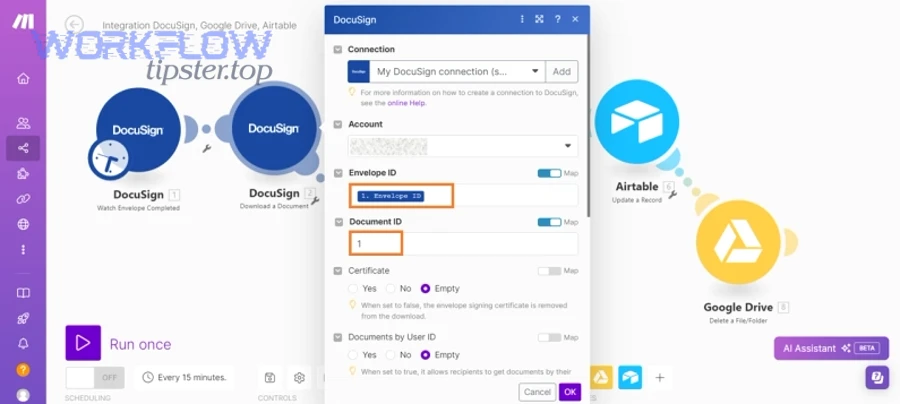
Next, focus on the single most important idea: the document must be reproducible. If you cannot regenerate it exactly (from the same inputs), you cannot reliably audit it later.
Which document templates work best for repeatable signing?
There are 4 main template types for repeatable signing: (1) fixed template with simple merge fields, (2) clause-conditional template, (3) modular “section blocks,” and (4) generated-from-data “smart docs”—based on the criterion “how much the text changes by deal type.”
More specifically:
- Fixed + merge fields: NDAs with minimal variation
- Clause-conditional: MSAs where jurisdiction or DPA clauses vary
- Modular blocks: SOWs where deliverables and milestones vary by project
- Smart docs: agreements assembled from structured data for high volume (advanced)
Operational tip: define an internal “template owner” and a change log so edits don’t quietly break field mapping.
How do you handle attachments, exhibits, and audit metadata?
You handle attachments, exhibits, and audit metadata by standardizing (1) file requirements, (2) naming conventions, (3) ordering rules, and (4) a metadata manifest so every packet is complete, easy to review, and defensible later.
A reliable pattern is a “packet folder” per agreement:
01_context/(exported Confluence PDF or snapshot if required)02_draft/(draft versions)03_final/(the exact file sent for signature)04_exhibits/(exhibits A/B/C, data processing addendum, security appendix)manifest.json(or a table in Confluence) listing: file name, version, source record, timestamp, owner
That manifest becomes your lightweight audit index even if systems change later.
How do you store and organize the document in Dropbox for clean retrieval?
Store and organize the document in Dropbox by using 5 rules—single source folder, deterministic naming, minimal permissions, immutable “signed” path, and stable links—to achieve fast retrieval and fewer version conflicts.
Then, enforce these rules as defaults so the workflow stays clean even when multiple people touch it.
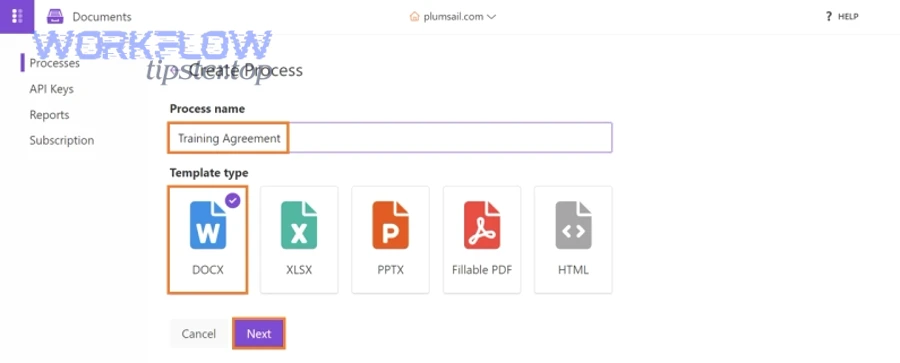
A strong Dropbox structure often looks like this:
/Agreements/{Year}/{Counterparty}/{AgreementType}/2026-02-02_Counterparty_MSA_v1_FINAL.pdf2026-02-02_Counterparty_MSA_v1_SIGNED.pdf
Key detail: separate FINAL from SIGNED. “Final” is what you intend to sign; “Signed” is what you can enforce.
Also consider access boundaries:
- Give broad access to view signed PDFs (so stakeholders stop asking you)
- Restrict write access to the folder that receives the final and signed artifacts
- Keep a small “workflow service account” as the actor that writes the canonical files (reduces human variance)
How do you send the Dropbox document through DocuSign for signing?
Send the Dropbox document through DocuSign by using 6 steps—select the final file, create the envelope, assign roles, set signer order, configure reminders, and capture completion events—to get a signed document with proof of completion.
Next, focus on the most operationally important idea: signature routing is not just sending—it’s ensuring the right people sign in the right order with the right identity checks.

What signer roles, routing order, and reminders should you configure?
You should configure signer roles, routing order, and reminders by defining at least 3 roles (Requester/Preparer, Counterparty Signer, Internal Approver/Signer) and setting order and reminders based on urgency and compliance.
A common role strategy:
- Role 1: Internal signer (optional)
Used when internal approval is required as an actual signature (not just an Airtable checkbox). - Role 2: Counterparty signer
The main signer; ensure their email is validated and consistent with the record. - Role 3: Internal counter-signer
If your org requires countersignature after counterparty.
Reminder strategy:
- Day 1: send immediately
- Day 3: gentle reminder
- Day 7: escalation path (Slack/email to owner)
- Expiration: set based on policy (e.g., 14 or 30 days)
If you do not define this upfront, your “automation” becomes a silent queue where documents sit unsigned.
How do you sync DocuSign completion back to Airtable and Confluence?
You sync DocuSign completion back to Airtable and Confluence by writing status updates and links at three moments: (1) envelope sent, (2) viewed/first signer completed, (3) fully completed—so every system reflects the same reality.
A robust sync writes:
- Airtable: status = “Sent” / “Completed”; envelope ID; completion timestamp; signed file link
- Confluence: add a short “Execution” section with envelope link + completion summary
- Dropbox: store the signed PDF into
/SIGNED/and (optionally) archive the pre-sign “FINAL” version
This is where platform choice matters: you want reliable webhooks or polling with idempotency (so the “Completed” event doesn’t duplicate work).
Evidence helps justify the investment: a feasibility study involving teams affiliated with the University of California, Los Angeles (David Geffen School of Medicine) reported 19% labor savings with digital signatures and found document completion time was faster for digital vs paper in their pilot. According to a study by University of California, Los Angeles from the David Geffen School of Medicine, in 2020, the researchers reported a 19% labor savings using digital signatures and faster completion time versus paper (P = .0241).
What is better: a single end-to-end automation or modular sub-workflows?
A single end-to-end automation wins in speed and simplicity, modular sub-workflows are best for reuse and risk isolation, and a hybrid approach is optimal for scaling across teams and document types.
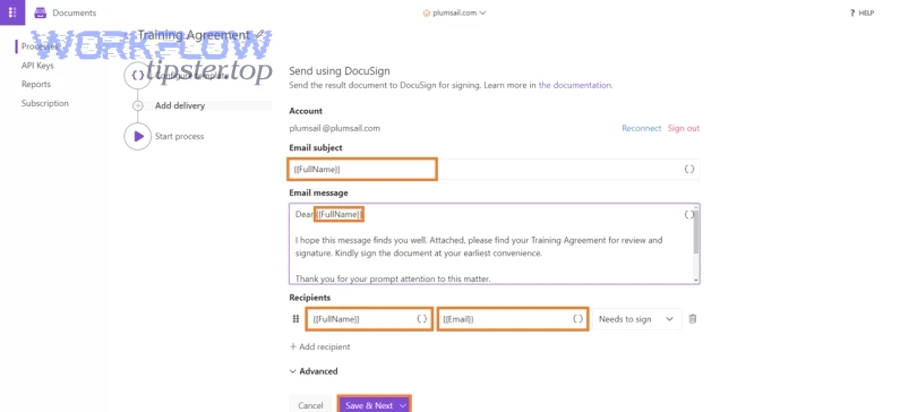
However, the “better” choice becomes obvious once you look at failure modes.
Before choosing, here’s what this comparison table contains: it contrasts three architecture options by maintainability, change risk, observability, and scale, which are the criteria that determine whether the workflow stays healthy after launch.
| Approach | Best for | Weak spot | Reliability pattern |
|---|---|---|---|
| Single end-to-end flow | One team, one doc type, low branching | A small change can break the whole chain | Strong testing + strict field requirements |
| Modular sub-workflows | Multiple doc types, reusable components | More coordination and versioning overhead | Stable interfaces + shared naming conventions |
| Hybrid (recommended) | Growing orgs with mixed complexity | Requires upfront design discipline | Core spine + reusable “modules” for generation/sending |
A practical hybrid for this specific chain looks like:
- Core spine: Airtable intake → validation gate → status sync
- Module A: Confluence page creation/update
- Module B: document generation + packet assembly
- Module C: Dropbox storage + link creation
- Module D: DocuSign send + completion sync
This modular style also makes it easier to extend to sibling workflows, like “github to linear to google chat devops alerts” for engineering notifications, or “calendly to google calendar to google meet to asana scheduling” for appointment-to-task automation—without rewriting the whole system. (Those patterns are structurally similar: trigger → enrich → route → log.)
Contextual border: now that the primary workflow is clear and operational, the next step is to deepen micro-level reliability—permissions, auditability, exception handling, and compliance hardening.
How do you harden the workflow with security, permissions, and compliance?
You harden the workflow by using 6 controls—least-privilege access, audit logs, data retention rules, environment separation, secret management, and exception handling—to reduce risk while keeping automation benefits.
Next, treat “security” as part of the workflow design, not a separate checklist at the end.
What permissions model prevents oversharing across Confluence and Dropbox?
A permissions model prevents oversharing when it enforces least privilege at three layers: (1) workspace/space/folder, (2) document-level access, and (3) link sharing rules—so only the right people can view or edit sensitive agreements.
A simple but effective pattern:
- Confluence: restrict the agreement space; allow view to stakeholders, edit to a small group
- Dropbox: restrict write access to the “final/signed” folders; allow view access broadly
- Automation actor: a service account with scoped permissions, not a personal account
This prevents the common failure where links get forwarded and someone discovers they have access they shouldn’t.
How do you handle failures, retries, and “partial success” states?
You handle failures by designing for partial success with (1) idempotent steps, (2) retry rules, (3) dead-letter queues or failure tables, and (4) human escalation—so the workflow doesn’t silently stall.
Concrete rules that work:
- If Confluence page creation fails: keep the Airtable record in “Needs Attention,” log the error, and allow a retry.
- If Dropbox upload fails: do not send to DocuSign; fail closed and surface a clear reason.
- If DocuSign send succeeds but status sync fails: reconcile later using envelope ID (idempotent update).
The key is to avoid a dangerous state where signatures happen but your tracking system still says “Draft.”
What data retention and audit trail elements should you keep?
You should keep 6 audit elements: (1) source record snapshot, (2) approval evidence, (3) final artifact hash/version, (4) storage link + path, (5) signature envelope ID + completion time, and (6) the signed PDF—based on the criterion “can you explain what happened later?”
In regulated or high-stakes contexts, the audit trail is the product:
- Airtable record fields show what was requested
- Confluence shows why it was approved
- Dropbox shows what was signed
- DocuSign shows who signed, when, and in what order
This is also why “airtable to confluence to google drive to docusign document signing” is a common alternative: the storage layer can swap (Dropbox ↔ Google Drive) while the audit logic stays consistent.
When should you switch from no-code to custom integration code?
You should switch when at least 3 conditions are true: you need complex document generation, strict compliance controls, or high volume/latency guarantees—because no-code connectors may limit deep customization, advanced error handling, and cost predictability at scale.
A practical threshold checklist:
- You need custom PDF rendering or clause engines (beyond merge fields)
- You need strict webhook verification, HMAC signing, or custom auth flows
- You need to process large batches with guaranteed throughput and monitoring
- You need a formal SDLC (staging, tests, deployments, rollbacks)
If you hit these, keep the workflow architecture—but change the execution engine (custom services plus an orchestrator). That’s how teams evolve from “it works” to “it’s reliable.”