


If your automations are firing “at the wrong time,” a Zapier timezone mismatch is often the real culprit—especially when timestamps shift by a consistent number of hours, dates roll over unexpectedly at midnight, or Daylight Saving Time creates sudden one-hour jumps.
Next, you’ll learn what “timezone mismatch” actually means inside a Zap, so you can tell the difference between a true timezone problem and a downstream formatting issue that only looks like one.
Then, we’ll break down the most common causes—account settings, app-specific timestamp behavior, ISO 8601 offsets, DST, and parsing—so you can pinpoint the exact link in the chain where time gets misinterpreted.
Introduce a new idea: once you treat time like data (raw value + timezone context), you can make your Zaps match time correctly every run, even across regions, DST, and multiple apps.
Is your Zapier workflow actually suffering from a timezone mismatch?
Yes—this is likely a Zapier timezone mismatch troubleshooting case if you see (1) a consistent hour offset, (2) date changes near midnight, and (3) one-hour shifts around Daylight Saving Time—because those patterns usually come from timezone interpretation, not random delays.
To begin, you’ll want to confirm the pattern before you touch any settings, because the fastest fixes come from diagnosing whether the “wrong time” is systematic (timezone) or sporadic (task delays, throttling, app latency).
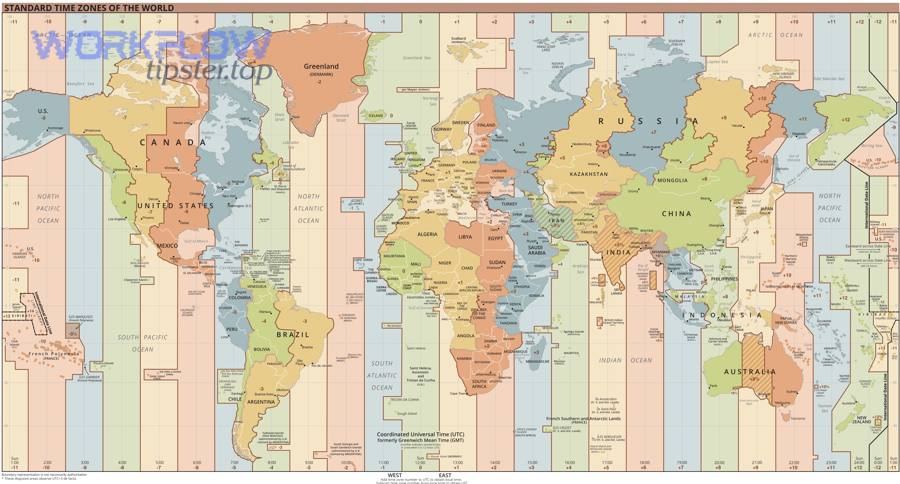
Check 1: Is the offset consistent every time?
If every run is off by exactly the same amount—like +7 hours, -5 hours, or +1 hour—timezone mismatch becomes the primary suspect.
Here’s how to validate it quickly:
- Pick 3–5 recent Zap runs that used the same timestamp field.
- Write down:
- the source timestamp (from the trigger app payload or field)
- the output timestamp (what your action app receives)
- the difference in hours
- If the difference is the same, you’re not looking at randomness—you’re looking at interpretation.
A consistent offset usually means one side is treating a timestamp as:
- local time, while the other treats it as UTC, or
- UTC, while the other assumes local time, or
- a timestamp string without an offset, which forces a default timezone assumption.
Check 2: Does the date flip when it “shouldn’t”?
Timezone issues often show up as “yesterday vs today” problems.
Common signs:
- An event meant for 9:00 AM appears as 4:00 PM (same date, wrong hour).
- An event meant for 11:30 PM becomes tomorrow at 6:30 AM (wrong day).
- A due date becomes one day earlier/later after formatting.
This happens because time conversion across timezones can cross midnight. The closer you are to midnight, the more likely a wrong timezone assumption becomes a wrong date.
Check 3: Does it only break during DST weeks?
DST creates two classic failure modes:
- Spring forward: a local hour “doesn’t exist”
- Fall back: the same local hour happens twice (ambiguous)
If your Zap “worked all year” and then shifted by one hour during a DST change, you’re likely seeing DST + timezone interpretation colliding.
Evidence: According to a study by University of Colorado Boulder from the Department of Integrative Physiology, in 2020, fatal car accidents increased 6% in the week following the spring switch to daylight saving time—showing how a single-hour change can create real-world timing errors when systems and humans misalign. (colorado.edu)
What does a Zapier timezone mismatch mean in practice?
A Zapier timezone mismatch is a timestamp interpretation error where a date/time value is treated as the wrong timezone (often UTC vs local), usually originating from a source app payload, Zapier account defaults, or a formatting/parsing step that drops timezone context.
Next, the goal is to stop thinking “Zapier is wrong” and start thinking “Which step lost timezone meaning?”—because timestamps are only unambiguous when they include timezone information.

The practical definition: “Same moment, different clock”
Two time strings can describe the same moment but look different:
2026-02-01T10:00:00-05:00(New York, standard time)2026-02-01T15:00:00Z(UTC)
They’re the same instant—just represented differently.
ISO 8601 explicitly supports timezone designators like Z (UTC) or ±hh:mm offsets, which is why it’s the safest format for cross-app automation. (en.wikipedia.org)
The Zapier reality: Where “default timezone” sneaks in
A mismatch usually happens when one of these is true:
- A timestamp arrives without an offset (e.g.,
2026-02-01 10:00:00) - A step parses that timestamp using a default timezone
- A later step formats it assuming a different timezone
- The receiving app stores it as UTC but displays it in local time (or the reverse)
This is why “it looks wrong” in a calendar or CRM, even if the stored value is technically correct.
Why this is common in automation
Automation chains combine apps that each do time differently:
- Some apps always send UTC
- Some send local time
- Some send local time but label it poorly
- Some send an ISO string but omit offsets
- Some treat date-only fields as “midnight in account timezone”
- Some treat date-only fields as “midnight UTC”
Your job in zapier troubleshooting is to decide:
What timezone should be the source of truth—UTC or a specific local timezone—and where should conversion happen?
What are the most common causes of timezone mismatch in Zapier?
There are 7 main causes of Zapier timezone mismatch: account timezone defaults, timestamp strings missing offsets, ISO 8601 “Z” vs local confusion, DST transitions, app-level timezone behavior, formatter parsing choices, and multi-step conversion drift.
Then, once you identify which cause fits your pattern, you can jump straight to the matching fix instead of trying random settings.
Cause 1: Zapier account timezone is set differently than you think
Your Zapier account has a timezone setting that can influence how some fields are interpreted or displayed in the editor.
What this looks like:
- Times “look wrong” inside Zapier test data
- Date formatting steps output unexpected times
- You see different results when different teammates test the Zap
How to confirm:
- Check the timezone in your Zapier profile/settings.
- Ensure all builders on the team know the intended timezone convention.
Cause 2: The trigger app sends a timestamp with no timezone offset
This is one of the biggest root causes.
Example strings that cause trouble:
2026-02-01 10:00:0002/01/2026 10:00 AM2026-02-01T10:00:00(ISO-like, but missing offset)
If the offset is missing, something must “guess” the timezone—Zapier, Formatter, or the receiving app.
Cause 3: UTC “Z” is being treated like local time (or vice versa)
If you see a consistent shift like +5, -7, +1, this is a classic UTC/local mismatch.
Zmeans UTC (Zulu time).-05:00means 5 hours behind UTC.+07:00means 7 hours ahead.
ISO 8601 timezone designators exist precisely to prevent this ambiguity. (en.wikipedia.org)
Cause 4: Daylight Saving Time creates a one-hour drift
DST can break otherwise-correct Zaps if:
- an app changes how it reports local time
- your formatter step assumes standard time year-round
- you store local times without a timezone identifier
Cause 5: The action app stores UTC but displays in local time
Some apps store everything as UTC internally and render it in the user’s local timezone.
What this looks like:
- Data appears “wrong” in the UI
- But the raw stored timestamp is correct
- Exports/API responses differ from what you see
Fixing this often requires controlling display timezone inside the destination app—not just Zapier.
Cause 6: Formatter by Zapier parses the input in the wrong timezone
Formatter is powerful—but if you parse an ambiguous string, it has to decide what “10:00” means.
Typical failure:
- You format a date string and accidentally convert it twice
- You parse as local, format as UTC, then another step converts again
Zapier’s own guides recommend using Formatter’s Date/Time transforms to convert and standardize inputs, especially across apps. (zapier.com)
Cause 7: Multi-step “conversion drift” across several fields
This happens when:
- step A converts time
- step B re-parses the already-converted time
- step C formats it again
You end up with a timestamp that has been shifted multiple times.
Evidence: According to a study by Carnegie Mellon University researchers, in 2025, time-zone-related mistakes were reported as a leading contributing factor in a dataset of open-source date/time bugs—highlighting how easily timezone meaning gets lost when code (or steps) repeatedly constructs and converts timestamps. (rohan.padhye.org)
How do you troubleshoot and fix timezone mismatch in Zapier step by step?
Troubleshoot and fix Zapier timezone mismatch with 7 steps: capture the raw timestamp, identify its timezone context, normalize to ISO 8601, convert once (only once), validate in Zap History, lock display rules, and add a regression test for DST and edge dates.
To better understand what’s actually happening, you need to follow the timestamp like a detective—raw value first, formatting last.
Step 1: Capture the raw timestamp (before any formatting)
In Zapier, inspect the trigger sample and look for the original timestamp field.
What to record:
- The raw string (exact characters)
- Whether it includes:
Z+/-hh:mm- a timezone name (rare)
- Whether it looks like a human format (e.g.,
02/01/2026 10:00 AM)
This single snapshot tells you whether the problem is “no timezone info” vs “timezone info misread.”
Step 2: Decide your “source of truth” timezone
Pick one:
- UTC as the source of truth (best for global workflows)
- One business timezone (best for a single-region operations team)
Write it down as a rule, for example:
- “All timestamps stored in Airtable must be UTC.”
- “All due dates created in Asana must be America/New_York local time.”
This prevents you from “fixing” one Zap in a way that breaks another.
Step 3: Normalize everything to ISO 8601 (with offset)
Your goal is an unambiguous string like:
2026-02-01T15:00:00Z2026-02-01T10:00:00-05:00
ISO 8601 supports a clear delimiter (T) and timezone designators (Z or offsets), which helps apps agree on meaning. (en.wikipedia.org)
If your input is not ISO 8601:
- Use Formatter to parse it carefully.
- Output an ISO 8601 string (ideally with UTC
Z).
Step 4: Use Formatter by Zapier to convert timezones (once)
A strong pattern is:
- Parse input (tell Formatter what it is)
- Convert to timezone (if needed)
- Format output (ISO 8601 or destination-required format)
Zapier’s Formatter Date/Time actions are designed for exactly this: transforming date/time inputs so other apps receive consistent formats. (zapier.com)
Step 5: Validate the fix using Zap History (not just “Test”)
Zap History shows what actually ran, not just what a test pulled at one moment. Zapier documents how to view and manage Zap history for diagnosing run-level behavior. (zapier.com)
Validation checklist:
- Compare a real run’s input timestamp vs output timestamp
- Confirm the hour offset is now correct
- Confirm dates don’t flip unexpectedly
- Check at least 3 runs
This is also where you catch “it’s correct in test, wrong in production,” which often points to different real payload formats.
Step 6: Fix the destination app’s display rules (if needed)
If your destination app:
- stores UTC but displays local, or
- displays in each user’s locale,
you may need to:
- change the app’s timezone settings
- set the correct timezone per user/team
- store timezone separately (e.g., a “Timezone” field)
Otherwise, the data might be correct but still look wrong.
Step 7: Add a DST + midnight regression test
Create two test cases:
- One timestamp near midnight (e.g., 11:30 PM local)
- One timestamp during DST transition week
Run them through your Zap and confirm:
- the intended timezone
- the intended date
- consistent display
This is the simplest way to ensure the “mismatch vs match” problem stays solved.
Which fix works best: account timezone, app timezone setting, or Formatter by Zapier?
Account timezone wins for consistent Zap building, app timezone settings work best when the source app controls the meaning, and Formatter by Zapier is optimal when you need to parse, convert, and standardize timestamps mid-Zap.

More specifically, the “best” fix depends on where timezone meaning is getting lost: at the account level, inside an app payload, or during transformation.
Here’s a practical comparison table showing what each option solves and when it fails.
Table context: The table below compares three common fixes for Zapier timezone mismatch troubleshooting, focusing on what each fix controls, what it’s best for, and the risks you should watch for.
| Fix option | What it controls | Best for | Risk / common failure |
|---|---|---|---|
| Zapier account timezone | How builders see and interpret some times in the editor | Team consistency, reducing confusion during testing | Doesn’t always change how an external app interprets timestamps |
| App-level timezone setting | How the app generates or displays times | Single-app workflows where the app is the source of truth | Different users in the app may see different times |
| Formatter by Zapier | Parsing, converting, formatting timestamps inside the Zap | Multi-app workflows, ISO 8601 normalization, UTC pipelines | Double-conversion if you convert more than once |
How to choose in 20 seconds
Use this simple decision logic:
- If the time is already correct in the trigger payload, but looks wrong in Zapier tests → check account timezone.
- If the time is wrong in the trigger payload (or missing offsets) → fix at the app level or normalize with Formatter.
- If the time becomes wrong after a formatting step → your fix is almost always Formatter (parsing/convert rules).
- If the time is correct in Zapier but wrong in the destination UI → fix the destination app’s display timezone.
The “most reliable” pattern for serious workflows
For global or multi-region workflows:
- Convert all inputs → UTC ISO 8601 (
...Z) - Store/process in UTC
- Convert to local time only at the final “human-facing” step (calendar invite, email copy, etc.)
This reduces the number of conversions, which reduces error probability.
How can you prevent timezone mismatch from coming back?
Prevent Zapier timezone mismatch by applying 5 safeguards: standardize on ISO 8601 with offsets, store timezone separately when humans choose times, avoid ambiguous date-only fields, log raw timestamps in a debug step, and add idempotency controls to protect against follow-on errors.
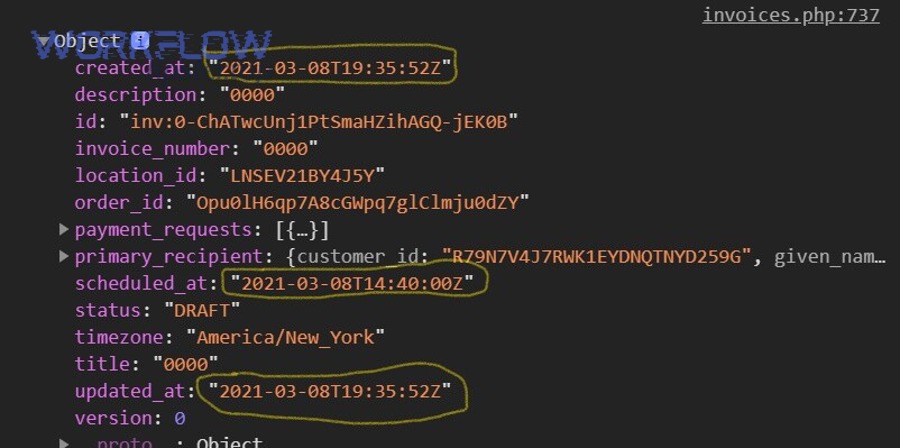
In addition, prevention is where “zapier troubleshooting” becomes “zapier reliability”—because timezone mismatch rarely stays alone; it often triggers downstream issues like wrong scheduling, repeated runs, and inconsistent records.
Safeguard 1: Always carry timezone context with the timestamp
Best practice outputs:
2026-02-01T15:00:00Z(UTC)2026-02-01T10:00:00-05:00(offset)
Avoid storing or passing:
02/01/2026 10:00 AM(ambiguous)2026-02-01 10:00:00(timezone missing)
ISO 8601 timezone designators exist to prevent this specific ambiguity. (en.wikipedia.org)
Safeguard 2: Separate “date-only” logic from “date-time” logic
A date-only field (like “Due date: Feb 1”) becomes a time when a system assigns midnight in a timezone.
If your workflow cares about time of day, don’t rely on date-only fields. Store:
- Date
- Time
- Timezone (or offset)
as separate pieces, then combine them intentionally.
Safeguard 3: Add a “debug log” step for raw + converted values
Create a lightweight step that writes to:
- a Zapier Table
- a spreadsheet
- a logging tool
Store:
- raw timestamp
- parsed timestamp
- converted timestamp
- target timezone
This makes future troubleshooting fast because you can see exactly where mismatch happened.
Safeguard 4: Test DST and midnight every quarter (or after edits)
Any time you edit:
- formatter steps
- date parsing rules
- app triggers
re-run your two edge tests:
- near midnight
- DST week
This catches regressions early.
Safeguard 5: Prevent downstream chaos from timing errors
Timezone mismatch can cause workflows to behave like duplicates:
- a record “looks new” because the timestamp changed
- a filter condition passes unexpectedly
- a scheduling step re-triggers
That’s how timezone issues can masquerade as zapier duplicate records created troubleshooting.
To protect yourself:
- Use a stable unique key (record ID, email ID, event ID)
- Add “Find/Create” patterns instead of “Create always”
- Use storage or tables to track what already processed
What other Zapier issues look like timezone problems but aren’t?
There are 4 common look-alikes that mimic a timezone mismatch: pagination missing records, duplicate records, task delays/backlogs, and locale parsing errors—and each one can make you blame timezones when the real issue is data flow.

Especially in complex workflows, you need to confirm you’re not treating a data integrity issue as a clock issue.
Look-alike 1: “Missing items” caused by pagination (not time)
If your Zap pulls “recent records” and some entries never appear, it can look like “wrong time window,” when the real issue is retrieval limits or paging.
That’s why teams often search for zapier pagination missing records troubleshooting when the symptom feels time-based.
How to spot it:
- Records exist in the source app
- They never enter Zapier
- The “missing ones” don’t correlate to a consistent timezone offset
Fix patterns:
- Use triggers that fire per record (webhooks) rather than “list” polling
- Increase limits where possible
- Use cursor-based “since last ID” logic when available
Look-alike 2: Duplicate records from retries (not timezone conversion)
Retries can create duplicates when:
- an action times out
- Zapier retries
- the destination app treats it as a new request
That can look like “it created twice at different times,” but the core is idempotency, not timezone.
If you’re seeing this, treat it like zapier duplicate records created troubleshooting:
- add a “find existing” step
- use a unique key
- only create when not found
Look-alike 3: Task delays, queues, or throttling
A Zap that runs late can feel like a timezone mismatch:
- “It should have run at 9, it ran at 9:20”
- “It ran an hour later”
But a queue delay is not a consistent offset across conversions.
How to spot it:
- The timestamp value is correct
- The run time is late
- The delay varies run to run
The fix is operational:
- reduce task volume
- simplify Zaps
- split heavy Zaps
- check for rate limiting or app-side latency
Look-alike 4: Locale or format parsing errors
If a system reads:
02/03/2026as Feb 3 (US) vs Mar 2 (many locales),
you’ll get the “wrong day,” which people often label “timezone.”
How to spot it:
- the hour might be correct
- the day/month flips
- it happens only for certain dates (1–12 range)
Fix:
- normalize all dates into ISO 8601 before parsing
- avoid ambiguous formats in custom fields
- set explicit parsing rules in Formatter
Evidence (if any)
According to a study by University of Colorado Boulder from the Department of Integrative Physiology, in 2020, fatal car accidents increased 6% during the workweek following the spring daylight saving time change—highlighting how even a one-hour time shift can amplify mismatch risks when systems interpret time differently. (colorado.edu)
According to a study by Carnegie Mellon University researchers, in 2025, time-zone-related mistakes were reported as a leading contributing factor in analyzed open-source date/time bugs—reinforcing why automation workflows should normalize timestamps and avoid repeated conversions. (rohan.padhye.org)