


A Smartsheet time zone mismatch happens when the same date/time-related data appears to shift—by hours or even a day—depending on where you view it (sheet grid, system columns, formulas, automations, or the API). You can troubleshoot it reliably by identifying which layer is controlling time (viewer, sheet owner, or UTC back end) and then aligning settings, columns, and workflow design to that layer.
Next, you’ll learn why the issue often feels random (especially around daylight saving time), even when your Personal Settings look correct—because Smartsheet can calculate “today” based on the viewer, trigger automations based on the sheet owner, and store system timestamps in UTC behind the scenes.
Then, you’ll get a practical checklist of the most common causes—like owner time zone differences, system column display behavior, regional date formats, and API timestamp offsets—so you can pinpoint the mismatch instead of guessing.
Introduce a new idea: once you see time zones as a “stack” (display → automation → storage/API), the fix becomes a step-by-step process you can reuse for any sheet, workflow, or integration—without breaking formulas or triggering duplicate records.
What does a “time zone mismatch” in Smartsheet actually mean?
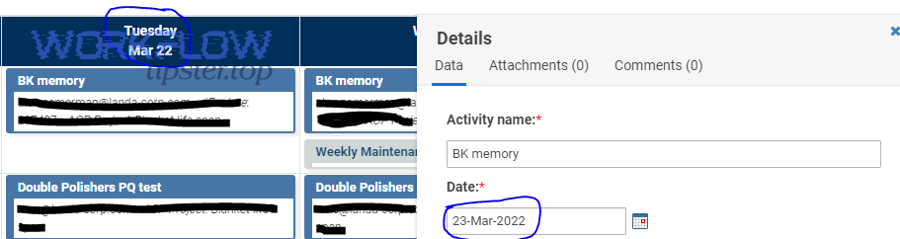
A “time zone mismatch” in Smartsheet is a cross-layer date/time inconsistency where the same event (a row change, timestamp, reminder, or formula result) is stored in UTC but displayed or executed using different time-zone rules (viewer vs owner), creating an apparent offset.
Specifically, the mismatch shows up in three predictable patterns:
- Display mismatch: two people see different times/dates for system columns (Created/Modified) or date-time values.
- Execution mismatch: an automation fires “one hour early/late” or “on the wrong day.”
- Integration mismatch: API responses look “wrong” because timestamps are returned in UTC/offset format while humans expect local time.
To reconnect this to troubleshooting: you’re not trying to “make Smartsheet use one time zone everywhere.” You’re trying to control where time is decided—and ensure every dependent component (columns, formulas, automations, integrations) is designed for that decision point.
A practical definition you can use in tickets and internal docs is:
- Time zone alignment = viewer settings, sheet ownership, and UTC-based storage are either consistent—or intentionally designed so differences won’t change outcomes.
Is Smartsheet actually “using the wrong time zone”?
No—Smartsheet typically isn’t “using the wrong time zone”; it’s applying three different time zone rules depending on context: viewer time zone for some calculations, owner time zone for automation triggers, and UTC for storage/system values and certain API/formula behaviors.
In other words, the same sheet can be correct in each layer while still looking inconsistent across the product.
Here are the three reasons this happens most often:
- Viewer-based calculation makes “today” differ by location. Smartsheet calculates
TODAY()based on the time zone of the person viewing the sheet, so two viewers can briefly get different “today” results around midnight boundaries. - Owner-based automation time zone makes triggers fire “unexpectedly.” For automations, the trigger’s time zone follows the sheet owner’s time zone, not the viewer’s.
- UTC storage makes system timestamps look shifted in integrations. System columns use UTC in the back end; display values can reflect the time zone of the last person to access the sheet, and API/formula behaviors can surface UTC-based values.
To move from diagnosis to action, it helps to treat this question as a Yes/No test:
- If you only see mismatches in formulas using
TODAY()→ suspect viewer time zone. - If the mismatch is about reminders / date-based triggers → suspect sheet owner time zone.
- If the mismatch appears in API exports, logs, or Created/Modified values → suspect UTC storage/display behavior.
Is your account time zone setting the first thing to check?
Yes—your Personal Settings time zone is the fastest, highest-impact check because it affects how timestamps and time-based actions reflect your local expectations, and it’s also the setting most teams forget to standardize. (help.smartsheet.com)
However, this check becomes misleading if you stop there, because fixing your time zone doesn’t automatically change:
- the sheet owner’s time zone,
- what other viewers have configured,
- or how UTC timestamps are stored and returned.
So treat it as Step 0—necessary, but not sufficient.
Can two users see different times in the same sheet and both be “correct”?
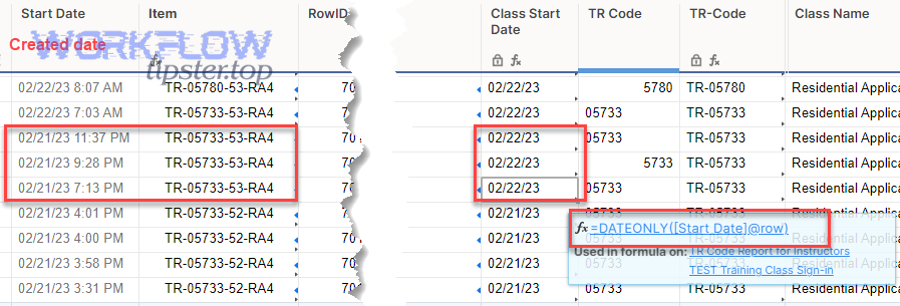
Yes—two users can see different displayed times because Smartsheet can display system date/time values in ways that reflect viewer settings or the last-accessed display context, while still storing the authoritative value in UTC.
This is why teams often argue about “what time it happened.” In many cases, the more useful question is:
- “What time did Smartsheet store?” (UTC / API truth)
- “What time did the workflow interpret?” (owner time zone truth)
- “What time did I see?” (viewer time zone truth)
When is it a real bug versus expected time zone behavior?
It’s more likely expected behavior when the offset matches a known UTC difference (e.g., exactly 5 hours, 8 hours, or 1 hour around DST), and it’s more likely a bug or configuration flaw when:
- the offset changes inconsistently without a user/time-zone change,
- the same user sees different values in different views without switching context,
- or an automation fires at times that don’t align with any known layer (owner/viewer/UTC).
In short, you debug the layer first, and only escalate as a bug if the behavior doesn’t match any documented layer rule.
What are the most common causes of Smartsheet time zone mismatches?
There are 7 main causes of Smartsheet time zone mismatches—(1) viewer time zone settings, (2) sheet owner time zone, (3) UTC-backed system columns, (4) TODAY()/date logic boundaries, (5) regional date formats, (6) automation design, and (7) API timestamp parsing—based on where the platform decides and converts time.
The goal of this section is fast triage: find the cause category, then jump to the fix method.
What mismatches come from Personal Settings vs sheet ownership?
Most mismatches come from Personal Settings when the issue is “what I see,” and from sheet ownership when the issue is “when it fired.”
Use this quick classifier:
- Personal Settings–driven symptoms
- Created/Modified “looks wrong” for you but not for others
TODAY()outputs a date you didn’t expect- A dashboard metric looks “one day off” for certain viewers
- Ownership-driven symptoms
- “When a date is reached” triggers fire in the owner’s morning instead of yours
- Reminders arrive at the wrong hour for distributed teams
A hidden gotcha: if someone joined Smartsheet through a share invite, their time zone may initially reflect where the share request originated—so “it was wrong from day one” can be explained by account creation context, not user error.
What mismatches come from system columns and UTC storage?
System columns (like Created and Modified) are a classic trigger for confusion because they are stored in UTC, but the display value can reflect a human-facing time zone context and can differ from what formulas or API calls return.
That creates three failure modes:
- Display vs formula mismatch: you see one time, but a formula that references the system column behaves like it’s using UTC.
- Display vs API mismatch: you see a local time, but the API returns UTC/offset timestamps.
- Team inconsistency: different people report different displayed values when they compare screenshots.
If your mismatch appears in integration logs or export pipelines, assume UTC until proven otherwise.
What mismatches come from formulas like TODAY() and date boundaries?
TODAY() and any “date boundary” logic (e.g., “if today is X”) can diverge across users because Smartsheet calculates TODAY() based on the viewer’s time zone.
This becomes visible when:
- a distributed team works across midnight boundaries,
- a workflow depends on “today” rather than a stored date,
- or a dashboard aggregates “today’s items” for global viewers.
If “the date is wrong only for some people, only at night,” this is your leading suspect.
What mismatches are caused by automations, notifications, and scheduled actions?
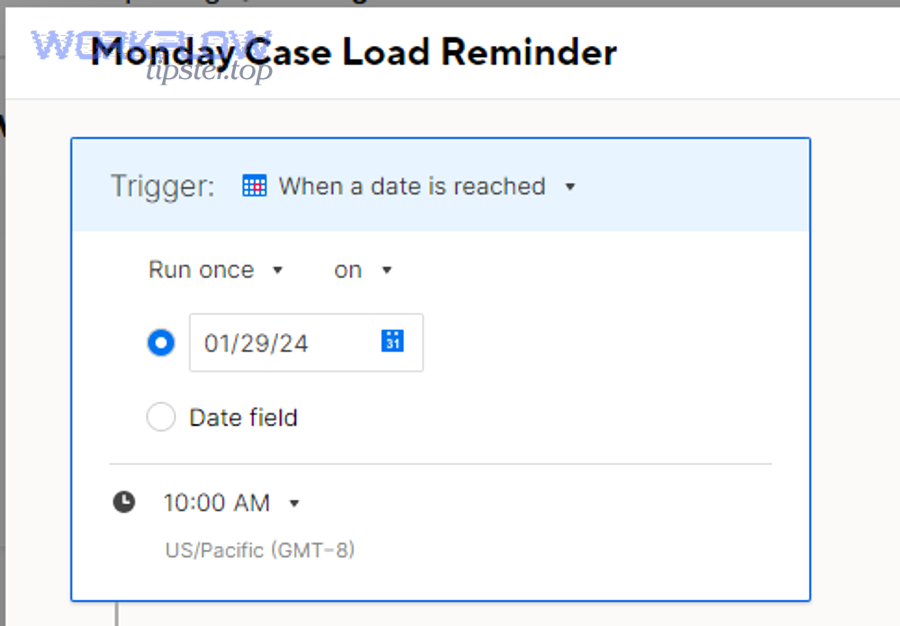
Automations often look like a time zone bug when they’re actually doing exactly what they were designed to do: trigger time zone = sheet owner time zone.
The most common automation-driven mismatches are:
- Date reached triggers: “fires at 9 AM” but 9 AM owner time, not recipient time
- Record a date actions: writes a timestamp that looks “off” to a viewer in another region
- Approval/alerts: arrive at unexpected hours, leading teams to believe the underlying dates changed
The fix isn’t just “change time zone.” The fix is often “change workflow design,” which you’ll do in the step-by-step section.
What mismatches come from API exports and integrations?
API mismatches happen when the integration pipeline assumes “timestamps are local,” but the platform returns UTC or offset-based timestamps and expects the client to convert.
You’ll usually see:
- “off by X hours” in downstream databases
- “off by 1 day” in reports when conversion crosses midnight
- duplicated or missing records when pagination + time window filters are built on the wrong zone
This is where smartsheet invalid json payload troubleshooting and smartsheet pagination missing records troubleshooting sometimes show up as secondary symptoms: time window logic can cause the wrong rows to be requested or parsed, and inconsistent timestamp formatting can break payload validators.
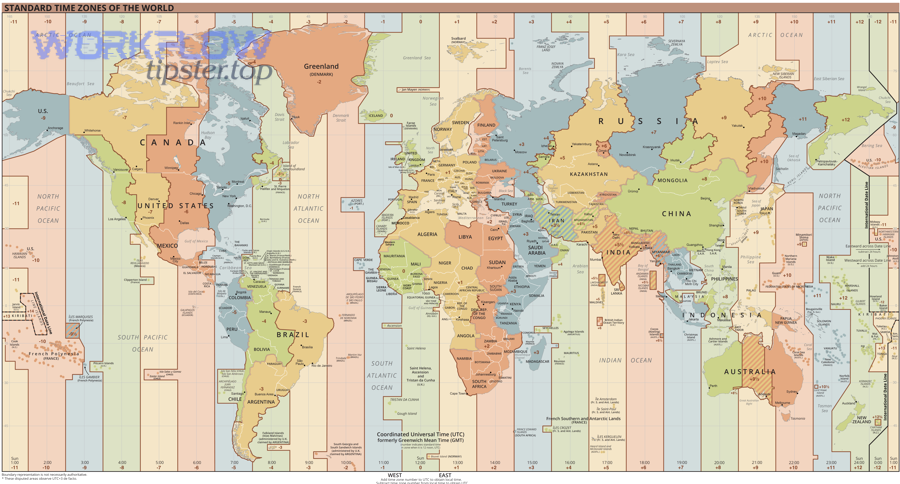
Which time zone controls sheet display vs automations vs timestamps?
Sheet display wins in viewer experience, automations are best understood through the sheet owner’s trigger time zone, and timestamps/system/API are optimal to treat as UTC truth—because each layer uses a different rule for “what time it is.”
To make this concrete, here’s a comparison table showing what each layer controls and how you should reason about it.
| Layer | What it controls | “Truth” to trust | Typical mismatch symptom | Fix strategy |
|---|---|---|---|---|
| Viewer display & some formulas | What users see; TODAY() calculation |
Viewer time zone | “My today is different from yours” | Standardize personal settings or avoid viewer-based logic |
| Automations & triggers | When a workflow fires | Sheet owner time zone | “Automation fired at the wrong hour/day” | Align ownership or redesign triggers/columns |
| System columns & API timestamps | Storage, exported values, integration truth | UTC | “API/export shows different time than UI” | Convert explicitly; store normalized timestamps |
Now you can troubleshoot like an engineer: you’re not arguing about time—you’re identifying which layer you’re observing.
What time zone does TODAY() use in Smartsheet?
TODAY() uses the time zone of the person viewing the sheet, which means it can differ across users and is not a stable “global” value for distributed teams.
If your sheet logic is built on TODAY() (or formulas derived from it), you should assume:
- dashboards and reports can vary by viewer,
- “due today” can mean different rows for different people,
- and overnight transitions can flip results unexpectedly.
A robust alternative is to store “business date” explicitly in a column and update it intentionally (manual, automation, or integration), rather than computing it implicitly per viewer.
What time zone do automations use for date-based triggers?
Automations use the sheet owner’s time zone as the trigger time zone, which is why the exact same workflow can fire at different local times depending on who owns the sheet.
For teams, the implication is simple:
- If you want “9 AM local time for each recipient,” you can’t get it by default with one owner-based trigger.
- If you want “9 AM in one chosen business time zone,” you can get it—but you need to align sheet ownership and be explicit in process docs.
Why do system columns sometimes “look Pacific” or “look UTC”?
System columns always use UTC in the back end, and the displayed value can reflect a display context tied to access/viewing. As a result, the UI can show a value that feels “in the wrong zone,” while formulas or API calls still behave as if the underlying storage is UTC.
If you’re building analytics, audits, or sync pipelines, normalize like this:
- Store: UTC (or ISO 8601 with offset)
- Display: convert to local only at the edges (UI, reports)
- Filter: always filter and paginate by normalized UTC to avoid gaps
How do you troubleshoot and fix Smartsheet time zone mismatch step by step?
Use a 9-step troubleshooting workflow to isolate the controlling layer (viewer, owner, UTC), validate with a controlled test row, then fix settings, workflow design, and integration conversions to restore consistent time zone alignment.
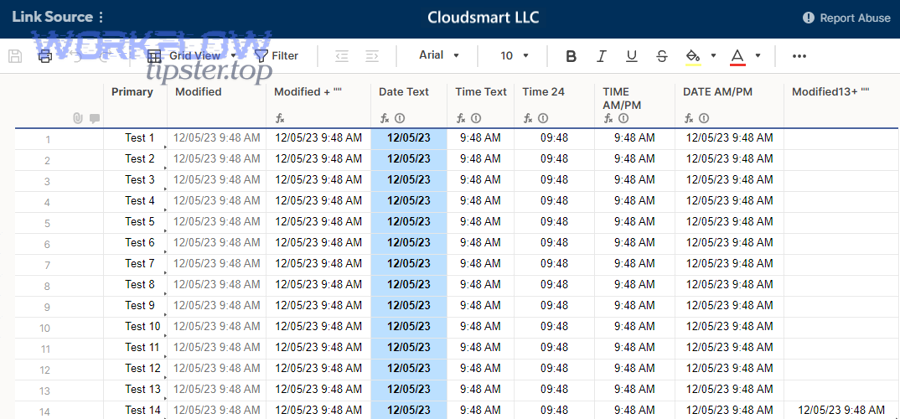
To keep this actionable, the steps below are written so you can copy/paste them into a runbook.
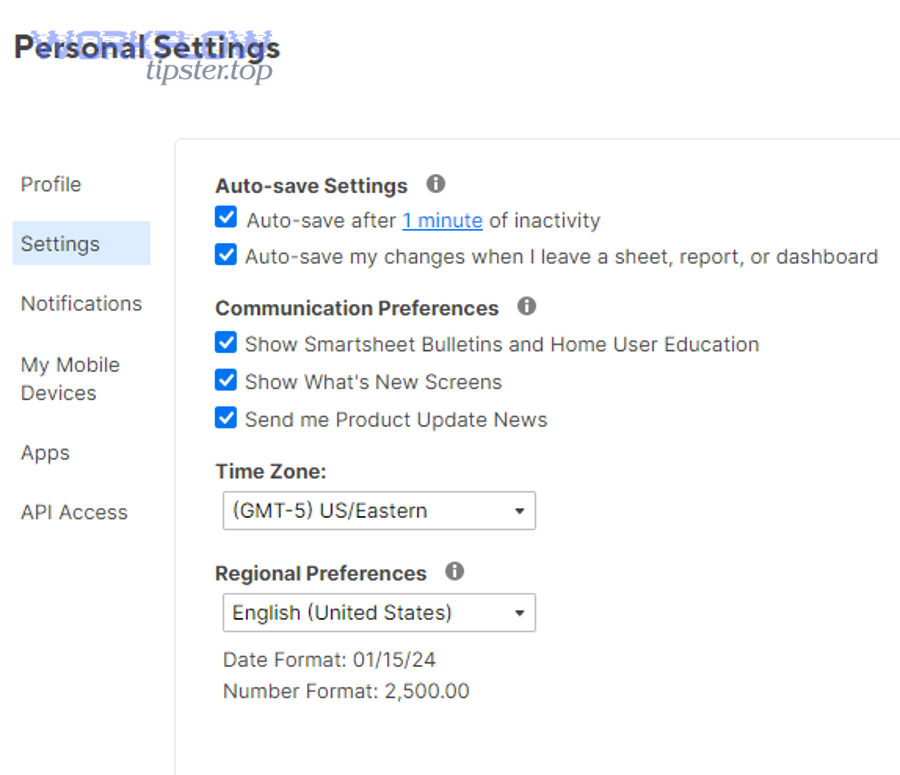
Step 0: Confirm your Personal Settings time zone (and regional preferences)
Start by checking your time zone in Smartsheet Personal Settings, because it affects how timestamps and time-based actions reflect your expectations and it’s the quickest place to catch an obvious misconfiguration. (help.smartsheet.com)
Then, verify regional preferences (date formats), because some “time zone mismatches” are actually format misreads (e.g., dd/mm vs mm/dd) that cause teams to think the date shifted when it didn’t.
What to document after Step 0
- Your current Smartsheet time zone selection
- Your region/date format setting
- Your local OS time zone (to rule out device-level confusion)
Step 1: Identify the mismatch surface (display, automation, or integration)
Next, classify where the mismatch appears:
- Display mismatch (UI): Created/Modified, date columns, dashboards, reports
- Automation mismatch: “When a date is reached,” reminders, record-a-date actions
- Integration mismatch: API, exports, webhook payloads, ETL pipelines
This matters because each surface maps to a different “time truth” layer.
Step 2: Create a controlled test row to observe behavior
Then, add a test row with:
- a manual date column (Date only)
- a date-time column (if used in your workflow)
- a checkbox or status value you can change
- and note the system columns (Created/Modified)
Make a single, recorded change at a known local time (e.g., “I checked the box at 14:05 local”).
This gives you a stable anchor for comparing:
- what you see in the UI,
- what automations do,
- and what the API returns.
Step 3: Test viewer-layer behavior with TODAY() (if your logic uses it)
If your sheets use TODAY() (or anything derived from it), validate viewer-layer behavior by checking the same sheet from two accounts in different time zones (or by temporarily switching a test account’s time zone).
You’re looking for:
- whether the computed “today” changes,
- whether any conditional formatting rules flip,
- whether “due today” grouping changes.
If these shift, your mismatch is at least partly viewer-driven.
Step 4: Inspect sheet ownership and the owner’s time zone for automation timing
Now move to the workflow layer:
- Identify the sheet owner.
- Confirm the owner’s time zone in their Personal Settings.
- Compare the workflow’s “run at” time to the owner’s local time.
Because automation triggers use the sheet owner’s time zone, this step often explains “it fired at the wrong time” instantly.
If you can’t coordinate with the owner, create a temporary sheet clone owned by you and reproduce the workflow there. If the timing changes, ownership time zone is the cause.
Step 5: Validate system columns and UTC assumptions
Then, validate the UTC layer:
- If you’re using Created/Modified columns in formulas, assume UTC is involved.
- If you’re syncing via API, assume timestamps will be returned in UTC or with an explicit offset, and your integration must convert.
Smartsheet notes that system columns use UTC in the back end, and that formula/API interactions can reflect that.
A quick integration sanity check is to:
- log the raw API timestamp,
- parse it as UTC,
- convert it to your local time,
- and see if it matches what your team expects.
If it matches after conversion, your issue is not Smartsheet “being wrong”—it’s your conversion assumptions being incomplete.
Step 6: Fix strategy by root cause category
At this point, you choose the fix path:
A) Viewer-layer fix (display / TODAY issues)
- Standardize team time zones (policy + onboarding)
- Replace
TODAY()-based logic with stored “business date” - Avoid viewer-dependent logic in global dashboards
B) Automation-layer fix (owner time zone issues)
- Transfer sheet ownership to the intended “business time zone”
- Redesign triggers to use stored dates rather than “relative now”
- Add explicit “run at” conventions in workflow documentation
C) UTC/integration-layer fix (API/system timestamp issues)
- Normalize everything to ISO 8601 / UTC in storage
- Convert at the edges only (display/reporting)
- Add test cases for DST boundary weeks
This is also the moment where teams doing smartsheet troubleshooting for integrations should check whether their payload builder is stable: mismatched timestamps sometimes cause smartsheet invalid json payload troubleshooting when timestamp strings don’t match expected schemas, and can contribute to smartsheet pagination missing records troubleshooting when time-window pagination filters are built in the wrong zone.
Step 7: Re-test with a second controlled change
After applying the fix, repeat the controlled change:
- same type of edit,
- same observation surfaces,
- compare results to your “before” snapshot.
The goal is not “it looks better.” The goal is:
- the layer you intended now controls time consistently,
- and the other layers no longer produce surprises.
Evidence (why DST boundaries matter): According to a study by The University of Chicago from the Department of Medicine and the Institute of Genomics and Systems Biology, in 2020, researchers estimated each spring daylight saving shift is associated with 150,000 incidences in the US and observed relative risk increases across multiple condition clusters, reinforcing why one-hour transitions can amplify timing-related errors in human workflows. (pmc.ncbi.nlm.nih.gov)
What are the best workarounds when you can’t force one time zone?
Smartsheet workarounds win by reducing time-zone sensitivity, and the best approach depends on your constraint: use UTC-normalized storage for integrations, a single business time zone for execution sheets, and local-only conversion at the edges for viewers.
This section assumes you cannot guarantee everyone will set the same personal time zone, and you cannot rely on one owner being permanent.
Workaround 1: Use UTC “truth columns” for integrations and audits
Create a dedicated column strategy:
- UTC Stored Timestamp (Text/Number): store ISO 8601 UTC or a numeric epoch
- Local Display Timestamp (Date/Time): optional, for human readability
- Converted Offset (helper): only if your integration needs it
Then, base integrations and audit logic on the UTC truth column, not on system columns that can confuse teams.
This dramatically reduces integration bugs, missing records, and weird “yesterday/tomorrow” gaps.
Workaround 2: Design automations around dates, not “now”
If your business process is date-driven (due dates, reminders), build workflows like this:
- Use a Due Date column that represents the business date
- Trigger on “When a date is reached” in that column
- Avoid triggers that implicitly depend on the viewer’s “today”
When you must include time-of-day, write it explicitly into the process:
- “All reminders go out at 09:00 in [Business TZ]”
- Assign sheet ownership to an account permanently configured to that time zone
This turns “random” timing into a documented operational contract.
Workaround 3: Replace TODAY()-based logic with a “Business Date” column
If dashboards or conditional rules depend on TODAY(), replace it with:
- a manually updated “Business Date” (simple for small teams), or
- an automation/integration that updates it once per day in the chosen business time zone
The benefit is huge: every viewer sees the same “today” from the sheet’s perspective, which restores semantic consistency in reporting.
Workaround 4: Convert at the edges only (UI/reporting), not in storage
For analytics and BI:
- Store UTC
- Convert in the report query
- Label time zones explicitly (e.g., “Last Updated (UTC)” vs “Last Updated (Local)”)
This avoids silent, compounding conversion mistakes—especially when DST shifts occur.
How can you prevent future Smartsheet time zone mismatches?
Preventing future Smartsheet time zone mismatches is a governance-and-design practice: standardize time zone expectations (who owns execution), remove viewer-dependent date logic where it drives decisions, and normalize UTC in integrations so time zone alignment stays stable even as teams scale.
The prevention mindset is simple: make time a design choice, not an accidental side effect.
Here are the high-leverage prevention controls.
What team standards reduce time zone issues the most?
Adopt three standards:
- Ownership standard: define which account owns execution-critical sheets and which business time zone that account uses.
- Column standard: define a “truth column” policy (UTC for integrations, explicit business dates for decision logic).
- Workflow standard: document automation trigger assumptions (“runs in owner time zone”) so no one expects per-recipient local scheduling.
These standards eliminate most recurring tickets because they remove ambiguity.
Which sheet design patterns are the most time-zone safe?
Use patterns that are insensitive to time zone differences:
- Date-only fields for due dates (avoid unnecessary time-of-day)
- Explicit business date columns instead of viewer-based
TODAY() - Automation based on stored fields rather than “current moment”
- UTC storage for integration pipelines with explicit conversion
If you treat “time” as a data modeling decision, you stop chasing phantom mismatches.
How do you document “time truth” so users don’t escalate false alarms?
Add a short “Time & Dates” block to your sheet description or your internal wiki:
- What time zone automations use (owner)
- What time zone system columns store (UTC)
- What viewers should expect in global dashboards
- Who to contact to change ownership/time-zone policy
This is also where you prevent the most common confusion loop: “Smartsheet is wrong” → “No, your setting is wrong” → “But my setting is right” → escalation. With a clear statement of time truth, the conversation stays factual.
What should developers do to avoid time zone bugs in Smartsheet integrations?
For integration reliability:
- Parse timestamps as UTC/offset-aware (never naive local time).
- Convert explicitly for display only.
- When filtering by time windows, filter in UTC.
- Add DST boundary tests (spring forward / fall back weeks).
- Log raw timestamps when diagnosing smartsheet troubleshooting cases.
If you do this consistently, time zone mismatches stop causing side effects like malformed payloads or weird pagination gaps—so you spend less time on smartsheet invalid json payload troubleshooting and smartsheet pagination missing records troubleshooting that are actually downstream of time logic assumptions.
Evidence (why one-hour shifts matter operationally): According to a study by The University of Chicago from the Committee on Genetics, Genomics and Systems Biology, in 2020, researchers reported that daylight saving time shifts are associated with measurable risk changes across large population datasets—supporting why “just one hour” can produce outsized downstream mismatches in automated, time-based systems. (pmc.ncbi.nlm.nih.gov)