


When Smartsheet tasks feel “stuck” and workflows fire late, you can usually fix it by separating normal processing lag from a true queue backlog and then removing the bottleneck (trigger scope, heavy actions, sheet load, or workflow cascades). This guide shows you how to diagnose the delay pattern and apply the fastest fixes so your automations return to near real-time behavior.
Most teams also need a clear baseline for what’s “expected” versus abnormal. You’ll learn practical thresholds (minutes vs. hours), plus the signals that prove your workflow is delayed rather than misconfigured or silently blocked by conditions, permissions, or action constraints.
Next, you’ll get a step-by-step troubleshooting checklist that isolates whether the slowdown comes from triggers, conditions, or actions—so you can reproduce the delay, measure it, and correct it without guessing or rebuilding your whole system.
Introduce a new idea: once you’ve stabilized execution speed, you can shift from “fix the backlog” to “keep it fast under load” using monitoring and design patterns that prevent delays from returning.
Is Smartsheet automation delay “normal,” or is it a backlog problem?
Yes—some Smartsheet automation delay can be normal, but it becomes a backlog problem when latency is consistently high, unpredictable, or exceeds your business threshold because the workflow queue can’t keep up with the volume or complexity of work. Then, the key is to classify the delay accurately so you don’t “fix” the wrong thing.
Then, to make that classification concrete, start by defining what “normal” means for your team and what evidence proves “backlog” instead of “broken.”
A practical way to classify the situation is to use an operational table . The table below summarizes what “normal lag” vs. “backlog” looks like in real environments and what action each scenario suggests:
| Symptom pattern | Likely cause | What to do next |
|---|---|---|
| Delays usually under a few minutes, occasional spikes | Normal asynchronous processing + varying load | Optimize only if it breaks SLAs; otherwise monitor |
| Delays frequently near the upper bound you tolerate | Workload too heavy for current design | Apply quick fixes (split workflows, reduce cascades, narrow triggers) |
| Delays exceed expected windows or appear in large bursts | Queue backlog or systemic slowdown | Capture evidence, reduce load immediately, escalate if persistent |
| No run occurs at all (or only sometimes) | Misconfiguration/permissions/conditions | Validate trigger, conditions, ownership, and action prerequisites |
Smartsheet community guidance commonly frames expected automation time as “usually under a few minutes,” with longer delays being rare and tied to sheet complexity or heavy activity; if delays exceed those ranges, opening a support ticket is recommended. (community.smartsheet.com)
What does “automation lag” mean in Smartsheet workflows?
Smartsheet automation lag is the time gap between the trigger event and the workflow action actually executing, caused by asynchronous processing, workload spikes, or complex evaluation (conditions/formulas/actions) that increases processing time.
Specifically, this matters because you can’t fix “lag” until you know whether Smartsheet is (1) running late but eventually, or (2) not running as you intended. Late execution points you toward queue and workload tuning; non-execution points you toward trigger logic, conditions, and permissions.
In practice, “lag” usually shows up in one of these forms:
- Trigger-to-action latency: a row change happens now, but the alert/cell update happens minutes later.
- Batch delivery: many alerts arrive at once (a backlog flushing).
- Evaluation drift: the workflow acts on the “current” row values after a delay, which can surprise teams who expect it to act on the “moment of change.” (community.smartsheet.com)
Is a 5–15 minute delay acceptable for your use case?
It depends—Yes for low-stakes notifications, No for SLA-driven operations, and No again when the delay is inconsistent, because reliability matters as much as speed.
However, the decision is easier if you tie it to a business rule, not a feeling. Use three quick criteria:
- Impact: Does a delayed action create real-world risk (missed deadlines, customer delays, compliance gaps)?
- Cascade: Does the automation trigger other workflows (so delay compounds into a bigger backlog)?
- User trust: Do users stop relying on automation because it feels random?
Smartsheet users commonly reference that automations “can sometimes take up to ~15 minutes” in some scenarios, which is exactly why you need a threshold aligned to your workflow’s purpose. (community.smartsheet.com)
What evidence proves it’s a backlog (and not a broken rule)?
Backlog evidence is repeatable lateness with eventual execution, plus timing patterns that match workload constraints rather than logic failure.
More importantly, you should look for evidence that separates “late execution” from “no execution.” Here are the strongest signals:
- Eventual completion: actions happen—just late—often in bursts.
- “Run now” works but triggers lag: manual execution succeeds quickly while triggered runs are delayed.
- Multiple workflows slow together: delays appear across different workflows on the same sheet or workspace.
- Lag correlates with burst edits: bulk updates, imports, or mass status changes precede the slow period.
If your delay is beyond what Smartsheet staff and power users describe as typical ranges, that’s also a strong backlog indicator and worth documenting for escalation. (community.smartsheet.com)
What are the most common causes of delayed workflow tasks in Smartsheet?
There are 4 main types of causes of delayed Smartsheet workflow tasks: trigger burst load, heavy condition evaluation, expensive actions, and workflow cascades—based on where time is spent (detecting, deciding, doing, or re-triggering).
Next, you’ll troubleshoot faster if you categorize your issue into one of those buckets—because each bucket has a different “best fix.”
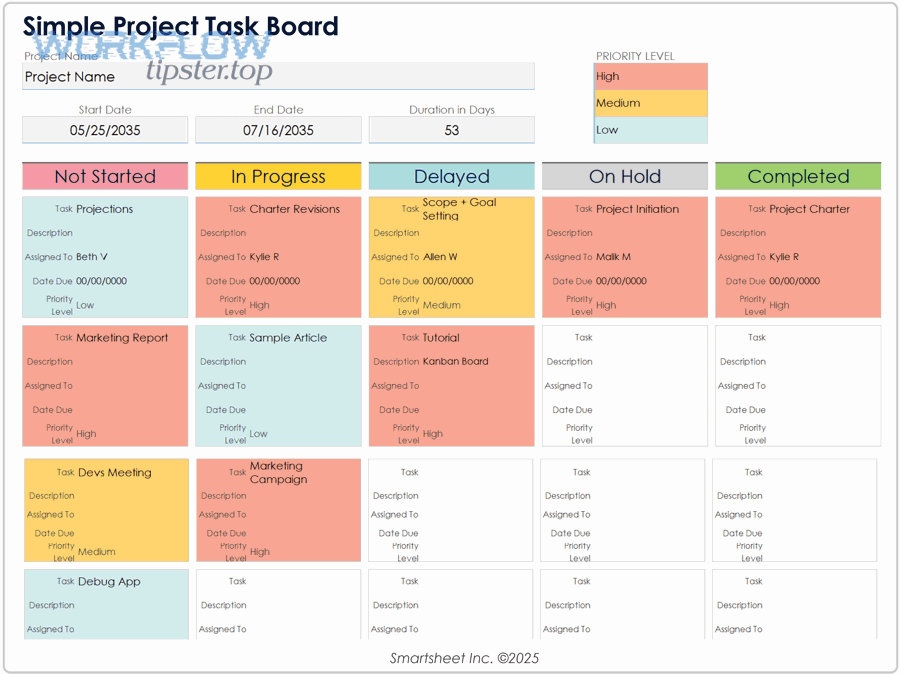
At a high level, Smartsheet automation is: Trigger → Evaluate conditions → Execute actions. Delays can happen at any stage, but most real-world “queue backlog” complaints come from volume and complexity—especially when many actions are triggered at once.
Which trigger types are most likely to appear “late”?
There are 3 common trigger types that most often appear “late”: row-change triggers, date/time triggers, and recurring triggers—based on how they detect events and how they cluster work.
Then, use this grouping to spot the typical failure mode:
- Row-change triggers (high burst risk):
A bulk edit (or imports, copy/paste operations, large integrations) can generate many events quickly. Even if each individual run is light, the volume creates a queue. - Date/time triggers (timing window risk):
These can feel “late” when the schedule is close to the moment you saved/updated the workflow or when the system processes time-based work in batches. - Recurring triggers (batching risk):
Recurrence can align multiple workflows at the same minute, unintentionally creating “rush hour” load.
Smartsheet’s own automation concept documentation emphasizes trigger-based workflows that run from changes or schedules; that architecture is powerful, but it also means bursts and timing windows matter. (help.smartsheet.com)
What workflow conditions and logic patterns slow down execution?
There are 3 main condition patterns that slow execution: multi-condition logic, formula-dependent criteria, and cross-sheet-dependent criteria—based on how much evaluation work Smartsheet must do before acting.
However, the practical point is simple: conditions aren’t “free.” The more conditions you use—and the more those conditions depend on heavy calculations—the more time it can take to evaluate at scale.
Common slowdowns include:
- Long AND/OR chains (especially if you use many helper columns).
- Conditions that depend on formulas that recalculate after edits (so the “true” state arrives later).
- Cross-sheet references (when the condition depends on data that updates separately).
This is also where “evaluation drift” can show up: users observe a workflow running minutes later and acting on the row’s newer state, not the state that “started” it, which can make it look broken when it’s actually late. (community.smartsheet.com)
Which actions create the most processing load?
There are 4 action categories that create the most load: row-moving actions, multi-recipient messaging, cell-updating actions that trigger more workflows, and approval/update requests—based on work per run and downstream effects.
Moreover, these actions aren’t just “heavy” individually—they also amplify backlog by multiplying work:
- Move/Copy rows: often includes checks, updates, and downstream recalculation.
- Large alert distribution: many recipients can mean many message operations.
- Cell updates that cause cascades: one action triggers another workflow, which triggers another.
- Approval/update requests: create multi-step workflows that can stack up.
If you suspect actions are the bottleneck, your best diagnostic move is to isolate actions one by one (you’ll do that in the troubleshooting section).
How do you troubleshoot a delayed queue backlog step by step?
Use a 5-step troubleshooting method—baseline the delay, reproduce it with a test row, compare “Run now” vs trigger runs, isolate conditions vs actions, and reduce load—so you can identify the bottleneck and restore predictable execution.
To better understand the exact source of delay, you’ll apply the checklist in the same order every time—because consistent measurement is what turns “smartsheet troubleshooting” into a repeatable operational process.
Here’s the 5-step method (use it exactly in this order every time):
- Baseline: record current latency (trigger time → action time) for 5–10 sample runs.
- Reproduce: perform one controlled change (a single test row update) and measure latency.
- Compare: run the same workflow manually (or by simplifying triggers) and compare outcomes.
- Isolate: split the workflow into “conditions-only” and “single-action” variants.
- Reduce load: apply the fastest fixes first (narrow triggers, split workflows, stop cascades).
How can “Run now” help confirm whether triggers are the issue?
Manual execution wins in diagnostic speed, trigger execution is best for realism, and isolated test execution is optimal for pinpointing bottlenecks—because each method tests a different part of the automation pipeline.
Next, use “Run now” as a controlled experiment:
- If “Run now” executes quickly:
Your actions are probably fine, and the issue likely lies in trigger detection, condition evaluation at scale, or system workload. - If “Run now” is also slow:
Your workflow logic or actions are heavy, or your sheet/workspace load is high enough that even manual runs queue. - If “Run now” behaves differently than triggers:
You may be facing burst load (triggers creating too many runs) or timing windows.
Document the result with timestamps. When you later escalate to admins/support, “manual runs are fast, triggers are slow” is one of the clearest backlog signals you can provide. (community.smartsheet.com)
How do you isolate whether conditions or actions are causing the delay?
The best isolation method is a 3-variant workflow test—Conditions-Only, Single-Action, Full Workflow—so you can see which stage introduces latency and by how much.
Then, implement it like this:
- Variant A: Conditions-Only
Keep the same trigger and conditions, but remove actions (or replace with a lightweight action like setting a single “Diagnostic Timestamp” column). - Variant B: Single-Action
Keep the same trigger, simplify conditions to a trivial always-true condition, and test one heavy action at a time (move row, alert, update cell, request update). - Variant C: Full Workflow
Keep everything as-is to compare against A and B.
If Variant A is slow, conditions and evaluation are likely heavy or the system is under load. If Variant B is slow, the action is likely heavy or causes cascades. If only Variant C is slow, the combined design (especially cascades) is the culprit.
A small but powerful optimization is to add one diagnostic helper column like “Last Automation Processed At” to make the action time visible without relying on email timestamps.
How do you verify the workflow is evaluating the right values at the right time?
You verify correct evaluation by stabilizing the row state before the workflow acts, logging pre/post values, and testing with a single controlled edit—because delayed evaluation can act on newer values than you expected.
However, evaluation timing issues often look like “wrong behavior,” not “delay.” Here’s how to prove what’s happening:
- Freeze the input: update only one field and wait before touching anything else.
- Log row state: use helper columns that store (a) a status, (b) a timestamp, and (c) a “processed” flag.
- Test race conditions: if multiple workflows update the same row, disable all but one and retest.
Some users report that Smartsheet takes a short time to run an automation and then evaluates criteria based on the row’s current values after that delay rather than the values at the moment of change; this is exactly why logging state is critical for troubleshooting. (community.smartsheet.com)
What fixes actually reduce Smartsheet task delays and speed up workflows?
There are 6 high-impact fixes that reduce Smartsheet task delays: narrow triggers, simplify conditions, split heavy actions, stop cascades, reduce sheet recalculation load, and stagger scheduled workflows—because each fix directly reduces queue pressure and execution time.
Especially when delays are user-visible, you want fixes that deliver speed quickly without redesigning everything.
Below is a practical prioritization: do the fastest, highest-impact changes first.
Which quick fixes cut automation lag fastest (without redesigning the sheet)?
There are 5 quick fixes that cut lag fastest: tighten trigger scope, reduce recipients, remove the heaviest action, split multi-action workflows, and add guard conditions—based on immediate reduction in work per run.
Then, apply them in this order:
- Tighten trigger scope:
Trigger only on the specific columns that matter (avoid “any change” patterns if you can). - Reduce recipient fan-out:
Large alert lists multiply work. Use roles, distribution lists, or only notify on meaningful transitions. - Remove the heaviest action temporarily:
If move/copy actions are involved, test by disabling them first and measure the latency improvement. - Split multi-action workflows:
One workflow with 5 actions is harder to run and harder to debug than 2 workflows with 2–3 actions each. - Add guard conditions (“only run once”):
A simple processed flag can prevent a workflow from re-running repeatedly.
If your team sees delays near or beyond what experienced Smartsheet users describe as typical, quick fixes like these also give you immediate proof of what factor caused the backlog. (community.smartsheet.com)
How can you prevent “automation cascades” that create backlogs?
You prevent automation cascades by breaking feedback loops, centralizing updates, and ensuring one workflow doesn’t trigger another unintentionally, because cascades multiply runs and create sudden queues.
Moreover, cascades are often invisible until they become painful. Watch for these cascade patterns:
- A workflow updates a cell that triggers itself again.
- Two workflows update each other’s trigger columns.
- A “record date” action triggers downstream rules that then re-edit the row.
- Integrations perform bulk edits that trigger many workflows at once.
Practical anti-cascade design:
- Use a single “Processed” checkbox and add a condition: only run when Processed is unchecked, then check it.
- Separate “calculation fields” from “trigger fields” so formula recalculation doesn’t retrigger workflows.
- Prefer one “orchestrator” workflow that sets flags over many workflows that all try to take action directly.
This is also the moment to consider whether your symptoms are actually from an integration failure rather than pure backlog. For example, some teams confuse backlog with errors from external systems, including smartsheet webhook 500 server error troubleshooting, which points to a server-side failure in an integration path rather than normal workflow queue lag.
Should you split one big workflow into multiple smaller workflows?
Yes, you should split a big workflow when it contains heavy actions, multiple audiences, or frequent triggers, because smaller workflows reduce execution complexity, isolate failures, and prevent queue spikes; No, you should keep it unified when actions must be atomic and tightly coordinated.
However, the decision becomes straightforward if you compare on three criteria:
- Reliability: smaller workflows fail smaller.
- Speed: smaller workflows run faster and queue less.
- Governance: too many workflows can become hard to manage.
Use this rule of thumb:
- Split when: (1) >2 heavy actions, (2) >1 audience group, (3) frequent burst triggers, or (4) actions cause cascades.
- Keep unified when: actions must happen together to maintain correctness and you can keep conditions/actions light.
In enterprise environments, splitting also makes escalation easier: you can show exactly which sub-workflow slows and which runs fast.
What’s the difference between a Smartsheet backlog issue and a configuration/permission problem?
A backlog issue eventually runs late, a configuration issue runs incorrectly, and a permission issue fails silently or inconsistently—so the fastest way to tell them apart is to test repeatability, scope, and ownership.
In addition, this distinction matters because “fixes” for backlog (load reduction) won’t solve misconfiguration, and “fixes” for misconfiguration (logic changes) won’t fix queue pressure.
Here’s a quick comparison lens:
- Backlog: delayed but eventual; often affects multiple workflows and correlates with bursts.
- Configuration: consistent non-execution in specific cases; “Run now” may still fail depending on conditions.
- Permissions: works for some users/owners, fails for others; actions that require ownership/access don’t run reliably.
Is the workflow delayed for everyone or only certain users/rows?
No—if the delay only happens for certain users or rows, it is rarely a pure backlog; Yes—if it affects multiple workflows and many rows consistently, it’s likely backlog, because queue pressure tends to be broad while permissions and logic tend to be selective.
Besides, selective issues usually cluster around one of these causes:
- Workflow owned by a user who lost access
- Action requires permissions not held by the workflow runner
- Condition depends on a column some users can’t edit or view
- Different row paths trigger different actions (some heavier than others)
Test it quickly:
- Pick 3 users and 3 rows with different states.
- Run the same controlled change.
- Compare action timestamps and outcomes.
If only one path fails, that’s logic/permissions. If all paths are late, that’s queue pressure.
Which misconfigurations look like “queue backlog” but aren’t?
There are 6 common misconfigurations that look like backlog: wrong trigger field, conditions never true, conflicting conditions, workflow not saved/published, action prerequisites missing, and competing workflows overwriting state—based on why the action never happens.
More importantly, each has a fast check:
- Wrong trigger field: verify the exact column that must change.
- Conditions never true: test with a row that is obviously true.
- Conflicting conditions: temporarily simplify to one condition and retest.
- Not saved/published: confirm the workflow is active after edits.
- Action prerequisites missing: approvals, requests, or row moves may need specific setup.
- Competing workflows: two automations fight over the same fields.
This is also where integration-related troubleshooting can get mixed in. For instance, teams sometimes chase a “delay” that’s actually external throttling or auth failures—like smartsheet api limit exceeded troubleshooting or smartsheet oauth token expired troubleshooting—which can stop downstream steps even when the Smartsheet automation engine itself is fine.
When should admins escalate to support, and what proof should they collect?
Escalate when latency exceeds your acceptable threshold consistently, impacts multiple workflows, and persists after load reduction, and collect an evidence pack that makes the issue reproducible and diagnosable.
Thus, give support/admins what they need in one message:
- Sheet URL and workflow name/ID
- Exact timestamps: trigger time and action time (for at least 5 examples)
- Affected workflow types (row-change vs scheduled)
- Whether “Run now” behaves differently
- Any recent changes (bulk imports, new formulas, new workflows, integrations)
- Scope: one sheet vs many sheets; one workspace vs many workspaces
Smartsheet community guidance explicitly recommends opening a support ticket when automations take longer than the rare upper range and providing the sheet URL and workflow details for investigation. (community.smartsheet.com)
Evidence (why delays matter operationally): According to a study by University of Michigan researchers from cognitive psychology, in 2001, repeated task switching creates measurable time costs and productivity loss as people shift goals and activate new rules—meaning late automations often force humans back into manual follow-ups that compound inefficiency. (newswise.com)
How can you keep Smartsheet automations near real-time (not delayed) under heavy workloads?
You can keep Smartsheet automations near real-time by designing for bursts, measuring latency continuously, decoupling integrations, and reducing recalculation storms—so delays stay the exception instead of the baseline.
Next, you’ll move from macro fixes (stop the backlog) into micro stability (prevent it from returning), especially when your system faces imports, mass edits, and integrated workflows.
If you want one practical mindset shift, it’s this: optimize for peak load, not average load. Most backlogs are created during bursts.
What design patterns prevent backlogs during bulk updates and imports?
There are 4 patterns that prevent bulk-update backlogs: staging sheets, burst guards, scheduled batching, and temporary automation gating—based on controlling event volume and isolating heavy work.
Then, implement the one that matches your environment:
- Staging sheet pattern:
Import into a staging sheet, validate/transform, then move “clean” rows into the main sheet on a schedule. - Burst guard pattern:
Add a “Processing Window” or “Batch ID” column. Workflows only run when the window is active or when a batch flag is set. - Scheduled batching pattern:
For non-urgent actions, run them on a schedule (every X minutes) instead of per-row-change, which reduces burst pressure. - Temporary gating pattern:
During large imports, temporarily disable heavy workflows, then re-enable and run controlled catch-up.
These patterns also help teams avoid confusing backlog with unrelated errors in integrated pipelines (for example, webhook server errors or API throttling that interrupt downstream work).
How do you monitor workflow latency over time without guessing?
You monitor latency by writing timestamps into the sheet, tracking median vs worst-case delay, and using a lightweight “heartbeat” automation, because email timestamps alone are incomplete and noisy.
Specifically, use this simple setup:
- Column: Trigger Observed At (set manually or via formula reference to the change moment you can capture)
- Column: Automation Completed At (set by workflow action)
- Column: Latency Minutes (formula difference)
- Dashboard/report: latency distribution (median, p95, max)
If you want a low-effort approach, start with one “heartbeat” workflow that runs on a predictable schedule and writes a timestamp. When it becomes late, you know the system is under load even if your business workflows haven’t screamed yet.
When do integrations/webhooks make delays worse, and how do you mitigate it?
Smartsheet-internal backlog is dominated by sheet/workflow load, while integration-driven delay is dominated by throttling, server errors, and authentication—so mitigation depends on whether the delay is inside Smartsheet or in the external pipeline.
However, teams often experience both at once. Here’s how to tell:
- If Smartsheet actions (like cell updates) are late: likely internal load/backlog.
- If Smartsheet actions are on time but downstream systems lag/fail: likely integration throttling or errors.
- If delays correlate with spike traffic to APIs: likely rate limiting and retries.
Mitigation patterns:
- Decouple with a queue: write an “Outbound Event” row and let an external worker process it.
- Retry with backoff: avoid hammering external endpoints.
- Reduce payload: send only what’s needed.
- Harden authentication: proactively refresh tokens and monitor expiry.
This is where teams frequently end up doing smartsheet webhook 500 server error troubleshooting (server-side failures) and smartsheet api limit exceeded troubleshooting (throttling), which can look like “Smartsheet is slow” even when the internal automation engine is functioning normally.
Which rare formula and cross-sheet reference issues can trigger “recalculation storms”?
There are 4 rare issues that trigger recalculation storms: volatile formulas, large cross-sheet references, deep dependency chains, and mass updates to referenced ranges—based on how many cells must recompute after a change.
Moreover, recalculation storms create a double penalty: they slow down the sheet and they slow down condition evaluation, which then slows down workflows.
Look for these warning signs:
- A single edit causes a noticeable pause in sheet responsiveness
- Cross-sheet reference ranges are huge (or many formulas depend on them)
- Many formulas reference “rolling” criteria (like TODAY-based logic) across large datasets
- Imports update fields that are referenced widely
Mitigations that preserve correctness while reducing storm risk:
- Shrink reference ranges to only what you need.
- Denormalize stable values (copy a value into a helper column so you don’t recalc it everywhere).
- Reduce dependency depth (avoid chains of formulas referencing other formulas where possible).
- Move heavy computations to a staging sheet.
Smartsheet automations are designed to replace manual work across alerts, reminders, updates, approvals, and cell changes—but to keep them fast at scale, you have to manage the workload they trigger and the computation they depend on. (help.smartsheet.com)