


If you’re seeing “Permission Denied” or “Access Denied” in Smartsheet, you can usually fix it by validating three things in the right order: the account you’re signed into, the permission level you actually have, and where that access is being controlled (sheet vs workspace vs ownership). This guide walks you through a practical, step-by-step path so you can regain access quickly and stop the error from looping.
If you’re an Owner or Admin, you’ll also learn how to verify exactly what someone can do (Viewer/Commenter/Editor/Admin/Owner), where to check it in the UI, and how to correct sharing when permissions “look right” but still don’t work. The goal is to move from guessing to confirming, with clear checkpoints.
You’ll also get a high-signal list of the most common causes—especially the ones that waste the most time (wrong login/session, workspace inheritance, group sharing changes, seat-type limitations). These are the patterns that explain why a user can “suddenly” lose access to a sheet they used yesterday.
Introduce a new idea: once the core issue is fixed, we’ll shift into micro-scenarios that cause recurring permission errors—like connector authorization, automation triggers, and enterprise SSO controls—so you can prevent future “denied” messages instead of repeatedly reacting to them.
Is “Permission Denied” in Smartsheet usually fixable without recreating the sheet?
Yes—Smartsheet “Permission Denied” is usually fixable without recreating the sheet because the problem is most often caused by (1) the wrong logged-in account/session, (2) an incorrect sharing/permission level, or (3) access being controlled at the workspace/group level instead of the sheet itself.
To begin, that matters because recreating or duplicating sheets can hide the real permission source and create new ownership and sharing problems.
Most “permission denied” scenarios are not data-corruption problems; they’re identity and access-control problems. That’s good news: access-control problems can be diagnosed with a repeatable checklist.
Here’s the practical mindset that prevents wasted hours:
- Don’t start with “what’s broken?” Start with “who am I, inside Smartsheet, right now?”
- Don’t start by re-sharing randomly. Start by confirming the current permission level and where it’s being applied (sheet vs workspace).
- Don’t recreate assets first. Recreating a sheet changes the surface area: links break, reports/dashboards detach, automations re-point, and historical audit trails become messy.
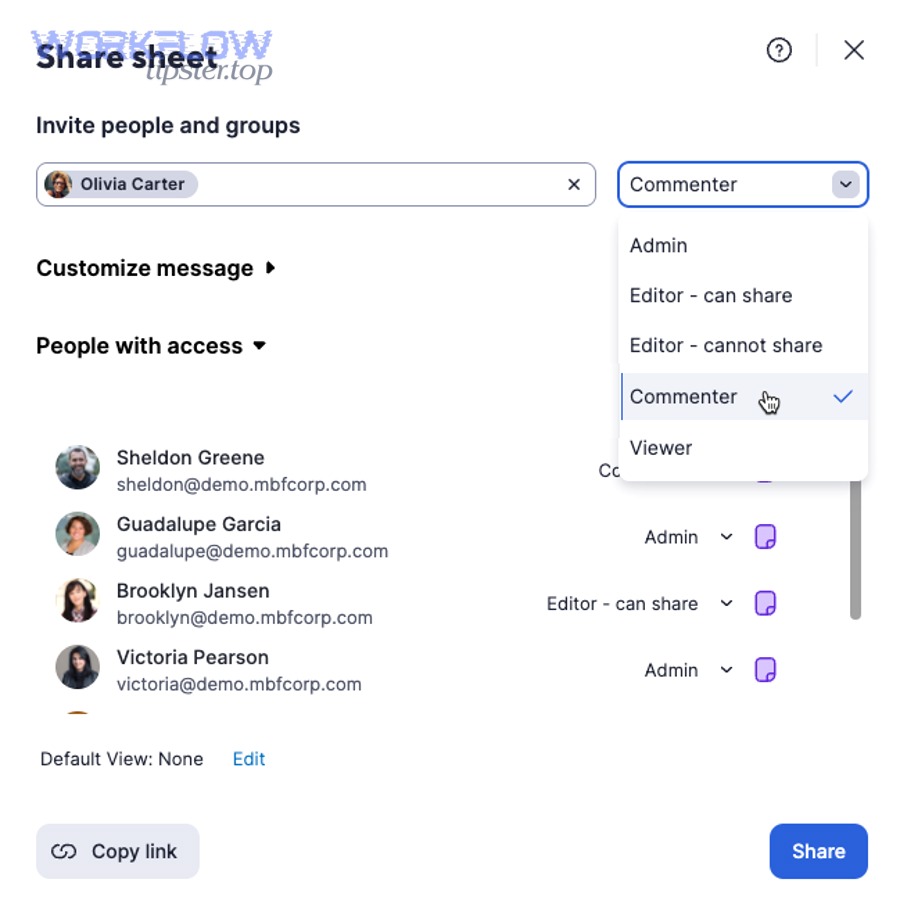
Does the error mean you’re logged into the wrong Smartsheet account?
Yes, very often it does—wrong-account login is one of the fastest explanations for an “Access Denied” message, especially when SSO, multiple emails, or multiple browser profiles are involved.
Then, the fix becomes simple: confirm the active account email, sign out fully, and sign back in with the correct identity.
This happens in real life more than most teams admit, because modern work setups make it easy to have:
- A personal email login and a work SSO login
- Multiple Smartsheet orgs (clients, subsidiaries, contractors)
- Browser password managers that auto-fill the wrong email
- Multiple Chrome profiles that keep parallel sessions
Fast confirmation steps (2 minutes):
- Check your Smartsheet profile/account email (not just the browser autofill).
- Open an incognito/private window and sign in intentionally.
- If you use SSO, use the official SSO entry path—not an old bookmark.
If the sheet opens in a clean session, you don’t have a “Smartsheet permissions” problem—you have a session/identity mismatch problem.
Can you be the sheet creator and still see “access denied”?
Yes—you can be the original creator and still get “access denied” if ownership changed, the asset moved into a workspace with controlled access, your seat type changed, or your account was re-provisioned under a different identity.
Next, that’s why you must verify ownership and the current permission record instead of relying on memory (“I created it, so I must own it”).
Common “I created it” realities that cause denial anyway:
- Ownership was transferred during re-orgs, admin changes, or consolidation.
- The sheet was moved into a workspace where access is enforced differently.
- You’re logged in as a similar-but-not-identical email (e.g., alias vs primary).
- Your organization changed user models or seat types, and your effective ability changed.
If you’re stuck in a “request permission” loop even though the request email goes to you, treat it as a strong signal that Smartsheet is not matching your session identity with the asset’s permission record.
What does “Permission Denied” mean in Smartsheet, and how is it different from “Request Access”?
“Permission Denied” in Smartsheet means the system evaluated your current identity against the asset’s access rules and refused the action; “Request Access” means you can trigger an approval workflow to ask an Owner/Admin to grant a higher permission level.
Specifically, that difference matters because you troubleshoot them differently: “denied” is diagnosis; “request access” is escalation and approval.
Smartsheet permission levels control what you can do on a sheet/report/workspace, and Smartsheet also limits what you can grant: you can’t assign permissions higher than your own. (help.smartsheet.com)
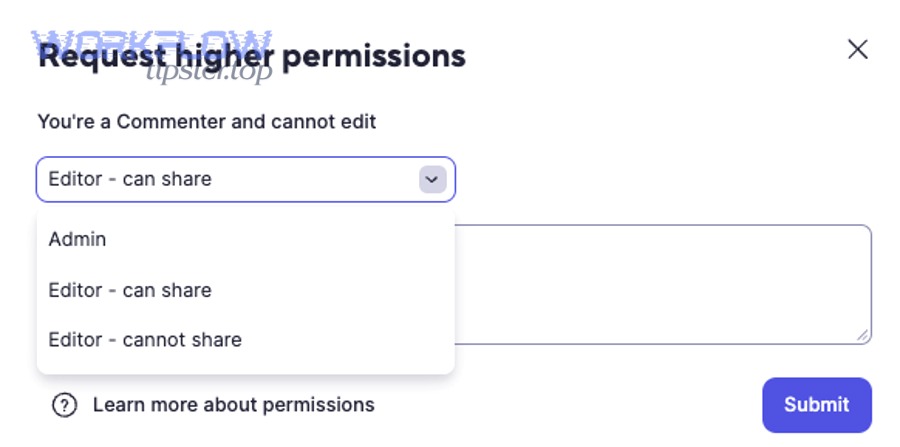
What are Smartsheet permission levels (Viewer, Editor, Admin, Owner)?
Smartsheet permission levels are role-like access tiers that determine which actions you can perform; they range from Viewer/Commenter (view/feedback) to Editor (edit), Admin (manage sharing/settings), and Owner (full control as the creator/owner of the item).
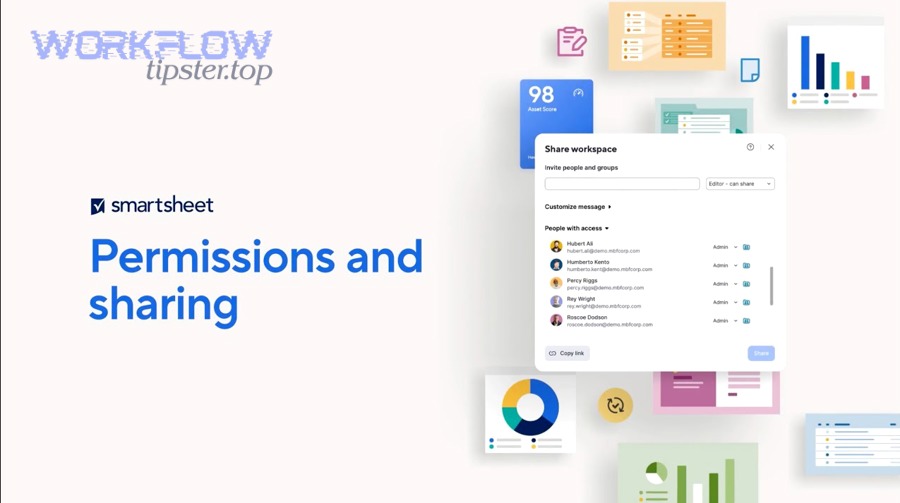
Moreover, Smartsheet allows you to check your permission level directly in the UI in two ways: File > Properties (Permissions row) or Share > People with access (permission shown next to your email). (help.smartsheet.com)
A useful way to think about these levels is “what gets blocked”:
- Viewer: can view data, export, and download attachments, but can’t change sheet structure. (help.smartsheet.com)
- Commenter: can comment/add attachments but not edit core data. (help.smartsheet.com)
- Editor: can edit rows/cells (and may or may not be able to share, depending on the editor type). (help.smartsheet.com)
- Admin: can manage sharing and many sheet settings. (help.smartsheet.com)
- Owner: the ultimate authority for that item; typically the creator unless ownership is transferred. (help.smartsheet.com)
Practical takeaway: when you see “permission denied,” don’t debate what you “should” have—confirm what you actually have.
Which is the real issue: missing permission vs missing ownership vs missing license?
Missing permission blocks a specific action, missing ownership blocks “owner-only” control, and missing license/seat type can block features even when your sharing permission seems correct—so the “real issue” depends on what exact task fails.
However, you can separate them quickly by testing three categories of actions:
- Editing content (rows/cells)
- If you can’t edit unlocked rows, you’re likely not an Editor (or your seat type is limiting functionality). (help.smartsheet.com)
- Managing sharing
- If your button reads “Request to edit” or “Request to share” instead of “Share,” your permission level is too low for that action. (help.smartsheet.com)
- Changing settings/structure (locked rows/columns, column properties, sheet settings)
- These typically require higher privileges (Admin/Owner) depending on the task. (help.smartsheet.com)
This is why “permission denied” is not one problem—it’s a family of problems that share a symptom but differ by root cause.
What are the most common causes of Smartsheet “Access Denied”?
There are 6 main causes of Smartsheet “Access Denied”: (1) wrong account/session, (2) not actually shared to the item, (3) insufficient permission level for the action, (4) workspace/group access changes, (5) seat-type/plan limitations, and (6) enterprise controls or re-provisioning side effects.
In addition, treating these as a ranked list helps you resolve most cases without escalating.
Here’s the high-yield order that matches real-world fixes:
- Identity mismatch (wrong account, stale session, SSO confusion)
- Sharing mismatch (not on People with access, wrong email, invite not accepted)
- Permission mismatch (Viewer/Commenter trying to edit/share)
- Inheritance mismatch (workspace and group changes)
- Seat-type/plan mismatch (permission looks right, feature still blocked) (help.smartsheet.com)
- Enterprise/security mismatch (SSO enforcement, provisioning sync, policies)
Which account/session problems cause false denials?
Account/session problems that cause false denials include being logged into the wrong email, having multiple active sessions (especially across SSO), using cached cookies, and switching between browser profiles without fully signing out.
More specifically, you should suspect a session problem when:
- The sheet was accessible yesterday, but “denied” appears today with no known sharing change.
- You click “request access,” receive the email, and the link still says you don’t have permission.
- Another teammate can open it from the same link, but you cannot.
What to do (quick fixes that work):
- Fully sign out of Smartsheet.
- Clear cookies for Smartsheet or use private browsing.
- Re-login using the intended method (SSO vs password).
If the clean-session test works, you’ve completed the most important step of smartsheet troubleshooting: isolating access issues from asset issues.
Which sharing/permission configuration issues block access?
Sharing/permission configuration issues that block access include not being listed under People with access, being shared to the wrong email, having a lower permission level than required, losing group membership, or having the asset moved into a workspace with different access rules.
Besides, Smartsheet makes confirmation straightforward: open Share and search under People with access, where your permission appears next to your email. (help.smartsheet.com)
Common configuration pitfalls:
- Duplicate identities: “same person, different email” (alias vs primary).
- Editor cannot share: user believes they can manage access, but they can’t.
- Group removal effects: removing a group from sharing can change effective access, even if the user was “also shared” in another way.
- Workspace moves: assets moved into a workspace often shift how admins manage access at scale.
The key is to stop describing the problem emotionally (“Smartsheet locked me out”) and describe it operationally (“This identity is not listed as Editor/Admin/Owner on this asset”).
How do you check your actual access and permission level for a sheet (and confirm what action is blocked)?
You check your actual Smartsheet access by verifying your permission level in either File > Properties (Permissions row) or Share > People with access (permission shown next to your email), then matching that level to the specific action you’re trying to perform. (help.smartsheet.com)
To better understand what’s happening, you must test the exact action that fails—because “Access Denied” often targets a task, not the entire sheet.
Think of this as a two-part confirmation:
- What do I have? (current permission level)
- What do I need? (required permission for the action)
Where can you verify “People with access” and your permission level in Smartsheet?
You can verify your permission level from File > Properties (Permissions row) or from the Share dialog under People with access, where your permission appears to the right of your email address. (help.smartsheet.com)
Then, once you confirm the level, you can interpret what the UI is telling you.
Smartsheet even changes the Share-related button text depending on your level:
- If you’re Viewer/Commenter or Editor-cannot-share, the button can read Request to edit or Request to share. (help.smartsheet.com)
- If you’re Editor-can-share, Admin, or Owner, the button reads Share. (help.smartsheet.com)
That UI change is a diagnostic clue. It’s Smartsheet telling you, “This is not a bug. This is a permission boundary.”
How do you tell whether the sheet is in a workspace and inherits permissions?
You can tell a sheet is controlled via a workspace when the asset sits inside a workspace structure and access decisions are managed through workspace sharing (often at scale), which can override expectations from ad-hoc sheet sharing.
Especially in larger organizations, workspace membership and group roles become the practical “source of truth.”
Here’s how to confirm without guessing:
- Check whether the sheet appears under a workspace in your Smartsheet navigation.
- Open the workspace and review who has access and at what level.
- Compare: are you shared to the sheet directly, or only via workspace?
Why this matters: when a user says, “I’m an admin,” they might mean:
- Admin on a workspace
- Admin on a sheet
- System Admin on the plan (which still doesn’t guarantee admin access to every sheet) (help.smartsheet.com)
Those are not the same. Your troubleshooting becomes faster when you specify which “admin” you mean.
How do you fix “Permission Denied” step-by-step for sheet owners and admins?
Use a 7-step troubleshooting playbook—Confirm Identity → Confirm Permission Level → Confirm Sharing Entry → Confirm Workspace/Group Source → Confirm Ownership → Retest the Exact Action → Apply the Minimum Fix—to restore access while preserving governance and avoiding accidental over-sharing.
Let’s explore this systematically, because a reliable process beats trial-and-error, especially for Admins supporting multiple teams.
Step 1: Confirm identity (fastest win)
- Sign out and re-login (or use incognito).
- Ensure you’re using the correct email/org.
Step 2: Confirm permission level
- File > Properties → Permissions row OR Share → People with access. (help.smartsheet.com)
Step 3: Confirm sharing entry
- Are you (or the affected user) actually listed under People with access?
- Is it the correct email?
Step 4: Confirm where access is controlled
- Sheet sharing vs workspace sharing vs group sharing
Step 5: Confirm ownership
- If “owner-only” actions fail, verify current owner.
- If ownership changed, transfer it appropriately.
Step 6: Retest the exact action
- Editing, sharing, publishing, automation editing—test the one that failed.
Step 7: Apply the minimum fix
- Adjust permission level only as high as required.
- Add direct access only when group inheritance is unstable.
How do you fix access when the user is not listed (or listed incorrectly) in sharing?
Fix it by adding the correct email to the asset’s sharing list, setting the minimum required permission level, and ensuring the user accepts the invitation under the same identity they’re logged into.
In addition, this is the most common “simple fix” for Owners and Admins because it removes ambiguity immediately.
Use this order to reduce errors:
- Search for the user under People with access
- If missing, add them.
- If present under a wrong email, correct it.
- Set the minimum required permission
- If they only need to view, don’t grant Editor.
- If they need to edit, grant Editor (and decide whether they need sharing rights). (help.smartsheet.com)
- Retest the exact action
- Don’t ask “Does it work now?” Ask “Can you edit this specific row?” or “Can you click Share now?”
- Avoid accidental over-sharing
- Remember: you can’t assign permissions higher than your own. (help.smartsheet.com)
If the user receives an invite but still sees “denied,” your next suspicion should be identity mismatch—meaning they accepted with another email/session.
How do you fix issues caused by group access, workspace moves, or ownership transfers?
Fix group/workspace/ownership-driven denials by re-establishing the correct access source (group or workspace role), adding a temporary direct share if needed, and transferring ownership only when governance requires it.
Moreover, this class of problems is where admins get stuck—because permissions may appear correct “in one place” but not where they’re enforced.
Here’s the practical breakdown:
A) Group access issues
- If a group was removed from sharing, users may lose effective access.
- If group membership sync is delayed, access can appear inconsistent.
- Best admin move: confirm membership, then reapply sharing at the correct level.
B) Workspace moves
- When assets are moved into a workspace, teams often shift to workspace-based governance.
- Ensure the user has the appropriate workspace permission, not just a memory of “being shared last month.”
C) Ownership transfers
- Ownership changes are sometimes intentional (handoffs), sometimes accidental (admin cleanup).
- If the wrong person is owner, transfer ownership according to internal policy.
This is also where “permission denied” can be a signal of healthy governance: the system is enforcing that not everyone gets owner-level control.
Should you use a quick diagnostic checklist or a decision tree to troubleshoot faster?
Use both: a checklist wins for speed and consistency, while a decision tree wins when the symptom is unclear—so the fastest teams start with a 60-second checklist and switch to a symptom-based decision tree if the first pass fails.

Meanwhile, this approach keeps your support process scalable: one admin can reliably support many users without improvising every time.
Below is a symptom-to-fix mapping table. It helps you diagnose by observing the exact failure and tying it to the most likely permission boundary.
Table context: The table maps common “denied” symptoms to the most likely cause and the fastest fix location (identity, share panel, or workspace/governance).
| Symptom you see | Most likely cause | Fastest fix |
|---|---|---|
| “Request access” loop (email arrives, link still denied) | Wrong account/session or mismatched email identity | Incognito + confirm correct email, then re-accept invite |
| Can view but cannot edit unlocked rows | Not Editor (or seat-type limitation) | Upgrade to Editor, confirm seat type if still blocked (help.smartsheet.com) |
| Cannot click Share / button says “Request to share” | Editor-cannot-share or lower | Upgrade to Editor-can-share/Admin/Owner (help.smartsheet.com) |
| Was working yesterday, denied today | Session/SSO change, group/workspace change | Confirm identity → then review group/workspace access |
| Admin on plan but denied on sheet | System Admin ≠ sheet Admin | Share to the item with Admin/Owner as needed (help.smartsheet.com) |
Which symptoms map to which fixes (edit blocked vs share blocked vs publish blocked)?
Edit blocked usually maps to missing Editor rights, share blocked maps to lacking “can share”/Admin rights, and publish/settings blocked maps to Admin/Owner boundaries—so the fix is to match the required permission to the specific action, not to “the sheet” generally.
However, you’ll troubleshoot faster when you ask the user one diagnostic question: “What exactly were you trying to do when it failed?”
Use these action-based shortcuts:
- Edit rows/cells → confirm Editor permission (and whether rows/columns are locked). (help.smartsheet.com)
- Share / change permissions → confirm Editor-can-share/Admin/Owner. (help.smartsheet.com)
- Change structure/settings → confirm Admin/Owner boundaries and workspace control. (help.smartsheet.com)
This is why the Share dialog is so useful: it tells you your current tier immediately and gives you the correct escalation path.
When should you escalate to an admin or support ticket?
Yes, you should escalate when (1) identity and sharing are confirmed but denial persists, (2) the issue is tied to enterprise SSO/provisioning controls, or (3) access changes revert repeatedly due to policy or group sync.
In short, escalation is appropriate when the root cause is outside the sheet owner’s control.
Escalate when you see patterns like:
- Denials happening across many users at once (policy or system change)
- Repeated re-provisioning of the same user identity
- Domain restrictions for external collaborators
- “Everything looks correct, but it still fails” after clean-session testing
Admin escalation is not a failure—it’s the correct next step when governance tools are the real control plane.
How do you prevent Smartsheet “Permission Denied” from coming back (especially in integrations and enterprise setups)?
Prevent recurring Smartsheet “Permission Denied” by standardizing identity practices, enforcing least-privilege permission templates, documenting where access is governed (sheet vs workspace vs group), and validating integration identities (tokens/OAuth) on a schedule instead of only when failures happen.
Especially for teams running automations, prevention is the difference between “a one-time fix” and continuous smartsheet troubleshooting.
This is where micro-semantics matters: the antonym in the title—Denied → Access Granted—becomes an operational goal. You don’t just want to fix access once; you want to design for “granted” staying granted.
Also, this is the right place to embed related operational troubleshooting phrases naturally, because recurring access issues often appear as “automation issues” in disguise, such as smartsheet timezone mismatch troubleshooting and smartsheet trigger not firing troubleshooting in workflow setups.
What should you check when “Permission Denied” happens in automations, connectors, or API integrations?
Check 4 things: the integration identity (which user/token is acting), the permission level of that identity on the target sheet, the authorization state (OAuth/token validity), and whether plan/seat constraints block the integration action even when sharing looks correct.
More importantly, integration failures can look like “Smartsheet is broken” when the real issue is that the automation actor is under-privileged.
Use this prevention checklist for integrations:
- Integration identity
- Which Smartsheet user does the connector run as?
- Is that user still active and correctly provisioned?
- Permission level alignment
- Does the integration actor have Editor/Admin where required?
- Is the target asset controlled via workspace membership?
- Authorization freshness
- Token expired? OAuth revoked? Password reset forced?
- These events often silently break connectors.
- Operational symptoms
- “Trigger not firing” can be a permission boundary if the actor can’t read the event source.
- “Timezone mismatch” can cause missed timing windows that look like failures, so treat it as part of your smartsheet trigger not firing troubleshooting.
Evidence (access-control misconfiguration impact): According to a study by The University of Texas at Austin (an ECE/CS research team), in 2023, their system repaired 57.6% of synthesized cloud IAM misconfigurations within 600 seconds, compared to 21.6% for a baseline approach—showing how common and non-trivial permission misconfigurations are at scale. (spark.ece.utexas.edu)
How do enterprise controls (SSO, domain restrictions, provisioning) cause access failures, and how do you mitigate them?
Enterprise controls cause access failures when the user’s identity in Smartsheet changes (or is re-mapped) due to SSO enforcement, provisioning updates, or domain policies—so mitigation is to align identity lifecycle management with Smartsheet ownership and sharing governance.
Besides, enterprises optimize for security and auditability; “permission denied” is often the system doing exactly what policy demands.
Mitigation strategies that prevent recurring denials:
- Identity hygiene
- Standardize one primary login path (SSO vs password) and document it.
- Avoid alias-based sharing for critical owners/admins.
- Provisioning governance
- When users are deactivated/reactivated, verify their access on critical workspaces.
- Maintain a lightweight checklist for onboarding/offboarding that includes ownership and access transfer.
- Workspace-first governance
- For large teams, manage access at the workspace level with groups to reduce “random sheet shares.”
- For critical assets, add a minimal set of direct shares to reduce group-sync risk.
If your org changes policies, the fastest prevention move is a short “access audit” of the highest-value workspaces.
What are the rare edge cases: templates, published items, attachments, and cross-org sharing restrictions?
Rare edge cases include template-based asset creation failing due to access boundaries, published items behaving differently than editable assets, attachment access depending on the underlying item permission, and cross-org restrictions blocking external collaborators even when you try to share correctly.
Especially in large environments, these edge cases are predictable once you know to look for them.
Practical examples of rare-but-real cases:
- Templates
- Users can be blocked from creating assets from templates if they lack the necessary permission or plan capability.
- Published items
- A published link may allow viewing, but not editing; users confuse “I can see it” with “I have access.”
- Attachments
- Downloading attachments is usually tied to having access to the item; if a user can’t download, confirm their permission. (help.smartsheet.com)
- Cross-org restrictions
- Your organization may block external sharing or require extra steps for outside domains.
These are the cases where prevention documentation is powerful: if your help desk sees the same 2–3 edge cases repeatedly, write a short internal guide that points to the exact fix path.
Which is better for stability: group-based sharing or direct user sharing?
Group-based sharing is better for scalable governance, direct user sharing is better for pinpoint stability on critical assets, and a hybrid approach is optimal for most organizations—groups for the majority, direct shares for owners/admins of mission-critical workspaces.
To sum up, you choose based on what you value more: operational simplicity or guaranteed continuity.
Group-based sharing wins when:
- You onboard/offboard frequently
- You want consistent access by role
- You need audit-friendly governance
Direct sharing wins when:
- A specific person must never lose access (primary owner/admin)
- You’re protecting critical automations from identity/group sync issues
- You want a “break glass” access path during incidents
Hybrid best practice (the stable middle):
- Use groups/workspaces for normal users.
- Add direct shares for the smallest set of critical owners/admins.
- Review those direct shares quarterly.
That’s the long-term “Access Granted” strategy: not more permissions, but better-designed permissions.