


Integrating Airtable with WooCommerce lets you sync products, orders, and inventory by connecting your store’s operational data to a structured Airtable base, so you can automate updates, reduce manual work, and keep records consistent across systems.
Next, you’ll learn how to choose the right integration method—whether that’s a WooCommerce plugin, a no-code automation platform, or a purpose-built connector—based on reliability, cost, and how much control you need.
Then, you’ll set up a clean Airtable schema, map fields correctly, and build workflows that move data safely in the right direction without duplicates, SKU confusion, or “mystery stock” mismatches.
Introduce a new idea: once the core sync works, you can strengthen it with testing, monitoring, and advanced patterns that keep the integration stable as your catalog and order volume grows.
What does it mean to integrate Airtable with WooCommerce to sync products, orders, and inventory?
Integrating Airtable with WooCommerce means creating a structured, repeatable data connection where WooCommerce objects (products, orders, customers, inventory) are automatically created or updated in Airtable (and sometimes pushed back), using mapped fields, triggers, and rules that keep both systems aligned.
To better understand why this matters, start by treating the integration as a “system design” problem rather than a one-time automation: you decide what data moves, when it moves, and which system is allowed to overwrite the other.
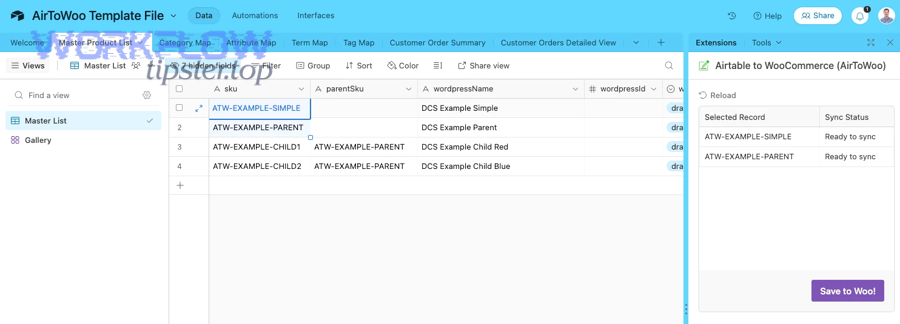
Airtable excels at giving store owners a human-friendly operational layer: filtered views for “needs restock,” interfaces for customer support, approvals for product changes, and dashboards that help you see what’s happening without digging through WordPress screens. WooCommerce remains your transactional engine—your checkout, payment, taxes, and order lifecycle.
When you say “sync,” you are really describing three separate promises:
- Record identity: a WooCommerce product or order must match exactly one Airtable record (no duplicates).
- Field consistency: the meaning of “SKU,” “stock quantity,” “status,” and “price” must stay consistent across both systems.
- Update discipline: only the correct events trigger changes (e.g., “order paid” vs “order created”).
In practice, most store owners want Airtable for operations (planning, collaboration, reporting) while WooCommerce stays the source of truth for checkout and customer-facing catalog updates. That’s the safest default because it reduces conflict.
Which WooCommerce data should you sync into Airtable first: products, orders, or inventory?
There are 3 practical starting points—products, orders, or inventory—based on what pain you want to remove first.
Next, use your store’s operational bottleneck to decide the order:
- Start with orders if you need faster fulfillment, better customer support visibility, and clearer status tracking.
- Start with products if you have a large catalog and frequent updates (prices, descriptions, categories, images).
- Start with inventory if your biggest risk is overselling, stockouts, and manual reconciliation.
A reliable starting sequence for many stores is: Orders → Inventory signals → Product updates, because orders give immediate operational value while inventory and product sync require stricter controls to avoid overwriting the wrong data.
Is Airtable a source of truth or a mirror for WooCommerce data?
WooCommerce is usually the safer source of truth for transactions, while Airtable is best as a mirror and operational workspace; Airtable becomes a source of truth only when you implement strict controls like approvals, staging views, and “publish” workflows.
However, you should choose deliberately:
- WooCommerce as source of truth works best for: prices, tax rules, checkout, order status, customer records.
- Airtable as source of truth can work best for: internal product enrichment (copywriting pipeline), merchandising plans, replenishment planning—as long as WooCommerce updates are controlled.
If you make Airtable the source of truth for product updates, don’t allow “any edit” to publish instantly. Instead, use a staging workflow (draft → review → publish) so your store doesn’t change unexpectedly.
Which integration method should store owners choose for Airtable ↔ WooCommerce?
A plugin wins in WordPress-native reliability, no-code platforms (Zapier/Make) are best for fast automation, and developer tools (n8n/custom API) are optimal for flexibility and advanced logic—so the best method depends on your volume, complexity, and how much you want to maintain.
Let’s explore this choice as a trade-off between speed of setup and long-term control, because the method you pick determines how resilient your sync will be.

To make the decision practical, think in three layers:
- Connector layer : plugin, middleware, or direct API.
- Logic layer : field mapping, filters, transformations, approvals.
- Operations layer : monitoring, retries, logs, error alerts.
This is where many teams begin exploring Automation Integrations: they don’t just want data to move—they want repeatable operations like “auto-create a pick list when an order is paid” or “notify purchasing when stock drops below threshold.”
Below is a simple comparison table that contains the most important criteria store owners use to pick an integration approach, so you can choose quickly without overthinking.
| Method | Best for | Strengths | Weaknesses |
|---|---|---|---|
| WooCommerce plugin sync | Consistent WordPress-based sync | Stable inside WP, fewer external dependencies | Limited logic, plugin constraints |
| Zapier-style automation | Quick workflows, small/medium volume | Fast to set up, lots of apps | Can get expensive, complex logic is harder |
| Make-style scenarios | More control over steps | Flexible modules, branching logic | Requires more maintenance and testing |
| n8n / custom API | Advanced logic, scale, custom rules | Full control, can be very robust | Needs technical setup/hosting |
Should you use a WooCommerce plugin, Zapier/Make, or a native connector?
A WooCommerce plugin is best when you want WordPress-native stability, Zapier/Make is best when you want speed and broad automation options, and a native connector is best when it covers your exact WooCommerce objects without complicated workarounds.
However, the “best” option changes depending on what you sync:
- Orders → Airtable: middleware (Zapier/Make) is often enough because the flow is mostly one-way and event-driven.
- Products ↔ Airtable: plugins or more controlled middleware setups can reduce publishing mistakes.
- Inventory sync: choose the approach that supports strict rules (single source of truth, reconciliation, and safe updates).
When your store grows, reliability becomes more important than convenience—so choose the method you can actually monitor and maintain.
Do you need one-way sync or two-way sync?
No, you do not need two-way sync in most stores, because it increases conflict risk; a one-way sync (WooCommerce → Airtable) is safer, easier to debug, and less likely to overwrite pricing or stock incorrectly.
To better understand why, compare the operational reality:
- One-way sync reduces collisions: one system writes, the other reads.
- Two-way sync introduces conflict rules: which edit “wins” if both changed?
If you truly need two-way behavior, use a controlled pattern: Airtable edits go to a “Publish queue” and only publish when approved, while WooCommerce continues to send authoritative order updates into Airtable.
What criteria matter most when comparing tools: cost, speed, reliability, or flexibility?
There are 4 main criteria—cost, speed, reliability, and flexibility—based on how much volume and complexity your store handles.
More specifically, define them in store-owner terms:
- Cost: not only monthly fees, but also your time spent fixing failures.
- Speed: setup speed and also data latency (real-time vs scheduled).
- Reliability: retries, error logging, rate-limit handling, and idempotency support.
- Flexibility: branching logic, transformations, and the ability to model variants and refunds cleanly.
Pick the method that matches your highest risk. If overselling would be catastrophic, optimize for reliability and clear inventory rules first.
How do you set up the Airtable base so WooCommerce data stays clean and scalable?
A clean Airtable base for WooCommerce uses a normalized schema (separate tables for products/variants/orders/customers), stable unique keys (WooCommerce IDs and SKUs), and linked records that preserve relationships—so your sync remains scalable as your catalog and order volume grow.
Next, treat your Airtable base as a database design project: if your tables are messy, every automation becomes fragile.

A strong foundation usually includes these tables:
- Products (parent product: name, slug, status, categories)
- Variants (SKU-specific: attributes, price, stock, WooCommerce variation ID)
- Orders (order-level: total, status, payment method, timestamps)
- Order Line Items (each purchased SKU: quantity, price, tax)
- Customers (only if needed; otherwise store minimal references)
- Inventory Events (optional but powerful: adjustments, restocks, audits)
This base structure prevents a common failure: trying to cram variants, line items, and multi-status orders into one table “because it’s easier.” That approach breaks down as soon as you need reporting, reconciliation, or deduping.
How should you model products and variants in Airtable for WooCommerce?
You should model products and variants as two linked tables—Products for shared attributes and Variants for SKU-level fields—because WooCommerce variations behave like separate sellable units with their own price and stock.
Then, align your model to how WooCommerce actually works:
- A simple product usually maps to one Variant record (SKU = product SKU).
- A variable product maps to one Product record linked to multiple Variant records (each variation has its own SKU/ID).
In the Variants table, store the fields you must never confuse:
- WooCommerce variation ID
- SKU
- Stock quantity (and stock status)
- Regular price / sale price
- Attribute combination (size/color/etc.)
This structure makes automation safer because updates become precise. You update one variant’s stock without touching the parent product’s descriptive fields.
Which fields must be “unique keys” to prevent duplicates (SKU, product ID, order ID)?
There are 3 core unique keys—WooCommerce Product/Variation ID, Order ID, and SKU—based on whether the object is transactional (order) or catalog-based (product/variant).
More specifically, use them like this:
- Orders: WooCommerce Order ID is your primary identity key.
- Variants: WooCommerce Variation ID is the safest identity; SKU is a strong human key but can change.
- Products: WooCommerce Product ID identifies the parent product; slug can change, so don’t rely on it.
Add guardrails in Airtable:
- Validate SKUs (format rules) to reduce human errors.
- Use “find or create” behavior in automations (“upsert”) so the same WooCommerce ID updates the same Airtable record.
How should you structure order records for reporting and fulfillment?
You should structure orders with an Orders table linked to an Order Line Items table because fulfillment and reporting require line-level detail (SKU, quantity, item price) that a single “order row” can’t represent cleanly.
For example, fulfillment needs a pick list by SKU, while finance needs totals by category, and customer support needs status history.
A good order model includes:
- Orders: order ID, status, created/paid dates, totals, shipping method, payment method
- Line items: order ID (link), SKU/variant link, quantity, unit price, tax, discount
- Optional status events: separate table to capture status transitions if you need audits
This design also prevents the “one order, many SKUs” problem where you’d otherwise have to store a messy list of SKUs in one cell.
How do you map WooCommerce fields to Airtable fields without breaking automation?
Field mapping works best when you standardize data types (numbers, currencies, statuses), define a single meaning for each field, and map WooCommerce IDs to Airtable unique keys—so automations can update records safely instead of creating duplicates or overwriting the wrong values.
Next, treat mapping as a contract: if the contract changes, your workflow must change too.

A “break-proof” mapping approach has three rules:
- IDs over names: match records using WooCommerce IDs first; names can change.
- Typed fields: price as number, dates as dates, statuses as single-select enums.
- Transformations are explicit: if you convert currency or format SKUs, document it and keep it consistent.
This is also where platform limits matter. Airtable’s Web API has rate limits, so batching and minimizing unnecessary updates becomes part of good mapping.
What is the best field mapping for product sync (name, price, stock, images, categories)?
There are 2 mapping tiers—minimal and advanced—based on whether you want operational visibility only or full catalog control in Airtable.
To begin, a minimal mapping (safe for most stores) includes:
- WooCommerce product/variation ID → Airtable unique ID field
- SKU → Airtable SKU
- Name → Airtable product name
- Price → Airtable price (number)
- Stock quantity/status → Airtable stock fields
- Product status (draft/publish) → Airtable status
- Category IDs/names → Airtable categories (linked or multi-select)
Advanced mapping adds:
- Images (store URLs, not files, to keep it lightweight)
- Attributes (store as text or linked records if you need filtering)
- Sale price schedule
- Shipping class / tax class
If you want store owners to edit product copy in Airtable, keep those editable fields separate (e.g., “Airtable description draft”) and only push them to WooCommerce after approval.
How do you map order statuses and payment/shipping states reliably?
Reliable status mapping uses a single-select status taxonomy in Airtable that mirrors WooCommerce order states, plus “timestamp fields” for paid/shipped/completed events—so automation logic triggers on stable conditions instead of ambiguous text.
For example, “processing” and “completed” mean very different operational steps.
Use an approach like this:
- Airtable Order Status (single select): pending, processing, on-hold, completed, cancelled, refunded, failed
- Paid Date (date/time)
- Fulfillment Status (single select): unfulfilled, partially fulfilled, fulfilled
- Shipping Carrier/Tracking (text)
Then build logic:
- Trigger notifications when status becomes “processing” (paid and ready)
- Create packing tasks when fulfillment status is “unfulfilled”
- Lock edits when status is “completed/refunded”
This keeps your workflow stable even when WooCommerce plugins add extra metadata.
Should you transform data during sync (formatting, currency, SKU rules) or after import?
Transforming during sync wins for consistency, while transforming after import wins for auditability and easier debugging—so the best choice depends on whether your transformations are simple and stable or complex and evolving.
However, most stores do best with a hybrid:
- During sync: normalize obvious types (price as number, dates as ISO, status as enum)
- After import: apply business logic (margin calculation, replenishment thresholds, categorization cleanups)
This approach reduces the risk of “invisible transformations” that make data harder to trace when something looks wrong.
How do you build the automation workflow from Airtable to WooCommerce (and back) step by step?
A practical workflow uses 6 steps—define the source of truth, build the base schema, map unique keys, choose triggers, implement safe updates (upserts), and add monitoring—so products, orders, and inventory sync consistently without duplicates.
Then, you implement the flows in the order that reduces risk: WooCommerce → Airtable first (observability), and only later Airtable → WooCommerce (controlled publishing).

A common store-owner workflow blueprint looks like this:
- WooCommerce → Airtable (Orders): when an order is created/paid, create or update an order record + line items.
- WooCommerce → Airtable (Products/Inventory signals): pull scheduled updates or webhooks to update stock status and key catalog fields.
- Airtable → WooCommerce (Controlled product updates): publish updates only from “Approved to publish” view.
- Reconciliation job: nightly or weekly job that checks for mismatches (missing records, stock inconsistencies).
- Alerting: notify when failures happen, not days later.
- Audit trail: store last sync time, last payload hash, and workflow run ID.
If you want a visual walkthrough to pair with this written guide, this video overview of WooCommerce REST API concepts can help you understand how products and orders are created/updated via endpoints:
How do you sync WooCommerce → Airtable for new/updated orders automatically?
WooCommerce → Airtable order sync works best with event-driven triggers (webhooks) or frequent polling plus incremental updates, so each new or updated order upserts into Airtable and line items remain linked and complete.
Specifically, follow this operational flow:
- Step A: Capture identity: store WooCommerce Order ID in Airtable as the unique key.
- Step B: Upsert order: if Order ID exists, update; if not, create.
- Step C: Upsert line items: for each SKU in the order, upsert a line item record linked to the order.
- Step D: Store timestamps: paid date, created date, updated date.
- Step E: Lock rules: when order status becomes completed/refunded, restrict edits that would break auditability.
If your sync uses the REST API, pagination and “per_page” constraints matter when backfilling or catching up.
How do you sync Airtable → WooCommerce for product updates safely?
Safe Airtable → WooCommerce product sync uses a staging-to-publish workflow, where Airtable edits go into a draft state, pass review, and only then publish to WooCommerce using controlled updates keyed by WooCommerce Product/Variation IDs.
For example, implement these controls:
- Draft fields: “New title,” “New description,” “New price,” “New images”
- Approval fields: “Reviewed by,” “Approved to publish” (checkbox), “Publish timestamp”
- Publishing view: a filtered view that only shows approved records
Then the workflow runs:
- Trigger when “Approved to publish” becomes true
- Validate required fields (SKU present, IDs present, price numeric)
- Update WooCommerce via product/variation endpoint
- Write back “Published” status + last sync time + response status
- Reset approval toggle (optional) to prevent re-publishing loops
This avoids the classic mistake: any Airtable edit immediately changing your live storefront.
How do you sync inventory without overwriting the wrong stock level?
Yes, you can sync inventory safely, but only if you enforce (1) one stock source of truth, (2) strict SKU/variation matching, and (3) reconciliation rules that correct drift instead of blindly overwriting values.
More importantly, inventory data is notoriously prone to inaccuracies if systems aren’t aligned, which is why reconciliation and discipline matter.
A practical safe-inventory approach:
- Choose one source of truth for stock quantity (often WooCommerce if it’s tied to sales).
- In Airtable, treat stock fields as:
- Observed stock (from WooCommerce)
- Planned stock (from purchasing/replenishment)
- Adjustment needed (calculated)
- Use an Inventory Events table for adjustments (restock, audit, correction), so changes are tracked.
When you need to push stock from Airtable to WooCommerce (for example after an audit), publish only from an “Adjustment queue” view, and log each change with:
- before quantity
- after quantity
- reason
- timestamp
- who approved
According to a study by the University of Chicago from the Graduate School of Business, in 2008, an analysis of nearly 370,000 inventory records across 37 stores found inventory records were inaccurate in a substantial share of cases, underscoring the need for reconciliation in inventory systems.
How do you test, monitor, and fix common sync issues?
You test and monitor Airtable ↔ WooCommerce sync by validating unique keys, running controlled backfills, tracking failures with logs and alerts, and routinely reconciling counts and totals—so duplicates, missing records, and rate-limit errors are detected quickly instead of silently compounding.
Next, shift your mindset from “set it and forget it” to “operate it like a system,” because integrations fail most often after they appear to work.
A solid operational checklist includes:
- Pre-launch tests: sandbox/test store, sample products, sample orders, partial refunds
- Backfill test: import the last 7–30 days of orders and compare totals
- Data validation: count comparison (WooCommerce orders vs Airtable orders), spot-check line items
- Monitoring: error alerts, run logs, rate-limit handling, retry policies
- Change management: any field change requires updating mapping + retesting
Keep a small “Integration Control Panel” in Airtable:
- Last sync time
- Last successful run
- Last error message
- Records processed
- Retry queue size
Why do duplicates happen—and how do you stop them permanently?
Duplicates happen because the workflow cannot reliably identify an existing record (missing unique key, unstable matching, or repeated triggers), and you stop them permanently by enforcing upserts with stable IDs, adding idempotency keys, and using filtered triggers that only fire once per event.
To illustrate, duplicates usually come from one of these:
- Matching by name instead of WooCommerce ID (names change; IDs don’t)
- Trigger loops (Airtable updates trigger the same automation again)
- Webhook retries without idempotency (the same event is processed twice)
- Line item explosion (each item creates a new “order” row instead of linking to one order)
Permanent fixes:
- Use WooCommerce Order ID / Product ID / Variation ID as the primary key
- Store a “last processed event ID” or payload hash for webhooks
- Ensure your automation “finds” before it “creates”
- Add a “processed” checkbox/timestamp to stop reprocessing
Once you adopt these patterns, duplicates become a controlled, explainable event rather than a recurring mystery.
What should you do when the API rate limit or pagination causes missing records?
When rate limits or pagination cause missing records, you fix it by batching requests, respecting retry-after behavior, using incremental time windows (updated_after), and building a scheduled reconciliation job that re-fetches recent changes until counts match.
More specifically, plan for platform constraints:
- Airtable can return rate-limit errors if you exceed documented API constraints, so your workflow must slow down and retry instead of failing permanently.
- WooCommerce and WordPress REST APIs are paginated; if you pull products or orders in bulk, you must loop through pages to avoid silently missing older records.
A reliable mitigation pattern:
- Pull changes in a time window (e.g., last 24 hours)
- Process in batches (e.g., 50–100 items/page)
- Retry failed batches with backoff
- Reconcile totals (counts + spot checks)
- Expand the window if mismatches remain
How do you validate data accuracy after launch (spot checks, reconciliation views)?
There are 3 validation layers—spot checks, reconciliation views, and periodic audits—based on how quickly you want to detect errors and how critical the data is.
Then implement them as routines:
- Spot checks (daily): randomly sample 10 orders; confirm totals, SKUs, and statuses match.
- Reconciliation views (ongoing): Airtable views like:
- “Orders missing line items”
- “Variants missing WooCommerce IDs”
- “Stock negative or blank”
- “Orders updated in WooCommerce after last sync”
- Periodic audits (weekly/monthly): compare a full count of records and run discrepancy reports.
According to a study by the Airtable Developer Platform team from the API documentation, in recent API guidance, exceeding published rate limits can trigger error responses that require waiting and retrying, which is why structured batching and reconciliation are necessary in production syncs.
Is integrating Airtable with WooCommerce secure and compliant for customer/order data?
Yes, integrating Airtable with WooCommerce can be secure and compliant when you (1) use least-privilege access tokens, (2) minimize stored personal data, and (3) implement access controls and auditability across Airtable and WordPress.
Moreover, security is easiest when you design it into your sync rules rather than trying to patch it after a breach or accidental exposure.

From a store-owner perspective, “secure” means:
- Tokens are protected and rotated when needed
- Only necessary data fields are synced
- Only the right team members can see/edit sensitive records
- You can trace changes (who changed what, when, and why)
Also note a practical reality: the more systems you connect, the more copies of sensitive data you create. Your safest strategy is often to keep Airtable focused on operational fields and store references rather than full PII whenever possible.
Should you store customer PII in Airtable or only store order references?
Storing only order references is best for privacy and risk reduction, while storing customer PII can improve customer support and segmentation—so you should store PII only when you have a clear operational need and strict access controls.
For example:
- Store only references when: you mainly need fulfillment operations and reporting.
- Store limited PII when: support agents need names/emails to resolve issues quickly.
- Store full PII only when: you have a compliance and access model that justifies it.
A practical compromise:
- Store customer ID + order ID + shipping region
- Store email/name only in a restricted table or restricted Airtable interface
- Avoid storing full addresses unless absolutely necessary
This reduces your exposure if a base is shared incorrectly or if credentials leak.
What access controls and permissions should you set in Airtable and WordPress?
There are 4 access control layers—token security, role permissions, base/table restrictions, and audit trails—based on how data flows and who touches it.
Specifically:
- Token security
- Use personal access tokens or service accounts with minimal permissions
- Store tokens in secure secrets storage (not in plain-text notes)
- Rotate tokens when staff changes
- WordPress/WooCommerce roles
- Restrict API credentials to admin-only
- Limit who can install plugins that might expose endpoints
- Airtable permissions
- Restrict editing rights to only necessary roles
- Use interfaces to expose only what teams need
- Limit who can access customer-related tables
- Auditability
- Track “last sync time,” “last updated by workflow,” and “change reason” where appropriate
According to a study by the Airtable Developer Platform team from published API documentation, in recent guidance, using controlled access mechanisms and respecting platform constraints helps maintain predictable performance and reduces operational risks caused by uncontrolled integrations.
What advanced patterns make Airtable ↔ WooCommerce sync more reliable at scale?
Advanced reliability at scale comes from idempotency and upserts, choosing batch sync when real-time is unnecessary, modeling edge-case order events (refunds/backorders) explicitly, and using a backfill-and-cutover plan—so the sync remains stable as volume grows.
In addition, these patterns reduce “integration entropy,” where small inconsistencies compound into major operational errors over time.

As stores scale, the problems change:
- It’s not just “did the order sync?”
- It becomes “did the right version of the order sync, exactly once, with a traceable history, under load, without missing pages?”
That’s why advanced patterns focus on repeatability, traceability, and drift correction—not just moving data faster.
How do you prevent double-processing with idempotency keys and “upserts”?
You prevent double-processing by assigning each event a stable idempotency key (order ID + updated timestamp, or webhook event ID), storing it in Airtable, and ensuring every workflow performs an upsert (find existing record → update) instead of create-only behavior.
To begin, implement these three safeguards:
- Idempotency key field: store the last processed event key on the record.
- Payload hash: hash relevant fields; if unchanged, skip updates.
- Run log table: store run IDs and event IDs so you can trace replays.
This turns retries into a safe mechanism instead of a duplicate generator.
When should you prefer batch sync instead of real-time sync?
Batch sync is better when you want lower cost, fewer rate-limit issues, and easier reconciliation, while real-time sync is better when you need immediate operational actions like instant fulfillment alerts—so choose based on whether latency truly matters for the decision being made.
For example:
- Prefer real-time for: “paid order → create pick task,” “high-risk stockout alert”
- Prefer batch for: catalog enrichment, price audits, periodic inventory alignment, reporting
This is the antonym-driven micro semantic: real-time vs batch. Real-time feels better, but batch is often more reliable at scale.
How do you handle refunds, partial shipments, and backorders in your Airtable model?
There are 3 event groups—refunds, fulfillment splits, and backorders—based on how they change the financial truth, the operational truth, and the inventory truth of an order.
More specifically:
- Refunds: create a refund event record linked to the order (amount, reason, date), rather than overwriting the original totals.
- Partial shipments: track fulfillment at the line-item level (fulfilled quantity vs ordered quantity).
- Backorders: represent backorder status per line item and link it to replenishment tasks.
This keeps your Airtable data truthful over time and makes customer support faster because you can see what happened without guessing.
How do you backfill historical products/orders and cut over without downtime?
You backfill without downtime by importing history in batches, validating record counts and key totals, running the live sync in parallel for a short window, and only then switching the operational team to Airtable views once discrepancies drop to near zero.
A practical cutover plan:
- Backfill last 30–90 days of orders (depending on return/refund cycle)
- Validate counts + total revenue match within expected tolerance
- Parallel run: keep live sync running while you fix mapping gaps
- Cutover: staff uses Airtable interfaces for operations, WooCommerce remains transactional
- Stabilize: monitor error rates and reconciliation views daily for 2–4 weeks
According to a study by the University of Chicago from the Graduate School of Business, in 2008, research on inventory record inaccuracy and retail performance showed mismatches between recorded and actual inventory can be widespread, which is why backfill validation and ongoing reconciliation are essential when scaling inventory-related sync workflows.
To extend semantic connectivity beyond ecommerce operations, many teams also connect document workflows (for example, docusign to box) and scheduling workflows (for example, google docs to google calendar) so approvals and operational calendars remain aligned with the same discipline used in WooCommerce sync.