


If your goal is to sync Airtable to Webflow CMS, the most reliable approach is to map Airtable fields to Webflow Collection fields, choose a sync direction (one-way or two-way), then run an automation tool that creates/updates CMS items consistently—without breaking slugs, references, or publishing rules.
Next, it helps to clarify what “sync” actually means in Webflow terms—because Webflow CMS has draft/published states, API limits, and Collection rules that affect how “real-time” your sync can be.
Then, you’ll want to decide whether you need one-way publishing (Airtable → Webflow) or two-way collaboration (Airtable ↔ Webflow), and prepare the right prerequisites (field structure, unique IDs, and publishing workflow) so your integration doesn’t duplicate items or overwrite content.
Introduce a new idea: once the sync is running, the real wins come from building a stable operating system—method selection, monitoring, and fast troubleshooting—so your CMS stays accurate as your data and team scale.
What does it mean to “sync Airtable to Webflow CMS”?
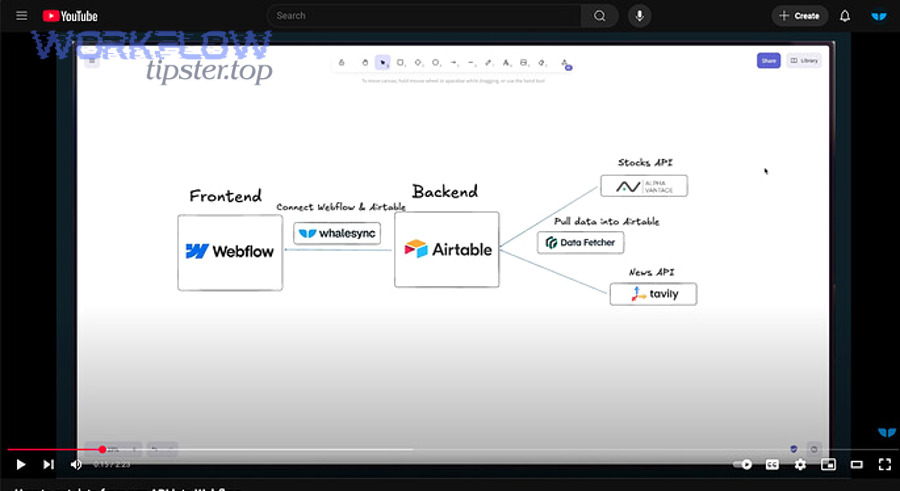
Syncing Airtable to Webflow CMS means automatically creating and updating Webflow Collection items from Airtable records using an integration method (no-code or API) that keeps field mappings consistent and prevents duplicates.
To better understand what “sync” includes in practice, think of it as a chain of four actions that must stay aligned:
- Field mapping: Airtable fields → Webflow fields (text, rich text, image, reference, multi-reference, etc.).
- Identity matching: one Airtable record must always match the same Webflow CMS item (usually via a unique key).
- Change handling: updates in Airtable trigger updates in Webflow (immediately, scheduled, or batched).
- Publishing rules: deciding when items should be created as drafts vs published, and how often to publish.

What “sync” includes (create, update, publish, and asset handling)
A practical Airtable → Webflow sync usually includes:
- Create items: new Airtable records become new Webflow CMS items.
- Update items: changes to existing records update matching CMS items (title, fields, images, references).
- Publish behavior: either publish automatically, publish on a schedule, or keep drafts until review.
- Attachment/image behavior: Airtable attachments must resolve into stable image URLs Webflow can ingest.
A key constraint is that both platforms enforce limits that affect “speed” and “volume.” For example, Webflow’s API rate limits can throttle high-frequency updates.
What “sync” does not guarantee (real-time, perfect parity, or unlimited scale)
Even strong integrations don’t guarantee:
- True real-time parity: rate limits, batching, and caching introduce delays.
- Unlimited content delivery: Webflow can have a short delay before API responses reflect published updates due to caching.
- Infinite items: plan limits and CMS constraints still apply (e.g., item caps tied to plan tier).
So “sync” is best treated as controlled automation, not “magic mirroring.”
Do you need one-way sync or two-way sync for Airtable → Webflow?
You need one-way sync if your priority is publishing and content control, while two-way sync is best when multiple teams must edit content across both tools without losing changes; the right choice depends on edit ownership, conflict risk, and approval workflows.
However, the direction decision gets easier when you frame it around who is the source of truth and where edits are allowed.

Should Airtable be the “source of truth” for Webflow content? (Yes/No)
Yes—Airtable should be the source of truth when you want structured content governance, faster bulk editing, and fewer accidental CMS changes, for three reasons:
- Structured data wins: Airtable excels at validation-like workflows (status fields, owners, checklists).
- Bulk operations are safer: you can review, filter, and update many records before pushing to Webflow.
- Cleaner publishing control: you can sync only “Approved” records to Webflow, reducing mistakes.
Then, once Airtable becomes the source of truth, your integration becomes a predictable pipeline: Airtable record → mapped fields → Webflow item → publish state.
When is two-way sync worth it (and when is it risky)?
Two-way sync is worth it when:
- Webflow editors need to adjust content frequently (e.g., marketing tweaks, SEO snippets).
- Airtable teams need the “final published truth” reflected back (e.g., canonical URLs, publish timestamps).
- You have a clear conflict policy (who wins if both sides change).
Two-way sync becomes risky when:
- Conflicts are frequent: the same fields are edited in both places.
- Field parity isn’t clean: Webflow references, slugs, and rich text don’t map neatly back to Airtable.
- Publishing is manual: people publish from Webflow while Airtable continues to overwrite.
A practical middle ground is “two-way metadata only”: Webflow sends back URL/slug/published status, while Airtable remains the main editor for content.
What do you need before connecting Airtable to Webflow CMS?
Before you connect Airtable to Webflow CMS, you need (1) a stable field schema and unique identifiers and (2) an integration path that matches your update volume and publishing workflow.
Next, getting these prerequisites right prevents the three classic failures: duplicated CMS items, broken references, and rate-limit stalls.

What fields should you set up in Airtable and Webflow to avoid mapping errors?
Set up these “must-have” fields before you map anything:
In Airtable (recommended minimum):
- Unique Key (single line text): immutable ID like post_000123 (never change it).
- Name/Title (single line text): maps to Webflow Name field (or title field).
- Status (single select): Draft / Review / Approved / Archived.
- Last Modified Time (Airtable system field): helps detect what changed and when.
- Slug candidate (formula): a clean version of the title (optional but helpful).
- Attachments (attachment field): if you plan to sync images.
In Webflow CMS:
- A Collection that matches your entity (Posts, Projects, Locations, Products).
- Fields that match Airtable types as closely as possible:
- Text ↔ single line text
- Rich text ↔ long text / rich text (often requires transformation)
- Image ↔ attachment URL
- Reference ↔ linked record (often needs a lookup mapping step)
- A hidden field (or plain text field) to store the Airtable Unique Key for matching.
This unique key is the single most important anti-duplication guardrail.
What permissions, API keys, and limits can block your sync?
Most syncs fail for boring reasons—permissions, tokens, and throttling:
- Airtable API access: Airtable enforces rate limits (commonly 5 requests per second per base) which affects how aggressively you can push updates.
- Webflow API access: Webflow API rate limits vary by plan tier and endpoint class, so high-volume jobs need batching and backoff.
- CMS item limits: your Webflow plan can cap total CMS items, which matters if you’re syncing large bases.
- Front-end display limits: Webflow Collection Lists have display limits unless pagination is enabled.
If you’re building “Automation Integrations” at scale, rate limits and batching are not optional—they’re the system.
How do you sync Airtable to Webflow CMS step-by-step (no-code)?
A no-code Airtable → Webflow CMS sync works best when you follow 5 steps—define the source of truth, map fields, create a matching key, run create/update automations, then add publish + monitoring—so your Webflow CMS stays accurate without duplicates.
Below is the safest step-by-step flow most teams use when they don’t want to write custom code.

Step 1: Choose your sync trigger (new record, updated record, or scheduled batch)
Start by choosing the event that should push changes:
- New record → create CMS item (best for continuous publishing pipelines)
- Updated record → update CMS item (best for editorial updates)
- Scheduled batch sync (best for large updates, safer for rate limits)
If you expect frequent edits, batch syncing reduces the chance you’ll hit API throttles and makes rollbacks easier.
Evidence: Webflow’s developer documentation explains that if you exceed API rate limits, the API can return HTTP 429 and you should honor Retry-After before retrying.
Step 2: Map Airtable fields to Webflow CMS fields (including images and references)
This is where most “it synced but looks wrong” bugs come from.
Mapping rules that prevent breakage:
- Map Airtable Title → Webflow Name consistently.
- Store Airtable Unique Key → Webflow field (e.g., airtable_id).
- Convert Airtable single select/multi select carefully:
- If Webflow expects plain text, send the label.
- If Webflow expects a multi-reference, you may need a two-step mapping approach.
- For images:
- Ensure the integration sends a direct, publicly accessible file URL.
- Use one “primary image” field if your CMS template expects one hero image.
If you also run other workflows like gmail to smartsheet reporting or calendly to airtable lead capture, keep your field naming consistent across tools (e.g., status, owner, source, last_updated) so your automation layer stays understandable.
Step 3: Create/update logic to prevent duplicates (the “matching key” pattern)
Use the matching key pattern:
- Search Webflow CMS for an item where airtable_unique_key = {Airtable Unique Key}
- If found → Update that item
- If not found → Create a new item and set airtable_unique_key
This is the simplest “idempotent sync” design: run it 100 times and it still produces one correct CMS item per record.
For high volume updates, use batch endpoints where possible.
Evidence: Webflow’s API documentation and changelog describe bulk CMS item capabilities that can update multiple items per request (up to a fixed batch size).
Step 4: Publish strategy (draft-first vs auto-publish vs staged publishing)
Publishing is a business rule, not a technical feature.
Pick one:
- Draft-first (recommended for teams): Sync creates/updates drafts, editors publish in Webflow.
- Auto-publish (recommended for stable catalogs): Approved records publish automatically.
- Staged publishing: Sync to staging site first, validate, then push to production.
If you publish immediately after every update, you can create unnecessary load and slowdowns. Also remember that published updates can take a short time to reflect through API responses because of caching.
Step 5: Monitoring, retries, and rate-limit backoff
A sync without monitoring is a future outage.
Minimum monitoring checklist:
- Log each run with:
- Airtable record key
- Webflow item ID
- Action (create/update/publish)
- Result (success/failure)
- Implement retry on:
- 429 (rate limit)
- transient network failures
- Add a dead-letter queue concept:
- failures go to a “Needs Review” table/view in Airtable
Evidence: Airtable documentation describes rate-limit behavior (including 429 handling) and enforces limits like 5 requests/second per base.
Which Airtable → Webflow method should you choose?
Airtable → Webflow sync methods differ sharply: Zapier is fastest to launch, Make is best for complex logic, and API-first tools win for scale, while custom code offers maximum control when you can maintain it.
More specifically, the right choice depends on four criteria: sync direction, field complexity, volume, and ownership (who maintains it).
Before the table, here’s what it contains: the table compares common Airtable → Webflow integration methods by best use case, strengths, weaknesses, and who it’s for.
| Method | Best for | Strengths | Weaknesses | Ideal audience |
|---|---|---|---|---|
| Zapier | Simple one-way automation | Fast setup, reliable triggers | Can get expensive at scale; limited complex transforms | No-code teams shipping quickly |
| Make (Integromat) | Complex workflows | Filters, routers, richer transformations | More moving parts to maintain | Ops/automation-heavy teams |
| Two-way sync tools | True Airtable ↔ Webflow sync | Conflict handling features | Needs strong data model discipline | Teams needing bi-directional editing |
| Webflow Logic + API | Webflow-native flows | Tight Webflow fit for certain use cases | Still limited by API + setup | Webflow-centric builders |
| Custom code | Full control | Best for batching, performance, custom rules | Engineering maintenance cost | Product/engineering teams |
Zapier vs Make vs custom API: what’s best for your content volume?
Zapier wins for low-to-medium volume and straightforward mappings (create/update items, basic field mapping).
Make wins when you need:
- Multi-step logic (lookup tables, conditional publish)
- Reference field linking workflows
- Batch updates with careful throttling
Custom API wins when:
- You must sync thousands of items regularly
- You need exact idempotency and custom retry logic
- You want full observability (metrics, logs, alerts)
Evidence: Webflow publishes API rate limits and 429 behavior, which is a core constraint when you scale automation volume.
How do you choose based on “ownership” (marketers vs ops vs devs)?
Use this simple ownership heuristic:
- Marketing-owned: choose Zapier (or a simpler builder) + draft-first publishing.
- Ops-owned: choose Make + a stable “sync log” table in Airtable.
- Dev-owned: choose API + batching + monitoring + CI-managed secrets.
If your team is already running parallel workflows (for example, google forms to zoho crm lead routing), you’ll get better outcomes if one group “owns” the automation layer end-to-end rather than patching integrations across multiple tools without a single source of truth.
What are the most common Airtable → Webflow CMS issues—and how do you fix them?
The most common Airtable → Webflow CMS issues are duplicate items, broken images/references, and rate-limit or publishing delays, and each one is fixable with stable keys, better mapping, and throttled batching.
In addition, troubleshooting gets easier if you diagnose issues in a strict order: identity → mapping → limits → publishing.
Why are you getting duplicate CMS items?
Duplicates happen when your sync has no stable matching rule.
Fix it with this checklist:
- Add Airtable Unique Key (immutable).
- Write it into a dedicated Webflow field (e.g., airtable_key).
- On every run:
- Search by airtable_key
- Update if found
- Create only if not found
Extra hardening:
- Lock the Unique Key field from casual editing (permissions/workflow).
- Create an Airtable view that flags duplicates by counting keys.
Why aren’t images showing correctly in Webflow?
This usually happens because the image URL you send is not compatible or stable.
Common causes:
- The automation passes an attachment object instead of a direct file URL.
- The URL is private, expiring, or blocked.
- You mapped multiple attachments into a single-image field incorrectly.
Fix pattern:
- Use a formula field in Airtable to extract the correct URL (when your tool supports it).
- Standardize on one “primary image” attachment.
- Store the image URL used in sync logs so you can replay failures.
Also consider front-end display constraints: Webflow Collection List display limits can hide items unless pagination is enabled.
Why is your sync failing with rate limits or delayed updates?
Two main culprits:
1) Rate limits
- Airtable enforces rate limits like 5 requests/second per base.
- Webflow enforces API rate limits and returns 429 with Retry-After when exceeded.
Fix:
- Batch updates
- Add exponential backoff
- Reduce trigger frequency (or use scheduled sync)
2) Publishing/caching delays
Even after publishing, Webflow content may take a short time to reflect in API responses due to caching.
Fix:
- Don’t immediately re-fetch expecting instant reflection
- Add a short delay for verification steps
- Validate on the live site when appropriate
Evidence: According to a study by MIT (Department of Economics), in 2023, giving professionals access to an assistive AI tool reduced task completion time by about 40% while improving quality by 18%, which is why stable automation + clear workflows matter for real operational gains—not just “connecting tools.”
How else can Airtable connect to Webflow besides CMS sync?
Besides CMS sync, Airtable can connect to Webflow through forms, logic-driven API calls, site ops workflows, and reporting pipelines, which expands what your site can do beyond “publish content.”

Next, these options broaden micro-semantics by shifting from “CMS items” to “site behavior,” including the antonym of “publishing outward” (capturing data inward).
How can Webflow forms write submissions into Airtable?
This pattern is the antonym of CMS sync: instead of Airtable feeding Webflow content, Webflow feeds Airtable records.
Best uses:
- Contact forms and lead capture
- Event registrations
- Product inquiry forms
Key practices:
- Store the Webflow submission ID (or timestamp) to avoid duplicates.
- Add spam filtering and validation steps before routing records.
Can Webflow Logic replace third-party tools for simple integrations?
Yes, for simple workflows, Webflow Logic can reduce tool sprawl.
Good candidates:
- Create a record from a form submission
- Send basic webhook payloads
- Trigger a lightweight notification flow
Not great candidates:
- Complex joins, lookups, and multi-reference mapping
- High-volume syncs needing batching and retries
How do you build an “editorial workflow” using Airtable statuses + Webflow drafts?
A powerful hybrid approach:
- Airtable controls editorial state: Draft → Review → Approved
- Sync writes draft items in Webflow until status = Approved
- Approved items auto-publish (or queue for scheduled publishing)
This workflow is especially effective for multi-author teams because it separates:
- Data editing (Airtable)
- Design and page layout (Webflow)
What automation patterns scale best when your CMS grows?
When you approach item limits or high update frequency, scaling becomes about architecture:
- Prefer batch operations over per-item updates where supported.
- Respect Webflow CMS constraints and plan limits as content grows.
- Use pagination on Collection Lists to avoid UI display ceilings.
- Build a “replayable” sync log so failures are recoverable, not mysterious.