


If your goal is to turn Airtable updates into timely Slack alerts, the fastest path is to build an Airtable automation that triggers on the right record change and posts a clear, clickable message into the channel your team actually watches.
To make that work reliably, you also need to understand the “native” options inside Airtable Automations—especially the difference between Send Message and Send an Actionable Message—so you choose the right Slack action for your workflow instead of rebuilding later.
Once the basics are live, the real win comes from preventing alert fatigue: using conditions, routing, and message design so Slack notifications stay meaningful, not noisy, and teammates can act without hunting for context.
Introduce a new idea: the sections below walk you from the core definition and setup to practical templates, anti-noise strategies, troubleshooting, and advanced patterns that expand beyond basic channel alerts.
What does “Airtable to Slack automation” mean for a team workflow?
An Airtable to Slack automation is a trigger-and-action workflow that watches changes in an Airtable base and automatically sends a Slack message (or interactive prompt) to the right people so teams can respond faster with shared context.
To better understand why this matters, think of Airtable as the system of record and Slack as the system of coordination: the automation is the bridge that turns “data changed” into “team knows what to do next.”

In practice, this automation has four moving parts that determine whether it feels helpful or annoying:
- The trigger (when): what event starts the automation (record created, updated, scheduled time, form submitted, etc.).
- The condition (whether): rules that prevent irrelevant alerts (only when status changes, only when priority is high, only when assignee is not empty).
- The Slack destination (who/where): a channel, group, or individual route (often aligned to a team’s operational lane).
- The message design (what): content that makes action obvious (what changed, why it matters, who owns it, and the link back to the record).
When those parts are aligned, teams typically use Airtable→Slack automations for:
- Lead or ticket intake (new record → notify triage channel)
- Status changes (Ready for review → notify reviewers)
- Approvals (Needs sign-off → actionable prompt)
- Deadline and escalation (Due today → ping owner or channel)
- Quality checks (Missing required fields → notify ops)
Evidence: According to a study by University of California, Irvine from the Department of Informatics, in 2008, interruptions increased stress and time pressure even when people sped up to compensate, which is why carefully-scoped alerts outperform “notify everything” designs.
Can you natively connect Airtable to Slack without Zapier or third-party tools?
Yes—you can natively connect Airtable to Slack using Airtable Automations because it provides built-in Slack actions, reduces tool sprawl, and keeps your workflow simpler to audit, maintain, and hand off to teammates.
Next, the key is knowing what “native” actually covers so you don’t overpromise features your team expects from external Automation Integrations.
A native connection is typically the right choice when:
- You only need Slack notifications (channel posts, straightforward templated messages).
- The logic is mostly inside Airtable (views, fields, status transitions).
- You want fewer moving parts and fewer credentials to manage.
- You want ops teammates to understand and troubleshoot it without engineering help.
Native can be limiting when you need:
- Multi-app branching across many tools (CRM + billing + support).
- Complex transformations (heavy text parsing, multi-step enrichment).
- Advanced Slack layouts (full Block Kit layouts) beyond what the native action supports.
- Central governance for dozens of workflows across many apps.
A practical decision rule:
- Start native if Airtable is the primary system and Slack is just the notification surface.
- Escalate to an external tool when Slack messages require complex routing, data joins across apps, or advanced formatting that native cannot produce.
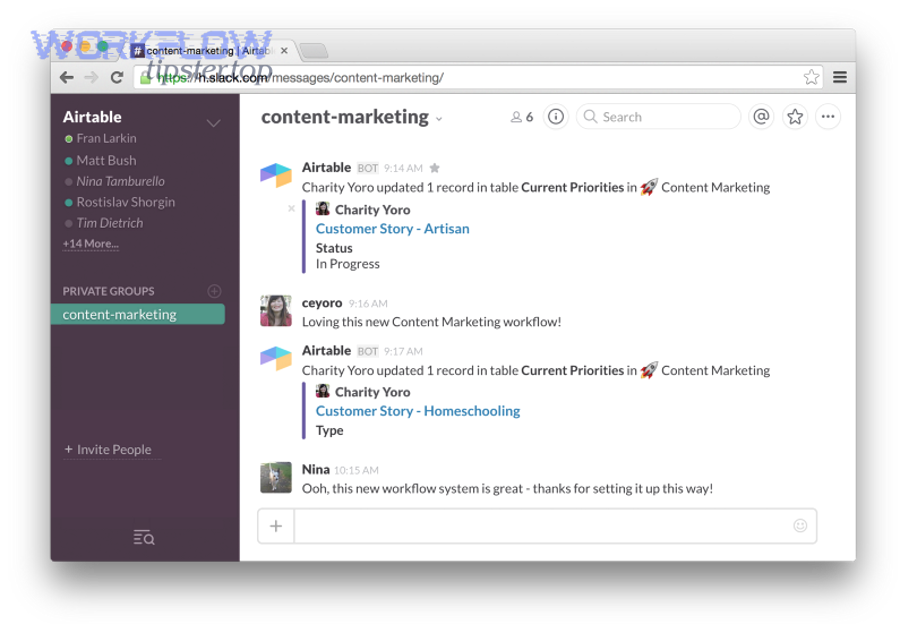
Evidence: According to Airtable’s official documentation (updated 2025), Airtable Automations includes Slack actions such as Send a message and Send an actionable message, enabling messages to be delivered to channels or users without third-party tools.
Which Airtable triggers should you use to notify Slack at the right moment?
There are 4 main trigger types you can use for Airtable-to-Slack alerts—record created, record updated, scheduled time, and form submission—and the best choice depends on whether you’re optimizing for speed, relevance, or predictability.
Then, the challenge becomes preventing “trigger spam,” because the more frequently a trigger fires, the more precise your conditions and routing must be.
This table contains common trigger choices, what they’re best for, and the main risk you must control:
| Trigger type | Best for | Typical Slack destination | Main risk to control |
|---|---|---|---|
| Record created | Intake and triage | Intake channel | Noise if intake is high-volume |
| Record updated | Status transitions | Team workflow channel | Spam if fields update often |
| Scheduled time | Digests, reminders | Digest channel | Stale reminders if ownership changes |
| Form submitted | External submissions | Ops or support channel | Missing context if form fields are sparse |
Should you trigger on “record created” or “record updated” for Slack alerts?
Record created wins for intake clarity, record updated is best for workflow transitions, and scheduled triggers are optimal for routine reminders—so your choice should match whether your team needs awareness at intake, movement through stages, or deadline discipline.
More specifically, use record created when:
- A new item entering the system requires immediate triage (new lead, new request, new incident report).
- You can define a single intake channel with clear ownership.
Use record updated when:
- Only certain field changes matter (Status → “Ready for review,” Priority → “High,” Owner assigned).
- You want the Slack notification to represent “progress” rather than “existence.”
Use scheduled when:
- The team prefers predictable digests (daily at 9am) and you want fewer interruptions.
- The work is deadline-driven (weekly check-ins, due date reminders).
A simple workflow pattern that avoids most mistakes:
- Intake uses record created → a Slack post that asks “who owns this?”
- The process uses record updated → Slack posts only on stage changes
- Accountability uses scheduled → Slack digests that summarize what’s due
What conditions should you add so Slack notifications only fire when it matters?
There are 5 high-impact condition groups for Airtable-to-Slack alerts—status transitions, priority thresholds, ownership readiness, data completeness, and time windows—and they stop irrelevant messages before they hit Slack.
For example, the most effective “only when” conditions are:
- Status transitions
- Only notify when Status changes to “Ready for review,” “Blocked,” or “Approved.”
- Avoid notifying on “any update,” because edits, comments, and formatting changes create noise.
- Priority thresholds
- Only notify when Priority is “High/Critical.”
- Pair with escalation routing (high priority → on-call channel).
- Ownership readiness
- Only notify when Assignee is not empty.
- Or: if Assignee is empty, notify the triage channel; if assigned, notify the owner’s channel.
- Data completeness
- Only notify when key fields are present (customer name, due date, link, request type).
- This prevents Slack messages that force a teammate to open Airtable just to understand the alert.
- Time windows
- Only notify during business hours, or route off-hours alerts differently (e.g., “urgent only”).
Evidence: According to a study by University of California, Irvine from the Department of Informatics, in 2008, frequent interruptions increased stress—so using conditions to reduce non-essential alerts protects both performance and team well-being.
How do you set up “Send Message” from Airtable to Slack step-by-step?
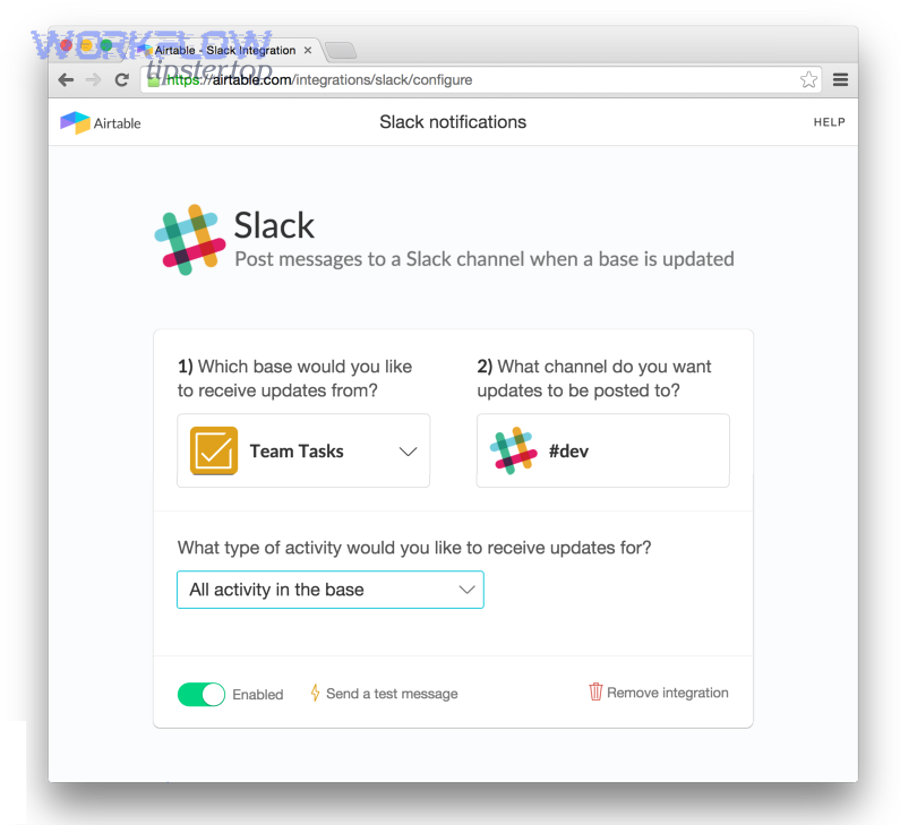
The simplest way to send Slack notifications from Airtable is a 6-step setup—choose the trigger, add conditions, connect Slack, pick the destination, write a dynamic template, and test—so your team gets clear alerts that link back to the exact record.
Below, let’s explore the setup in a way that produces useful messages from day one, not “FYI something changed” noise.
- Step 1: Define your “event” in Airtable
- Pick a single table that owns the workflow (Requests, Leads, Content, Bugs).
- Make the event measurable: status changed, new record, due date reached.
- Step 2: Choose the trigger
- Start with record created (intake) or record updated (stage transitions).
- Avoid “any update” unless you have strict conditions.
- Step 3: Add conditions
- Use “only when” logic: Status = “Ready,” Priority = “High,” Assignee is not empty.
- Step 4: Add the Slack action
- Choose “Send Message” when your goal is communication, not interaction.
- Connect your Slack workspace and select the channel.
- Step 5: Build a message template that carries context
- Include the “what,” “so what,” and “now what.”
- Add a link back to the record so Slack is a launchpad, not a dead end.
- Step 6: Test and roll out safely
- Test in a sandbox channel first.
- Create 3–5 sample records to validate edge cases (missing fields, long text, different statuses).
- Turn it on for one team, then expand.
What should your Slack message template include to be actionable for teammates?
There are 7 essential elements that make Airtable-to-Slack messages actionable—headline, change summary, owner, priority, due timing, link, and next step—and they reduce back-and-forth because Slack contains enough context to decide what happens next.
Specifically, a strong template includes:
- Headline: what the alert is about (Request type + short record name)
- Change summary: what changed and why it matters (Status moved to Ready for review)
- Owner: who should act (Assignee or triage owner)
- Priority: high/med/low with a clear signal (emoji or bracket)
- Due timing: due date, SLA, or “needed by”
- Link: direct link to the Airtable record
- Next step CTA: “Review and approve,” “Assign owner,” “Confirm details”
Example template (conceptual, not code):
- [HIGH] Content request ready for review: “Q1 Landing Page Copy”
- Status → Ready for review | Owner: @name | Due: Fri
- Open record: (link)
- Next: Review copy + approve or request edits
This approach also supports related workflows your team may run, like airtable to surveymonkey reporting alerts where survey responses create new Airtable entries and Slack notifies the research channel.
How do you map Airtable fields into Slack messages without breaking formatting?
Field mapping works best when you treat your Slack message like a short status card: map only the fields that drive decisions, provide defaults for blanks, and format dates and numbers so they remain readable in Slack.
For example:
- Use “display” fields: a human-readable Name or Title field at the top.
- Avoid dumping raw text: long notes become unreadable; instead include “Summary + link.”
- Handle blanks intentionally: if Due Date is empty, show “Due: not set” rather than a blank line.
- Normalize date/time: convert timestamps to the team’s working timezone and a consistent style.
- Keep links consistent: always include the record link in the same location so teammates know where to click.
A high-signal Slack alert usually contains 3–6 mapped fields. If you routinely need 10+ fields to understand the record, the alert is doing the wrong job; it should route attention, not replicate the database.
Evidence: According to a study by University of California, Irvine from the Department of Informatics, in 2008, people compensated for interruptions by working faster but reported more stress—so concise, decision-ready messages reduce cognitive load compared with verbose field dumps.
What is an “Actionable Message,” and when should you use it instead of “Send Message”?
An Actionable Message is an interactive Slack prompt that lets teammates take a defined action from the Slack message itself, and you should use it when approvals, triage, or quick decisions benefit from structured choices rather than open-ended discussion.
To illustrate the difference, a normal “Send Message” informs, while an Actionable Message nudges someone to do something—approve, reject, assign, mark done, or confirm.
A clear comparison:
- Send Message: best for announcements, FYIs, and “here’s what changed.”
- Actionable Message: best for “choose one next step now,” where the options are predictable.
Does an Actionable Message reduce back-and-forth compared to a normal message?
Yes—Actionable Messages reduce back-and-forth because they constrain the next step to a small set of choices, they clarify ownership by requesting a response, and they shorten time-to-decision by keeping the action inside Slack.
More specifically, they reduce back-and-forth when:
- The decision is binary or small: approve/reject, accept/decline, assign/unassign.
- The workflow has a clear owner: reviewer, manager, on-call, editor.
- The information needed is already in the message: summary + link for deeper detail.
Where they don’t help:
- When the “action” requires multi-step reasoning or a discussion thread.
- When nobody is clearly responsible for answering.
- When your team needs richer context than a message can hold.
Evidence: According to a study by University of California, Irvine from the Department of Informatics, in 2008, interruptions carry cognitive costs; Actionable Messages help by converting a multi-message coordination loop into a single, structured response.
Which workflow types benefit most from Actionable Messages?
There are 4 workflow types that benefit most—approvals, triage, exception handling, and confirmations—because they all boil down to a bounded decision that can be captured quickly.
Examples that consistently work well:
- Approvals
- Content approval, purchase approval, change request approval
- Slack prompt: Approve / Request changes / Reject
- Triage
- New request arrives; a lead needs routing
- Slack prompt: Assign to A / Assign to B / Needs more info
- Exception handling
- Something fails validation (missing required field)
- Slack prompt: Fix now / Snooze / Escalate
- Confirmations
- Meeting confirmation, deadline confirmation, handoff confirmation
- Slack prompt: Confirm / Reschedule / Cancel
This is also where teams start connecting adjacent operational flows like google forms to clickup for intake, then mirroring the final “ready” state back into Slack with an actionable decision.
How can teams prevent Slack notification fatigue from Airtable alerts?
Teams prevent notification fatigue by using conditional triggers, routing rules, and message design so only high-value Airtable changes reach Slack, and each message communicates a clear action, owner, and link in seconds.
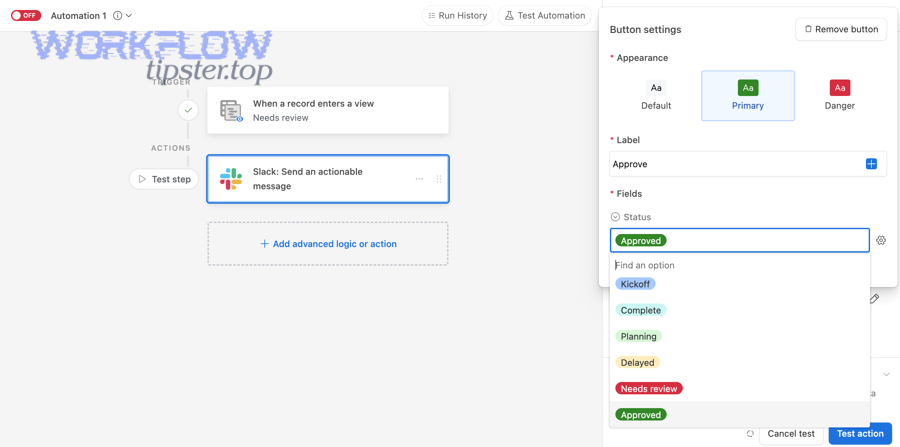
In addition, you can treat Slack like a set of “lanes” rather than one giant inbox: the right message goes to the right lane, at the right volume.
Should you route alerts to one channel or multiple channels by team/priority?
One channel wins for visibility, multiple channels are best for relevance, and a priority-based split is optimal for scale—so the right approach depends on whether your team is small, cross-functional, or running high-volume operations.
More specifically:
- One channel is best when:
- The team is small and everyone needs the full picture.
- Alerts are low volume and consistently relevant.
- Multiple channels is best when:
- Different teams own different stages (ops vs sales vs support).
- The same alert would be noise for some groups.
- Priority split is best when:
- You need a calm default channel and a higher-urgency lane.
- Example: #requests (normal) and #requests-urgent (high priority only)
A scalable routing pattern:
- Intake → triage channel
- Stage changes → functional channel
- Urgent escalations → on-call/priority channel
- Digests → a quiet digest channel
This is the same reasoning teams apply to other coordination surfaces, like sending meeting-ready artifacts from google docs to zoom workflows while keeping day-to-day chatter separate.
What message frequency rules keep alerts useful instead of noisy?
There are 6 frequency rules that keep Airtable-to-Slack alerts useful: notify on transitions, limit repeats, batch low priority, quiet hours, avoid “any update,” and add ownership gates.
Practical rules you can apply immediately:
- Notify on transitions, not on edits
- “Status changed to Ready” beats “record updated.”
- Limit repeats
- Prevent re-triggering on the same status by tracking “last notified at.”
- Batch low-priority items
- Daily digests for low priority; real-time only for urgent.
- Use quiet hours
- Route non-urgent messages outside business hours into a digest channel.
- Avoid “any update” triggers
- Replace with specific field watch + conditions.
- Require ownership or route to triage
- If no owner exists, send to triage; once assigned, notify the owner lane.
Evidence: According to a study by University of California, Irvine from the Department of Informatics, in 2008, interruptions increase stress—so frequency control and batching protect attention while preserving speed on urgent items.
What are the most common Airtable-to-Slack automation issues, and how do you fix them?
The most common Airtable-to-Slack issues fall into 5 categories—permissions, destination selection, missing fields, noisy triggers, and failed runs—and you fix them by diagnosing the automation run history and validating each step from trigger to message content.
Next, use this checklist in order, because the fastest fix is usually at the earliest broken link: trigger → condition → connection → destination → template.

Is the Slack channel missing because of permissions or because it’s private?
Yes—most “missing channel” problems happen because the channel is private or the connected Slack account lacks access, and you must resolve membership/permissions before Airtable can list or post to the destination.
To diagnose quickly:
- If the channel is private: confirm the posting identity (user/app) is a member of that private channel.
- If the workspace is restricted: confirm Slack admins allow the integration/app access.
- If the channel list is stale: reconnect Slack and reselect the destination.
A safe operational practice:
- Create a dedicated integration channel first (sandbox), then promote to the real channel once posting works reliably.
Why do Slack messages show blank fields or wrong values?
Slack messages show blanks or wrong values when the automation is pulling from the wrong record context, the mapped fields are empty, the trigger is firing before the data is complete, or linked/lookup fields don’t resolve the way you expect.
Fixes that work most of the time:
- Confirm record context
- Ensure the action references the same record the trigger produced.
- Add “data readiness” conditions
- Only send when required fields are not empty.
- Avoid unstable fields
- If a formula depends on late updates, the first run may see a blank.
- Use a stable summary field
- Create a “Slack summary” formula field that formats content consistently.
A practical “anti-blank” template habit:
- Put critical context in fields you control (Title, Summary, Owner, Link), then reference those in Slack.
How do you test safely before turning the automation on for the whole team?
You test safely by using a sandbox channel, creating controlled sample records, validating edge cases, and monitoring the first 20–50 runs so you can tune conditions before Slack becomes noisy.
A reliable test plan:
- Sandbox destination
- Post to #automation-sandbox first.
- Create 5–10 sample records
- Include blank fields, long text, different priorities, missing owner, unusual statuses.
- Run test mode
- Confirm formatting, link correctness, and destination visibility.
- Enable with strict rules
- Start with high priority only, then expand.
- Monitor run history
- Fix failures immediately; note patterns of noise.
Evidence: According to a study by University of California, Irvine from the Department of Informatics, in 2008, task switching and interruptions increase stress—so staged rollouts and early monitoring reduce the risk of creating a high-interruption environment for your team.
How can you expand Airtable-to-Slack beyond basic channel alerts for advanced team operations?
You can expand Airtable-to-Slack by adding DM routing, richer message structures, integration tool comparisons, and enterprise-grade governance so Slack becomes a controlled “action surface,” not just a stream of notifications.
Then, the best expansions are the ones that preserve clarity: they should make the next step easier while keeping the system understandable for future maintainers.
How do you send Slack DMs (not just channel messages) from Airtable, and when is it appropriate?
To send Slack DMs from Airtable, route messages to specific users when ownership is clear, and use DMs only when the alert is personal, time-sensitive, or requires a direct response; otherwise, channels remain better for transparency and shared accountability.
DMs are appropriate when:
- A single person owns the next step (assignee, reviewer, on-call).
- The message is a reminder or escalation that doesn’t benefit the whole channel.
- You want to reduce channel noise while keeping accountability.
Channels are better when:
- The team needs shared visibility (triage, handoffs, cross-functional work).
- Work should be discoverable and searchable by others.
- The “owner” might change and the team needs continuity.
A practical hybrid model:
- Post intake into a channel.
- DM the assigned owner once the record has an assignee and a due date.
- Escalate to a priority channel only when SLA is breached.
Can you create richer Slack messages (e.g., structured layouts/blocks) from Airtable notifications?
Yes—richer Slack messages are possible when your workflow supports structured formatting or interactive components, but the exact method depends on whether you’re using native Airtable actions or a more flexible integration path that supports Slack’s interactive message framework.
More specifically:
- If you need full “card-like” layouts and interactivity, you may rely on a toolchain that supports Slack’s structured message building (often associated with Slack’s interactive messaging patterns).
- If you remain fully native, focus on clarity + consistency:
- Use a clear headline
- Use short labeled lines (Owner:, Due:, Priority:)
- Add the record link
- Avoid long paragraphs
A simple “rich-enough” template often outperforms heavily formatted messages because it is faster to scan and less likely to break when fields change.
When should teams choose native Airtable Automations vs Zapier/Make for Slack workflows?
Native wins in simplicity, Zapier/Make is best for multi-app orchestration, and custom Slack workflows are optimal for deep interactivity—so your choice should follow complexity, governance, and how many systems you must join to build the message.
Decision guide:
- Choose native Airtable Automations when:
- Airtable is the source of truth
- You need clean Slack alerts with moderate logic
- Your ops team must own maintenance
- Choose Zapier/Make when:
- You need to join data across many apps
- You want advanced routing rules and templates
- You’re already running cross-app automations (e.g., airtable to surveymonkey response intake, then Slack routing)
- Choose deeper Slack-focused builds when:
- You need complex interactive flows
- You want multi-step user interactions captured from Slack
In real content operations, teams often mix these: a native Airtable alert for core stages, plus external automation for cross-app enrichment.
What rare scale/security constraints affect Airtable-to-Slack in enterprise environments?
There are 5 rare but important enterprise constraints—admin approvals, private channel governance, rate limits/volume control, deduplication, and auditability—and they determine whether your Airtable-to-Slack automation stays reliable as usage grows.
What to watch:
- Admin approvals
- Slack or IT may restrict app installs and permissions; plan for review cycles.
- Private channel governance
- Posting identities must be approved and added; otherwise channels “disappear.”
- Rate limits and volume
- High-volume bases can produce bursts; batching and strict conditions become mandatory.
- Deduplication
- Prevent repeated alerts during bulk edits by tracking “last notified” fields.
- Auditability
- Keep naming conventions, owners, and documentation so compliance and ops can trace why an alert fired.
This is also where cross-tool hygiene matters: if you’re also running workflows like google forms to clickup intake and google docs to zoom meeting prep, the enterprise need is consistent governance across all Automation Integrations—not a patchwork of one-off automations nobody owns.
Evidence: According to a study by University of California, Irvine from the Department of Informatics, in 2008, interruptions increased stress—so at enterprise scale, controlling alert volume and enforcing governance is not optional; it directly affects performance and employee strain.