


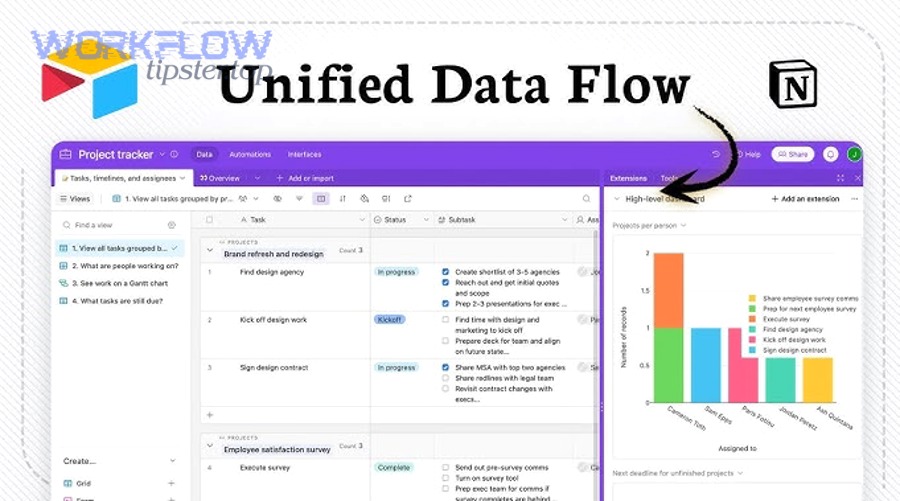
Integrating and syncing Airtable to Microsoft OneNote means you automatically turn structured Airtable records into organized OneNote pages, so your team stops copy-pasting details and starts capturing decisions, updates, and documentation in one consistent place.
Next, you’ll also want to know what a “Records → Notes” workflow really includes—what “sync” means in practice, where the OneNote page is created (notebook → section → page), and which Airtable fields should become the OneNote title and body.
Then, the fastest path usually depends on the no-code platform you choose—some tools are better for simple “create a page” automations, while others excel at multi-step logic like finding an existing page, updating it, and preventing duplicates.
Introduce a new idea: once you build your first working automation, you’ll improve it by adding dedupe rules, update strategies, and reliability safeguards—so the integration stays stable even as your Airtable base and OneNote structure evolve.
What does it mean to integrate and sync Airtable to Microsoft OneNote for “Records → Notes”?
Integrating and syncing Airtable to Microsoft OneNote for “Records → Notes” is a no-code workflow that converts Airtable records (structured database rows) into OneNote pages (human-readable notes) inside a chosen notebook and section, using consistent mapping rules and automation triggers.
To better understand the promise behind “Records → Notes,” you need to see how the two systems think: Airtable stores fields and views, while OneNote organizes content hierarchically as notebooks, sections, and pages.

In practice, “sync” here rarely means “two apps continuously mirror each other in real time.” It usually means:
- Airtable is the system of record (where structured data is created and updated).
- OneNote is the documentation layer (where the record becomes a readable note).
- Automation bridges them using triggers (when something changes) and actions (create/update a OneNote page).
This matters because your content format changes as it moves:
- Airtable fields become a note template (title, summary, key metadata, links).
- Airtable updates become append logs or overwrites (depending on your chosen approach).
- Team context becomes easier to absorb because OneNote pages are built for reading, scanning, and narrative documentation.
What is the simplest “Airtable record → OneNote page” workflow?
The simplest “Airtable record → OneNote page” workflow is: when a new Airtable record is created (trigger), automatically create a OneNote page in a specific section (action), and map a handful of fields into the page title and body.
Specifically, a clean starter workflow looks like this:
- Trigger: New record appears in a particular Airtable table (optionally filtered via a view like “Ready to Publish”).
- Action: Create a new OneNote page in a chosen notebook + section.
- Mapping:
- OneNote Title ← Airtable “Name” (or “Project / Ticket / Client” field)
- OneNote Body ← Airtable “Summary” + “Status” + “Owner” + “Due date”
- Add a link back to the Airtable record for traceability.
Why this works so well for no-code teams is that it creates a reliable habit loop:
- The database stays structured and searchable.
- The notebook stays readable and narrative.
- The automation keeps them connected, even when humans forget.
Is this integration usually one-way or two-way sync?
No—this integration is usually not a true two-way sync, and it’s better treated as one-way documentation automation for three reasons: (1) OneNote pages are unstructured text, (2) record updates can be frequent and noisy, and (3) “matching” the right page to the right record is non-trivial without IDs.
Meanwhile, one-way “Airtable → OneNote” fits the natural strengths of each app:
- Airtable is excellent for structured updates (fields, filters, views, ownership).
- OneNote is excellent for long-form context (meeting notes, decisions, logs, explanations).
If you try to make OneNote edit Airtable automatically, you face immediate problems:
- Which paragraph maps to which field?
- How do you prevent accidental overwrites?
- How do you ensure the “latest truth” stays in Airtable?
So, most teams choose one of these patterns:
- One-way create: record creates a page once.
- One-way create + update: record creates a page, then later edits update or append to it.
- Two-way (rare): only for very limited, controlled use cases.
Which Airtable fields should become the OneNote title and body?
There are 3 main mapping bundles for Airtable fields → OneNote content based on the criterion of “what a reader needs first”: Identity fields (title), Context fields (summary), and Control fields (status/ownership).
More specifically, build your OneNote page like a reusable template:
1) Title (Identity fields)
- Record Name / Ticket Title / Project Name
- Optional: short code (Record ID, Client code, Sprint number)
2) First screen (Context fields)
- Summary / Description
- Objective / next step
- Key links (Airtable record URL, docs, assets)
3) Metadata block (Control fields)
- Status (e.g., Draft / In Review / Done)
- Owner / Assignee
- Due date / Priority
- Last updated timestamp (or last synced)
A practical note template might look like this (conceptually):
- Title: [Project] – [Deliverable] – [Client]
- Summary: What is this record about?
- Decision / Update log: What changed and why?
- Metadata: status, owner, due date
- Links: back to Airtable and related resources
If you keep this mapping consistent, your notebook becomes a reliable “knowledge mirror” of your base—without forcing OneNote to behave like a database.
Do you need a no-code automation tool to connect Airtable and OneNote?
Yes—you typically need a no-code automation tool to connect Airtable and OneNote, because (1) OneNote actions (create page in section) are exposed through integration connectors, (2) Airtable triggers are easiest to operationalize through automation platforms, and (3) mapping + error handling is far simpler than building and maintaining custom code.
In addition, Airtable’s own guidance highlights how third-party connectors commonly act as the bridge when Airtable is either the trigger or the action.
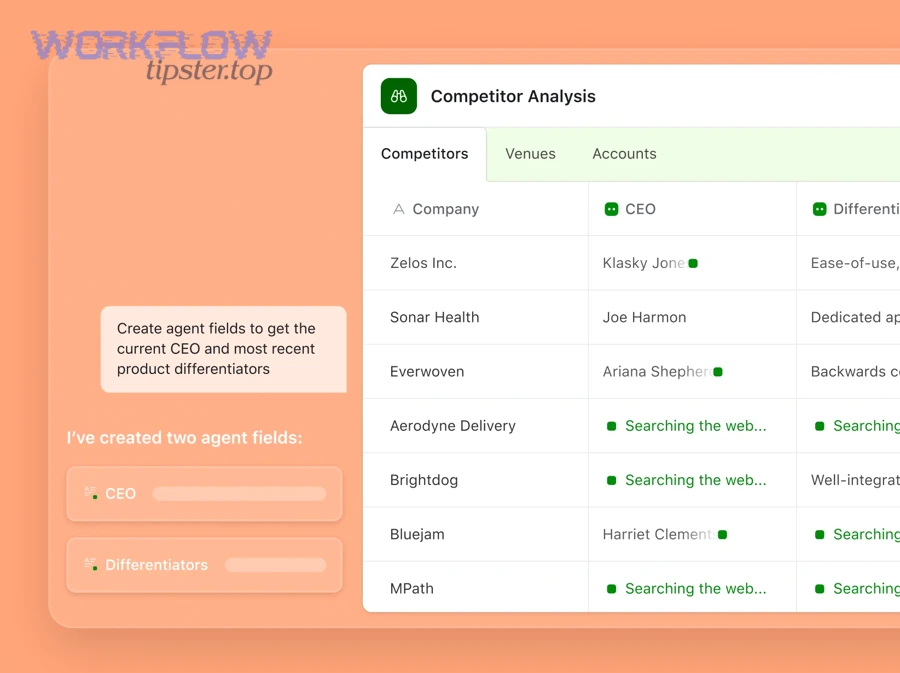
That said, “need” depends on what you mean by “connect”:
- If you mean true sync with complex updates, you’re moving toward APIs and custom development.
- If you mean automation (Records → Notes), a no-code connector is usually the optimal path.
Can you connect Airtable to OneNote without code using templates?
Yes—you can connect Airtable to OneNote without code using templates, and teams prefer it for three reasons: (1) templates reduce setup time, (2) templates standardize field mapping, and (3) templates include built-in testing and run history.
Then, a template-driven setup normally gives you:
- A ready-made trigger like “New Record in Airtable”
- A ready-made action like “Create Note in Section” (OneNote)
- Default mapping fields you can quickly edit
A strong template still needs your decisions:
- Which table and view should trigger the automation?
- Which notebook and section should receive the page?
- What should the page title and body look like?
So the winning approach is: use a template to start fast, then customize the mapping to match your workflow vocabulary.
What permissions are required for shared team notebooks and Airtable bases?
Permissions for shared team notebooks and Airtable bases require the right account ownership and least-privilege access so the automation can reliably create pages and read record data without exposing everything.
Next, think in two layers—Airtable and Microsoft:
Airtable permission layer
- The connected user must have access to the base and table that triggers.
- If the automation updates Airtable (e.g., writes back the OneNote page URL), it needs write permissions.
Microsoft OneNote permission layer
- The connected Microsoft account must have access to the destination notebook and section where pages are created.
- If the notebook is shared, ensure the connector account is a member with sufficient rights.
A reliable operational pattern for teams is to use:
- A shared automation service account (owned by the organization), not a personal account.
- A clearly defined OneNote destination section like “Airtable Logs” or “Records Archive.”
- A stable Airtable view like “Ready for OneNote” to control what triggers.
This reduces breakages when a teammate leaves, changes password, or loses access.
Which no-code platform should you choose for Airtable → OneNote automation?
Zapier wins in speed and beginner templates, Make is best for advanced branching and complex mapping, and Zoho Flow is optimal for teams already standardized on Zoho and wanting centralized governance.
However, “best tool” only makes sense when you define your workflow constraints: volume, complexity, reliability needs, and how much logic you want to encode.
Before the comparison, here’s a sentence of context: the table below compares common platform selection criteria for an Airtable → OneNote “Records → Notes” automation.
| Criterion | Zapier (typical fit) | Make (typical fit) | Zoho Flow (typical fit) |
|---|---|---|---|
| Setup time | Fastest for first automation | Moderate | Moderate |
| Template availability | Strong | Good | Good |
| Multi-step logic | Good | Excellent | Good |
| Find-then-update patterns | Good | Excellent | Good |
| Team governance | Good (varies by plan) | Good (varies by plan) | Strong for Zoho-centric orgs |
| Best for | “Start now” workflows | Complex automations | Ecosystem alignment |
Now, choose based on the work your automation must do—not based on the tool’s marketing.
Also, if you’re building a broader library of Automation Integrations, it helps to standardize your selection criteria once, then reuse it across workflows like activecampaign to microsoft teams or gmail to zoho crm—so your team doesn’t reinvent governance and naming conventions every time.
Which tool is best for beginners who want “set it and forget it”?
The best tool for beginners who want “set it and forget it” is usually the one with the shortest path from “trigger” to “action,” plus clear run history and easy error messages.
Then, prioritize these beginner-friendly capabilities:
- Template-first setup (start with “New Airtable record → Create OneNote page”)
- Simple mapping UI (pick fields, preview output)
- Straightforward testing (test trigger, test action, publish)
- Clear run logs (you can see what fired and why)
Beginner teams often succeed faster when they avoid:
- Multi-step branching at the start
- Complex “find existing page then update” flows
- Advanced formatting and attachment handling
A good beginner milestone is: “Every record in the Ready view creates a OneNote page that looks readable.”
Which tool is best for advanced mapping, branching, and multi-step workflows?
The best tool for advanced mapping and branching is the one that handles multi-step logic, conditional routes, iterators, and search-before-create patterns without becoming fragile.
Moreover, advanced workflows often require:
- Filters: only sync records when a checkbox is true or status equals “Approved”
- Search: find an existing OneNote page using a stored page ID or naming key
- Update strategy: overwrite the page content or append a change log
- Write-back: store OneNote page URL/ID back in Airtable
At this level, your workflow stops being “one action” and becomes “a system”:
- Trigger on record creation or status change
- Filter for “Ready”
- Check if OneNote page exists
- If exists → update/append
- If not → create new page
- Write OneNote page URL back to Airtable
This is also where teams start documenting their internal standards, often publishing them as a lightweight internal guide (many teams label this playbook style as something like “Workflow Tipster” to keep it living and reusable).
How do pricing and task limits change the best choice for teams?
Pricing and task limits change the best choice because automation cost scales with record volume and edit frequency, not just with the number of workflows you build.
Next, estimate your volume realistically:
- If you create 50 records per week, a “create page” workflow runs ~50 times.
- If those records are edited frequently and your trigger fires on updates, runs can multiply quickly.
- If your automation has multiple steps, each run may consume multiple tasks/operations.
So the smartest cost control is not “find the cheapest plan first.” It’s:
- Control what triggers (use a view or a “Ready” flag)
- Reduce noisy updates (trigger only on specific field changes if possible)
- Keep multi-step flows for workflows that truly need them
A team-friendly pattern is to build two tiers:
- Tier 1: create page on approved record (low noise)
- Tier 2: update page on meaningful changes (controlled fields only)
How do you build the Airtable → OneNote automation step-by-step?
Build the Airtable → OneNote automation using a template-first method in 7 steps—choose the Airtable trigger, set filters, select the OneNote notebook/section, map fields into a page template, test with real records, publish, and monitor—so every “Ready” record reliably becomes a usable OneNote page.
Below, the key is to keep your workflow simple first, then add sophistication once it runs cleanly for a week.
Here is the step-by-step build (tool-agnostic):
- Create a control view in Airtable
- Example: “Ready for OneNote”
- Filter: Status = Approved OR Ready checkbox = true
- Pick your trigger
- New record in view, or record updated to enter the view
- Add a filter step (optional but recommended)
- Only proceed if “Ready” is true and a required field is present
- Select your OneNote destination
- Notebook → Section (choose a stable long-term location)
- Define your OneNote page template
- Title pattern
- Body pattern
- Include links and metadata
- Test with 2–3 realistic records
- One simple
- One long description
- One with missing optional fields
- Publish and monitor run history
- Fix the first error quickly
- Add alerts after the workflow stabilizes
How do you choose the right Airtable trigger (new record vs updated record)?
New record triggers are best for “create once” documentation, while updated record triggers are best for “keep notes current”—but updated triggers can create noise unless you strictly control which updates should fire.
Then, choose based on your workflow outcome:
Choose “New Record” when:
- Every record should generate one note immediately
- You don’t need ongoing updates in OneNote
- You want the simplest, most stable automation
Choose “Updated Record” (or “record enters view”) when:
- Records begin as drafts and later become ready
- You only want notes created when status becomes “Approved”
- You need to capture updates after the record is live
A high-reliability pattern is:
- Trigger when record enters a “Ready for OneNote” view
This forces intentionality and reduces accidental triggers.
How do you choose the OneNote destination (notebook, section, page naming)?
Choose the OneNote destination by aligning it to how your team searches: stable notebook ownership, predictable sections by project/team, and page titles that include a unique key so pages remain findable and deduplicated.
Next, design the OneNote structure like an archive system:
- Notebook: “Operations Knowledge Base” (shared, long-lived)
- Section: “Airtable Records” (or split by project: “Sales Records,” “Product Records”)
- Page title format:
- [Record ID] – [Primary Name]
- Example: recA1B2C3 – Website Redesign Brief
This naming convention matters later when you build “find existing page then update” logic.
Also, OneNote’s hierarchy is not just visual—its structure is a core “addressing system” for where content lives (notebooks contain sections, sections contain pages).
How do you map Airtable fields into a readable OneNote page template?
Map Airtable fields into a readable OneNote page template by prioritizing “reader-first” layout: a one-line summary, a structured metadata block, and a change log area—so the page works even when a teammate reads it months later.
Moreover, a strong template does three jobs at once:
- Explains what the record is
- Shows current status and owner
- Keeps a trail of updates and decisions
A practical template structure:
- Title: [Record ID] – [Name]
- Summary (top): 2–4 lines from Description / Objective
- Metadata block:
- Status:
- Owner:
- Priority:
- Due date:
- Key fields section:
- Requirements / Notes / Risks
- Links:
- Airtable record URL
- Related doc links
- Update log:
- YYYY-MM-DD – Synced update: Status changed to…
If you keep this layout consistent, the OneNote section becomes a searchable narrative mirror of your Airtable base.
How do you prevent duplicates and keep notes updated when records change?
There are 4 main ways to prevent duplicates and keep notes updated when Airtable records change, based on the criterion of “how you identify the correct OneNote page”: store page IDs, enforce unique titles, run find-then-update logic, and restrict triggers to meaningful changes.
Then, treat dedupe as a design decision, not a patch. When duplicates happen, it’s usually because the automation can’t confidently answer one question: “Does a page for this record already exist?”
Also, OneNote content and structure can be addressed through Microsoft Graph in ways that reflect pages/sections/notebooks, which is why many automation tools model OneNote actions around these entities.
What are the best ways to avoid creating duplicate OneNote pages?
The best ways to avoid duplicates are to (1) store the created OneNote page link/ID back in Airtable, (2) use a unique page title that includes the Airtable record ID, and (3) add a “page exists?” check before creating anything.
More specifically, use these tactics:
1) Write-back field (most reliable)
- Add an Airtable field: OneNote Page URL (or OneNote Page ID)
- After the page is created, write that value back to Airtable
- Future runs check: if OneNote Page URL is not empty → update instead of create
2) Unique title key (highly practical)
- Title format: [Record ID] – [Name]
- Even if someone changes the record name, the record ID remains stable
3) Find-then-create logic
- Search OneNote pages for the record ID string
- If found → update
- If not found → create
4) Trigger control
- Fire only when “Ready” becomes true
- Do not fire on every small edit
If you implement even one of these properly, duplicates drop sharply—because your automation finally has a stable identifier.
Should you overwrite the OneNote page or append a change log?
Overwriting wins for clarity in “single source of truth” notes, appending wins for audit trails and progress tracking, and a hybrid approach is optimal when teams need both a clean summary and a historical log.
Next, choose based on what readers need:
Overwrite approach
- Best for: specs, briefs, current status pages
- Benefit: page stays concise and current
- Risk: history disappears unless you store it elsewhere
Append approach
- Best for: meeting notes, incident logs, ongoing case notes
- Benefit: history stays visible
- Risk: page grows large and becomes harder to scan
Hybrid approach (recommended for Records → Notes)
- Keep top sections overwritten: summary + metadata
- Append only to the “Update log” section
This hybrid mirrors how humans actually read: top-of-page for “what’s current,” lower section for “what changed.”
Can you build a “two-step” flow to find an existing page and then update it?
Yes—you can build a two-step flow to find an existing OneNote page and then update it, and it works best for three reasons: (1) it prevents duplicates, (2) it supports ongoing record updates, and (3) it lets you standardize page formats over time.
Then, the two-step logic typically looks like this:
- Find step:
- If Airtable has OneNote Page URL/ID, use it to target the exact page
- If not, search by record ID in page title/content
- Update step:
- Overwrite summary/metadata OR append a log entry
- Write-back (if missing):
- Store the page URL/ID in Airtable for future reliability
Once this is implemented, your “sync” stops acting like “create pages forever” and starts behaving like “maintain documentation.”
What should you do if the Airtable → OneNote integration fails or misses updates?
There are 5 main actions to take when the Airtable → OneNote integration fails or misses updates: check authentication, verify permissions, validate mapping/formatting, reduce trigger noise, and add monitoring with alerts so failures are detected early and fixed fast.
Moreover, failures usually cluster into two buckets:
- “It didn’t run” (trigger problem)
- “It ran but the result is wrong” (action/mapping problem)
What are the most common errors, and what do they usually mean?
There are 6 common error types teams see, based on the criterion of “where the workflow breaks”: authentication, permissions, destination selection, field formatting, rate limits, and duplicate logic.
Here’s what they usually mean:
- Authentication expired
- The connected Airtable or Microsoft session needs reauthorization
- Permission denied
- The connector account lost access to the base or the notebook/section
- Destination not found
- The target notebook/section was renamed or moved
- Invalid content / formatting failure
- The note body contains unsupported formatting, oversized fields, or malformed HTML
- Too many runs / throttling
- The workflow is firing too often, or the platform is rate-limiting requests
- Duplicate creation
- The automation cannot find the existing page, so it creates again
A strong response is to treat each error as a design signal:
- “Auth expired” → use a stable service account
- “Permission denied” → define ownership and access policies
- “Duplicate creation” → implement IDs and write-back
How can you monitor runs and get alerts for failed automations?
Monitor runs and get alerts by enabling run history reviews, sending failure notifications to a shared channel, and logging outcomes back to Airtable—so your team sees failures as part of workflow operations, not as surprises.
Next, implement a lightweight monitoring stack:
- Run history check (daily/weekly):
- Look for spikes in errors or skipped runs
- Failure alerts:
- Send a message/email when a run fails
- Airtable logging table (optional but powerful):
- Store: timestamp, record ID, status (success/fail), OneNote page URL, error text
This makes reliability measurable, and it shortens debugging time because you can trace exactly what happened.
How can you reduce missed updates caused by frequent record edits?
Reduce missed updates by (1) firing only on meaningful state changes, (2) using a debounce-style “Ready” gate, and (3) batching updates on a schedule when records change too frequently for event triggers.
Especially in busy bases, “updated record” triggers can turn into noise:
- Someone edits a typo → run fires
- A formula recalculates → run fires
- Multiple fields update in a short window → runs overlap
So the most stable pattern is:
- Use a Ready gate: Only sync when a “Ready for OneNote” checkbox is true
- Sync on state changes: Trigger only when Status changes to Approved
- Batch updates: If needed, run a scheduled sync that updates pages once per hour/day
According to a study by Stanford University from the Stanford Human-Centered AI (HAI) institute, in June 2025, researchers reported that 64.5% of removed tasks were routine, reinforcing why workflow automation is most effective when it targets repetitive, rule-based work.
Contextual Border: At this point, you can build a working “Records → Notes” automation that creates pages, maps fields, and avoids duplicates; next, you’ll shift from core setup to micro-level reliability, governance, and scaling details.
What advanced considerations improve reliability and governance for Airtable → OneNote automations?
Advanced reliability and governance improve when you treat the automation like a managed system—define ownership, control access, plan for rate limits, standardize templates, and decide when manual documentation is safer than automated notes.
Next, think of governance as the “guardrails” that keep your automation useful as it scales.
How do Microsoft 365 security policies (MFA/conditional access) affect OneNote connectors?
Microsoft 365 security policies can interrupt OneNote connectors by forcing reauthentication, blocking non-compliant sign-ins, or restricting application access—so enterprise teams must align automation accounts with tenant rules.
Then, the operational solution is usually:
- Use an approved organizational account (not personal)
- Ensure MFA is compatible with the connector’s auth method
- Confirm the connector has permission to access OneNote resources under policy
If your org is strict about conditional access, treat it as a feature—not a blocker—by building the automation with approved identity practices from day one.
What should you do about rate limits, retries, and throttling in high-volume bases?
Handle rate limits and throttling by reducing trigger noise, batching updates, and designing retries with backoff—so your automation doesn’t collapse under volume spikes.
More specifically:
- Reduce events: trigger on “Ready” state changes instead of every edit
- Batch updates: scheduled runs for “update pages”
- Split flows: separate “create page” from “update page”
- Retry logic: allow failures to retry after short delays
This turns reliability from “hope it works” into “it’s engineered to recover.”
How do formatting and attachments behave when you create OneNote pages from Airtable data?
Formatting and attachments behave differently depending on how the automation tool sends content—plain text is most stable, HTML-based formatting can be powerful but fragile, and attachments often require extra steps or linked storage behavior.
Then, choose the simplest format that meets your goal:
- If your goal is searchable notes → plain text + links is enough
- If your goal is rich documentation → use structured headings and lists carefully
- If your goal is attachments → store files in a stable location and link them in the note
A practical compromise is:
- Keep the note readable with minimal formatting
- Put heavy assets (files/images) behind links that remain stable
When is a “manual note process” better than automation (and when is automation clearly better)?
Manual note-taking is better when context is highly nuanced and changes unpredictably, while automation is clearly better when the workflow is repetitive, rule-based, and needs consistent documentation across many records.
In addition, a clean decision rule is:
- Choose automation when you want consistency, speed, and searchable archives
- Choose manual when the note quality depends on human judgment, interpretation, or storytelling
Most teams do best with a hybrid:
- Automation creates the page and fills structured metadata
- Humans add the nuance (decisions, rationale, meeting outcomes)
That hybrid is where “Records → Notes” becomes truly valuable: the system captures the facts, and people capture the meaning.