


Airtable to Loom is best handled by installing the Loom Extension in your base so your team can click a Loom URL inside a record and watch the video preview right inside Airtable, without switching tabs. That single behavior turns video updates into structured, searchable workflow data.
Next, if your goal is to standardize how your team logs Loom videos (SOP walkthroughs, bug reports, customer feedback), you’ll want a consistent Loom URL field, clear sharing rules, and a repeatable setup pattern so every collaborator gets the same “click → preview → act” experience.
Then, once the preview is working, the real win comes from workflow design: using Airtable views, linked records, and status fields to route each Loom video to the right person, at the right stage, with the right next action—so video doesn’t become “more content,” it becomes “more clarity.”
Introduce a new idea: below is a complete, step-by-step guide that starts with getting the preview working, then builds toward scalable, team-ready usage patterns.
Can you add and preview Loom videos directly inside Airtable?
Yes—you can add and preview Loom videos inside Airtable, and it works best when (1) you use the Loom Extension, (2) you store the correct public/shared Loom URL format, and (3) you align Loom privacy settings with your Airtable collaborators’ access.
To make that “yes” reliable for a whole team, the key is understanding what Airtable is actually doing: it’s not “importing” a Loom video into your base; it’s reading a Loom link from a cell and loading the playable preview in the extension panel.


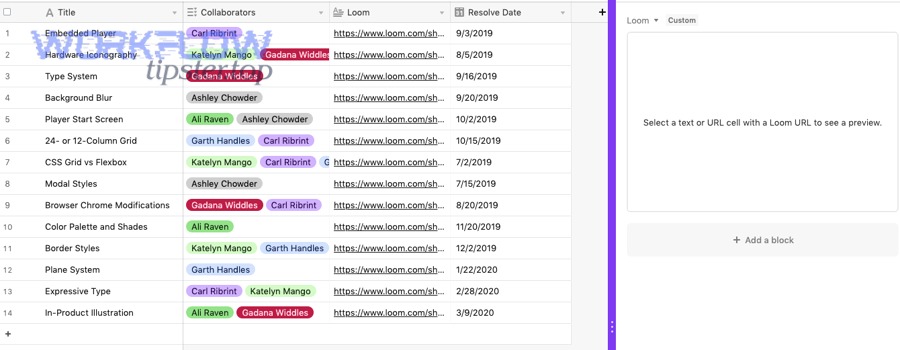
Here’s what “preview inside Airtable” typically looks like in practice:
- A record contains a Loom URL field (single line text or URL).
- A teammate clicks the cell with the Loom link.
- The Loom Extension panel loads and displays the video player inside Airtable.
Why this is valuable for teams (not just individuals):
- Less context switching: reviewers stay in the base, close to fields like owner, priority, and due date.
- More accountable feedback: comments and decisions can map to record fields (“Approved,” “Needs re-record,” “Waiting on customer”).
- Repeatable review rituals: triage views, QA lanes, and SOP approvals become structured.
According to a study by Chonnam National University from the Department of Education, in 2024, researchers found that an instructor-only video condition produced higher social presence than variants with more visual complexity—supporting the idea that clear, direct video context can improve perceived connection during asynchronous review.
What is the Airtable Loom Extension and what does it do?
The Airtable Loom Extension is a built-in Airtable extension that plays a recorded Loom video inside your base by loading a Loom share URL from a selected cell, enabling in-context review without leaving Airtable.
Put simply, it turns your base into a lightweight “video review station” for any workflow where a Loom link represents progress, evidence, or explanation.
What it does (and what it does not do):
- It does: load and display a Loom video when a record contains a Loom share link in the form https://www.loom.com/share/xxxxx.
- It does: prompt for a password if the Loom link is password-protected, so teams can keep sensitive videos controlled while still previewing in Airtable.
- It does not: automatically generate Loom videos, upload files to Loom, or manage your Loom workspace permissions.
- It does not: replace good base design—your fields, views, and owners still determine whether the workflow stays clean.
A practical way to define its role in your system is to treat it as a meronymy relationship: the Loom Extension is a part of your Airtable workflow, not the workflow itself. Your workflow still needs:
- A single source of truth record (task, SOP, ticket, candidate, customer request)
- A Loom link field
- A “review status” field
- An “owner / reviewer” field
- A clear decision path (approve / revise / escalate)
According to a study by Chonnam National University from the Department of Education, in 2024, the authors reported measurable differences in social presence based on video design conditions—reinforcing why teams benefit when video is embedded where decisions are made, rather than buried in scattered links.
How do you set up the Loom Extension in Airtable step by step?
Install the Loom Extension in 7 steps—open your base, go to Tools → Extensions, add the Loom Extension, then select a cell containing a public Loom share link so the player can load and preview the video.

To begin, treat setup like a checklist so the preview works immediately for every collaborator.
Step 1: Prepare a clean Loom URL field
Create a field such as:
- Loom Video (URL) (Field type: URL or Single line text)
Then standardize what gets pasted into it:
- Prefer Loom share links that look like: https://www.loom.com/share/xxxxx
- Avoid pasting long “embed code” snippets; Airtable extensions typically want a URL, not an iframe block.
Step 2: Add the Loom Extension
Inside the base:
- Click Tools (upper-right).
- Click Extensions.
- Click Add an extension.
- Search for Loom.
- Click Add, then confirm Add extension.
Step 3: Configure the extension to the right cell
When the Loom Extension opens the first time, it will prompt you to select a cell containing a Loom link. Choose a record with a correctly formatted Loom share URL so you validate the setup immediately.
Step 4: Confirm sharing and password behavior
If a Loom link is public, the extension loads without an API key. If a Loom link is password-protected, the extension prompts for the password so your team can still review securely.
Step 5: Make the preview repeatable across views
Now make it operational:
- Pin a view like “Needs Loom Review”
- Put the Loom URL field near the left so reviewers see it quickly
- Add a single-select status such as:
- Not reviewed
- Reviewed
- Needs changes
- Approved
- Add “Reviewer” (collaborator) and “Due date”
Step 6: Add guardrails so people don’t paste the wrong link
In team environments, the preview breaks most often because people paste the wrong Loom link type. Create a lightweight validation habit:
- Put a short helper text in a description field:
- “Paste Loom share links like https://www.loom.com/share/…”
Step 7: Teach the fastest review gesture
Define the micro-behavior:
- “Click the Loom URL cell → watch the preview in the extension → update Status + next action.”
According to a study by Chonnam National University from the Department of Education, in 2024, video design conditions affected social presence outcomes—supporting the setup goal of making Loom playback frictionless so reviewers can stay attentive and connected during asynchronous review.
What are the best ways to use Airtable + Loom for team workflows?
There are 5 best ways to use Airtable + Loom for team workflows—SOP libraries, async standups, QA/bug triage, customer feedback review, and sales/CS handoffs—based on one criterion: the Loom link must drive a clear next action inside Airtable.
Next, instead of treating Loom as “video storage,” treat Loom as context delivery and Airtable as decision + routing. That pairing is what makes the workflow scale.
1) SOP library and process training
Use a table like SOPs:
- SOP Name
- Owner
- Loom Video URL
- Last reviewed date
- Version
- Status (Draft/Approved/Deprecated)
- Related tools (linked records)
Then create views:
- “SOPs by Department”
- “SOPs needing refresh (90+ days)”
- “New hire essentials”
2) Async standups and weekly updates
Use a Updates table:
- Team member
- Week / date
- Loom update URL
- Blockers
- Asks
- Priority tags
- Follow-up owner
This keeps updates searchable and actionable, instead of living in scattered chats.
3) Bug triage and QA reviews
Use a Bugs table:
- Bug title
- Steps to reproduce (text)
- Loom bug reproduction URL
- Severity
- Component
- Owner
- Status
- Fix version
The Loom video becomes the fastest “proof,” and Airtable becomes the tracking system.
4) Customer feedback review
Use a Feedback table:
- Customer / account
- Segment
- Theme
- Loom call clip URL
- Impact
- Priority
- Decision
- Follow-up task (linked)
Now product and CS teams review evidence inside the base where prioritization happens.
5) Sales → CS handoff
Use a Handoffs table:
- Deal / account
- Loom handoff video URL
- Key promises
- Risks
- Onboarding owner
- First value milestone date
This reduces “tribal knowledge” loss.
A helpful way to keep this disciplined is to define a minimum record standard:
- A Loom URL without a next action is incomplete.
- A next action without an owner is fragile.
- An owner without a due date is invisible.
According to a study by Chonnam National University from the Department of Education, in 2024, differences in social presence appeared across video conditions, suggesting that embedding clear instructor-led context (like a focused Loom walkthrough) inside structured review workflows can support engagement during async collaboration.
What’s the difference between the Loom Extension and the Embed Extension in Airtable?
The Loom Extension wins for in-base Loom playback, the Embed Extension is best for embedding many kinds of web content, and a plain URL field is optimal when you only need a clickable link—so the right choice depends on your content type and control requirements.

However, many teams pick the wrong tool because they’re comparing “two extensions” rather than comparing two jobs:
- Job A: “Play Loom videos reliably inside Airtable.”
- Job B: “Embed web content broadly (including Loom) with flexible URL patterns.”
This table contains the practical differences that matter when designing an Airtable to Loom workflow at scale.
| Criteria | Loom Extension | Embed Extension | Best for |
|---|---|---|---|
| Primary purpose | Play Loom videos from Loom share URLs | Embed many web sources via embeddable URLs | Choosing the right “viewer” |
| Setup complexity | Low | Medium (URLs must be embeddable) | Faster rollout vs broader capability |
| Loom link expectation | loom.com/share/… | Often works best with loom.com/embed/… style URLs | Reducing preview failures |
| Content types supported | Loom videos | Many (video, docs, forms, dashboards, etc.) | Mixed media bases |
| Common failure mode | Wrong Loom link or permissions | Wrong URL format / embedding blocked | Troubleshooting focus |
Key operational detail: Airtable’s Embed Extension has specific URL rules for certain platforms, and Airtable documentation notes URL-format requirements and embedding constraints for some content types.
If your base is primarily “video-driven” (SOPs, demos, bug reproductions), the Loom Extension is usually the cleaner default because it’s purpose-built for Loom playback. If your base is a “dashboard hub” (multiple sources: Loom + Figma + YouTube + internal tools), the Embed Extension can be valuable—but you must control URL formats more strictly.
According to a study by Chonnam National University from the Department of Education, in 2024, clearer video presentation conditions correlated with higher perceived social presence—supporting the practical choice of the simplest, most purpose-built viewer when your workflow depends on consistent playback.
Why isn’t my Loom video preview working in Airtable?
Your Loom video preview usually fails because (1) the Loom URL isn’t the correct share or embed format, (2) the Loom video’s privacy/password settings block playback for the viewer, or (3) the extension is pointed at a non-URL cell or a cell without a valid Loom link.
In addition, troubleshooting gets easier when you separate the problem into “link correctness” vs “permission correctness” vs “Airtable configuration.”
Check 1: Is the URL format correct for the extension you’re using?
For the Loom Extension, Airtable expects publicly shared Loom links in the form https://www.loom.com/share/xxxxx, so standardize that pattern when teammates paste links.
For the Embed Extension, Airtable provides a Loom-specific tip: replace “share” with “embed” in your Loom link when embedding Loom content.
Check 2: Is the Loom video accessible to the person reviewing it?
Two common scenarios:
- Anyone-with-the-link: playback tends to work smoothly for collaborators.
- Password-protected / restricted: password-protected Loom links can prompt for a password in the extension.
If your team spans multiple Loom workspaces (or includes external clients), align your sharing model early so reviewers don’t hit “works for me” / “doesn’t work for you” chaos.
Check 3: Is the extension actually configured against the right field?
If the extension was initially configured using a different field (or a blank cell), it may appear “broken” while it’s simply looking at the wrong place.
Practical fix pattern:
- Select a record with a known-good Loom link
- Click the Loom URL cell
- Confirm the extension loads the player
- Then test a second record to confirm repeatability
Check 4: Are you accidentally pasting embed code instead of a URL?
Airtable extensions generally want a URL, not an <iframe> block. Airtable’s Embed Extension documentation clarifies that it accepts URLs, not embed codes.
Check 5: Does your workflow design hide the Loom URL from reviewers?
This is the stealth failure:
- The Loom URL exists, but the reviewer’s view hides the field.
- The reviewer never clicks the cell, so the extension never loads.
Fix by:
- Keeping Loom URL visible in review views
- Placing it near the left
- Adding a “Review checklist” field so the correct action is obvious
According to a study by Chonnam National University from the Department of Education, in 2024, participants’ perceived social presence differed across video conditions, implying that friction (extra steps, failed playback) can undermine the benefits of async video—so URL correctness and access alignment are not “nice-to-have,” they’re foundational.
Contextual Border: Up to this point, you’ve learned how to make Airtable to Loom previews work and how to choose the correct extension for the job; next, we’ll move from “it works” to “it scales” across teams, permissions, automations, and governance.
How can you optimize Airtable + Loom at scale for governance, automation, and performance?
Optimize Airtable + Loom at scale by standardizing link governance, automating review states, and controlling extension usage—so Loom stays a trusted evidence layer while Airtable remains the system of record for decisions, accountability, and auditability.

Next, scaling is less about adding more videos and more about preventing predictable failure modes: inconsistent links, unclear ownership, scattered decisions, and “video sprawl.”
How do you govern Loom links so they stay consistent across teams?
Set a base-level contract:
- One canonical field name: Loom Video URL
- One allowed pattern (document it): share links for Loom Extension; embed links for Embed Extension where needed
- One ownership rule: every Loom record has an Owner + Review Status
- One refresh rule for SOPs: re-verify every 60–90 days
This transforms Loom from “misc links” into “managed assets.”
How do you connect Airtable + Loom to automation without breaking semantic clarity?
Use automations to move states, not to invent meaning.
Examples of safe automation moves:
- If Loom Video URL is not empty → set Status = Ready for review
- If Status = Approved → set Approved date = today
- If Status = Needs changes → assign Owner + set due date
This is where you can naturally align with broader Automation Integrations: treat Loom as the evidence, Airtable as the router, and your automation layer as the messenger.
How do you keep performance and UX clean when the base grows?
Use “design for scanning”:
- A dedicated “Review” interface/view with only essential fields
- Linked record rollups for summary context
- Archival statuses for old Loom links (Deprecated / Archived)
How do you extend the same pattern to other integration workflows?
Once your team understands “URL evidence inside a record,” you can reuse the same structure for other workflow themes—for example:
- airtable to calendly for scheduling intake and attaching recordings to the same record
- airtable to datadog for linking incident traces and pairing them with Loom postmortem walkthroughs
- basecamp to outlook calendar when projects drive meeting cadences that should sync into calendar review routines
These aren’t random examples—they’re the same semantic pattern: a record holds the truth, and integrations attach context without diluting ownership.
According to a study by Chonnam National University from the Department of Education, in 2024, the researchers reported that social presence outcomes varied with video design conditions—supporting governance practices that keep async video clear, consistent, and easy to access inside structured systems.