


You can connect and sync Airtable to Klaviyo by using a workflow tool (no-code or low-code) that listens for Airtable record changes and then updates Klaviyo profiles, lists, or events—so your email/SMS marketing reacts automatically to real customer data.
Next, you’ll want to choose an integration approach that matches your needs: a quick no-code connector is ideal for standard “record → profile/list” automation, while a more configurable workflow/ETL approach is better for high volume, complex branching, or strict deduplication rules.
Then, your results depend on the details: the right triggers and actions, clean field mapping into Klaviyo profile properties and event properties, and a simple governance rule so your team doesn’t create duplicates or messy schemas that ruin segmentation and personalization.
Introduce a new idea: once you build a reliable “first successful sync,” you can scale into monitoring, consent-safe automation, batching, and idempotent updates—so your Airtable → Klaviyo pipeline stays accurate even as your store and campaigns grow.
What does it mean to “connect and sync Airtable to Klaviyo” for ecommerce marketing?
Connecting and syncing Airtable to Klaviyo means using an automation pipeline that moves structured customer or campaign data from Airtable into Klaviyo (profiles, lists, or events) so messages and flows can personalize and trigger based on that data.
To better understand what “sync” really implies, think in terms of three linked building blocks: a trigger that detects change, a mapping layer that translates fields, and an action that writes data into Klaviyo in a predictable format.
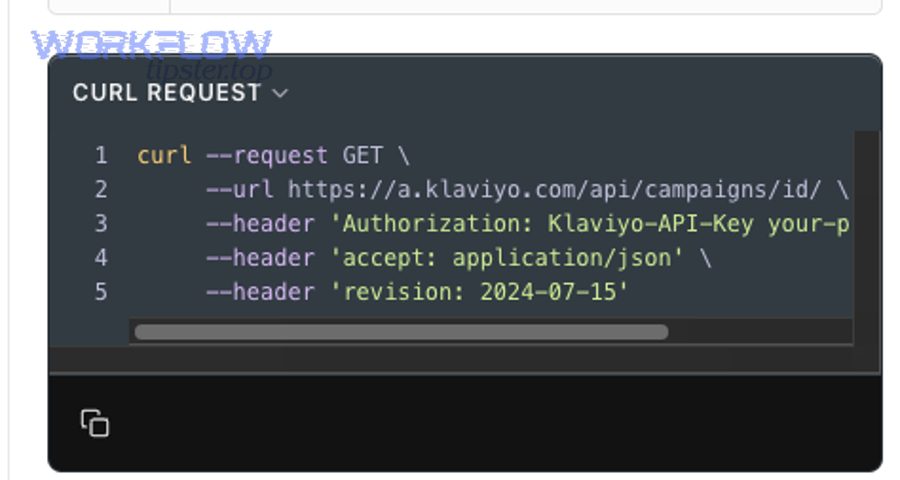
In practical ecommerce terms, you are usually syncing one of these data categories:
- Customer identity data: email, phone, name, country, language, VIP status, loyalty tier.
- Customer context: acquisition source, lead magnet, quiz result, preferred category, last viewed collection.
- Lifecycle and ops signals: “Ready to buy,” “Needs follow-up,” “Backorder,” “Refund requested,” “Wholesale prospect.”
- Campaign operations data: creative status, launch dates, segment definitions, UTM bundles, offer logic.
What “sync” is not is a vague promise that “everything stays identical.” A good Airtable → Klaviyo sync has a clear scope: which Airtable view is authoritative, which fields are allowed to write into Klaviyo, and what happens when data is missing or conflicting.
Why ecommerce marketers do this is simple: Klaviyo becomes more valuable when it has accurate properties and events. Those become the “raw materials” for segmentation, flow branching, product education sequences, and offer timing—without manual exports.
According to a study by Universidad Politécnica de Madrid from the Departmento de Ingeniería de Organización, Administración de Empresas y Estadística, in 2022, a large-scale analysis found that mailing frequency and the use of segmentation techniques significantly affected attention to promotional emails (open-rate behavior).
Can you connect Airtable to Klaviyo without code?
Yes—Airtable to Klaviyo can be connected without code because no-code workflow tools provide ready-made triggers and actions, field mapping UIs, and testing logs that let you automate updates safely without writing API requests.
However, “no-code” still requires decisions that determine whether the automation works long-term, so the smartest move is to define ownership, data rules, and a minimal workflow that you can validate end-to-end.

Do you need API keys and account permissions to connect Airtable and Klaviyo?
Yes—you typically need Airtable and Klaviyo credentials because the integration tool must authenticate to read Airtable records and write Klaviyo updates, and that access should be limited to exactly what the workflow needs.
More specifically, treat credentials as part of your marketing infrastructure:
- Use a dedicated service account (or shared admin-owned credentials) so the automation doesn’t break when a teammate leaves.
- Limit scope to the specific base, tables/views, and the minimum Klaviyo permissions required for profiles/lists/events.
- Store credentials in the integration tool (not spreadsheets or notes) and rotate access if you suspect exposure.
If you ever need to audit failures, these permissions are also your clue: a workflow that can’t “see” a field or can’t “write” a profile will fail silently or produce partial updates.
Is two-way sync necessary for most ecommerce workflows?
No—two-way sync is not necessary for most ecommerce workflows because the highest-value use case is usually “Airtable → Klaviyo,” where Airtable organizes operational or enrichment data and Klaviyo uses it to segment and trigger messaging.
On the other hand, two-way sync becomes useful only when you truly need Airtable to reflect Klaviyo-side outcomes (for example, logging campaign IDs, message status summaries, or flow enrollment flags). Even then, two-way sync can create:
- Update loops (Airtable change triggers Klaviyo update, which triggers Airtable update, which triggers again).
- Field overwrites (the “wrong” system becomes the source of truth for a property).
- Higher failure rate (more moving parts, more rate-limit pressure, more edge cases).
A strong default is one-way sync with explicit exceptions, because clarity prevents automation chaos.
What are the best ways to integrate Airtable with Klaviyo?
There are four main ways to integrate Airtable with Klaviyo—no-code workflow automation, ETL-style scheduled sync, low-code workflow builders, and custom API integration—based on your desired speed, control, and scale.
Let’s explore how each option fits a different marketer reality, so you can choose a method that supports your list growth and lifecycle flows without creating data debt.
This table contains a practical comparison of integration approaches so you can match your workflow complexity and volume to the right setup style.
| Approach | Best for | Strength | Main risk |
|---|---|---|---|
| No-code workflow automation | Fast setup, standard triggers/actions | Speed and simplicity | Limited complex logic |
| ETL-style scheduled sync | Large batches, structured “upsert” routines | Consistency and scale | Less real-time |
| Low-code workflow builders | Branching logic, multi-step enrichment | Control without heavy engineering | Higher configuration effort |
| Custom API integration | Highly specific data rules and compliance needs | Maximum flexibility | Ongoing maintenance |
Which no-code workflow builders work best for “Airtable → Klaviyo” automations?
The best no-code workflow builders for Airtable → Klaviyo are the ones that support reliable polling or instant triggers, clear mapping into profile properties, list membership actions, and transparent logs so you can troubleshoot quickly.
Specifically, choose based on operational fit rather than brand familiarity:
- Trigger quality: can you trigger on “new record,” “updated record,” or “record enters a view” in a predictable way?
- Action coverage: can you update profiles, add to lists, or track events (not just “create profile”)?
- Failure handling: does it retry, surface errors, and let you replay failed runs?
- Field mapping UX: can you map nested objects and standardize formatting without hacks?
In the broader ecosystem of Automation Integrations, this selection mindset also helps when you build adjacent workflows like google calendar to clickup task creation or sending notifications from dropbox to microsoft teams, because the same reliability criteria apply across tools and teams.
When is an ETL-style scheduled sync better than real-time automation?
An ETL-style scheduled sync is better than real-time automation when you need batching, deterministic upserts, and stable governance across thousands of records, even if updates arrive a few minutes or hours later.
Meanwhile, the main reasons ecommerce teams prefer scheduled sync include:
- Volume control: batching reduces burst traffic and lowers rate-limit risk.
- Data hygiene: you can validate “ready to sync” records and exclude incomplete rows.
- Upsert safety: scheduled sync designs often enforce consistent matching keys and dedupe logic.
This approach is especially helpful when Airtable is acting as a marketing operations hub: campaigns, offers, merchandising tags, and segmentation flags can be cleaned in Airtable and then synced to Klaviyo on a predictable cadence.
When should you use a developer workflow (webhooks / custom scripts / n8n)?
You should use a developer workflow when you need advanced branching, strict idempotency, custom retries, or multi-system enrichment that no-code tools cannot express without fragile workarounds.
More importantly, developer workflows become valuable when you want the integration to behave like a product feature, not a one-off automation:
- Idempotent writes: guarantee “one Airtable record update equals one predictable Klaviyo update.”
- Custom dedupe keys: match on email + store ID, or email + region, depending on your model.
- Transformations: normalize values (e.g., “VIP”, “vip”, “Vip” → “VIP”) before they become segment criteria.
If your marketing org also runs documentation-heavy processes—like standardizing briefs and approvals—this same logic-first approach can even support cross-team routines such as exporting structured updates from basecamp to microsoft word for stakeholder reporting, without making the marketing team dependent on manual copy-paste.
How do you set up an Airtable → Klaviyo workflow step-by-step?
The most reliable way to set up an Airtable → Klaviyo workflow is a seven-step method—scope the view, choose a trigger, select a Klaviyo action, map fields, validate data rules, test with real records, and monitor ongoing runs—so you get a predictable sync.
Below is the practical path that works regardless of which workflow tool you choose, because it focuses on the mechanics that make automation stable.

Step 1: Define the “source view.” Create (or choose) an Airtable view that represents “records allowed to sync.” Use filters like “Email is not empty” and “Ready_to_Sync = true.”
Step 2: Pick the trigger event. Common triggers include “new record,” “updated record,” or “record enters view.” Choose the one that matches how your team works.
Step 3: Select the Klaviyo write target. Decide whether you are updating a profile property, adding a profile to a list, or tracking an event.
Step 4: Map fields. Convert Airtable field names into consistent Klaviyo properties with stable naming conventions.
Step 5: Add safety rules. Add a dedupe key, avoid overwriting critical properties with blanks, and restrict which fields can change without review.
Step 6: Test with a real record. Create a test row that is representative of real customers and verify it in Klaviyo.
Step 7: Turn on monitoring. Track failures, retries, and drift in mapping over time.
Which Airtable fields should you prepare before syncing to Klaviyo?
There are eight essential Airtable field groups to prepare before syncing to Klaviyo: identity, consent, segmentation flags, lifecycle stage, source attribution, preference data, operational status, and a “ready to sync” control flag.
To illustrate what “prepared” means, here is a high-signal field checklist:
- Identity: Email (primary), Phone (optional), First name, Last name, Country/Region.
- Consent: Email consent status, SMS consent status, Consent timestamp, Source of consent.
- Segmentation flags: VIP tier, Interest category, Brand affinity, Wholesale prospect.
- Lifecycle: Lead stage, Customer stage, Winback stage, Subscription status.
- Attribution: Lead source, UTM campaign, Acquisition channel, Quiz/landing page ID.
- Preferences: Preferred collection, Size range, Skin type (if beauty), Pet type (if pet brand), etc.
- Operational: Backorder risk, Returns risk, Support priority, Shipping delay flag.
- Control: Ready_to_Sync (checkbox), Last_Synced_At (timestamp), Sync_Status (enum).
This structure protects your automation because the workflow can be simple while the Airtable data model carries the complexity.
How do you map Airtable fields to Klaviyo profile properties correctly?
Correct mapping means translating Airtable fields into a consistent Klaviyo property schema where each property has a stable name, stable type, and stable meaning—so segmentation rules remain valid months later.
Besides “getting data across,” the goal is to prevent property chaos. Use rules like:
- Normalize names: use one naming style (e.g., snake_case) and keep it consistent.
- Prevent type drift: don’t switch a property from “text” to “array” later.
- Limit property explosion: avoid generating hundreds of near-duplicate properties (e.g., “interest_1,” “interest_2”).
If you want personalization that actually converts, the schema must be readable by humans, not just machines—because marketers write segment logic and flow branching using those properties.
How do you add or update a Klaviyo profile from an Airtable record?
You add or update a Klaviyo profile from an Airtable record by using an “upsert” action that matches the customer by a unique identifier (usually email) and then writes mapped Airtable fields into profile properties without overwriting trusted values with blanks.
More specifically, design your workflow around these decisions:
- Matching key: email is typical; phone can be secondary if your SMS program is mature.
- Write rules: only write “authoritative” fields from Airtable (e.g., VIP tier) and avoid writing fields the ecommerce platform owns (e.g., purchase history).
- Blank handling: never replace a non-empty value in Klaviyo with an empty Airtable field by accident.
This is where most “it synced, but it’s wrong” problems begin—so treat upsert logic as a first-class marketing asset.
How do you add a profile to a Klaviyo list (or trigger a flow) from Airtable?
You add a profile to a Klaviyo list from Airtable by syncing a record into a list membership action, which can then trigger list-based flows and onboarding sequences when the customer meets a defined Airtable condition.
Then, make the condition explicit. For example:
- Lead magnet captured → add to “Lead Magnet: Guide A” list.
- Wholesale approved → add to “Wholesale Onboarding” list.
- VIP flagged → add to “VIP Early Access” list.
When you keep list membership tied to a clear Airtable field, your team can change segmentation strategy without rebuilding the whole automation.
Which triggers and actions should ecommerce marketers use most?
There are two core groups ecommerce marketers should use most—Airtable triggers that detect high-intent record changes and Klaviyo actions that update profiles, lists, or events—because those two pieces create reliable lifecycle automation without overcomplication.
Next, you’ll see the exact triggers and actions that produce the highest “automation ROI” for typical ecommerce teams: fast segmentation, precise flow entry, and cleaner personalization.
What are the most useful Airtable triggers for Klaviyo automations?
The most useful Airtable triggers are record-created, record-updated, status-changed, and record-enters-view triggers because they map directly to lifecycle movement and let you drive messaging at the moment the customer context becomes actionable.
To better understand how to choose, use this mental model: a trigger should represent a business truth that matters for messaging timing.
- New record created: new lead, new quiz submission, new wholesale application.
- Record updated: enrichment completed, preference discovered, compliance updated.
- Status changed: “prospect” → “qualified,” “pending” → “approved,” “paused” → “active.”
- Record enters a view: a filtered definition of readiness (e.g., all required fields present).
When you tie triggers to lifecycle logic, you prevent random updates from causing random emails.
What are the most useful Klaviyo actions for Airtable-driven workflows?
The most useful Klaviyo actions are create/update profile, add profile to list, and track event because they enable personalization, segment membership, and flow triggers without requiring you to rebuild ecommerce platform tracking.
For example, you can design a simple chain:
- Airtable update: customer preference confirmed (e.g., “prefers fragrance-free”).
- Klaviyo action: update profile property (e.g., preferred_product_style = “fragrance_free”).
- Klaviyo result: segment and flow branch changes automatically.
This method keeps your automation readable: Airtable stores operational truth, Klaviyo uses it for messaging logic.
According to a study by Universidad Politécnica de Madrid from the Departmento de Ingeniería de Organización, Administración de Empresas y Estadística, in 2022, segmentation techniques showed a significant positive relationship with recipient attention to promotional emails, supporting the strategy of triggering Klaviyo personalization from clean, segment-ready data.
How do you prevent duplicates and bad data when syncing Airtable to Klaviyo?
You prevent duplicates and bad data by enforcing three safeguards—one stable identifier for upserts, one “ready to sync” gate in Airtable, and one rule that forbids blank overwrites—so your Klaviyo profile database stays clean and segmentation remains trustworthy.
More importantly, you should treat duplicates as a marketing performance problem, not just a technical annoyance, because duplicates distort counts, reduce targeting precision, and can lead to inconsistent customer experiences.
Start with the core dedupe principle: one real person should map to one Klaviyo profile, and your integration should never “accidentally create a second person.”
This table contains a practical checklist of duplicate causes and fixes so you can harden your Airtable → Klaviyo workflow without rewriting everything.
| Common issue | What it looks like | Root cause | Fix |
|---|---|---|---|
| Duplicate profiles | Same person appears twice | Upsert key mismatch (email formatting, whitespace) | Normalize email + use strict matching |
| Property drift | Segment rules behave unpredictably | Inconsistent property names/types | Lock naming conventions + document schema |
| Bad overwrites | Good data becomes blank | Workflow writes empty fields | Skip null writes + require readiness gate |
| Trigger storms | Too many updates at once | Bulk edits without batching | Batch updates + schedule sync windows |
Should email be the primary unique identifier, or should you use phone too?
Email should be the primary unique identifier in most ecommerce Airtable → Klaviyo syncs, while phone is best treated as a secondary identifier used only when your SMS program is consent-clean and your business logic clearly defines phone ownership.
However, adding phone introduces extra complexity:
- Consent risk: phone-based messaging often has stricter compliance requirements than email.
- Household ambiguity: multiple people may share a device or number in certain contexts.
- Formatting issues: international formats, country codes, and validation rules create edge cases.
If your goal is stable segmentation and flows, email-first is the simplest foundation—and you can layer SMS once your data model is disciplined.
How do you design Airtable views to avoid syncing incomplete or unverified records?
You design Airtable views to avoid syncing bad records by filtering for completeness and readiness—so only records with required identity fields, valid consent states, and reviewed segmentation flags are allowed to enter the “sync” pipeline.
Specifically, build a “Sync-Ready” view with rules like:
- Email is present (and optionally passes a validation pattern).
- Ready_to_Sync = true (a human-controlled gate).
- Consent fields are consistent (e.g., “SMS consent” cannot be true if phone is empty).
- Key segmentation fields are normalized (dropdowns instead of free text where possible).
This view becomes your governance layer: marketers can fix data upstream without touching the workflow tool, and the automation stays stable as the business grows.
How do you test, monitor, and troubleshoot Airtable → Klaviyo automations?
You test, monitor, and troubleshoot Airtable → Klaviyo automations by validating one “golden record” end-to-end, checking logs for mapping and permission errors, adding retry rules for rate-limit failures, and reviewing outcomes inside Klaviyo profiles and segments on a schedule.
Then, you turn troubleshooting into a process instead of a panic: define what “healthy” looks like (success rate, latency, duplicate rate), and review it like you review campaign performance.
Build your monitoring around three checkpoints:
- Workflow checkpoint: did the automation run, and did it succeed?
- Klaviyo checkpoint: did the profile/list/event update appear as expected?
- Business checkpoint: did the segment membership or flow behavior change correctly?
Rate limiting matters at scale because both systems protect stability. Airtable documents a Web API limit of 5 requests per second per base and notes 429 responses when exceeded, while Klaviyo documents rate limiting and 429 handling guidance for its APIs.
What are the most common integration errors and how do you fix them?
The most common integration errors are authentication failures, missing required fields, mapping type mismatches, and rate-limit 429 responses, and you fix them by standardizing credentials, enforcing Sync-Ready views, normalizing field types, and adding retries with backoff.
More specifically, troubleshoot in this order because it saves time:
- Credentials: re-authenticate and confirm the account still has access to the Airtable base and the Klaviyo workspace.
- Required fields: confirm email (and phone if used) is present before the action runs.
- Mapping: confirm the property name and type matches what Klaviyo expects.
- Rate limits: reduce concurrency, batch updates, or schedule heavy sync windows; handle 429 with backoff.
If your team publishes internal guidance, document these fixes as a short runbook and link it from your workflow dashboard; even a simple checklist prevents repeated mistakes.
How do you validate that Klaviyo personalization and segmentation are using the right properties?
You validate personalization and segmentation by inspecting a synced test profile in Klaviyo, confirming the exact property names and values, and then verifying segment conditions and flow filters match those properties—so the automation actually changes who receives what.
Besides checking a single profile, validate at three levels:
- Property level: does “preferred_category” exist, and does it contain the expected value format?
- Segment level: does the segment include/exclude the test profile exactly as intended?
- Flow level: does the flow trigger or branch correctly when the property changes?
This is where marketers protect the customer experience: clean data is only valuable if it produces the intended message timing and content.
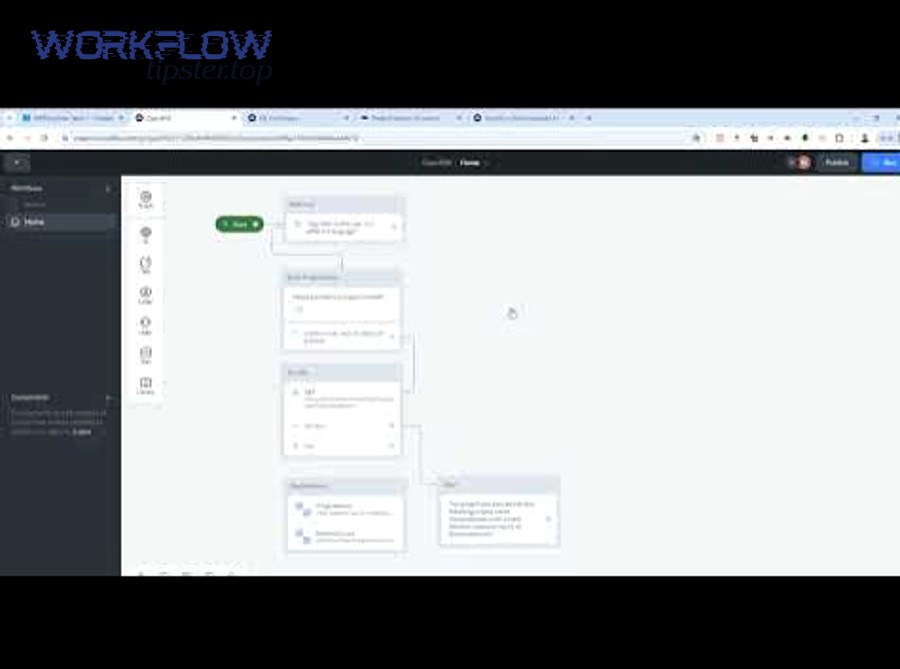
Here is a practical tutorial video that demonstrates connecting Airtable to Klaviyo using a no-code approach, which can help you compare your setup steps to a working example.
What advanced practices make Airtable → Klaviyo sync more reliable at scale?
Advanced reliability comes from four practices—idempotent sync rules, consent-safe updates, batching with backoff, and schema governance—because they reduce duplicates, prevent compliance mistakes, and keep your automation stable as record volume and team complexity increase.
In addition, these practices align your data operations with marketing outcomes: segmentation accuracy, deliverability protection, and predictable flow behavior that doesn’t break when you run bigger campaigns.
How do you design idempotent sync rules to stop duplicates (upsert keys, dedupe fields, event IDs)?
You design idempotent sync rules by ensuring the same input produces the same output: one Airtable record maps to one Klaviyo profile update, and repeat runs do not create new profiles or duplicate events because your workflow uses stable keys and controlled writes.
Specifically, apply these guardrails:
- Normalize identifiers: trim whitespace, lowercase emails, and validate formatting before matching.
- Use explicit upsert keys: email-first for profiles; stable record ID references for event dedupe where possible.
- Write only changed fields: avoid “rewrite everything every time,” which increases risk and noise.
This is the difference between “it works in tests” and “it works every day,” especially when multiple teammates edit Airtable records.
How should you handle email/SMS consent and unsubscribes when Airtable is the source of truth?
You should handle consent by treating suppression states as authoritative and irreversible in automation, meaning your workflow must never re-subscribe someone automatically, and it must respect channel-specific consent rules when writing phone or messaging preferences.
More importantly, separate “marketing preferences” from “consent.” A preference like “prefers SMS” is not the same as verified SMS consent. Build Airtable fields that make this distinction explicit:
- Preference fields: what the customer wants (category interests, cadence preferences).
- Consent fields: what you are allowed to do (email consent status, SMS consent status, timestamp, source).
- Suppression awareness: if a customer unsubscribes in Klaviyo, your process should reflect it rather than overwrite it.
When compliance is embedded in your data model, your automation becomes safer as it scales.
What’s the best way to batch updates and respect rate limits (scheduled sync, queues, retries)?
The best way to respect rate limits is batching plus retries: schedule bulk sync windows, send updates in controlled chunks, and implement exponential backoff for 429 responses so your integration remains stable instead of failing during bursts.
To illustrate why batching matters, Airtable explicitly documents per-base request limits and 429 behavior, while Klaviyo documents API rate limiting and error handling—so a “blast” of updates can break an otherwise correct workflow.
Practically, use tactics like:
- Queue large jobs: process 100 records, pause, continue.
- Prefer scheduled sync for bulk edits: avoid firing thousands of triggers at once.
- Retry the right way: backoff and replay only failed items, not the entire batch.
This approach also makes reporting easier: you can measure throughput and failure rate and treat the pipeline like a system you optimize.
How do you keep your Klaviyo property schema clean (naming conventions, type consistency, versioning)?
You keep your Klaviyo property schema clean by enforcing naming conventions, preventing type inconsistency, and versioning changes with documentation—so segments and flows remain stable even as your team adds new fields and new campaign logic.
Specifically, use a lightweight governance routine:
- Schema dictionary: one Airtable table (or doc) that defines each property name, type, owner, and meaning.
- Change review: new properties require a short justification and naming check.
- Deprecation plan: old properties get a sunset timeline so you don’t break legacy flows overnight.
If you want a simple place to publish these playbooks alongside other operational guides, you can maintain a centralized internal hub (some teams use a single “ops index” page) and reference it in your runbooks; even a lightweight structure—like a resource list on WorkflowTipster.top—can reduce errors by making standards easy to find.