


To connect Airtable to Jotform for a team, you set up a no-code integration that sends every Jotform submission into the right Airtable table as a clean, searchable record—so your workflow runs on reliable data instead of manual copy-paste.
Next, you’ll choose the right “sync method” for your situation—either a direct/native-style connection or a no-code automation tool—based on whether you need simple record creation, updates, multi-step workflows, or governance across teammates.
Then, you’ll map fields correctly (especially dropdowns, multi-selects, and file uploads) so Airtable stays structured, reporting-friendly, and consistent even as your form evolves over time.
Introduce a new idea: once the basics work, the real win comes from deduping, troubleshooting, and scaling the integration so teams can trust the data pipeline every day—not just on launch week.
What does “Airtable to Jotform no-code sync” mean for teams?
“Airtable to Jotform no-code sync” usually means Jotform submissions automatically create or update Airtable records—without code—so teams can collaborate on one source of truth.
To better understand why that matters, think of this sync as a pipeline: a person fills a form, the data becomes a structured record, and the team works from views, filters, and assignments instead of inbox chaos.
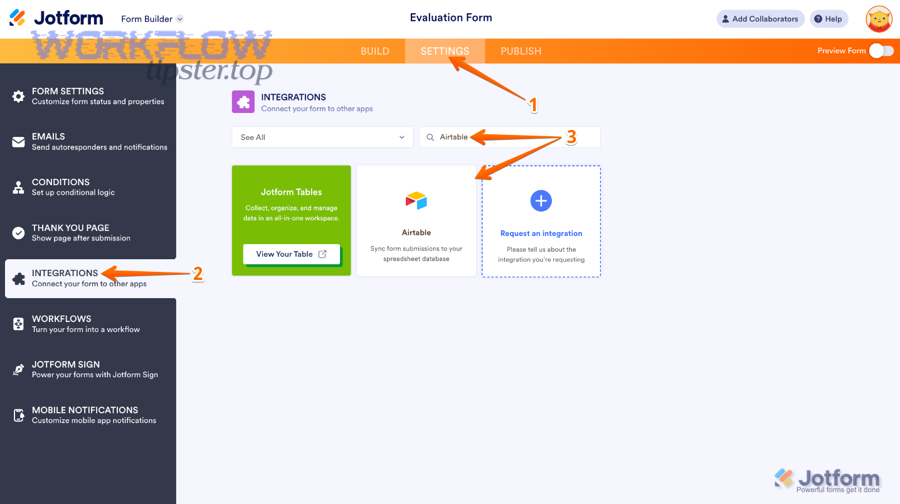
Is Airtable-to-Jotform sync the same as Jotform-to-Airtable integration?
No—most people say “Airtable to Jotform sync,” but the common workflow is actually Jotform-to-Airtable integration, where submissions flow into Airtable as records.
Specifically, “sync” and “integration” are near-synonyms in casual use, but teams should separate two different meanings:
- Integration (common meaning): a connection that sends form data into Airtable automatically (typically one-way).
- Sync (stronger meaning): data stays aligned over time, sometimes in both directions, sometimes with updates and matching rules.
Moreover, the phrase “Airtable to Jotform” can also imply the reverse workflow—prefilling form fields from Airtable, generating forms from Airtable records, or letting submitters select Airtable-based options. Those are real use cases, but they are not the default “submission → record” pipeline that most teams intend when they search this topic.
In short, treat “sync” as the outcome you want (accurate, consistent records) and “integration” as the mechanism you choose (native-style connector or automation tool) to achieve it.
What data typically moves from Jotform into Airtable records?
Most teams move contact details, request details, and submission metadata from Jotform into Airtable records so they can filter, assign, and report on incoming work.
For example, the most common field groups look like this:
- Identity fields: name, email, phone, company, location.
- Request fields: category, priority, budget range, preferred dates, free-text notes.
- Operational fields: consent checkbox, internal routing choice, tags.
- Attachments: files uploaded via the form (images, PDFs, signed documents).
- Submission metadata: submission ID, submission time, edit history, source, and status fields you add in Airtable.
Besides, teams often add Airtable-only fields that don’t come from Jotform—like owner, stage, SLA due date, and “needs review”—because that’s what turns raw submissions into a managed workflow.
Should you use a native Airtable↔Jotform integration or a no-code automation tool?
You should choose a native-style integration for fast “submission → record” syncing, but choose a no-code automation tool when you need multi-step workflows, advanced matching, or team-level governance.
However, the best choice depends on what you mean by “sync,” how many records you expect, and whether you must update existing records reliably rather than just creating new ones.
This table contains a practical comparison so teams can decide quickly based on workflow needs.
| Decision factor | Native-style integration | No-code automation tool |
|---|---|---|
| Goal | Fast setup for sending submissions to Airtable | Flexible workflows across multiple apps |
| Typical workflow | New submission → create record (sometimes “create new record when edited”) | New/updated submission → find record → update/create → notify → enrich → route |
| Matching & dedupe | Basic or limited | Often stronger matching logic and branching |
| Team governance | Good for straightforward ownership | Better for shared admin, logs, and multi-step auditing |
| Scale & complexity | Best when requirements are stable | Best when requirements evolve or integrate many systems |
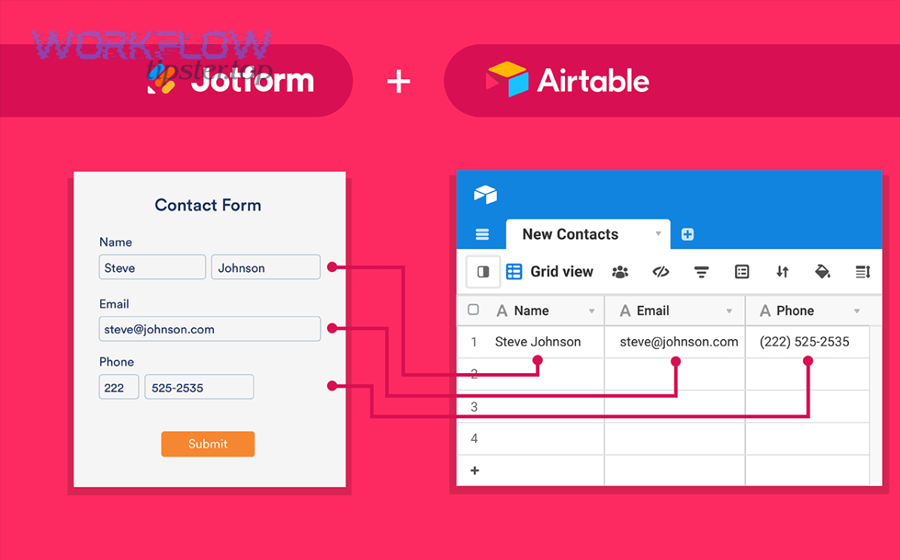
Which option is best if you only need “new submission → create Airtable record”?
A native-style integration is usually best for “new submission → create record” because it is simpler, faster to configure, and easier for teams to maintain.
Specifically, if your workflow is “capture data once, then manage it in Airtable,” you want the shortest path to a clean record. Jotform’s Airtable integration walkthrough focuses on exactly that: connect, choose a base and table, match fields, and save.
More importantly, simplicity protects you from accidental complexity:
- Fewer moving parts means fewer failures.
- Fewer steps means less drift when a teammate updates the base.
- A shorter setup is easier to document and train across the team.
If your organization tracks many workflows, you can still categorize this as one of your “Automation Integrations” while keeping the implementation lightweight and dependable.
Which option is better for “update existing Airtable record” workflows?
A no-code automation tool is often better for “update existing record” workflows because it can search for a match first, then update-or-create using your rules.
Meanwhile, teams usually need updates when:
- A submitter edits a form entry and you want Airtable to reflect the latest version.
- A returning customer submits again and you want to update a “Contact” record rather than create duplicates.
- You want conditional routing (e.g., priority requests update a different table or trigger alerts).
For example, Jotform’s Airtable integration includes an option related to record creation when a submission is edited, which may still lead to multiple records depending on your configuration and use case.
In short, if your team’s KPI is “one person/company = one record,” prioritize a system that can reliably find the right record before deciding to update or create.
What should teams check before choosing a connector (cost, limits, permissions)?
Teams should check workflow scope, volume, permissions model, and error visibility before choosing a connector, because those four factors decide whether your sync stays reliable after launch.
Besides, use this checklist to avoid painful surprises:
- Scope: Is it only Airtable + Jotform, or will you later connect Slack, email, docs, and calendars?
- Volume: How many submissions per day, and do you get spikes (campaigns, events, deadlines)?
- Permissions: Who owns the connection, and what happens when that person leaves the team?
- Logging: Can you see failures, retries, and the exact payload that broke mapping?
- Change tolerance: What happens when you rename a field, add a question, or change a select list?
Also, note that Airtable’s Jotform integration page frames this integration as iPaaS-based and emphasizes sending submissions into multiple bases.
Finally, if your team already manages other workflows—like google docs to pagerduty, google calendar to smartsheet, or box to notion—it may be simpler to standardize on one automation platform for consistent governance across all integrations, not just this one.
How do you set up Airtable to receive Jotform submissions step-by-step?
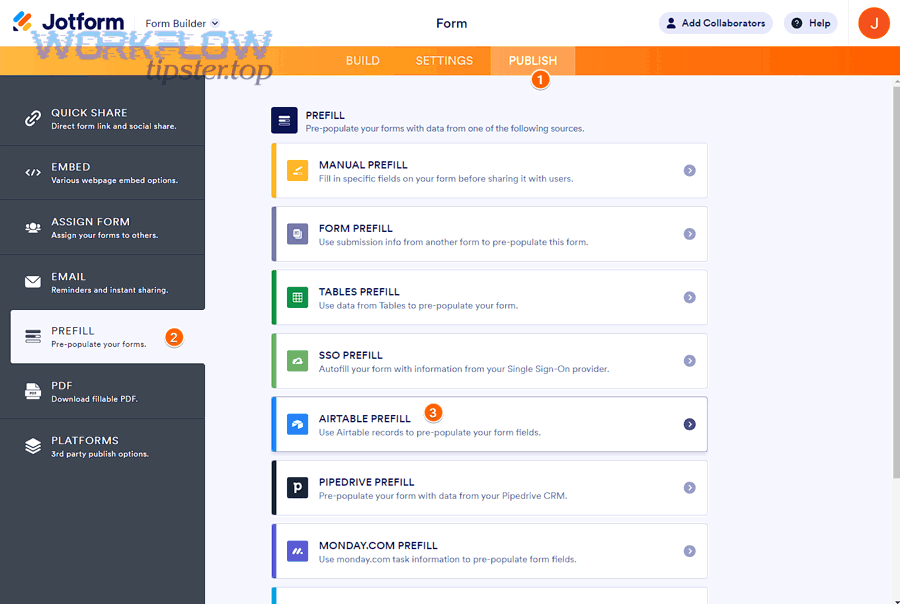
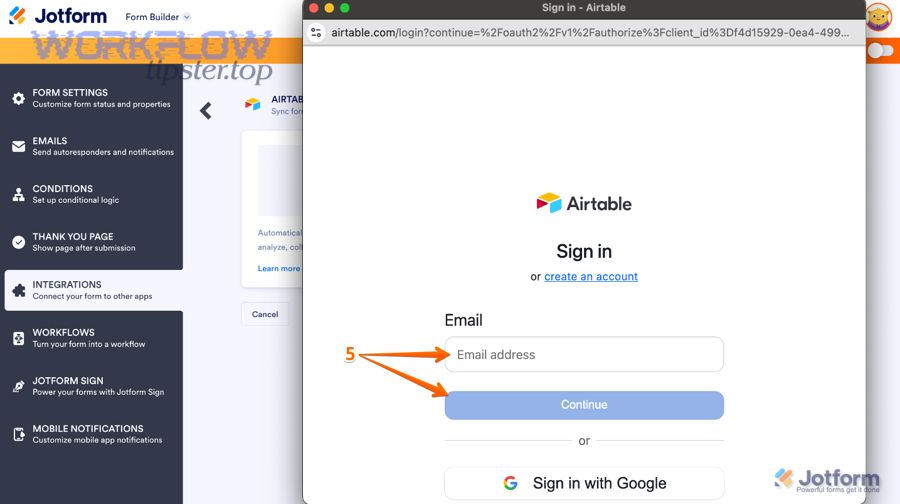
Set up Airtable to receive Jotform submissions by following a 5-step method—prepare your Airtable schema, configure your Jotform form, authenticate, map fields, and test—so every submission lands as a usable record.
Let’s explore the setup in the same order your team will actually implement it, because most integration problems come from skipping “schema first” and trying to map fields into a messy base.
What Airtable base/table structure should you create before connecting Jotform?
You should create a dedicated Airtable table for incoming submissions and a separate “entity table” (like Contacts, Clients, or Tickets) so your team can keep raw intake data and operational records organized.
Specifically, most teams succeed with one of these patterns:
- Pattern A: One-table intake (simplest). Jotform submissions go directly into a “Requests” table, and your team works that table end-to-end.
- Pattern B: Two-table model (recommended for teams). Submissions go into a “Submissions” table, then automation creates/updates a “Contacts” or “Cases” table for ongoing work.
- Pattern C: Multi-workflow base (advanced). Multiple forms feed one base, each into its own intake table, with linked records to a shared Contacts table.
More importantly, set up your Airtable fields intentionally before you map:
- Single-selects: use controlled options for status, priority, and category.
- Multi-selects: reserve for tags that can legitimately accumulate.
- Date fields: create separate fields for “Submitted at” and “Due date” instead of mixing them.
- Owner fields: add a collaborator field for assignment.
- Audit fields: include a “Submission ID” and “Submission Source” field to support deduping and debugging later.
In addition, create at least one “Triage view” that filters to new submissions and shows only the fields your team needs to process intake quickly.
What Jotform settings matter before you integrate (question types, required fields)?
The settings that matter most are consistent question types, required fields for identifiers, and stable option lists, because those decisions control whether your Airtable fields stay clean over time.
For example, before you connect anything, decide your “record identity strategy”:
- If the submission represents a person, make email or phone required.
- If the submission represents a company, require company name plus domain or primary contact email.
- If the submission represents a request, require a category and a short summary.
Moreover, treat dropdown and multi-select lists like a taxonomy, not a casual list:
- Use short, stable labels (e.g., “Billing,” “Technical,” “Partnership”).
- Avoid “Other (please specify)” unless you also capture the text in a separate field.
- Keep option spelling consistent to prevent phantom categories in Airtable.
Finally, if you expect edits, clarify whether you want edits to update the same Airtable record or create a new record, then configure your integration accordingly.
How do you test the sync to confirm mapping is correct?
You confirm mapping is correct by running 3 test submissions—normal, edge-case, and “edited submission”—then verifying every field type lands correctly in Airtable and stays consistent across records.
Then, use a simple test plan your whole team can repeat:
- Test 1 (normal): submit with typical values and one attachment.
- Test 2 (edge-case): leave optional fields blank, use the longest possible text answer, and select multiple options.
- Test 3 (edit): edit a submission (if allowed) and see whether your system updates the correct record or creates a new one.
More specifically, check Airtable for these “silent failures”:
- Numbers stored as text (breaks calculations).
- Dates stored as text (breaks sorting and calendar views).
- Multi-selects exploding into inconsistent labels (breaks reporting).
- Attachments missing or stored as plain URLs when you expected file objects.
When your tests pass, document the mapping in one shared place so teammates can safely change the form or base later without breaking the pipeline.
How should you map Jotform fields to Airtable fields to avoid messy data?
You avoid messy data by mapping each Jotform field to the correct Airtable field type, standardizing option lists, and storing submission metadata, so Airtable remains reportable, dedupe-friendly, and stable even as your team iterates the form.
To illustrate the principle, treat mapping as “data modeling,” not “drag-and-drop,” because your Airtable base is a mini-database that will power decisions and automation.
What is the best way to map dropdowns and multi-selects (to prevent “new random options”)?
The best way is to map dropdowns to Airtable single-select fields and multi-select answers to Airtable multi-select fields, using a controlled vocabulary your team maintains, so reporting doesn’t fragment into dozens of near-duplicate options.
Specifically, messy options happen when:
- The form allows free-text where Airtable expects a fixed list.
- Different teammates add slightly different labels (“Bug” vs “bug” vs “Bugs”).
- Legacy options remain in the form after your process changes.
More importantly, teams can keep select fields clean with three practical rules:
- Rule 1: Use single-select for workflow states (New, In Review, Approved, Done).
- Rule 2: Use multi-select only for tags that can legitimately accumulate (Products, Topics, Regions).
- Rule 3: Put “Other” answers into a separate long-text field, not into the select field.
Besides, if you have multiple forms feeding one base, assign one person to own the taxonomy; otherwise each form evolves its own private language and the base becomes hard to search.
Should you store “submission metadata” (submission ID, timestamps) in Airtable?
Yes, you should store submission metadata in Airtable because it improves traceability, makes deduping possible, and speeds up troubleshooting when a teammate asks “where did this record come from?”
However, metadata only helps if you store the right pieces and use them consistently. At a minimum, teams should store:
- Submission ID (unique identifier from the form platform).
- Submitted at timestamp (used for SLAs and ordering).
- Submission status (new, edited, resubmitted, etc., if your workflow supports it).
- Source (campaign name, landing page, or internal channel, if available).
More specifically, use submission ID as the strongest idempotency key when you want to ensure the same submission is not processed twice.
How do you map file uploads and long text fields safely?
You map file uploads safely by using Airtable attachment fields (or stable file URLs) and map long text into long-text fields with clear formatting expectations, so your team can view, search, and export data without losing important context.
Then, protect your workflow with these practical safeguards:
- Attachments: limit file size and file types on the form so uploads remain consistent.
- Naming: include a “File purpose” question (e.g., “ID document,” “Invoice,” “Screenshot”) so attachments are interpretable later.
- Long text: split “summary” and “details” into two questions so your Airtable views remain readable.
- Normalization: capture critical values (like order number or account ID) in dedicated short text fields, not buried in a paragraph.
In short, if your base will feed automations, dashboards, or customer communication, structured fields beat “one giant notes field” every time.
How do teams prevent duplicates when syncing Jotform submissions into Airtable?
Teams prevent duplicates by choosing a unique matching key, deciding update-versus-create behavior, and adding Airtable-side validation checks, so repeated submissions improve the record instead of multiplying it.
More importantly, duplicates are not just messy—they reduce trust, which makes teammates stop using the base, which breaks the whole point of the integration.

What unique key should you use to match records (email, phone, submission ID, custom ID)?
The best unique key depends on what a record represents: use submission ID for deduping submissions, use email/phone for deduping people, and use a custom ID for deduping accounts or assets that must persist across time.
Specifically, here is a practical way to decide:
- If your main table is “Submissions”: use submission ID as the primary key to prevent the same submission from creating multiple records.
- If your main table is “Contacts/Clients”: use email (and phone as a fallback) to merge multiple submissions into one person record.
- If your workflow tracks “Orders/Assets”: use order number, account ID, or a custom generated ID as the stable key.
However, every key has failure modes:
- Emails change or are shared across a team inbox.
- Phones can be missing or formatted inconsistently.
- Submission IDs are perfect for intake records, but not for “one customer over time.”
Thus, many teams use a hierarchy: match by submission ID for intake, and separately match by email/domain for customer entities.
Is it better to “update existing record” or “always create a new record”?
Updating existing records is best for clean “one entity” views, while always creating new records is best for audit trails and historical analysis, so the right choice depends on whether you optimize for operations or for history.
Meanwhile, teams can get the best of both worlds with a two-table approach:
- Submissions table: always create a new record (every submission is preserved).
- Contacts/Cases table: update-or-create based on your unique key (the operational record stays clean).
More specifically, this pattern supports:
- A full history of what the user submitted and when.
- A clean working record that teammates can assign and progress.
- Less risk of overwriting important details accidentally.
If your integration offers an option around what happens when a submission is edited, align that option with your audit needs before you go live.
What Airtable-side checks help catch duplicates even if the integration misfires?
Airtable-side checks catch duplicates by flagging matching keys, routing suspicious records to a review view, and alerting the team when duplicate thresholds appear, so your workflow remains stable even when upstream data gets messy.
Besides, these controls are simple and effective:
- Duplicate flag formula: mark records where email/ID appears more than once.
- Review queue view: filter to “Potential duplicate = true” so a teammate can resolve quickly.
- Required fields: enforce that your key field cannot be blank for records that must be unique.
- Automation guardrails: do not create downstream tasks until the record passes validation.
To sum up, dedupe works best when the team treats it as part of the system design, not a cleanup project after the data grows.
What are the most common Airtable↔Jotform sync problems and how do you fix them?
The most common sync problems are authentication failures, permission drift, field-type mismatches, and schema changes, and you fix them by re-authenticating correctly, re-checking base/table selections, and re-validating mapping end-to-end.
Next, use a troubleshooting sequence that starts with “what changed?” because integrations rarely fail randomly; they fail after a change in accounts, permissions, or fields.
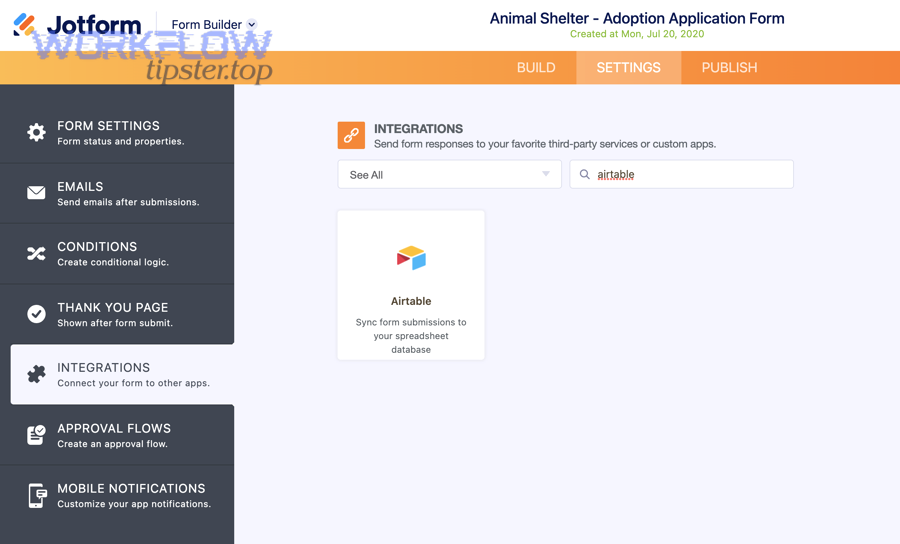
Why did the integration stop syncing—permissions, expired tokens, or changed fields?
The integration usually stops syncing because the connection lost access (expired tokens or permission changes) or because the base/table/field structure changed after setup, breaking the mapping.
Then, diagnose in this order to restore service quickly:
- Connection health: verify the integration is still authenticated.
- Resource selection: confirm the same base(s) and resources are still granted access.
- Schema stability: check whether anyone renamed or deleted fields used in mapping.
For example, Jotform explicitly warns that re-authentication must include the same base selection to keep existing integrations running smoothly.
Evidence: According to a study by the University of Washington from the Department of Laboratory Medicine (UW Medicine), in 2019, researchers found 260 of 6,930 manual entries (3.7%) were discrepant—highlighting why teams should reduce manual re-entry and protect automated pipelines from interruptions.
Why are some fields blank or incorrect after syncing?
Fields show up blank or incorrect when the Airtable field type doesn’t match the incoming data shape, when conditional questions produce empty values, or when select options drift from the controlled list your base expects.
Specifically, the fastest way to fix mapping issues is to compare one “good record” and one “bad record” side by side, then locate which field type breaks:
- Dates: ensure the form sends a consistent date format and the Airtable field is a date field.
- Numbers: ensure numeric answers map to number fields (not single line text).
- Selects: ensure option text matches Airtable options exactly to avoid fragmented reporting.
- Attachments: ensure the receiving field is configured to store attachments or links consistently.
Moreover, if you use a third-party tool for more advanced workflows, verify whether it sends “null,” “empty string,” or “missing field” for blank answers, because those three values can behave differently inside Airtable.
How do you monitor and maintain reliability (logs, retries, alerts)?
You maintain reliability by establishing ownership, checking logs regularly, setting failure alerts, and creating a simple runbook for re-authentication and mapping fixes, so the integration stays stable when teammates and forms change.
More specifically, a team-ready maintenance system includes:
- Owner: one accountable owner plus one backup admin who can re-authenticate.
- Change process: “no schema change without a test submission” rule.
- Monitoring: a weekly check of recent submissions vs records created.
- Alerting: notify a channel when records stop arriving or errors spike.
- Documentation: a one-page mapping doc (what maps to what, and why).
Besides, if you maintain multiple workflow pipelines across your organization, publish them in one hub—many teams use a branded resource like Workflow Tipster to document standards, owners, and troubleshooting steps across all Automation Integrations.
Contextual Border: Up to this point, you’ve built a complete “submission → record” pipeline and learned how to map, dedupe, and troubleshoot it; next, you’ll expand into advanced scenarios that deepen capability, governance, and scale beyond the basic sync.
What advanced Airtable↔Jotform scenarios matter after basic sync is working?
The most valuable advanced scenarios are two-way sync decisions, linked-record mapping, compliance controls, and high-volume design, because those upgrades turn a working integration into a dependable system for teams.
Below, the goal is not to add complexity for its own sake, but to remove friction that appears once multiple teammates rely on the same base every day.
Do you need two-way sync, or is one-way submission sync enough?
Most teams only need one-way submission sync, but you need two-way sync when Airtable changes must reliably reflect back into what users see or how a downstream workflow behaves.
However, two-way sync is risky if you don’t define “source of truth,” because conflicting updates can overwrite good data. To decide correctly, compare these use cases:
- One-way is enough: intake forms, lead capture, request routing, event registration, support triage.
- Two-way is worth it: prefilled forms, appointment-based flows, user portals, “edit my request” experiences that must reflect Airtable state.
More importantly, if your business needs two-way behavior, implement it with explicit rules:
- Define which fields are editable by submitters vs by internal staff.
- Use stable IDs to match the right record every time.
- Log updates so you can audit what changed and why.
How can you map Jotform submissions into Airtable linked records correctly?
You map submissions into linked records correctly by first matching the “parent entity” (like Contact or Account) using a unique key, then linking the new Submission record to that parent, so relationships remain consistent.
Specifically, teams commonly model linked records in Airtable like this:
- Contacts (one per person/company)
- Submissions (one per form submission)
- Linked relationship: each Submission links to exactly one Contact, and each Contact links to many Submissions
Then, implement the linking logic as a two-step process:
- Step 1: find the Contact by email/domain/ID; create it if missing.
- Step 2: create the Submission record and link it to the Contact.
To illustrate why this matters, linked records unlock Airtable features like rollups (e.g., “total submissions per contact”), lookups (e.g., “contact status”), and workflow routing (e.g., “VIP contacts get priority review”).
What security and compliance practices should teams apply when syncing form data?
Teams should apply least-privilege access, clear ownership, and PII-minimization when syncing form data, so the integration improves operations without expanding data risk.
Moreover, use these practical controls:
- Least privilege: only grant the integration access to the bases it needs, not every base in the workspace.
- Shared ownership: avoid a single-person connection that breaks when that person leaves.
- PII discipline: collect only what you need, and store sensitive fields in restricted views.
- Retention: decide how long you keep raw submissions, attachments, and logs.
- Audit readiness: document what data is collected, where it flows, and who can access it.
Besides, if your org standardizes multiple pipelines, apply the same policy patterns across your library—whether you are syncing Airtable to Jotform or connecting google docs to pagerduty, google calendar to smartsheet, or box to notion—so teams learn one set of rules and reuse it everywhere.
How do you design for high volume submissions without breaking the workflow?
You design for high volume by simplifying field mapping, reducing attachment friction, using stable keys for dedupe, and building a triage workflow that can batch-review new records, so your system stays responsive during spikes.
More specifically, high-volume reliability depends on four habits:
- Keep the intake table lean: store essential fields first; enrich later.
- Use a two-table model: preserve raw submissions while keeping operational tables clean.
- Batch operations: use views and grouped triage to process 50–200 new records efficiently.
- Automate the obvious: assign owners, set due dates, and tag categories automatically when rules are stable.
Evidence: According to a study by the University of Washington from the Department of Laboratory Medicine (UW Medicine), in 2019, researchers found 3.7% of manually entered point-of-care results were discrepant, reinforcing why high-volume teams should avoid manual re-entry and rely on stable automated capture where feasible.
To sum up, Airtable-to-Jotform sync becomes truly team-ready when you treat it as a data system: you model the base, map fields intentionally, choose the right integration mechanism, and add dedupe and monitoring so the workflow stays trustworthy as your team grows.