


To sync Airtable to HubSpot successfully, you need a two-way data model, a clear record-matching key, and governance rules that prevent duplicates and update conflicts—so your CRM stays reliable while your Airtable workflows stay fast and flexible.
Then, you should choose the integration method that matches your RevOps reality: native data sync and workflow actions for simple cases, automation platforms for event-driven workflows, or dedicated two-way sync tools for ongoing, high-volume operational reliability.
Next, you must prepare your field mapping and identifiers before you connect anything—because the biggest sync failures come from mismatched field types, missing required properties, and unclear “source of truth” ownership across teams.
Introduce a new idea: once the basics work, you can make the sync production-grade with testing, monitoring, backfills, and scale considerations that keep Airtable and HubSpot aligned even as your pipeline, segmentation, and reporting become more complex.
What does “two-way sync” between Airtable and HubSpot actually mean for RevOps workflows?
Two-way sync is a bi-directional data synchronization pattern where Airtable and HubSpot can both create and update corresponding records, keeping shared fields aligned while respecting defined ownership rules and record-matching logic.
To better understand why this matters, start by separating the word sync (ongoing alignment) from import (one-time movement) and automation (event-driven actions). Two-way sync is not “everything mirrors perfectly.” Instead, two-way sync is a controlled agreement: which objects you sync, which fields you sync, and which system is allowed to write to each field.
In RevOps terms, two-way sync becomes valuable when teams use Airtable for operational execution (routing, enrichment, QA, campaign ops, partner lists) while HubSpot remains the CRM system of record for lifecycle stages, deal pipeline, and attribution. When both systems need to stay aligned, two-way sync reduces manual reconciliation and prevents the slow drift that breaks dashboards and segmentation.
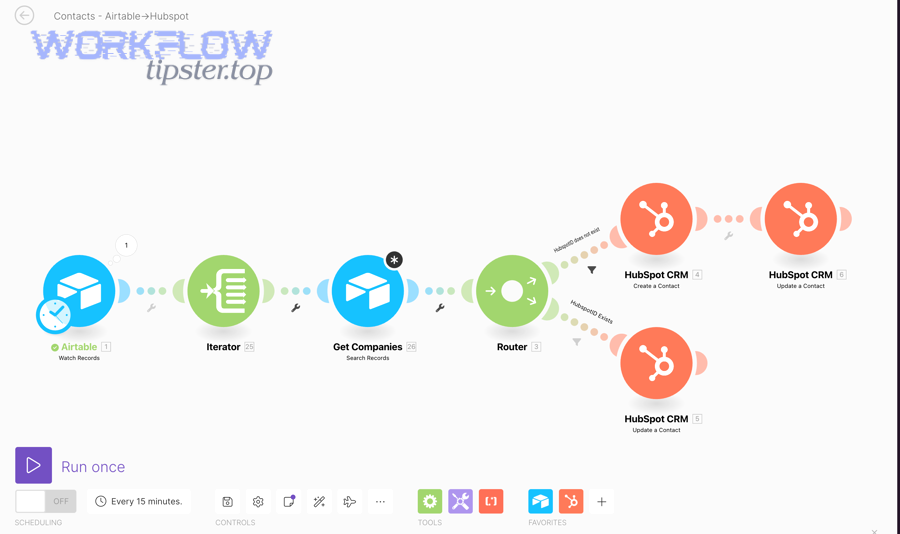
However, two-way sync always requires constraints:
- Matching logic: how you identify the same entity in both systems (email, HubSpot object ID, or an external ID).
- Field ownership: which system is allowed to update which fields, to avoid “ping-pong” updates.
- Conflict handling: what happens if both systems change a field before the next sync cycle.
- Association reality: HubSpot relationships (Deal–Company–Contact) do not always map cleanly to Airtable tables unless you design for it.
According to a study by MIT Center for Information Systems Research (MIT CISR) from MIT Sloan School of Management, in 2024, top-performing organizations attributed 11% of revenues to data monetization—more than five times the 2% reported by bottom-performing organizations, highlighting how reliable data foundations can support better business outcomes.
Is two-way sync always necessary, or is one-way automation enough?
No, two-way sync is not always necessary for Airtable to HubSpot; one-way automation is often enough because it is simpler to govern, easier to troubleshoot, and less likely to create duplicates or conflicting updates.
However, the choice depends on how many teams edit the same customer data and how frequently that data changes. One-way automation is sufficient when you can declare a clear “write direction” and keep the other system read-only for those fields.
Use one-way automation when:
- Airtable is an operations tracker: You want to push curated updates into HubSpot (e.g., enrichment, QA status) but HubSpot remains the source of truth for identity and lifecycle fields.
- HubSpot is the upstream CRM: You want to pull HubSpot records into Airtable for reporting views or operational queues, without allowing Airtable edits to overwrite CRM fields.
- You are validating a new process: You want a low-risk rollout before you allow bi-directional writes.
Two-way sync becomes worth the governance effort when:
- Both systems must be editable: RevOps updates operational fields in Airtable while Sales updates CRM fields in HubSpot, and both need the latest state.
- Handoffs happen across tools: For example, deal desk updates in Airtable should reflect in HubSpot deals, and pipeline changes in HubSpot should update Airtable queues.
- Multiple stakeholders depend on consistency: Reporting, routing, and lifecycle automation depend on up-to-date data in both places.
In short, start with the smallest safe direction (one-way), and graduate to two-way only when your process truly requires edits in both systems.
Which HubSpot objects and Airtable tables should be synced first (Contacts, Companies, Deals, Tickets)?
There are 4 main types of sync starting points for Airtable to HubSpot: Contacts, Companies, Deals, and Tickets—based on operational complexity and the risk of breaking associations.
Specifically, begin with the object/table pair that has the fewest dependencies and the clearest matching key, then expand to more relational objects once your dedupe and governance are stable.
Recommended order for most RevOps teams:
- Contacts: Usually easiest to match (email), high immediate value for enrichment and segmentation, lower association risk.
- Companies: Valuable for account-based workflows; matching can be trickier (domain, company ID, normalized name), so define rules early.
- Deals: High impact but high relational complexity; requires consistent associations to contacts/companies and careful handling of pipeline stages.
- Tickets: Often owned by Support Ops; includes SLAs, statuses, and internal workflows; sync only after ownership rules are clear.
Quantitatively, this order reduces the probability of “orphaned” records because Contacts and Companies can exist independently, while Deals and Tickets typically depend on correct relationships and lifecycle semantics.
What are the best ways to integrate Airtable to HubSpot (native/workflows vs Zapier vs Make vs two-way sync tools)?
Dedicated two-way sync tools win in ongoing reliability, automation platforms are best for flexible event-driven workflows, and native/workflow-based options are optimal for simple, controlled data movement—so the “best” integration depends on your volume, governance needs, and bidirectional requirements.
Meanwhile, RevOps teams should treat integration choice as a governance decision, not a tooling preference, because the method determines how you handle conflicts, backfills, monitoring, and long-term maintenance.
This table contains a practical comparison of integration approaches, helping you choose the best method based on two-way requirements, monitoring depth, and operational scale.
| Approach | Best for | Two-way sync strength | Typical risks |
|---|---|---|---|
| Native Data Sync / Marketplace + workflows | Simple, controlled use cases | Medium (depends on feature scope) | Limited transforms, partial object coverage, governance gaps |
| Automation platforms (e.g., Zapier/Make-style) | Event-driven processes, quick workflows | Low–Medium (often requires careful design) | Dupes, missing backfills, harder conflict management |
| Dedicated two-way sync tools | Operational reliability, continuous alignment | High (bi-directional focus) | Cost, configuration effort, governance still required |
| Custom API integration | Complex requirements, deep control | Very high (if built well) | Engineering cost, maintenance burden, rate-limit handling |
In addition, this decision sits inside a broader ecosystem of Automation Integrations—because your Airtable–HubSpot sync often connects to downstream tools like analytics, ticketing, or internal knowledge workflows.
Here is a practical way to choose:
- If you need “create a row in Airtable from HubSpot” reliably: native workflow actions are often sufficient.
- If you need “when X happens, do Y” with branching logic: automation platforms can be efficient.
- If you need two-way synchronization with consistent updates: a dedicated sync approach is usually easier to maintain over time.
- If you need deep control (associations, custom rules, specialized objects): consider API-first design with proper governance.
According to a study by MIT Center for Information Systems Research (MIT CISR) from MIT Sloan School of Management, in 2025, organizations where at least one-third of employees use data assets saw data monetization initiatives account for 15% of total revenues, showing how broad data adoption can amplify value when data remains trustworthy.
Which method is best for true two-way sync: dedicated sync tool vs automation platforms?
Dedicated sync tools win in conflict handling and continuous alignment, while automation platforms are best for event-triggered workflows and quick operational tasks—so choose based on whether you need durable two-way synchronization or flexible process automation.
On the other hand, a “true two-way sync” is less about the marketing label and more about the operational capabilities you actually need.
Use this criteria-driven comparison:
- Conflict resolution: Dedicated sync tools usually offer clearer strategies (ownership rules, last-write logic, controlled overwrites). Automation platforms often require you to design conflict avoidance manually.
- Backfills and re-sync: Dedicated sync tools typically support safer re-sync patterns. Automation platforms can struggle when you need to reconcile thousands of existing records.
- Monitoring and observability: Dedicated sync tools often provide sync health views. Automation platforms provide logs, but long-term “data health” requires extra governance.
- Transformations: Automation platforms can be excellent when you need conditional logic, enrichment, or branching workflows.
For RevOps, the common winning pattern is: use a dedicated two-way sync for core objects and identifiers, then layer automation workflows on top for specialized operational tasks.
Can HubSpot workflows push data into Airtable reliably for RevOps use cases?
Yes, HubSpot workflows can push data into Airtable reliably for many RevOps use cases because they can automate the creation of new Airtable rows from HubSpot data, which is ideal for logging, queues, and operational handoffs.
However, workflow-based “push” is typically one-way, which means it does not automatically keep edits aligned back into HubSpot unless you add additional mechanisms.
Use workflow-to-Airtable when you want to:
- Create operational queues: write a row when a deal hits a stage or a lead meets criteria.
- Log important events: capture lifecycle changes, notes, or internal flags into Airtable for ops tracking.
- Coordinate cross-team work: let operations manage a checklist in Airtable without changing core CRM identity fields.
To keep it reliable, apply three guardrails:
- Map only the fields you need: reduce failure points from data type mismatches.
- Include a stable identifier: store the HubSpot object ID in Airtable so you can reconcile later.
- Separate “CRM fields” from “Ops fields”: prevent accidental overwrites and “ping-pong” edits.
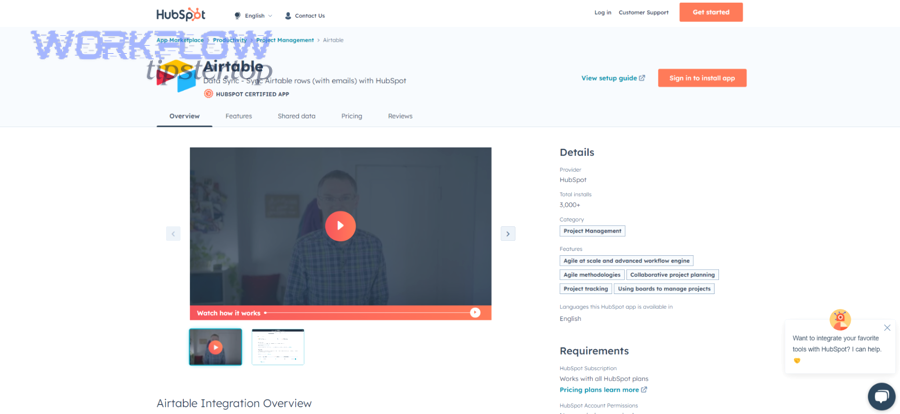
HubSpot’s knowledge base documents a workflow action designed to add data to Airtable by creating new rows, which supports this one-way operational pattern.
What do you need before syncing Airtable to HubSpot (data model, permissions, and identifiers)?
You need 5 prerequisites before syncing Airtable to HubSpot: a defined data model, correct permissions, a matching identifier, compatible field types, and a governance rule for “source of truth,” so your sync creates clean updates instead of duplicates and conflicts.
Next, treat preparation as the highest-leverage step, because a well-designed mapping prevents months of cleanup work and preserves trust in HubSpot reporting.
Start with a pre-sync checklist:
- Object-to-table mapping: define which HubSpot object maps to which Airtable table (and whether you need a join table for associations).
- Permissions: confirm who can edit properties in HubSpot and who can edit fields in Airtable; limit write access during rollout.
- Identifier policy: choose the field used for matching records across systems (email or a stable external ID).
- Field type alignment: normalize dates, picklists, multi-selects, numbers, currency, and phone formats.
- Lifecycle governance: decide which system owns lifecycle stage, pipeline stage, and segmentation-critical fields.
Once you have these, you can design the sync as a controlled system rather than a fragile workflow.
According to a study by Harvard Business Review researchers from the data quality analysis group, in 2017, only 3% of companies’ data met basic quality standards in their sample, which underscores why pre-sync normalization and governance matter before you automate CRM updates.
Which unique identifier should you use to match records (email, HubSpot object ID, external ID, Airtable record ID)?
Email wins for simplicity, HubSpot object ID is best for stability inside HubSpot, and an external ID is optimal for long-term cross-system matching—so the best identifier depends on whether identity can change and how many systems share the same record.
Specifically, RevOps teams should choose the identifier that stays stable when people change jobs, companies rebrand, or data is merged.
Practical guidance:
- Contacts: Email is common, but it is not always stable. If you can, store a HubSpot contact ID in Airtable as a secondary key once the record is created.
- Companies: Domain can work but can be messy for subsidiaries and rebrands. If your process supports it, create an external account ID that stays consistent.
- Deals: Use HubSpot deal ID as the durable pointer, then expose it in Airtable to keep operational work tied to the CRM record.
- Airtable record ID: Useful for internal Airtable integrity, but it is not a universal identity across systems unless you purposely treat it as such.
A strong pattern is “dual-key matching”: use email/domain for initial matching, then store the HubSpot object ID for durable future updates.
What field types and formatting issues commonly break mappings (dates, multi-select, phone, currency)?
There are 5 main types of mapping breakers in Airtable to HubSpot sync: date/time mismatches, multi-select/picklist mismatches, phone formatting, currency/number formatting, and empty required fields—based on how strict each system is about data types.
More specifically, most “sync errors” are not mysterious—they are predictable consequences of incompatible data schemas.

Common problems and how to prevent them:
- Date/time: Ensure consistent timezone assumptions and avoid mixing text dates with true date fields.
- Single-select vs multi-select: Map multi-select only when the destination supports it; otherwise, use a normalized text representation.
- Phone: Normalize to international formats where possible; avoid mixing symbols and extensions in the same field.
- Currency/number: Keep numeric fields numeric; don’t store “$1,200” as text if the destination expects a number.
- Required fields: If HubSpot requires a property for object creation, ensure Airtable always supplies it or block the sync until it exists.
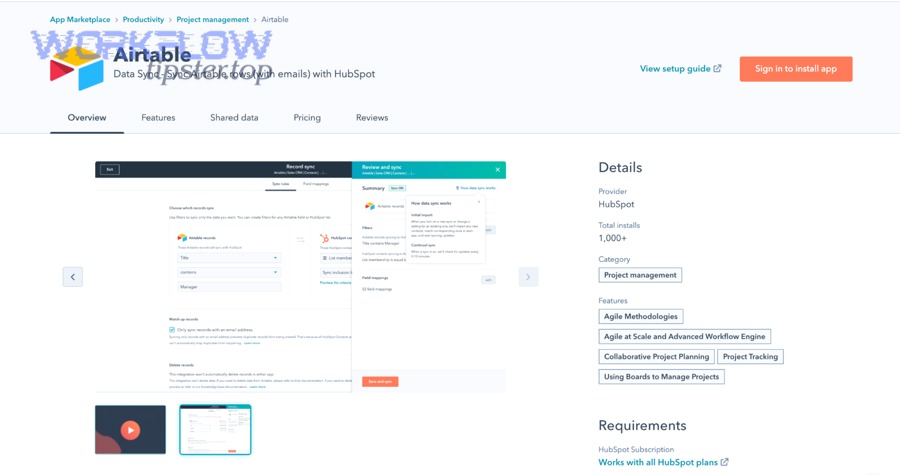
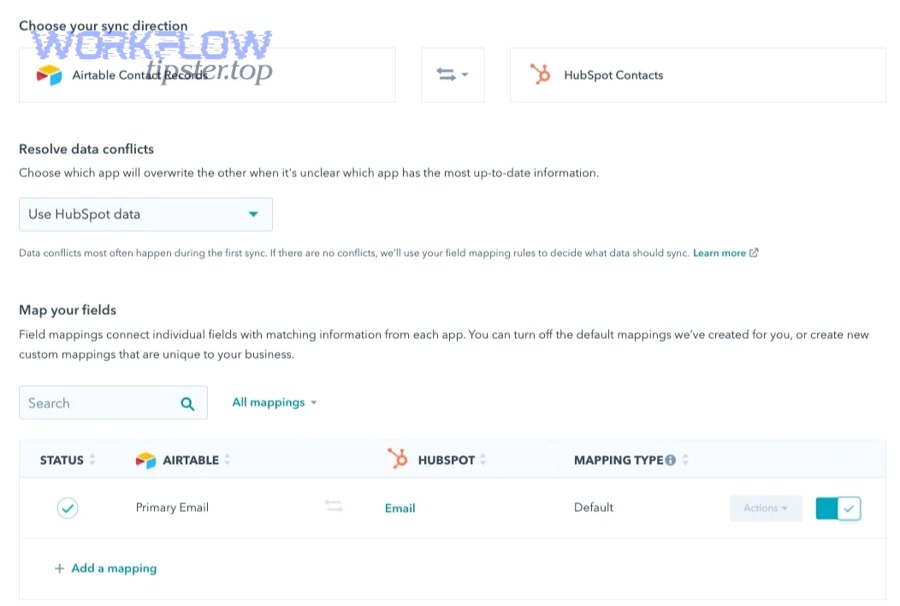
HubSpot’s data sync guidance notes that Airtable text fields should be formatted appropriately (for example, single line text) to sync cleanly into HubSpot properties, reinforcing the importance of field-type alignment before activation.
How do you set up Airtable → HubSpot sync step-by-step (create/update CRM records)?
Airtable → HubSpot sync works best as a 7-step setup: define matching keys, connect accounts, select objects, map fields, set create/update rules, test with a pilot view, and then expand scope—so CRM records update consistently without duplication.
Then, treat the first rollout as a controlled experiment, because the fastest way to destroy trust in HubSpot is to flood it with duplicates, partial records, or overwritten lifecycle fields.
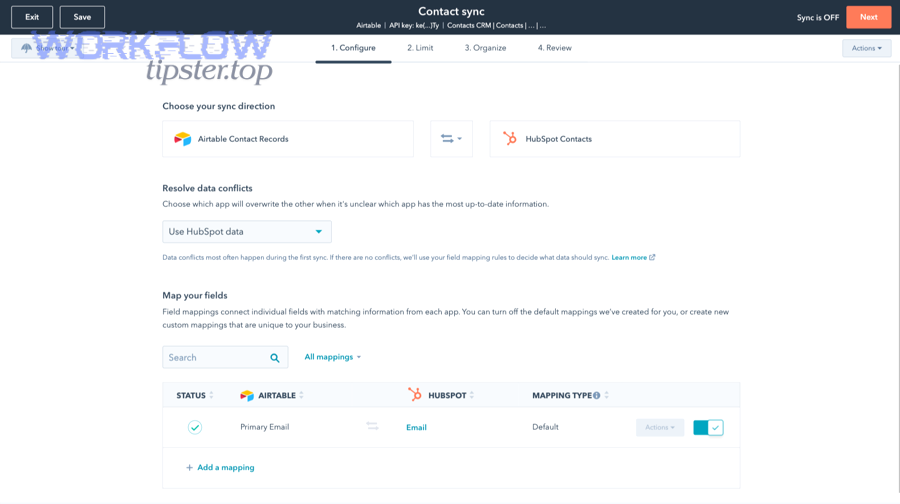
Step-by-step (tool-agnostic, works for most methods):
- Define the object: Choose one HubSpot object (start with Contacts or Companies) and one Airtable table.
- Pick the matching key: Decide how records match (email, domain, external ID) and document it.
- Connect permissions: Confirm OAuth connections and who has rights to create/update CRM records.
- Map fields: Map only the fields needed for the first use case; avoid lifecycle-critical fields in phase 1.
- Configure create vs update: Use “find then update” logic when possible; only create when no match exists.
- Filter “ready” records: Use an Airtable view or status field to send only validated records.
- Pilot and expand: Start with a small segment, validate results, then scale gradually.
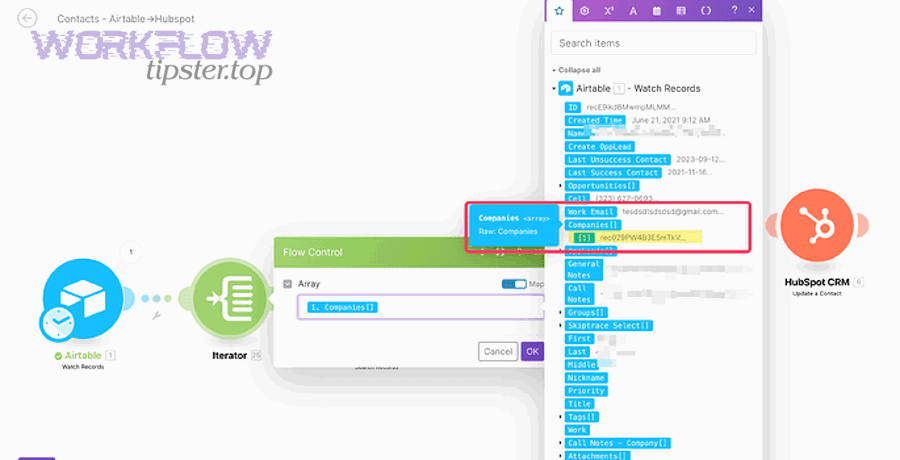
If you are using an automation platform, note that Airtable and HubSpot integrations commonly support triggers and actions, enabling “new record” triggers and CRM updates when configured properly.
How do you map Airtable fields to HubSpot properties without creating duplicates?
You prevent duplicates by using Airtable to HubSpot mapping with 3 controls: a stable matching key, “update-if-found” logic, and dedupe-safe creation rules that only create new CRM records when matching criteria fails.
However, the key is to treat duplication as an identity problem, not a tooling problem.
Use this dedupe-safe pattern:
- Matching key first: For contacts, attempt match by email; for companies, attempt match by domain or external account ID.
- Write HubSpot ID back: Once matched or created, write the HubSpot object ID into Airtable as the durable pointer.
- Lock creation behind QA: Only allow creation if a “QA Approved” checkbox is true or a status is “Ready to Sync.”
- Use normalized fields: Normalize email casing, domain formatting, and whitespace to prevent “false non-matches.”
To keep your hook chain tight: once you store HubSpot IDs in Airtable, future updates become stable updates instead of repeated “create” events.
Which filters and rules should you apply so only “ready” records sync to HubSpot?
There are 4 main types of “ready-to-sync” rules for Airtable to HubSpot: status gating, completeness checks, dedupe checks, and ownership checks—based on whether a record is valid, unique, and authorized for CRM creation.
Moreover, gating rules are the fastest way to protect HubSpot from messy operational drafts.
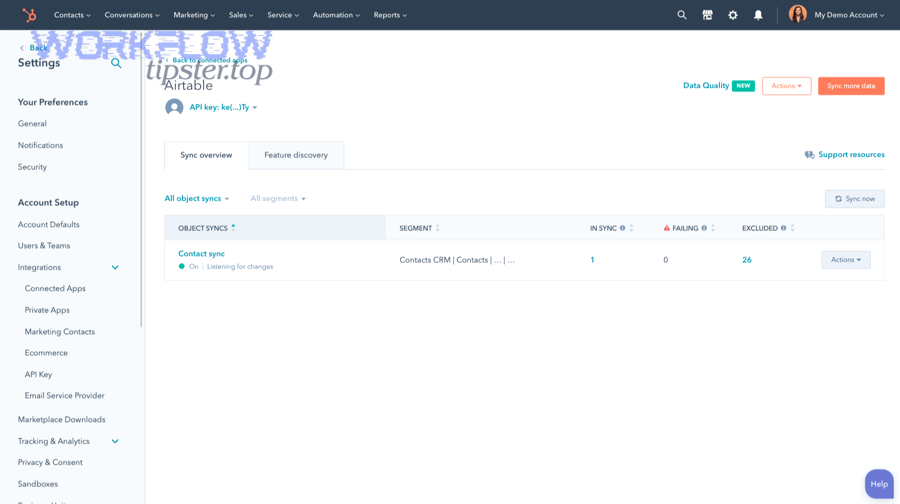
Recommended readiness rules:
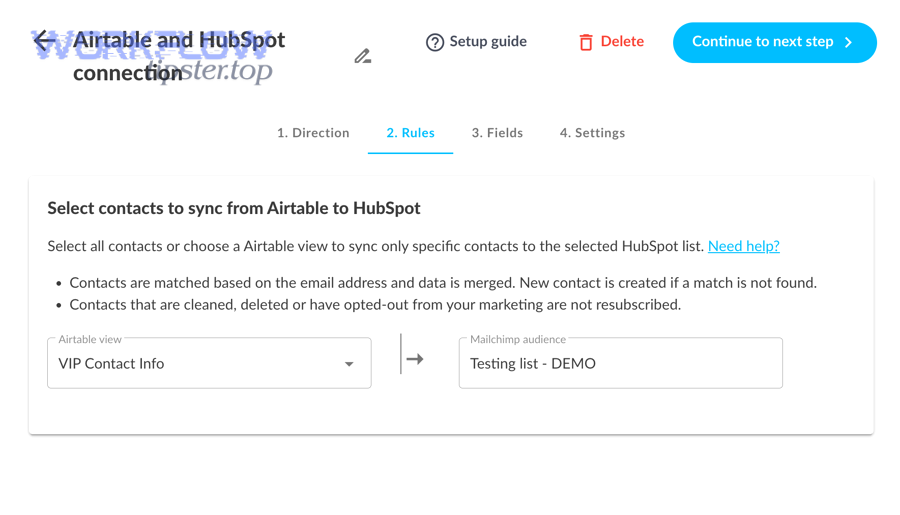
- Status gating: Only sync records in a specific view or with a status like “Ready,” “Approved,” or “Enriching Complete.”
- Completeness checks: Require essential fields (email, company domain, country, lifecycle classification) before sync.
- Dedupe checks: Block sync if Airtable detects multiple records with the same email/domain, or if a “Duplicate Suspected” flag is true.
- Ownership checks: Ensure the record has an assigned owner or queue, so HubSpot does not fill with unowned leads.
For example, you can implement a simple Airtable formula field like “Is Ready” that checks required fields and becomes the single gate used by your integration filter.
How do you set up HubSpot → Airtable sync step-by-step (reporting, ops dashboards, and enrichment bases)?
HubSpot → Airtable sync works best as a 6-step pull model: choose the HubSpot object, define a filtered segment, map properties to Airtable fields, store the HubSpot ID, schedule incremental updates, and then build dashboards and operational views on top of the synced table.
Besides enabling reporting, a well-designed pull sync turns Airtable into a fast operational layer for lists, queues, enrichment, and cross-functional visibility—without forcing everyone to edit the CRM directly.

Step-by-step (RevOps-oriented):
- Define the Airtable base goal: Reporting mirror, enrichment workflow, or ops queue.
- Choose a HubSpot object and segment: Start with a filtered list (e.g., lifecycle stage, pipeline stage, lead source).
- Map properties: Map a minimal set first; ensure field types match (dates, selects, numbers).
- Store HubSpot IDs: Always store object IDs to keep updates durable and prevent confusion.
- Decide update cadence: Real-time where needed, scheduled where safer; align with rate limits and operational SLAs.
- Build views: Create Airtable views for owners, queues, enrichment status, and reporting slices.
When you design HubSpot → Airtable sync, you also reduce the need for “shadow spreadsheets,” which improves governance and reduces manual copy/paste errors.
Should Airtable be a reporting mirror or an operational system (source of truth)?
Airtable wins as an operational system for flexible workflows, HubSpot is best as the CRM source of truth for customer lifecycle and pipeline, and a reporting mirror is optimal when you want visibility without cross-tool edits—so your choice depends on governance maturity and write-permission discipline.
However, RevOps teams get the most stable outcome when they explicitly define ownership by field and process stage.

Use Airtable primarily as a reporting mirror when:
- You want fast dashboards and operational visibility without allowing edits to overwrite CRM fields.
- Your team is early in governance and cannot yet enforce consistent field ownership.
- You are validating a new process and want low risk.
Use Airtable as an operational layer (not the CRM source of truth) when:
- Ops teams need to manage enrichment, routing, partner lists, or QA workflows quickly.
- You can enforce which fields Airtable is allowed to write back to HubSpot (field ownership rules).
- You store HubSpot IDs and treat HubSpot as the identity authority.
In short, HubSpot should usually remain the authoritative customer system, while Airtable becomes the operational interface that improves speed without sacrificing consistency.
How do you handle HubSpot associations (Deal–Company–Contact) when Airtable uses separate tables?
You handle HubSpot associations in Airtable by using 3 structural tactics: linked-record fields across tables, a join table for many-to-many relationships, and stored HubSpot object IDs for each record—so associations remain consistent and queryable across your base.
To illustrate, HubSpot’s CRM is relationship-rich, while Airtable’s structure is table-driven; you must design your Airtable base to represent relationships explicitly.
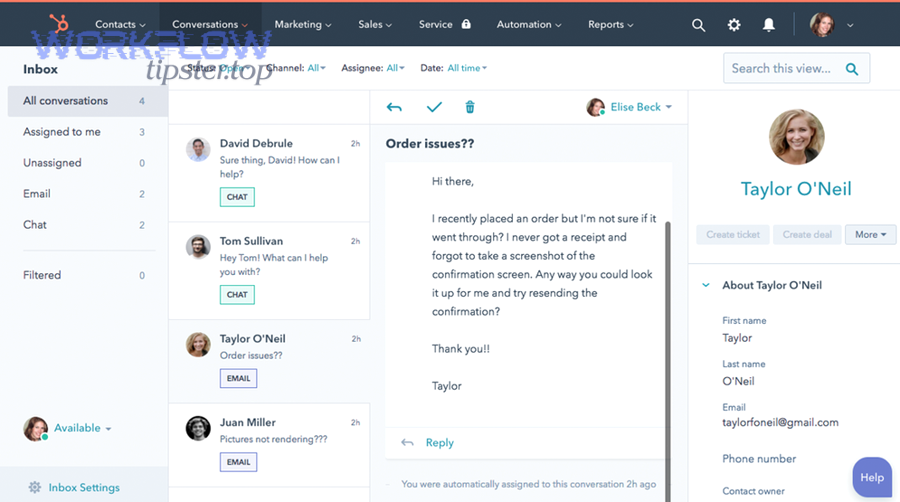
Recommended Airtable architecture for associations:
- Contacts table: one row per contact; includes HubSpot contact ID; links to Companies and Deals (as linked records).
- Companies table: one row per company; includes HubSpot company ID; links to Contacts and Deals.
- Deals table: one row per deal; includes HubSpot deal ID; links to primary company and relevant contacts.
- Join table (optional but powerful): “Associations” table with columns for contact ID, company ID, deal ID, role type, and timestamps.
This design prevents fragile “text-based linking” and enables consistent updates even when names or emails change.
What are the best practices for two-way sync governance (conflicts, source-of-truth, and change control)?
The best practices for two-way sync governance are 3 rules: define field ownership, design conflict resolution, and implement change control—so Airtable to HubSpot stays consistent without creating “ping-pong” edits, silent overwrites, or reporting drift.
Especially in RevOps, governance is what turns a sync from a “cool automation” into a reliable system that Sales, Marketing, and Support can trust.
Core governance principles:
- Field ownership matrix: Decide per field which system can write, and document it in the base and CRM property notes.
- Change management: Require review before changing mappings, adding fields, or expanding segments.
- Auditability: Keep a log of sync changes (at least in your integration logs and a change request record).
- Minimal write scope: Start with fewer writable fields, then expand as your team proves stability.
According to a study by MIT Center for Information Systems Research (MIT CISR) from MIT Sloan School of Management, in 2024, top-quartile “real-time business” companies had 62% higher revenue growth and 97% higher profit margins than bottom-quartile companies, reinforcing the value of trusted, timely data paired with strong operational discipline.
How do you prevent update conflicts (last-write-wins vs field ownership)?
Field ownership wins for preventing conflicts, last-write-wins is best for low-stakes fields, and a hybrid model is optimal for RevOps—so you should choose based on the business risk of overwriting the wrong value.
However, conflict prevention is easier than conflict resolution, so start by designing your system to minimize simultaneous edits.
Compare the strategies:
- Last-write-wins: Simple, but risky for lifecycle fields. It can overwrite valid CRM updates with stale operational edits.
- Field ownership: Clear and safe. HubSpot owns lifecycle/pipeline; Airtable owns operational flags and enrichment statuses.
- Hybrid: Ownership for critical fields, last-write-wins for low-stakes fields (e.g., internal notes) with logging enabled.
Practical RevOps approach:
- Define a “CRM-owned” group of properties (lifecycle stage, lead status, pipeline stage, primary owner).
- Define an “Ops-owned” group (enrichment complete, routing status, QA notes, internal checklists).
- Define a “shared” group only if you have a clear rule and low risk.
This pattern prevents ping-pong updates and keeps your hook chain consistent: ownership rules make two-way sync stable, and stability makes dashboards trustworthy.
Which fields should never be two-way synced (PII, billing, lifecycle-critical fields)?
There are 4 main types of fields you should never two-way sync between Airtable and HubSpot: lifecycle-critical fields, compliance-sensitive PII, billing/contract fields, and system-calculated fields—based on risk, audit requirements, and the cost of incorrect overwrites.
More importantly, the fields you protect are the fields that preserve trust in the CRM.
Recommended “never two-way sync” categories:
- Lifecycle and pipeline control fields: lifecycle stage, lead status, deal stage, close date, forecast category (unless you have strict governance and a single writer).
- Compliance-sensitive PII: sensitive personal details and consent-related fields, unless you have a verified policy and restricted permissions.
- Billing and legal fields: contract terms, billing addresses, invoicing identifiers—these often require auditability and approvals.
- System-calculated or attribution fields: fields driven by HubSpot tracking, attribution models, or automated calculations that should not be overwritten by operational edits.
If Airtable must store some of these fields for visibility, treat Airtable as read-only for them and sync them one-way from HubSpot.
How do you test, monitor, and troubleshoot Airtable–HubSpot sync issues?
You test and troubleshoot Airtable–HubSpot sync with a 5-part playbook: pilot testing, validation rules, monitoring dashboards, error handling routines, and safe backfill procedures—so you detect issues early and prevent widespread duplication or data drift.
Next, build confidence by proving the sync works for a small segment before expanding it to the whole CRM.

A RevOps testing sequence that works:
- Sandbox first: Use a test base/table or a limited HubSpot list segment.
- Run a small pilot: Start with 50–200 records to validate matching and mapping behavior.
- Validate edge cases: Missing fields, unusual formatting, merged records, and stage changes.
- Monitor logs daily: Track errors, retries, and “created vs updated” ratios.
- Expand gradually: Increase the segment size only after stability proves out.
When monitoring, pay attention to “created vs updated” over time. A sudden rise in “created” often signals broken matching logic or a changed identifier field.
What are the most common sync failures (auth, rate limits, required fields, invalid formats) and how do you fix them?
There are 5 main types of Airtable–HubSpot sync failures: authentication expiry, API rate limiting, missing required fields, invalid field formats, and permission scope errors—based on whether the integration can authenticate, write valid data, and operate within platform constraints.
Specifically, each failure type has a predictable fix if you treat troubleshooting as a diagnostic sequence rather than random trial and error.

Fixes by failure type:
- Authentication expiry: Reconnect the app, confirm OAuth scopes, and ensure the user who connected has persistent permissions. If workflows stop suddenly, check connection health first.
- Rate limits: Reduce sync frequency, batch updates, or add backoff logic. Rate limiting often shows up as “429” responses in API-driven methods.
- Required fields missing: Add readiness gating in Airtable (status/QA) or configure the integration to block creation until required properties exist.
- Invalid formats: Normalize phone, dates, currency, and select values. Ensure Airtable field types match HubSpot property types.
- Permission scope errors: Confirm the integration user has write permissions for the target object and properties; restrict who can change mappings.
HubSpot’s developer documentation highlights the importance of understanding rate limits and best practices for managing usage.
How do you run a safe backfill or migration when turning on sync for existing records?
You run a safe backfill by using 4 safeguards: freeze scope, tag records, backfill in batches, and validate results after each batch—so your Airtable to HubSpot sync updates existing records without mass duplication or unintended overwrites.
Then, treat backfill like a controlled rollout, because a single large sync can create irreversible confusion in CRM reporting and ownership.
Safe backfill procedure:
- Freeze changes: Temporarily restrict who can edit key matching fields (email/domain/external ID) during the backfill window.
- Tag records: Add fields like “Synced” and “Synced At” in Airtable, and store HubSpot IDs once matched.
- Backfill in batches: Start with the highest-confidence segment (cleanest data), then expand to more complex segments.
- Validate after each batch: Check duplicates, created vs updated ratios, and sample records for correct mapping.
Practical cautions:
- Avoid writing lifecycle fields during backfill: backfill is for identity alignment and operational fields first.
- Keep a rollback plan: know how to pause the sync and how to identify records created during the backfill.
- Document the migration: a simple change log prevents future confusion when someone asks why a property changed.
What advanced considerations improve Airtable–HubSpot sync reliability at scale?
Advanced reliability improves when you choose the right sync cadence, implement privacy-aware field governance, design association-safe tables, and know when to avoid two-way sync—so Airtable–HubSpot stays stable under higher volume, more users, and more complex workflows.
In addition, these considerations expand micro semantics beyond setup into long-term operational excellence, which is where most integrations succeed or fail.
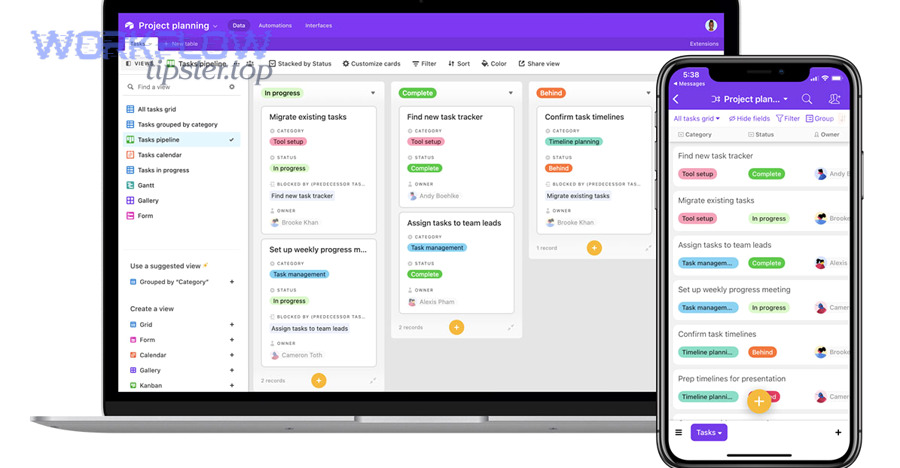
At this stage, it’s also common for teams to connect adjacent processes. For example, an ops team might sync tasks into Airtable while also maintaining knowledge capture flows like airtable to microsoft onenote for internal documentation, or coordinating project work through google docs to trello to keep playbooks and delivery aligned.
According to a study by MIT Center for Information Systems Research (MIT CISR) from MIT Sloan School of Management, in 2024, top-quartile real-time businesses showed materially higher performance (including higher revenue growth), reinforcing that operational speed paired with trustworthy data can be a sustained advantage when integrations are governed well.
Real-time sync vs scheduled batch sync: which is safer for large RevOps datasets?
Real-time sync wins for urgency, scheduled batch sync is best for stability, and a hybrid approach is optimal for large RevOps datasets—so the safest model is to batch the heavy flows while keeping only critical operational signals near real time.
However, “safer” means “less likely to fail silently,” so you must choose the cadence that your monitoring and rate-limit envelope can actually support.
Choose scheduled batch when:
- You backfill large segments or update thousands of records daily.
- You can tolerate a delay (15 minutes to several hours) for reporting and ops dashboards.
- You want predictable load and easier troubleshooting windows.
Choose real-time when:
- You need immediate routing, alerting, or SLA-driven actions.
- A small number of fields must update quickly (e.g., “Ready for outreach,” “Deal desk approved”).
- You can monitor logs continuously and manage API usage responsibly.
Hybrid pattern for scale:
- Use near real-time updates for a small set of operational status fields.
- Run scheduled batch sync for heavy property sets and reporting mirrors.
- Keep governance consistent across both so the sync remains predictable.
How do you handle data privacy and consent fields when syncing PII between systems?
You handle privacy by using 3 controls: minimize synced PII, restrict write permissions by role, and enforce consent-aware field ownership—so Airtable to HubSpot sync supports operations without violating privacy expectations or overwriting compliance-critical fields.
Moreover, privacy becomes more important as more users gain access to operational bases and dashboards.
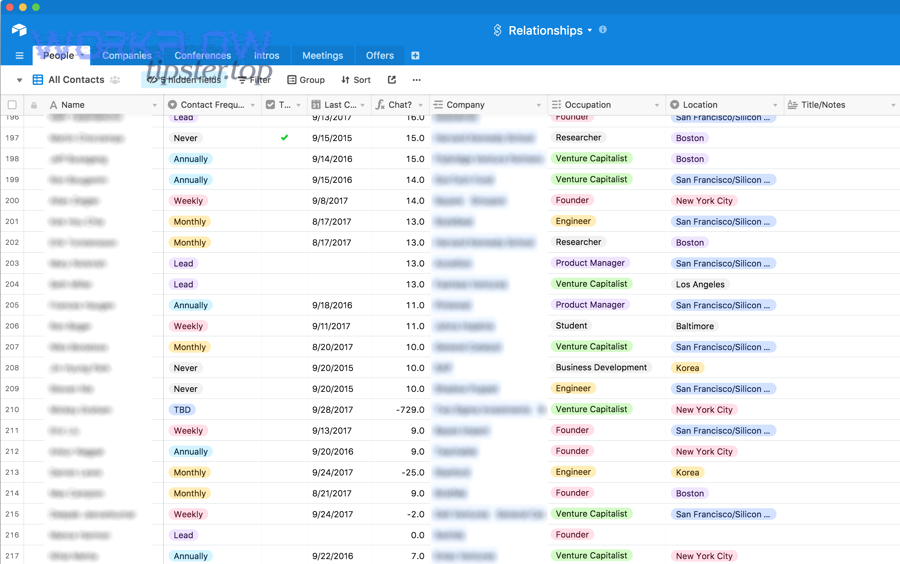
Practical privacy safeguards:
- Minimize PII replication: Sync only what is necessary for the operational workflow; avoid copying sensitive details into Airtable by default.
- Segment bases by purpose: Keep operational queues separate from bases that store sensitive fields, and control access tightly.
- Consent and lifecycle ownership: Keep consent fields and compliance statuses CRM-owned, and sync them one-way from HubSpot unless you have a validated compliance process.
- Audit and logging: Ensure changes to sensitive fields are traceable through logs and role-based access controls.
If your team cannot clearly explain who can edit which PII fields and why, do not allow two-way writes for those fields.
What’s the best approach to syncing “relationships” (associations) without breaking Airtable’s linked records?
A join-table approach wins for many-to-many relationships, direct linked-record fields are best for simple one-to-many cases, and storing object IDs is optimal for durable references—so the best approach is to combine IDs with explicit relationship tables for complex HubSpot associations.
Specifically, Airtable’s linked records work best when relationships are first-class design elements rather than inferred from text fields.
Recommended method for association reliability:
- Always store HubSpot IDs: contact ID, company ID, deal ID in their respective tables.
- Use a join table for complex relationships: one row per association with fields for type, role, and timestamps.
- Validate referential integrity: block association sync if a referenced ID does not exist in Airtable yet.
This design ensures that your operational views remain accurate even when names, domains, or emails change.
When should you avoid two-way sync and choose a single source of truth instead?
Yes, you should avoid two-way sync and choose a single source of truth when governance is immature, identity fields are unstable, or multiple teams edit the same lifecycle-critical properties—because a single authoritative writer prevents conflicts, duplicates, and silent overwrites.
To sum up, two-way sync is powerful, but it amplifies bad process design as efficiently as it amplifies good design.
Avoid two-way sync when:
- Your matching key is not stable: emails change often, domains are inconsistent, or external IDs do not exist yet.
- Ownership is unclear: Sales, Marketing, and Ops all edit the same fields without a documented rule.
- Compliance risk is high: sensitive fields require approvals, audits, or strict access control.
- You cannot monitor the system: no one owns logs, error resolution, or change control for mappings.
In those cases, choose a single source of truth (typically HubSpot for CRM identity and lifecycle) and allow Airtable to manage operational work through controlled, one-way updates or approved write-back fields only.