


If you want real-time visibility without manual copy-pasting, connecting Airtable to Discord is one of the fastest ways to turn new or updated records into channel notifications—so your team sees the right updates at the right time and acts immediately.
Beyond “just send a message,” most teams also need a practical way to choose an automation method that fits their workflow—whether that’s a simple no-code setup for quick alerts or a more flexible flow for routing, filtering, and multi-step logic.
Many teams also want webhook-powered alerts so messages look professional: clean formatting, links back to the Airtable record, and structured fields (like status, owner, priority) that are easy to scan—without hitting Discord’s limits or breaking embeds.
Introduce a new idea: to make your Airtable to Discord integration reliable (not noisy), we’ll walk through core concepts, best-fit use cases, step-by-step setup, tool comparisons, webhook embeds, noise control, and troubleshooting—so the automation stays useful long after you turn it on.
What does it mean to connect Airtable to Discord for automated alerts?
Connecting Airtable to Discord means turning Airtable records (created, updated, or entering a view) into automated Discord messages posted to a server channel via an integration tool or webhook, so teams receive timely, structured updates without manual work.
To better understand this integration, it helps to think in a simple chain: Airtable trigger → data selection → message formatting → Discord delivery. Once you control each link, you control accuracy, speed, and noise.
At a practical level, an Airtable to Discord integration usually involves:
- Airtable source: a base, table, and often a filtered view (so you’re not blasting every record).
- Trigger logic: “new record,” “record updated,” or “record enters a view.” Airtable supports triggers like “When record is updated” and “When record enters a view,” which are commonly used to prevent over-notifying.
- Data mapping: choosing which Airtable fields appear in Discord (title, owner, due date, status, priority, link).
- Discord destination: a server and channel, typically via a webhook URL (or via a tool’s Discord action).
- Message design: plain text, Markdown, or embedded messages with structured fields.

What teams often miss is that “automated alerts” are not the same as “automated value.” Value comes when the message answers: What changed? Why does it matter? What should we do next? If your Discord post doesn’t make that clear, the channel turns into a feed people mute.
To keep the hook chain tight, remember the goal implied by the Title: No-code automation + webhook alerts. That means you’re not only connecting apps—you’re building a dependable alert system your team can trust day after day.
Do you need a no-code tool to integrate Airtable with Discord?
Yes—most teams should use a no-code tool for Airtable to Discord integration because it’s faster to launch, easier to maintain, and simpler to monitor than custom code, especially when alerts require field mapping, filters, and retries.
Then, the real question becomes “Which no-code path fits your workflow?” because not all integrations behave the same once you scale beyond a single alert.
Here are three practical reasons no-code is usually the right starting point:
- Speed and lower setup friction
You can connect Airtable and Discord in minutes using common integration patterns (trigger → action) rather than building and hosting your own service. Tools like Zapier position Airtable ↔ Discord as a no-code integration flow with guided setup. - Maintainability for teams (not just developers)
If the only person who can update the integration is “whoever wrote the script,” the automation becomes fragile. No-code platforms let ops, PMs, and team leads adjust filters, routing rules, and messages without code deploys. - Operational safety: logs, retries, and visibility
When messages fail to send, you need to know what happened. No-code tools typically provide run history, error details, and retry mechanisms—critical when Discord alerts are tied to real work.
That said, you might not need a no-code tool if your workflow is truly specialized (for example: two-way synchronization, custom Discord interactions that update Airtable, or strict data governance). In those cases, you can still use Discord webhooks as the final delivery method because Discord describes webhooks as a low-effort way to post messages to channels without a bot user.
The best approach for most teams is: start no-code, then add webhook formatting when you need cleaner alerts—which is exactly what we’ll build toward next.
What are the most common Airtable → Discord automation use cases for teams?
There are 5 main types of Airtable → Discord automation use cases—Ops alerts, project updates, community moderation, sales/support routing, and leadership digests—based on the criterion of who needs the update and how time-sensitive it is.
Next, we’ll connect these use cases to message placement and trigger design so your automation supports real team behavior rather than creating channel fatigue.
Which alerts should go to Discord channels vs DMs vs threads?
Channels win for shared visibility, DMs are best for single-owner accountability, and threads are optimal for keeping a specific item’s discussion contained—so the “right people” see the alert without overwhelming everyone else.
To illustrate this clearly, use the following rules:
- Use a public or team channel when the update affects shared work:
- New high-priority task enters “Ready”
- Incident ticket created
- Content item ready for review
- Bug escalated to “P1”
- Use a DM-style destination (or a private channel representing one owner) when one person must act:
- “Assigned to Minh Quan”
- “Waiting on approval from Finance”
- “Customer replied to your ticket”
- Use a thread when alerts are frequent but discussions should stay attached to the same object:
- Ongoing campaign performance notes
- QA feedback on a single feature
- Iterations on one content draft
If you’re using webhooks, threads can require extra handling depending on how you post messages (some teams keep it simple and stick to channels + structured embeds first). The key is not platform perfection—it’s behavioral fit.
Which Airtable triggers work best: new record, updated record, or scheduled digest?
New record triggers win for immediate intake, updated record triggers are best for stage changes, and scheduled digests are optimal for summary awareness—so you can align alerts with urgency while controlling noise.
Here’s how to choose:
- New record: great for intake pipelines (new lead, new request, new incident).
- Record updated: best when alerts should fire only on meaningful changes (status flips, priority raised). Airtable supports “When record is updated” triggers for update-based workflows.
- Record enters a view: excellent for “only alert when it qualifies,” because the view can encode your conditions (e.g., Status = “Needs Review” AND Priority = High). Airtable’s “When record enters view” trigger is designed for exactly this pattern.
- Scheduled digest: best for leadership or broad awareness (“daily summary of new items”), especially when instant alerts would be too chatty.
A practical best practice is to avoid “any update to any field” as your first attempt. Instead, trigger on meaningful transitions (like “enters review view”) and format the message so the action is obvious.

How do you set up a no-code Airtable to Discord automation step by step?
A reliable no-code Airtable to Discord automation follows 6 steps—define the trigger, filter records, choose the destination channel, map fields, test formatting, and turn on monitoring—so your team receives consistent alerts that match real workflow states.
Below, we’ll walk through the prerequisites and field mapping because those two steps determine whether your messages feel helpful or noisy.
What prerequisites do you need in Airtable and Discord before you start?
You need one ready Airtable view (or trigger conditions), one Discord channel, and one delivery method (Discord action in a tool or a webhook URL) before you start—so setup is smooth and you don’t rebuild your logic midstream.
Use this checklist:
Airtable prerequisites
- A base + table that holds the work objects (tasks, requests, leads, tickets).
- A view that represents “alert-worthy” records (recommended).
- Clear fields for messaging:
- Title / Name
- Status
- Priority
- Owner
- Due date (optional)
- Record URL (or a formula field that builds a clean link)
If you want view-based triggering, Airtable provides a “When record enters view” automation trigger that runs when a record enters a specified view, which makes alert conditions easier to maintain.
Discord prerequisites
- A server with the right channel(s) for alerts.
- Permission to create a webhook in the channel (if using webhooks).
- Agreement on where alerts belong (alerts channel vs project channel vs private channel).
Integration prerequisites
- A no-code platform account (Zapier, Make, n8n, etc.) or an internal tool.
- A naming standard for workflows (so you can audit them later).
How do you map Airtable fields into a clean Discord message?
You map Airtable fields into a clean Discord message by using a consistent message template—Title + status + owner + link + next step—then inserting Airtable fields into those slots so every alert answers “what changed” and “what to do.”
To keep the hook chain strong, start with a message blueprint your team recognizes at a glance.
Simple text template (high signal, low complexity)
- [Item]: {Name}
- Status: {Status} → {New Status}
- Owner: {Assignee}
- Priority: {Priority}
- Link: {Record URL}
- Next: “Review / assign / respond / approve”
Embed-style template (better scanning)
- Title: {Name}
- Description: short summary / change log
- Fields: Status, Priority, Owner, Due date
- Footer: Source base or workflow name
- URL: record link
If you’re using Discord webhooks, this embed approach is powerful because it makes messages readable in a busy channel. Discord’s official documentation emphasizes that webhooks are intended for posting messages to channels with minimal friction, which fits alerting workflows well.

Which tool should you use: Zapier vs Make vs n8n for Airtable to Discord?
Zapier wins in simplicity and speed, Make is best for complex routing and transformations, and n8n is optimal for teams that want self-hosting and deep control—so your Airtable to Discord integration fits your budget, complexity, and governance needs.

However, choosing a tool without a framework leads to brittle automations. So use criteria your team will still care about in 90 days: complexity, maintainability, cost, observability, and control.
This table contains a practical decision guide that compares the most common tool choices for Airtable to Discord automation, helping teams select a platform that matches workflow complexity and ownership.
| Criterion | Zapier | Make | n8n |
|---|---|---|---|
| Best for | Quick, standard alerts | Multi-step workflows + routing | Custom logic + self-hosting |
| Setup time | Fastest | Moderate | Moderate to high |
| Routing/branching | Basic to moderate | Strong | Strong |
| Data transformation | Moderate | Strong | Strong (code optional) |
| Monitoring & logs | Strong | Strong | Strong (requires setup if self-hosted) |
| Governance | Vendor-managed | Vendor-managed | You manage (self-host) |
Zapier’s Airtable ↔ Discord integration flow is positioned as “no code necessary,” which aligns with teams that want a fast first win.
To keep semantic connectivity, this is also where many teams explore broader Automation Integrations beyond Discord—like using the same Airtable trigger logic for file workflows (for example, airtable to dropbox) or scheduling workflows (for example, calendly to clickup)—because once the trigger logic is clean, destinations become modular.
Which option is best for beginners who need “set it and forget it” alerts?
Zapier is best for beginners because it minimizes configuration, offers guided setup, and typically requires the least ongoing maintenance once alerts are running.
Specifically, beginner workflows often look like:
- Trigger: “New record in view” (or “New record created”)
- Action: “Send message to channel”
- Optional: Filter step (priority = high)
- Optional: Formatter step (clean date/time, message text)
The biggest beginner mistake is making alerts too detailed too early. Start with the smallest useful message, then add fields once you see how the channel behaves.
Which option is best for complex routing and multi-step workflows?
Make is best for complex routing because it supports branching logic, multi-step transformations, and modular scenario design that can route different records to different Discord channels based on field values.
For example, you can route by:
- Status (Needs Review → #review; Approved → #shipping)
- Owner team (Marketing → #mkt; Support → #support)
- Priority (High → #alerts; Low → digest)
This approach is how you keep Discord usable: you don’t “mute the channel,” you design the routing.
Which option is best if you want self-hosting and full control?
n8n is best if you want self-hosting and full control because you can run workflows on your infrastructure, enforce governance rules, and implement advanced logic without depending on a vendor’s execution environment.
This matters when you need:
- Data residency constraints
- Deeper audit requirements
- Custom dedupe/idempotency patterns
- Internal observability standards
If your team is not ready to own infrastructure, you can still start with a hosted platform and move later. The win is not the platform—it’s a clean integration design.
How do you send Discord webhook alerts from Airtable with embeds?
Discord webhook embed alerts work by sending a structured JSON payload that contains an embed (title, description, fields, and links) to a Discord webhook URL, allowing Airtable data to appear as a clean, scannable notification in the target channel.

Next, we’ll focus on what to include and how to stay within Discord’s limits, because embed failures usually happen when payloads grow without guardrails.
What should a “high-signal” Discord embed include for an Airtable record?
A high-signal embed should include a clear title, the 3–5 most decision-relevant fields, a direct link to the Airtable record, and a short “why it matters” cue—so readers can decide what to do without opening Airtable immediately.
Use this embed content structure:
- Title: record name (short, recognizable)
- URL: link to the Airtable record or view
- Description: one sentence on what changed
- Fields:
- Status (and what it changed from, if available)
- Priority
- Owner
- Due date (if relevant)
- Next step (explicit action)
- Footer: workflow name or base name
Discord provides official guidance on using webhooks and embeds, including structural limits like field counts and overall embed character limits, which are important when designing templates for repeated alerts.
How do you prevent webhook alerts from looking messy or breaking limits?
Yes—you can prevent messy or broken webhook alerts by enforcing message length rules, limiting fields to the essentials, and applying consistent formatting, because Discord enforces strict embed limits that can reject oversized payloads.
Specifically, focus on these three reasons:
- Limits are real and enforced
Discord’s guidance lists limits such as 25 fields, specific character limits per component, and a total embed character cap, which can break messages if you dump full records into embeds. - Consistency improves scanning
A consistent order (Status → Priority → Owner → Due) trains readers to scan quickly, which reduces repeated questions. - Truncation beats failure
If a field might be long (e.g., description, notes), truncate it and add a link. A “sent something shorter” message is better than a failed post.
A practical ruleset that prevents most failures:
- Keep embed fields to 5–8 for alerts (use links for details).
- Truncate descriptions to a safe length.
- Prefer stable values (status, owner, priority) over long narrative fields.
If you want to go deeper into the platform rules, Discord’s official webhooks documentation describes webhooks as a low-effort message delivery method for channels, making them ideal for alerting systems where reliability and predictable formatting matter.
How can teams reduce noise and prevent duplicate Airtable-to-Discord notifications?
You can reduce noise and prevent duplicates by triggering only on meaningful record transitions, filtering alerts through views or conditions, and applying a dedupe rule (record ID + event type) so the same Airtable change doesn’t produce multiple Discord posts.

Next, we’ll address two common causes of “Discord alert fatigue”: triggering on broad updates and skipping filtering rules.
Should you trigger on “any update” in Airtable?
No—you should not trigger on “any update” in Airtable because it creates noisy, redundant alerts, increases the chance of loops, and trains teams to ignore notifications instead of acting on them.
Here are three reasons this matters:
- Most updates are not meaningful
A comment edit or minor field change does not deserve a Discord ping. - Update triggers can create loops
If your automation writes back to Airtable (e.g., “set Sent = Yes”), that update can trigger the automation again if not carefully scoped. - Noise destroys trust
Once a channel becomes noisy, the team mutes it—and the most important alerts get missed.
A better pattern is using view-based triggers (“record enters view”) so alerts fire only when a record meets your conditions. Airtable documents this trigger as a way to run automations when a record enters a specified view.
What filtering rules keep Discord notifications actionable?
There are 6 practical filtering rules that keep Airtable to Discord notifications actionable—based on the criterion of “does this change require a decision or action now?”
Use these filters:
- Priority threshold: only alert Priority = High / Urgent
- Status transition: alert only when status changes into a key stage (e.g., “Needs Review”)
- Owner assigned: alert only when Assignee is not empty
- SLA breach: alert only when due date is within 24 hours or overdue
- Category routing: alert only when Category is within a list that Discord channel owns
- View gate: alert only records in a curated view (“Ready for Team Review”)
To implement this cleanly, use Airtable views as your semantic “gate.” If the view definition changes, you adjust the view—without rewriting message logic.
And remember why filtering matters: interruptions carry cognitive and emotional cost. According to a study by University of California, Irvine from the Department of Informatics, in 2008, interrupted work led people to compensate by working faster but with higher stress, frustration, time pressure, and effort.
That evidence is exactly why Discord alerts must be curated: you’re not just sending information—you’re creating interruptions. Make them count.
What are the most common Airtable → Discord integration problems and fixes?
There are 7 common Airtable → Discord integration problems—messages not sending, wrong channel, broken webhook, invalid embed payload, duplicates, rate limits, and missing monitoring—based on the criterion of whether the failure occurs at the trigger, formatting, or delivery stage.
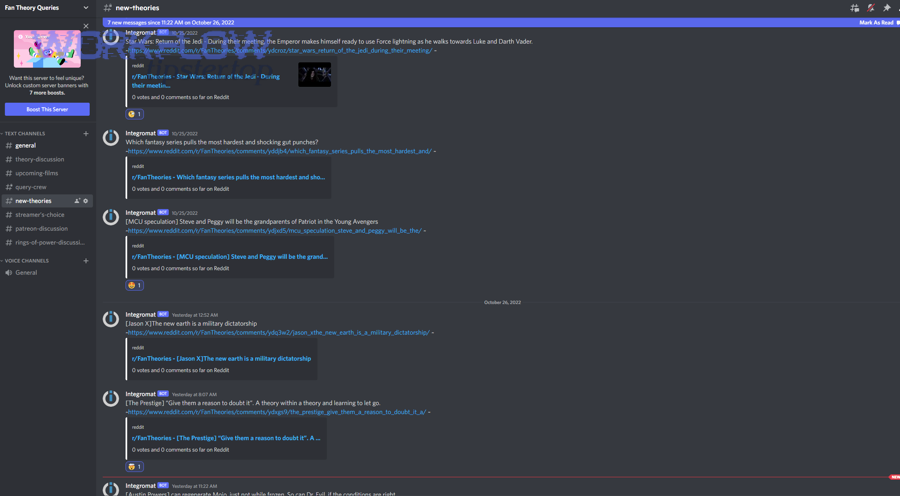
Next, we’ll walk through the most frequent failure patterns so you can fix them quickly and make the automation dependable.
Why are messages not sending to Discord even though the automation ran?
Messages often don’t send because the webhook URL was revoked, the integration tool lost permissions, the channel changed, or the payload failed validation—so the automation “ran” but the delivery step didn’t complete successfully.
Fix it with a tight checklist:
- Confirm the destination: correct server + channel (especially if channels were renamed).
- Recreate the webhook: if a webhook was deleted or regenerated, old URLs stop working.
- Test with a minimal message: send “Hello” first, then add fields back gradually.
- Check embed limits: oversized embeds can be rejected by Discord. Discord’s webhook and embed guidance lists structural limits that can cause failures if exceeded.
- Confirm tool status: check run history and logs; look for “400 Bad Request” or auth errors.
A practical debugging method is to “reduce to the simplest payload,” then rebuild. Most failures are not mysterious—they’re one broken link in the trigger → map → deliver chain.
Why do you get duplicate or looping notifications?
Duplicates happen when you trigger on broad updates, when multiple automations watch overlapping conditions, or when your workflow writes back to Airtable and triggers itself again—so one real-world change creates multiple Discord messages.
Use these fixes:
- Trigger on transitions, not any updates
Use view-entry or status-change logic so the same record doesn’t repeatedly qualify. - Add a dedupe field in Airtable
Create a checkbox or timestamp field like “Discord Alert Sent” and set it after sending. Then ensure your trigger excludes records where that field is already set. - Separate alert stages
If you need multiple alerts (e.g., “Needs Review” and “Approved”), build separate views and triggers for each stage. - Avoid circular updates
If your automation updates the same record that triggers it, scope the trigger to only watch specific fields or use view gating.
If you use Airtable’s “When record is updated” trigger, configure it carefully so it only responds to meaningful changes and does not treat “sent flag updated” as a reason to run again.
How do you monitor and log failures so nothing gets missed?
There are 4 essential monitoring layers—tool run logs, alert fallback, Airtable record markers, and periodic audits—based on the criterion of how quickly you need to detect and recover from failures.
Implement them like this:
- Tool run history and error alerts
Turn on error notifications in your integration platform so you know when a workflow fails. - Fallback notification path
For critical workflows, send a backup alert to an alternate channel or email when the Discord step fails. - Airtable “Sent” markers
Write back a timestamp or status field that confirms the alert was sent. This supports audits and dedupe. - Periodic audit
Weekly: verify webhook validity, check for silent failures, review noise level, prune outdated flows.
A stable monitoring loop ensures your Airtable to Discord integration remains an operational asset instead of a “cool demo” that quietly breaks.
How do you optimize Airtable-to-Discord webhook alerts for governance, security, and advanced formatting?
Optimizing Airtable-to-Discord webhook alerts means adding idempotency, respecting rate and size limits, improving embed design, and securing webhook access—so the integration remains reliable, compliant, and readable as your team and message volume grow.

Next, we’ll cover four advanced areas that help teams move from “it works” to “it’s production-grade.”
How do you design an idempotency rule to stop duplicate Discord posts?
You design idempotency by creating a unique “event key” (record ID + trigger type + transition) and storing it so the same event cannot send twice, even if the automation retries or runs in parallel.
A practical idempotency pattern:
- Create a formula field: EventKey = RECORD_ID() & “-” & Status & “-” & DATETIME_FORMAT(LAST_MODIFIED_TIME(), ‘YYYY-MM-DD HH:mm’)
- Store the last sent key in a field like “Last Discord EventKey”
- Before sending, check: if EventKey equals Last Discord EventKey → do not send
- After sending, update “Last Discord EventKey = EventKey”
This pattern prevents:
- Retry duplicates
- Multiple automations firing on the same record
- Human edits causing repeated triggers
If you can’t store keys cleanly, a simpler approach is a “sent timestamp + status gate”—only send when Status changes into a target state and Sent timestamp is empty.
How do Discord rate limits and message limits affect Airtable alert design?
Discord rate limits and message limits affect alert design by requiring throttling, batching, and truncation—so you don’t overwhelm channels or trigger payload errors when many records update at once.
The core design responses are:
- Batching: send a digest message summarizing multiple records instead of one message per record.
- Throttling: add a small delay between sends for bursty events.
- Truncation: shorten long fields and rely on record links for detail.
- Prioritization: send high-priority alerts immediately; roll low-priority into a scheduled digest.
For embeds specifically, Discord’s webhook and embed guidance documents strict component and total character limits, which means your templates must be built with constraints in mind.
What advanced embed elements make alerts more scannable (fields, thumbnails, footers)?
Advanced embed elements improve scannability by turning “a wall of text” into a consistent visual structure—so the reader can identify status, priority, owner, and next action in seconds.
Use these improvements:
- Fields for structured data:
- Status
- Priority
- Owner
- Due date
- Next step
- Thumbnail for category recognition:
- Project icon, team icon, or workflow icon (optional but helpful)
- Footer for operational clarity:
- “Source: Airtable Base Name”
- “Workflow: Incidents → Discord Alerts”
- Author for provenance:
- “Automation Bot” with a consistent icon
If your tool supports it, include a short “Change Summary” line in the description:
- “Status changed: Backlog → In Review”
- “Priority raised: Medium → High”
That one sentence dramatically increases comprehension and reduces follow-up questions.
What are best practices for webhook security (rotation, permissions, audit trail)?
Webhook security best practices include least-privilege access, private channels for sensitive alerts, webhook rotation, and an audit trail of changes—so your Airtable to Discord integration doesn’t become an unmanaged backdoor into team communications.
Use this security checklist:
- Least privilege: only admins or designated ops roles can create/manage webhooks.
- Channel scoping: use private channels for sensitive data (customer details, HR requests).
- Rotation: rotate webhook URLs on a schedule (or immediately after staff changes).
- Secrets handling: store webhook URLs in secure vaults or environment variables, not in public docs.
- Audit: document which workflows post to which channels and why.
And keep your governance practical: the aim is not maximum bureaucracy—it’s to prevent accidental exposure and ensure operational continuity.
By combining these governance practices with the earlier no-code setup, tool selection, embed rules, and noise control, your Airtable to Discord integration becomes a real team system: predictable, readable, and durable—exactly what “No-Code Automation + Webhook Alerts” should deliver.