


Connecting ActiveCampaign to Smartsheet is the fastest way to turn email engagement and lead activity into a living spreadsheet-style workflow—so your team can track, route, and follow up without manual copy/paste. In practice, this integration usually means: a new lead (or key event) in ActiveCampaign creates or updates a row in Smartsheet, where sales/ops can take action.
Next, the most useful setups focus on no-code automation: mapping ActiveCampaign triggers (form submits, tag added, deal stage changes) to Smartsheet actions (create row, update row, assign owner). This is where you’ll decide how you identify records, how you prevent duplicates, and what fields must always stay consistent.
In addition, many teams eventually need Smartsheet → ActiveCampaign updates—so a row status (Qualified / Meeting Booked / Won) can push a tag, update a field, or move a deal stage back in ActiveCampaign. That’s where bi-directional logic, conflict rules, and governance become critical.
Introduce a new idea: once you understand the common workflow patterns, you can design a reliable integration that scales across multiple campaigns, sheets, and teams—without breaking every time a field changes.
What does “ActiveCampaign to Smartsheet integration” mean for marketers?
ActiveCampaign to Smartsheet integration is a no-code (or low-code) automation that syncs contact and campaign events from ActiveCampaign into structured Smartsheet rows so marketers can track leads, handoffs, and outcomes in one operational view. To better understand why teams build it, think of the integration as a “bridge” between marketing signals and workflow execution.


What data typically moves from ActiveCampaign into Smartsheet?
Most teams send lead identity + intent + lifecycle context into Smartsheet, because that’s what makes a row actionable.
Common fields (practical “minimum viable row”):
- Unique identifier: email (most common), sometimes contact ID + email
- Name + company: so humans can recognize the row quickly
- Source + campaign context: form name, list, UTM fields, landing page
- Lifecycle flags: tags, lead score, pipeline stage, last engaged date
- Owner + SLA timestamps: assigned rep, due date, first-touch timestamp
- Notes fields: last email clicked, last automation entered, “next step” text
If you only move “contact created,” you often get a sheet full of rows nobody knows what to do with. The integration becomes powerful when the row explains why this lead is here and what action is expected next.
Why do marketers use Smartsheet instead of a CRM view for this workflow?
Smartsheet wins when the problem is cross-functional execution (marketing + sales + ops + service) that needs visibility, statuses, and accountability—especially when the workflow is more “project-like” than “pipeline-like.”
Smartsheet is commonly chosen when you need:
- A single row per lead/request with custom columns and governance
- Assigned owners, due dates, and status that non-CRM users follow
- A shared operational queue that supports approvals and handoffs
- Lightweight reporting across multiple campaigns and teams
A helpful mental model: ActiveCampaign is the signal engine; Smartsheet is the execution board.
Can you connect ActiveCampaign to Smartsheet without coding using Zapier or Make?
Yes—ActiveCampaign to Smartsheet can be connected without coding using Zapier or Make because both platforms provide prebuilt triggers/actions, field mapping, and conditional logic to create or update Smartsheet rows from ActiveCampaign events. Next, the key is choosing the right tool based on how complex your routing and data hygiene needs are.
When should you choose Zapier for ActiveCampaign → Smartsheet?
Zapier is usually the best choice when you want:
- Fast setup and stable “happy path” workflows
- Simple triggers (tag added, new contact, form submitted)
- Straightforward create/update row actions
- Easy team handoff and basic monitoring
Zapier tends to feel more “guided,” which helps if you want a predictable build and fewer moving pieces.
When should you choose Make for ActiveCampaign → Smartsheet?
Make is usually the better fit when you need:
- Multi-step scenarios with branching, iterators, and robust data shaping
- More control over search-before-create patterns
- Complex dedupe logic and multi-sheet routing
- Higher-volume operations with efficiency-minded design
Make often shines when your integration starts looking like a mini-system—especially if you’re coordinating multiple sheets, multiple campaigns, and different lead routes.
What access and permissions do you need in both apps?
To avoid “it works for me but not for the team” issues, confirm permissions early:
For ActiveCampaign:
- Access to the events you want to trigger (contacts, tags, deals, lists/forms)
- Visibility into custom fields you intend to sync
For Smartsheet:
- Sheet access that allows add/update rows
- Column-level readiness (correct column types, dropdown values, contact columns)
- A stable primary key column (or dedicated “Email” column used for matching)
If your workflow is part of broader Automation Integrations, treat access and ownership as part of the build—not a last-minute checkbox.
How do you build the most common ActiveCampaign → Smartsheet workflows?
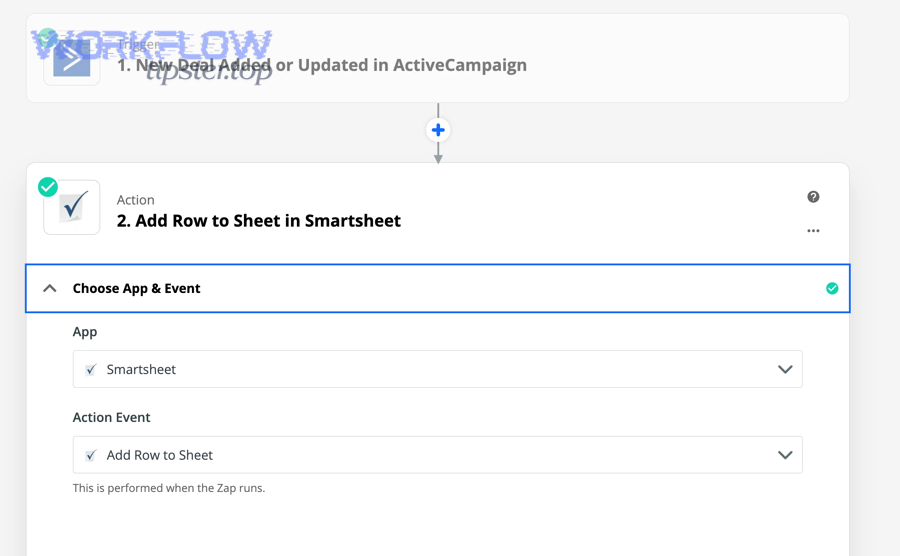
The most common ActiveCampaign → Smartsheet build is a 5-step workflow: choose a trigger, map key identifiers, search for an existing row, create-or-update the row, then add routing logic (owner, status, SLA) so the sheet becomes actionable. Then, you’ll refine it by preventing duplicates and standardizing field formats.
To make the mapping concrete, this table contains the most common trigger → row action patterns marketers use, so you can pick a workflow that matches your campaign intent.
| ActiveCampaign trigger (signal) | Smartsheet action (execution) | Best use case |
|---|---|---|
| New form submission | Create row | Lead intake / request intake |
| Tag added: “MQL” | Update row (or create if missing) | Lifecycle milestones |
| Deal stage changes | Update row + status | Sales handoff visibility |
| Lead score crosses threshold | Update row + priority | SLA-based follow-up |
| Link click / key email event | Update row + last activity | High-intent outreach |
How do you map fields so Smartsheet rows stay clean and consistent?
Field mapping is where integrations quietly succeed or fail. Use these rules:
- Choose one primary matching key: usually email
- Normalize formats: lowercase emails; trim whitespace; standardize phone formats
- Separate “source” fields from “status” fields: so users don’t overwrite attribution accidentally
- Avoid stuffing everything into one Notes column: use 2–4 structured columns instead (e.g., Source, Last Activity, Next Step, Owner)
A practical “row schema” that works well:
- Email (match key)
- Name
- Company
- Source / Form / Campaign
- Lifecycle Status (dropdown)
- Owner (Smartsheet contact column)
- Last Activity (date/time)
- Next Step (text)
- Priority (dropdown)
How do you prevent duplicates when the same lead triggers multiple events?
Duplicates happen when multiple triggers create “new rows” for the same lead. Fix it with search-before-create:
- Search Smartsheet for the email (or contact ID)
- If found → update that row
- If not found → create a new row
If your platform can’t search reliably (or the sheet is huge), a second-best approach is:
- Maintain a dedicated “Lead Key” column
- Enforce strict formatting rules
- Use Smartsheet reports/views to highlight duplicates for cleanup
Evidence matters here because data hygiene isn’t just “nice to have.” According to a peer-reviewed review in the Journal of Industrial Engineering and Management (Haug, 2011), reported data error rates measured at the field level can fall in the interval of 0.5%–30%, which is enough to break matching and automation reliability in real workflows.
How do you build Smartsheet → ActiveCampaign workflows (when you need bi-directional updates)?
Smartsheet → ActiveCampaign workflows work best when you push only “decision signals” (like status changes and assignments) back into ActiveCampaign, using a 4-step pattern: detect a row change, identify the contact, apply the update (tag/field/deal), and log the result to avoid loops. Next, you’ll add guardrails so updates don’t bounce back and forth endlessly.
Which Smartsheet row changes should trigger ActiveCampaign updates?
The most reliable triggers are human decisions recorded in Smartsheet, such as:
- Status changed to “Qualified,” “Meeting Booked,” “Won,” “Disqualified”
- Owner assigned (or re-assigned)
- A checkbox like “Send nurture” toggled on
- A date set (e.g., “Call scheduled”)
Avoid triggering on frequently edited text fields (like Notes) unless you have strong dedupe and loop prevention.
How do you update ActiveCampaign safely (tags vs custom fields vs deals)?
Choose the update mechanism based on how you use ActiveCampaign:
- Tags: best for segmentation and automation entry/exit
Example: add tag “SS:Qualified” when Smartsheet status becomes Qualified - Custom fields: best for reporting and stable attributes
Example: update “Lead Status” field to Qualified - Deals/pipelines: best when sales process is tracked in ActiveCampaign
Example: move deal to a new stage when Smartsheet status changes
A stable pattern is: Smartsheet status → ActiveCampaign tag + (optional) field update, because tags are easy to audit and use as automation triggers.
How do you avoid sync loops and conflicting edits?
Loops happen when:
- ActiveCampaign updates Smartsheet
- Smartsheet updates ActiveCampaign
- The update triggers the first automation again
Prevent loops with:
- A “Last Updated By” marker field (e.g., “UpdatedBy=AC” vs “UpdatedBy=SS”)
- A timestamp check (ignore changes within X minutes caused by the other system)
- A rule that only “certain columns” can trigger outbound updates
If you want bi-directional behavior, define an explicit source of truth:
- Smartsheet is source of truth for operational status and owner
- ActiveCampaign is source of truth for email engagement and segmentation
Zapier vs Make: which is better for ActiveCampaign to Smartsheet automation?
Zapier wins for speed and simplicity, Make is best for complex routing and data shaping, and direct API builds are optimal for highly controlled enterprise workflows—so the “best” choice depends on your volume, complexity, and governance needs. However, you can decide quickly by comparing complexity, scale, and maintainability.
This table contains a practical decision matrix so you can choose Zapier vs Make for ActiveCampaign to Smartsheet without guessing.
| Criterion | Zapier | Make |
|---|---|---|
| Best for | Simple, reliable automations | Complex scenarios and data shaping |
| Build speed | Faster | Moderate (more configuration) |
| Branching/logic depth | Basic–moderate | Strong (routers, iterators, transforms) |
| Dedupe patterns | Good (with lookup steps) | Excellent (search + advanced logic) |
| Debugging visibility | Straightforward task history | Visual scenario run logs + granular steps |
| Scale mindset | “Set and forget” | “System design” approach |
To keep your broader integration ecosystem consistent, it helps to standardize patterns across other Automations too—whether that’s freshdesk to monday for ticket-to-task workflows or airtable to microsoft onenote for knowledge capture. The tool decision logic is usually the same: simple pipelines lean Zapier; complex orchestration leans Make.
What are the most common issues—and how do you fix them?
The most common ActiveCampaign to Smartsheet issues are duplicates, missing updates, permission errors, rate limits, and broken field mappings—and you fix them by enforcing a unique key, adding search-before-create, validating permissions, using retries, and monitoring runs proactively. In addition, you should treat every failure as a “data contract” problem: what changed, where, and why did the automation stop trusting the payload?
Why are rows missing or not updating?
Common causes:
- The trigger conditions are too narrow (e.g., tag added only fires for new tags)
- Field mapping references a field that was renamed/deleted
- Smartsheet columns changed type (text → dropdown) and now reject values
- The integration user lost access to the sheet
Fix checklist:
- Test with a known contact and a forced event (add/remove tag)
- Re-select fields in the mapping step (don’t trust old selections)
- Confirm the Smartsheet automation user has Editor permissions
How do you handle rate limits and reliability (without losing lead events)?
Even no-code tools have practical throughput constraints. You reduce risk by:
- Debouncing: only send “meaningful” events (e.g., tag MQL, not every click)
- Batch updates where possible (especially in Make)
- Adding retries and error handling paths (log failures into a “Sync Errors” sheet)
If you’re building on top of Zapier’s developer tooling, Zapier explicitly documents patterns for improving error response handling—useful when an API returns unusual error formats and you want clearer troubleshooting behavior.
How do you debug duplicates and mismatched records?
Use a structured triage method:
- Identify the duplicate pattern (same email? same name? same timestamp?)
- Check whether the “search” step is failing or missing
- Confirm your match key is consistent (lowercase, trimmed, no extra spaces)
- Add a logging column in Smartsheet: “Last Sync Source” + “Last Sync Time”
Evidence: automated lead workflows can improve conversions, but the effect depends on conditions—and that matters because “more automation” isn’t always “better automation.” According to a study by the University of Houston – C.T. Bauer College of Business, in 2024/2025, automated lead nurturing increased the probability of lead conversion by 0 to 23 percentage points depending on sales cycle length, expected sales volume, and whether the lead had a preexisting relationship.
Introduce a new idea: once your integration is stable, the real advantage comes from designing for scale—so teams can add campaigns, sheets, and routes without rebuilding everything.
How do you design a reliable, scalable ActiveCampaign ↔ Smartsheet integration for real teams?
A scalable ActiveCampaign ↔ Smartsheet integration is designed like a system: it has a defined source of truth, a consistent row schema, explicit dedupe rules, versioned field mappings, monitoring, and documented ownership—so it keeps working as teams and campaigns change. Next, you’ll turn your “first automation” into a repeatable architecture.
What governance rules keep the integration stable over time?
Use lightweight governance that prevents accidental breakage:
- Field naming conventions: don’t rename mapped fields without a change process
- Ownership: assign an “integration owner” and a backup
- Change log: keep a simple doc: what workflows exist, what they do, what keys they use
- Environment separation (if possible): test sheet vs production sheet
How do you structure sheets for multiple campaigns and teams?
There are two stable models:
Model A: One master intake sheet + reports/views
Best when you want a unified operational queue
Model B: Separate sheet per campaign/team + standardized columns
Best when ownership is distributed and workflows differ
In both models, the critical scaling move is: standardize the schema (same key columns everywhere) so your automations don’t become one-off snowflakes.
How do you monitor and maintain no-code workflows like a production system?
Treat monitoring as part of the workflow:
- Create a “Sync Errors” sheet where failures are logged automatically
- Track KPIs: rows created, rows updated, failure rate, average retry time
- Review automation run history weekly (especially after campaign launches)
If you want a quick visual walkthrough of scenario-style builds, this video is a useful reference for how Make scenarios are constructed and tested:
What does a “best-practice” integration blueprint look like?
A strong blueprint typically includes:
- One matching key (email) + optional secondary key (contact ID)
- Search-before-create for every “create row” action
- Outbound updates limited to decision fields (status/owner/flags)
- Loop prevention (UpdatedBy + timestamp window)
- Auditability (Last Sync Time + Last Sync Source columns)
- Documentation (workflow map + column map + owner)
When you build it this way, “ActiveCampaign to Smartsheet” stops being a one-off automation and becomes an operational layer your team can trust—campaign after campaign.