


You can fix “Attachment Upload Failed” and “attachments missing” in Google Sheets automations by treating the file upload as a Drive-first pipeline: upload the file successfully, capture a stable fileId, then write the link + metadata into Sheets with validation and retries.
Most failures come from a small set of root causes—OAuth scopes and permissions, Drive quota or Shared Drive access, file constraints (size/type/name), and timeouts or slow network behavior—so a structured diagnosis will usually identify the exact breaking step quickly.
Once you adopt the correct “upload to Drive → write into Sheets” implementation pattern, you can prevent recurrence with idempotency, exponential backoff, and preflight checks that stop bad uploads before they ever create missing attachment rows.
Introduce a new idea: after the core fix is stable, you can eliminate stubborn “everything looks correct” failures by checking advanced edge cases like Workspace policies, Shared Drive nuances, and multipart formatting issues.
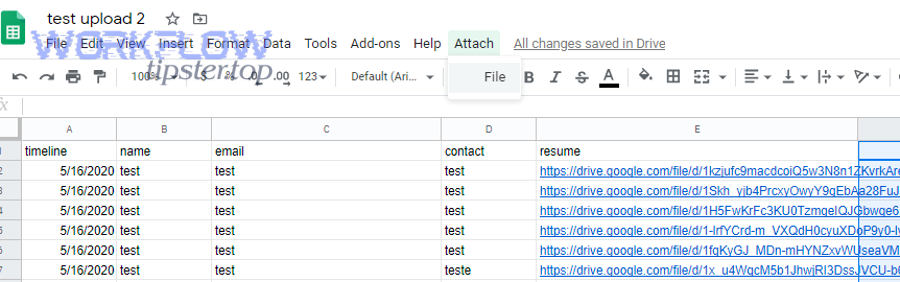
Is “Attachment Upload Failed” in Google Sheets usually a Sheets problem?
No—“Attachment Upload Failed” in Google Sheets is usually not a Sheets problem because (1) most attachments are uploaded to Drive first, (2) auth/scopes decide whether the file can be created and accessed, and (3) runtime/timeouts often interrupt the upload before Sheets ever receives a valid fileId.
To reconnect the issue to a real fix, start by assuming Sheets is only the destination and then trace the pipeline backward to the first place the file could fail to upload or become inaccessible.
In many automation stacks, “attachment” is just a label for a file that should have been created in Drive and then referenced (by link or ID) in a spreadsheet row. When that upstream creation fails—or succeeds but produces a file that the workflow cannot read—Sheets shows the symptom: a missing link, a blank “attachment” field, or a row with partial metadata and no file reference.
This is also why the same spreadsheet can show different outcomes for different users: one person sees the file because they have access to the Drive location, while another sees “missing” because their account lacks permission to open the file that was uploaded under a different identity.
What does “attachments missing” mean in a Google Sheets automation workflow?
“Attachments missing” in a Google Sheets automation workflow is a data integrity failure where a workflow expected a file reference (fileId/URL) but produced none, often because the upload step failed, returned an invalid identifier, or created a file that the workflow cannot access due to permissions.
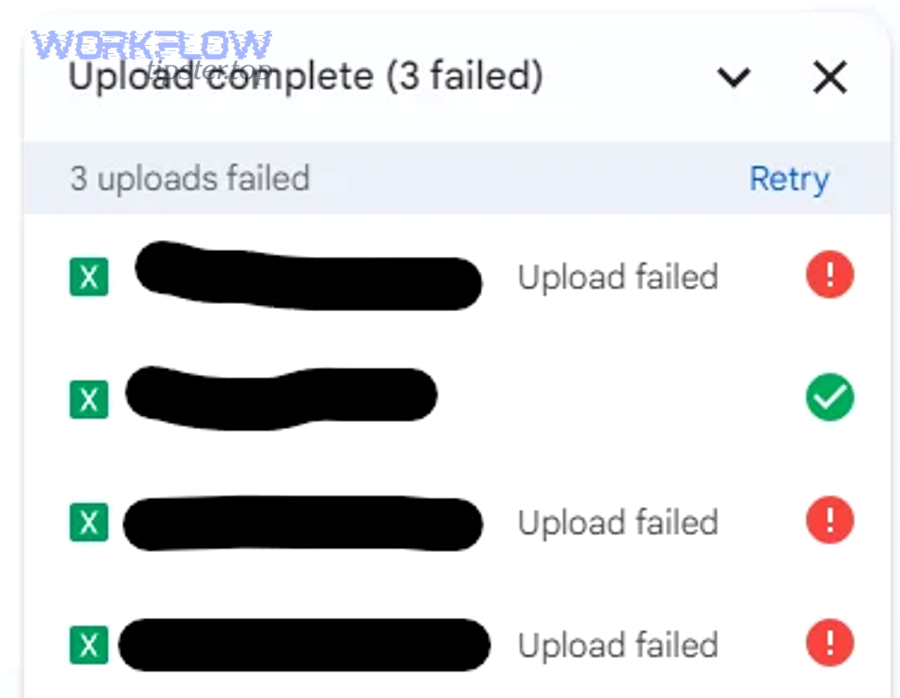
To hook this back to your error, think of “missing” as a mismatch between what your mapping claims happened (“uploaded”) and what your storage and spreadsheet actually contain (“no accessible file reference”).
In practice, “attachments missing” usually appears in one of these concrete ways:
- Empty cell: the spreadsheet row exists, but the attachment column is blank because the upload step failed before writing a link.
- Broken link: a URL exists but points to a file that was never created, was deleted, or is not accessible to the viewer.
- Null/invalid fileId: the workflow logged “success,” but the identifier is missing or malformed, so the link cannot be constructed.
- Permission-denied masquerading as missing: the file exists, but the executing identity or the end user cannot open it.
For reliable troubleshooting, store the fileId as your primary truth. URLs can change format depending on the Drive context, but a correct fileId can always be audited, permission-checked, and re-linked.
What’s the difference between an “attachment,” a “Drive file,” and a “Sheets link”?
An “attachment” is a workflow concept, a Drive file is the stored object, and a Sheets link is the reference written into a cell; the attachment label wins for UI clarity, but the Drive fileId wins for correctness and auditing.
More specifically, most automations treat “attachment” as a synonym for “uploaded file,” yet the spreadsheet can only store a reference (link, ID, or metadata). That is why “missing attachments” often means “missing references,” not “missing bytes.”
Here is a practical model that keeps terminology consistent:
- Attachment (concept): what the workflow promises (“a file is attached to this record”).
- Drive file (object): what actually must exist (a file created in Drive storage).
- Sheets link (reference): what the spreadsheet stores (a URL or a fileId-derived URL).
When you align your logs with this model, you can see which step lies: the workflow’s “attachment created” message, the storage layer’s “file created” response, or the spreadsheet layer’s “link written” outcome.
How can a file “exist” but still be “missing” in Sheets?
A file can “exist” but still be “missing” in Sheets when the file was created in Drive but the spreadsheet never received a valid reference, the reference points to a different file than intended, or permissions prevent the file from being opened by the identity viewing the sheet.
However, the fastest way to separate existence from accessibility is to test the fileId with the same identity your automation uses and then test the link with the identity your readers use.
Three common “exists-but-missing” patterns explain most confusing cases:
- Write failure after upload: upload succeeded, but the write-to-sheet step failed (timeout, exception, partial transaction), so the row has no link.
- Wrong destination folder: file exists, but it was uploaded to a private folder or a different Shared Drive, so others cannot open it.
- Permission drift: file exists, but later policy changes or removed access makes the link appear “missing” to some users.
When you see “missing” reports from only some viewers, treat it as an access control problem first, not an upload problem.
Which root causes most commonly trigger missing uploads or failed attachments?
There are 4 main root-cause groups behind missing uploads or failed attachments—(A) OAuth/permissions, (B) Drive quota and Shared Drive access, (C) file constraints, and (D) timeouts/network reliability—because these determine whether the file can be created, completed, and later accessed.
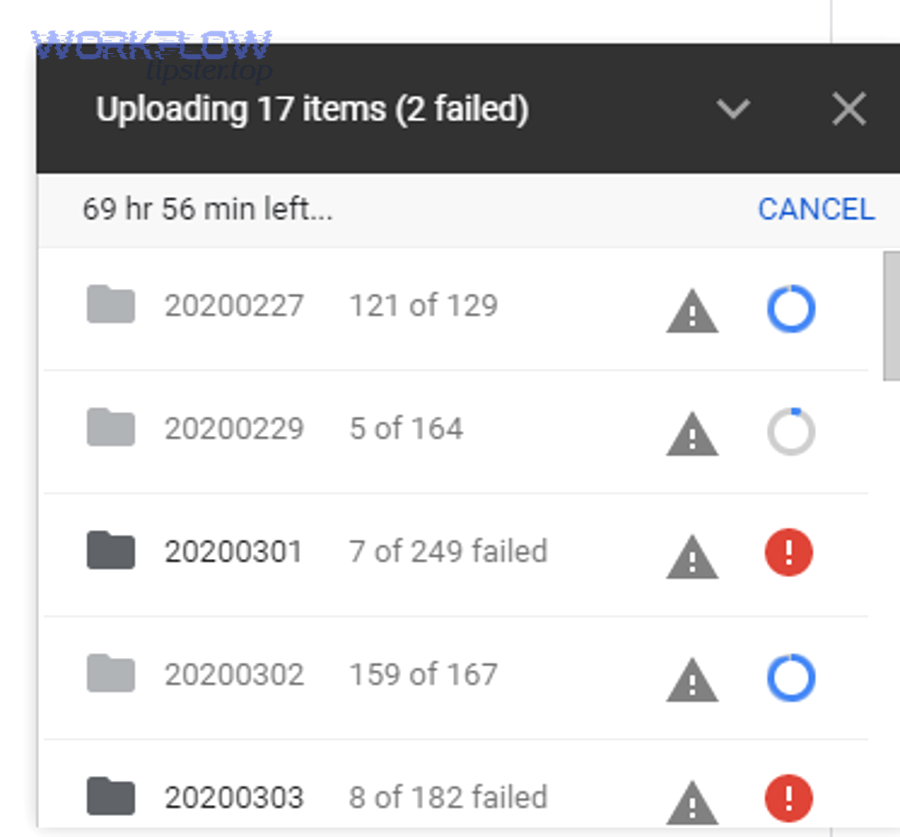
To keep the hook chain tight, you should classify your failure into one group first, then drill down to the exact error signature inside that group.
This table contains the most common cause groups, how they present, and the quickest confirmation test so you can pinpoint the breaking step without guessing.
| Cause group | Typical symptoms | Fast confirmation test | Most reliable fix |
|---|---|---|---|
| OAuth / scopes / permissions | 401/403, “permission denied”, uploads succeed only for some accounts | Re-run with the same identity; verify required scopes; test file open with fileId | Fix scopes, token refresh, least-privilege access, correct owner/folder permissions |
| Drive quota / storage / Shared Drive access | “Storage full”, cannot create in destination folder, missing for viewers | Check storage/quota and destination folder/Shared Drive membership | Free space, move destination, use advanced Drive service for Shared Drives |
| File constraints (size/type/name) | Upload fails at certain size/type; intermittent failures with special characters | Try minimal file vs original file; normalize filename and MIME | Use resumable upload for large files; validate size/type/name upfront |
| Timeouts / network reliability | Partial rows, “slow runs”, missing link after long processing | Log timestamps per step; reproduce on slower network or with larger file | Chunked/resumable uploads; retries with exponential backoff; idempotency |
For automation environments, runtime limits and service limitations matter because uploads are not just “one request.” For example, Apps Script executions have strict runtime caps that can terminate long operations mid-flight.
Is this an OAuth/scopes/permissions issue?
Yes if your Google Sheets attachment upload fails with 401/403 or “permission denied,” because (1) missing scopes block file creation, (2) expired tokens break authenticated requests, and (3) folder-level permissions can prevent writing even when reading works.
Specifically, treat authentication as a prerequisite step: if the workflow cannot prove it has permission to create and later read the file, “attachments missing” becomes inevitable.
Use this decision path:
- If you see 401: suspect a bad/expired token, clock skew, or misconfigured OAuth client. This is where “google sheets oauth token expired” becomes a real failure mode in production workflows.
- If you see 403: suspect missing scopes, blocked folder access, Shared Drive restrictions, or admin policies.
- If it works for you but fails for others: suspect the automation is uploading under a different identity than the user who expects to open the file.
For Apps Script-based automations, also remember that built-in services can have limitations, and Google recommends the advanced Drive service for more complete Drive feature support, especially when Shared Drives are involved.
Is this a Google Drive quota, storage, or Shared Drive access issue?
Yes if uploads fail or attachments appear missing only when targeting a particular folder/drive, because (1) storage/quota can block creation, (2) Shared Drive membership controls write access, and (3) the uploading identity may not have permission to share or move the file.
Moreover, this category creates the most misleading “missing attachment” reports, because the upload may succeed into a private location while the spreadsheet link is shared broadly.
Checklist for this cause group:
- Storage: confirm the uploader’s Drive has available storage and the destination allows new files.
- Shared Drives: verify the executing identity is a member with permission to create content, not merely a viewer.
- Folder inheritance: verify the destination folder doesn’t restrict external sharing if your consumers are outside the domain.
If you are using Apps Script, be aware that Shared Drive support often requires the advanced Drive service rather than DriveApp for full compatibility.
Is this a file constraint issue (size/type/name) causing upload to fail?
Yes if failures correlate with certain files, because (1) size limits can exceed what your upload method can reliably retry, (2) MIME/type handling can reject unsupported formats, and (3) filenames with unusual characters can break downstream parsing or multipart formatting.
Next, isolate the variable: keep the same workflow and destination, but swap only the file, starting with a tiny known-good file.
Practical constraints to validate early:
- Size: large files increase timeout risk and raise the probability of partial failure.
- Type: confirm MIME matches content; mismatched content-type is a common reason for “invalid upload body” responses.
- Name: normalize to safe characters if your downstream integration parses filenames (avoid invisible Unicode and overly long names).
When you control the upload protocol, Google’s Drive API supports different upload types, and for larger data, resumable uploads are designed to tolerate interruptions instead of restarting from zero.
Is this a network/timeout/retry problem causing partial uploads?
Yes if your workflow sometimes writes rows without links, because (1) long uploads exceed runtime limits, (2) single-request uploads must restart if interrupted, and (3) missing backoff/retry logic turns transient failures into permanent “attachments missing” records.
Then, to keep the chain unbroken, treat reliability as part of correctness: if the workflow cannot retry safely, it cannot guarantee attachments.
Two time-related facts drive this category in Apps Script-style automations:
- Execution runtime limits can terminate long-running steps.
- Upload type choice determines whether an interruption forces a full restart (multipart) or can resume from progress (resumable).
Evidence: According to a study by University of Illinois at Urbana-Champaign from the Department of Computer Science, in 2005, an analytic evaluation of binary exponential backoff in distributed MAC protocols showed how backoff behavior impacts stability and performance under contention—supporting why controlled backoff strategies are central to reliable retry designs.
How do you diagnose the failure in under 10 minutes?
Diagnose a Google Sheets attachment upload failure with a 6-step triage—reproduce with a tiny file, confirm Drive creation, capture the fileId, verify permissions, validate the mapping/write-to-Sheets step, and then replay with full-size input—so you can isolate the exact stage where “missing” is introduced.
To better understand your specific error, treat the workflow as two independent operations: upload and reference; then prove each one separately.
- Reproduce with a tiny known-good file to remove size/type uncertainty.
- Confirm the file exists in Drive immediately after upload (do not rely on “success” logs alone).
- Capture the fileId and store it in logs and in the sheet (even temporarily).
- Permission-check the fileId with the same identity used by the automation.
- Verify the sheet write step wrote the link/ID into the correct row/column.
- Replay with the real file and compare timing, errors, and outputs.
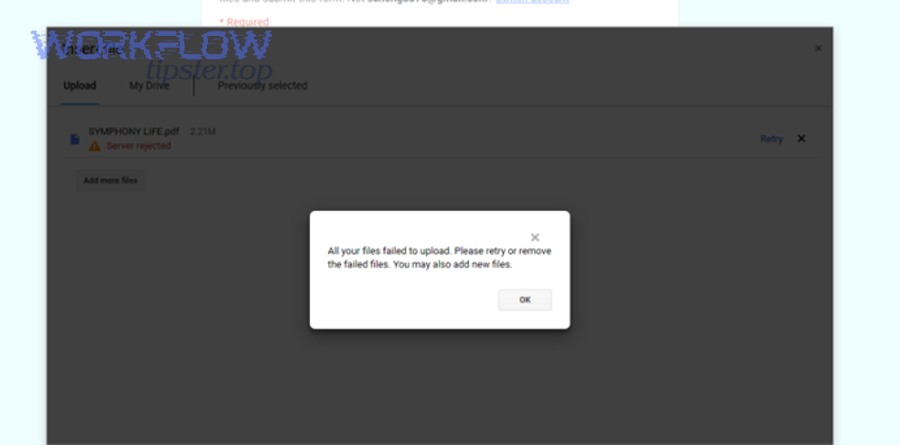
What minimal test proves the upload pipeline works end-to-end?
A minimal end-to-end test is: upload a tiny file to the exact destination folder, immediately retrieve its fileId from the upload response, write that fileId and a constructed Drive link into a fresh sheet row, and then open the link as both the automation identity and a typical viewer.
For example, if the tiny file succeeds but the real file fails, you have proven the pipeline is correct and the remaining issue is file constraints or timeouts, not mapping.
In Apps Script environments, keep the test intentionally simple:
- One file, one destination, one row write.
- Log timestamps before/after upload and before/after sheet write.
- Fail the run if the fileId is empty—do not “continue” and create a row that looks successful.
Which logs and artifacts should you capture to pinpoint the breaking step?
You should capture (1) HTTP status + response body from the upload call, (2) the fileId (or the absence of it), (3) timestamps for each step, and (4) the exact mapping inputs and outputs for the sheet write—because missing attachments are often created by silent fall-through logic after an upstream error.
In addition, “google sheets troubleshooting” gets dramatically faster when your logs tell you whether you have an upload problem or a mapping problem.
Capture these artifacts per run:
- Upload response: status code, response body, and any request IDs.
- File metadata: fileId, name, MIME type, size, destination folder ID.
- Permission snapshot: who owns the file, whether it’s in a Shared Drive, and who should view it.
- Sheet mapping snapshot: row key, target column, and the final value written.
If your automation consumes JSON payloads, validate them early; “google sheets invalid json payload” issues often cascade into missing fields, which then becomes missing attachments because the upload never receives the expected data.
What is the correct “upload to Drive → write into Sheets” implementation pattern?
The correct “upload to Drive → write into Sheets” pattern is a two-phase workflow: first create the Drive file using the right upload type and confirm a non-empty fileId, then write a durable reference (fileId + link + metadata) into Sheets in a single, validated write operation.
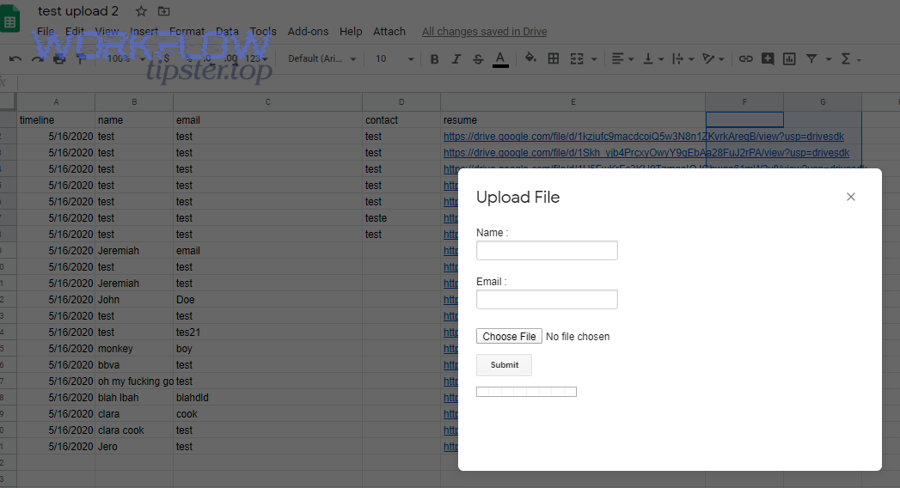
Then, once your workflow treats fileId as the source of truth, “attachments missing” becomes a detectable exception instead of a silent data quality problem.
At a conceptual level, Drive is the storage system and Sheets is the index. So your implementation should behave like an indexer:
- Phase 1 (Storage): upload the binary, confirm completion, and retrieve fileId. Drive APIs support simple, multipart, and resumable uploads, and multipart/resumable are the most relevant for automation file ingestion.
- Phase 2 (Index): write fileId and a user-friendly link to the correct record in Sheets, and confirm the write succeeded.
If you need Shared Drive compatibility or advanced behaviors, prefer the advanced Drive service rather than relying only on basic helpers that have limitations.
How do you map file metadata into Sheets fields without losing the attachment?
You map file metadata into Sheets without losing the attachment by storing fileId plus stable metadata (name, MIME type, size, owner, created time, destination folder ID) and writing them together, so a partial failure cannot produce a “link-only” or “metadata-only” row.
Specifically, make the sheet row represent a complete attachment object, not a fragile hyperlink.
Recommended column set for reliability:
- fileId (required): the canonical identifier.
- driveUrl (derived): construct from fileId for user convenience.
- fileName and mimeType: helps detect mismatches and parsing errors.
- sizeBytes: helps correlate failures with large file risk.
- uploaderIdentity and destinationFolderId: explains permission “missing” reports.
This is also where “google sheets field mapping failed” problems often hide: the file uploaded correctly, but the workflow wrote the URL into the wrong column or row key, creating the illusion of missing attachments.
Should you use multipart vs resumable upload for reliability?
Multipart wins for small files you can re-upload quickly, resumable is best for large files and unstable networks, and simple “media” uploads are optimal only when you can tolerate restarting from the beginning after an interruption.
Meanwhile, reliability depends on your failure mode: if you get timeouts or partial uploads, resumable uploads reduce “attachments missing” by letting you resume instead of restart.
Use this comparison to decide:
- Multipart upload: best when payloads are small and you want metadata + bytes in one request; if the connection fails, you re-send the whole file.
- Resumable upload: best when files are large or connections are unreliable; you upload in chunks and continue after interruption.
In automation contexts that experience “slow runs,” resumable uploads are often the difference between stable ingestion and intermittent “upload failed” spikes.
How can you prevent “missing attachments” from happening again?
There are 5 prevention layers for “missing attachments”: (1) preflight validation, (2) idempotent writes, (3) retries with exponential backoff, (4) step-level checkpoints with clear failure states, and (5) monitoring/alerts—because prevention requires both correctness and resilience.
Besides fixing today’s failure, these layers keep tomorrow’s uploads from silently creating incomplete rows that look like success.
Prevention is not “add more logs.” Prevention is a design choice: you either allow partial success (bad) or enforce atomic outcomes (good). Your workflow should follow this rule:
- If upload fails: do not write an attachment row.
- If upload succeeds but sheet write fails: retry the sheet write without re-uploading.
- If you cannot confirm either step: mark the record as failed and stop.
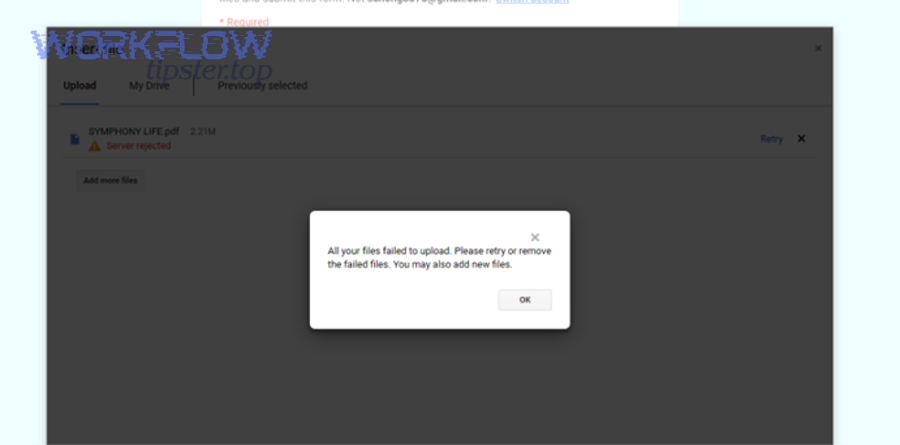
What retry/backoff rules reduce failures without creating duplicates?
Retry/backoff rules reduce failures without duplicates when you retry only transient errors, use exponential backoff with jitter, and make uploads idempotent by reusing a correlation key so the same request cannot create multiple different files for one record.
More importantly, retries must be paired with a “single source of truth” record so your workflow can decide whether to resume, skip, or repair.
Practical retry rules for automators:
- Retry on timeouts, 429 rate limits, and transient 5xx errors.
- Do not blindly retry on 400-series validation errors; fix the input first.
- Use backoff (increasing delays) and add jitter to avoid synchronized retries under load.
- Idempotency: store a runId/recordId → fileId mapping; if the mapping exists, do not re-upload.
When you do this, “missing attachments” becomes a recoverable state: the workflow can reattempt the sheet write using the already-created fileId instead of creating more broken records.
What preflight checks catch failures before upload?
Preflight checks catch failures before upload by validating authentication, destination permissions, file constraints, and payload integrity up front, so you never start an upload that cannot complete or cannot be referenced correctly afterward.
To illustrate, preflight checks are what turn “attachment upload failed” from a runtime surprise into a predictable validation result.
High-impact preflight checks:
- Auth check: confirm you have the right scopes and a non-expired token before attempting upload (this prevents “google sheets oauth token expired” errors from appearing mid-upload).
- Destination check: confirm the folder/Shared Drive allows file creation for the executing identity.
- File check: enforce max size/type rules and normalize filenames to avoid downstream parsing issues.
- Payload check: validate required fields; reject runs that would cause “google sheets invalid json payload” and later missing attachment columns.
In Apps Script environments, runtime limits make these checks even more valuable because you cannot afford to waste execution time on uploads doomed to fail.
Contextual Border: Up to this point, you’ve addressed the primary intent—fixing and hardening the core upload-and-reference pipeline. Next, you’ll expand into micro-level edge cases where uploads “should work” but still fail due to environment policies, Shared Drive subtleties, or protocol formatting issues.
Which edge cases cause “upload failed” even when your code and mapping look correct?
There are 4 edge-case classes that can still cause “upload failed” or “attachments missing” even when your code looks correct: (1) Workspace admin policies, (2) Shared Drive behavior differences, (3) filename/encoding and multipart formatting problems, and (4) large-file reliability limits that require resumable uploads.
Especially when a workflow works in one tenant but fails in another, these edge cases explain the “same code, different outcome” reality.
Can Google Workspace admin policies (DLP/labels/sharing restrictions) block attachments?
Yes—admin policies can block attachments because (1) DLP rules can prevent uploading or sharing certain content, (2) label-based restrictions can stop downloads or external access, and (3) domain sharing policies can make a file effectively invisible to expected viewers.
Next, treat policy as a hidden dependency: your workflow can “upload” a file but still fail to make it usable for the audience that needs it.
What to look for when policy interference is likely:
- Uploads succeed but links fail for external users.
- Files appear in Drive but cannot be opened or downloaded.
- Failures correlate with specific content types (documents containing sensitive patterns).
When this happens, your fix is not in code. Your fix is a policy review: confirm what labels, DLP rules, and sharing constraints apply to the destination folder or Shared Drive.
Do Shared Drives change ownership/permission behavior in a way that breaks attachment visibility?
Yes—Shared Drives change behavior because (1) access is membership-based, (2) permissions may not inherit the way personal-drive workflows assume, and (3) some script services have limitations that require the advanced Drive service for Shared Drive operations.
More specifically, if your automation uploads into a Shared Drive using a method that lacks full Shared Drive support, you can get confusing outcomes like “uploaded” logs but missing or inaccessible files.
Two practical fixes solve most Shared Drive edge cases:
- Use advanced Drive service for Shared Drive-compatible operations when DriveApp limitations interfere.
- Permission-check with the viewer identity after upload, not just with the uploader identity.
Can filename encoding or multipart formatting cause silent upload corruption?
Yes—encoding and multipart formatting can cause failures because (1) Unicode normalization can change filenames across systems, (2) multipart boundaries and content-type headers must match the actual payload, and (3) downstream parsers may reject or mis-handle unexpected characters, producing missing references or incomplete metadata.
Then, to keep troubleshooting efficient, simplify inputs until the failure disappears and reintroduce complexity one factor at a time.
Hardening tips that prevent “mystery failures”:
- Normalize filenames to a safe subset for automation: letters, numbers, dash, underscore.
- Validate MIME and ensure your upload request uses a consistent content-type strategy.
- Log raw request metadata (without sensitive content) so you can spot malformed boundaries or missing headers.
When using the Drive API, remember that multipart uploads are intended for small enough payloads that you can re-upload fully if a connection fails, which makes correct formatting and repeatability central to success.
Should you switch to resumable uploads for large files to avoid timeouts and partial failures?
Resumable uploads are the optimal choice for large files and slow runs because they upload in chunks, tolerate interruptions, and let you continue from progress instead of restarting—making them far more reliable than single-request approaches under unstable network or tight runtime conditions.
To sum up, if your failures cluster around bigger files or longer processing, switching to resumable uploads is often the most direct path to eliminating “Attachment Upload Failed” and the downstream “attachments missing” rows.
Use resumable uploads when:
- Your files are large enough that re-uploading is expensive or frequently interrupted.
- Your automation environment has tight execution limits that make a single long request risky.
- You want predictable recovery: if a run stops, the next run can resume rather than duplicate or abandon the upload.
When you pair resumable uploads with idempotency and strict “no fileId, no row” enforcement, you convert the entire attachment pipeline into a stable, auditable system instead of a best-effort feature.