


If you’re seeing an “Airtable field mapping failed” error, you can fix it fast by matching the outbound value to the destination field’s rules, confirming the field is writable, and re-testing with a known-good sample using a repeatable checklist.
Next, you’ll want to understand what the message actually means in context—Airtable Automations, Zapier/Make/n8n, or a custom API call—because the same “mapping failed” symptom can come from different breakpoints in the workflow.
Then, you’ll compare failed vs successful mapping with clear criteria (format, allowed values, field existence, permissions, and record selection) so you stop guessing and start validating each constraint systematically.
Introduce a new idea: once you fix the current error, you can harden your base against repeat failures by designing stable integration fields, handling empty values intentionally, and adopting a lightweight schema-change playbook.
What does “Airtable field mapping failed” mean in automations and integrations?
“Airtable field mapping failed” means the system tried to write a value into an Airtable field, but the value (or the target field) violated Airtable’s acceptance rules at runtime—so the write was rejected even though the automation or integration step executed.
To connect this to what you’re seeing, it helps to separate “mapping” into two layers: (1) selecting the destination field in your tool, and (2) sending a value that the Airtable API (and the field type) will accept. More specifically, most mapping failures are not “Airtable being broken”—they’re a mismatch between field type and value shape, a writability issue (read-only/computed), or a context issue (wrong table/record, missing required values, or stale schema references).
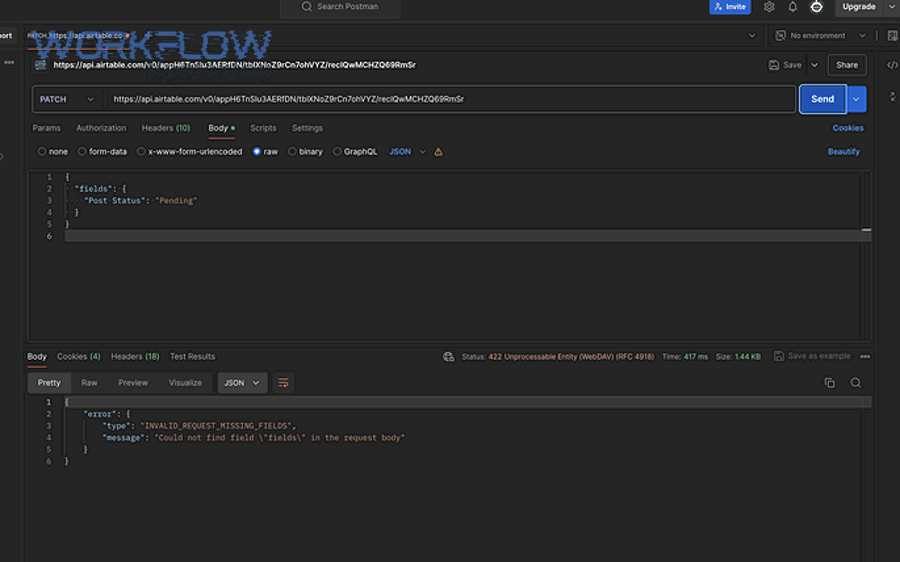
In practice, this shows up in a few common places:
- Airtable Automations: an “Update record” or “Create record” action fails because one or more input values are invalid for their destination fields.
- Integration tools (Zapier/Make/n8n): a field list looks correct, but the outbound payload is missing required values, has the wrong format, or is cached against an older schema version.
- Custom API / scripts: the request is syntactically valid JSON, but a specific field’s value is the wrong type (string vs array, date string vs timestamp, record name vs record ID).
From a team workflow perspective, treat “mapping failed” as a data validity gate. If you can identify (a) which field rejected the write and (b) what value was attempted, you can usually resolve the issue in minutes.
Is “field mapping failed” usually caused by a data type mismatch?
Yes—“Airtable field mapping failed” is usually caused by a data type mismatch because Airtable fields enforce strict acceptance rules, because integration tools can transform values unexpectedly (e.g., arrays to strings), and because schema changes can leave your mapping pointing to an incompatible destination.
To keep the hook tight, start with the most common scenario: the tool sends a value that looks correct to a human, but the field expects a different shape:
- Number field receives “$1,200” (string with symbols) instead of 1200 (numeric).
- Date field receives “13/01/2026” in a locale format Airtable doesn’t parse the way you expect.
- Linked record field receives “Acme Inc” (name) instead of a record ID array.
- Single select receives a value that isn’t one of the allowed options.

However, “usually” is not “always.” You can also get mapping failures when the value is technically the right type but the destination is not writable (computed fields), when permissions block the write (common when the integration’s token changed), or when the record selection logic points to a record that doesn’t exist (blank record ID, filtered view, or conditional branch that didn’t run).
One quick reality check that helps teams: if you can paste the same value manually into the field in Airtable and it saves, then the issue is often payload shape or encoding rather than raw content—an idea echoed by Make community responders who point users back to checking whether Airtable accepts the value “in the correct format.” ([community.make.com](https://community.make.com/t/airtable-problem-field-cannot-accept-the-provided-value/59826))
What are the most common causes of Airtable mapping failures?
There are six main causes of Airtable mapping failures: field type/format mismatch, required field missing or empty, schema changes that stale your mapping, permissions or authentication issues, attempts to write into read-only fields, and integration caching that uses an outdated field list.
Next, use this grouping as a diagnostic tree—because each category suggests a different “first move”:
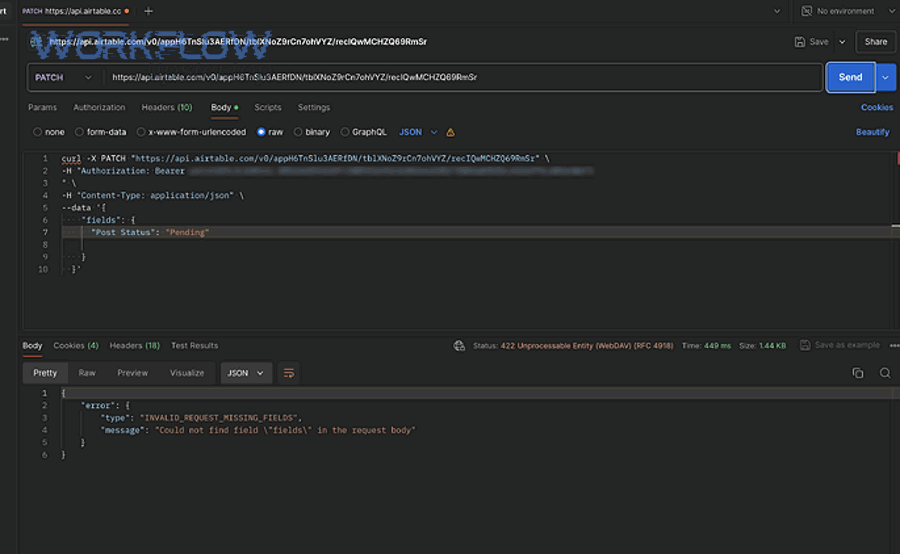
- 1) Field type / format mismatch: Airtable rejects the value because it isn’t valid for that field type (number/date/select/linked record/attachment).
- 2) Required values missing: a create/update action tries to set a required field to null/empty, or a downstream step assumes a value exists but it doesn’t.
- 3) Schema changes (stale mapping): someone renamed, deleted, or recreated a field; the integration still references the old field (often via cached schema or changed field IDs).
- 4) Permissions / authentication drift: the token used by your tool no longer has access to write to the base or table, or the integration is hitting an authorization wall.
- 5) Read-only / computed field targets: formula/lookup/rollup/created-time style fields can’t be written to; mapping into them will fail even if your value “looks correct.”
- 6) Tool-side caching and transformations: Zapier/Make/n8n may cache field definitions or coerce values (e.g., turning a list into a comma-separated string).
Why this matters for automation teams: if you classify your error correctly, you avoid “random remapping” and instead apply the one fix that actually changes the acceptance outcome.
What is the difference between failed mapping and successful mapping?
Failed mapping happens when the outbound value violates at least one Airtable constraint, while successful mapping happens when the value matches the destination field’s type, allowed values, and writability—under the correct table/record context and with valid write permissions.

To make the antonym (“Failed vs Successful”) operational, use the checklist below. This table contains the exact criteria your team can validate during a test run so you can quickly pinpoint the first broken constraint.
| Criterion | Successful Mapping Looks Like | Failed Mapping Looks Like | Fast Fix |
|---|---|---|---|
| Field type match | Value shape matches the field (e.g., number is numeric) | String/array/date shape doesn’t match | Normalize/parse/transform the value before writing |
| Allowed values | Select options exist; linked records use record IDs | Option not defined; linked uses names, not IDs | Create option or map to IDs/arrays |
| Writability | Target field is writable (not computed/read-only) | Writing into formula/lookup/rollup/created fields | Write to source field, not computed output |
| Required fields | Required fields are populated every time | Null/empty passes through conditions | Add defaults, fallbacks, or conditional guards |
| Correct context | Right table + correct record ID + correct view logic | Wrong record selected; blank record ID; filtered-out record | Log the record ID and retest with a known record |
| Permissions | Token can write to the base/table | Unauthorized/forbidden behavior blocks writes | Re-auth, confirm access scope, rotate keys carefully |
More specifically, “successful mapping” is not a vibe—it’s evidence that your payload satisfies Airtable’s constraints. “Failed mapping” is simply Airtable enforcing one of those constraints at runtime.
What is the fastest diagnostic checklist to fix “field mapping failed”?
The fastest way to fix “Airtable field mapping failed” is to run a 6-step diagnostic checklist: identify the exact failing field, confirm field type and writability, inspect the outbound value, validate empty/required rules, verify record selection, and retest with a known-good sample value.
Then, execute the checklist in order—because each step narrows the problem without creating new variables:
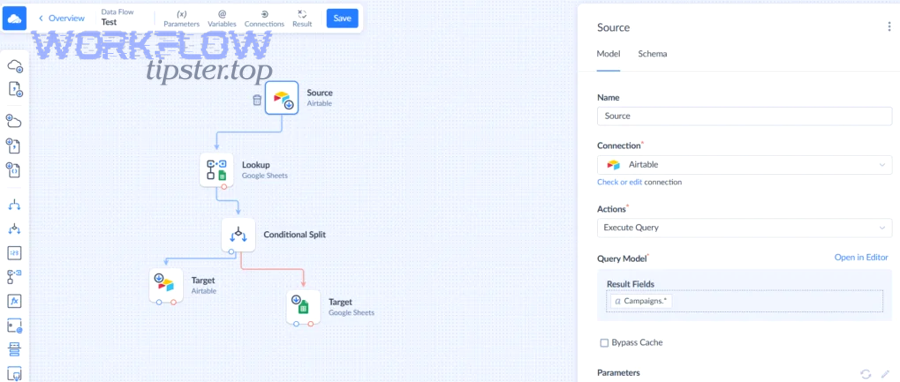
- Locate the failing field name (or field ID) in logs. In Automations, open the run history. In tools like Make/n8n, open the step output bundle and find the field being set.
- Confirm the destination field type and whether it is writable. If the field is formula/lookup/rollup, stop—don’t write to it. Redirect the write to a source field.
- Inspect the exact outbound value (not what you “meant”). Copy the raw value from the run output. Pay attention to arrays, objects, and formatting characters.
- Validate required and empty-value handling. Decide what should happen when a value is missing: skip update, set a default, or route to an exception queue. Don’t let empty values silently flow into required fields.
- Verify record selection logic. Confirm the record ID exists and the record is in scope (table/view/filters). Many “random” failures are actually “no record found” branches.
- Retest with a known-good sample value. Choose a value you know Airtable accepts (simple text, a small number, a valid date). If that works, the issue is in transformation, not the field selection.
If your team wants one practical rule: never fix mapping failures by “clicking around” first. Fix them by capturing the failing field + failing value, then proving each constraint until you find the first mismatch.
Which fixes apply to Airtable Automations vs Zapier/Make/n8n?
Airtable Automations wins for fast root-cause visibility (run history and direct field context), Zapier/Make/n8n is best for remapping and refresh workflows, and API/scripting is optimal when you need precise control over payload shape and field IDs.
However, the “right fix” depends on where the mismatch is introduced:

- Airtable Automations: Use run history to find the exact field that rejected the write, then adjust the variable mapping (or add conditional guards). If the automation is creating multiple records unexpectedly, tighten triggers and dedupe logic to avoid airtable duplicate records created incidents (e.g., trigger fires multiple times, button clicked repeatedly, or “when record matches conditions” remains true across edits).
- Zapier: Focus on “re-test trigger,” “refresh fields,” and reselect the destination field after schema changes. Zapier frequently caches field lists; a quick refresh prevents writing into an outdated mapping.
- Make (Integromat): Inspect input/output bundles and confirm the exact value shape. Make users often discover their issue is in formatting, parsing, or sending a value Airtable’s API doesn’t accept—especially when rich text or large payloads are involved. ([community.make.com](https://community.make.com/t/airtable-problem-field-cannot-accept-the-provided-value/59826))
- n8n: Validate node output types (string vs array vs object). n8n makes it easy to accidentally pass structured JSON into a text field or flatten arrays incorrectly.
- Custom API / scripts: Use explicit transforms. This is also where auth/rate-limit behaviors appear most clearly. For example, an airtable webhook 401 unauthorized symptom points to a credential or scope problem, while airtable webhook 429 rate limit indicates you must throttle, batch, or retry with backoff instead of hammering the endpoint.
In short, treat Automations as your “diagnose in-place” environment and external tools as your “transform and remap” environment. When neither is flexible enough, the API layer becomes your escape hatch.
What field-by-field fixes work for the most error-prone Airtable field types?
There are seven field-type fixes that solve most Airtable mapping failures: parse numbers, normalize dates, enforce select options, map linked records by record IDs (as arrays), format attachments correctly, send booleans as true/false, and avoid writing to computed fields by writing upstream instead.
Next, use the field-type grouping below as a “micro playbook” your team can reuse across bases. This table contains the most common mistake per field type and the exact correction pattern.
| Field Type | Common Mapping Failure | Successful Value Pattern | Practical Fix |
|---|---|---|---|
| Number / Currency / Percent | Sending “$1,200” or “12%” as a string | 1200 or 0.12 (depending on your model) | Strip symbols, replace commas, parse to number |
| Date / Date-Time | Locale-specific strings; inconsistent timezone | ISO 8601 date/time strings | Normalize format; standardize timezone at the source |
| Single Select / Multi Select | Option doesn’t exist | Exact option name(s) | Pre-create options; add a “fallback” option |
| Linked Records | Sending names instead of record IDs | Array of record IDs | Lookup the linked record ID first; then send as list |
| Attachments | Sending raw text instead of attachment objects | Valid URL/object structure | Generate a publicly accessible URL; validate file type/size |
| Checkbox | “Yes/No” strings; empty strings | true/false | Convert to boolean explicitly |
| Formula / Lookup / Rollup | Trying to write into computed output | N/A (write upstream) | Write to source fields that drive the computation |

Two extra cautions that prevent hours of frustration:
- Linked records are “IDs first.” If your tool gives you a name, you still need an ID resolution step (search/find record) before you can link reliably.
- Empty values must be intentional. Some teams treat empty as “do not update,” while others treat empty as “clear the field.” Pick one behavior and implement it consistently across scenarios.
When you apply these patterns consistently, you shift from reactive fixes to predictable, reusable transformations—classic airtable troubleshooting discipline that pays off every time a schema changes.
Can you prevent “field mapping failed” from happening again?
Yes—you can prevent “Airtable field mapping failed” from recurring by stabilizing your schema, validating values before writes, isolating integrations with buffer fields, and enforcing a small change-management routine that triggers retesting and remapping whenever fields change.
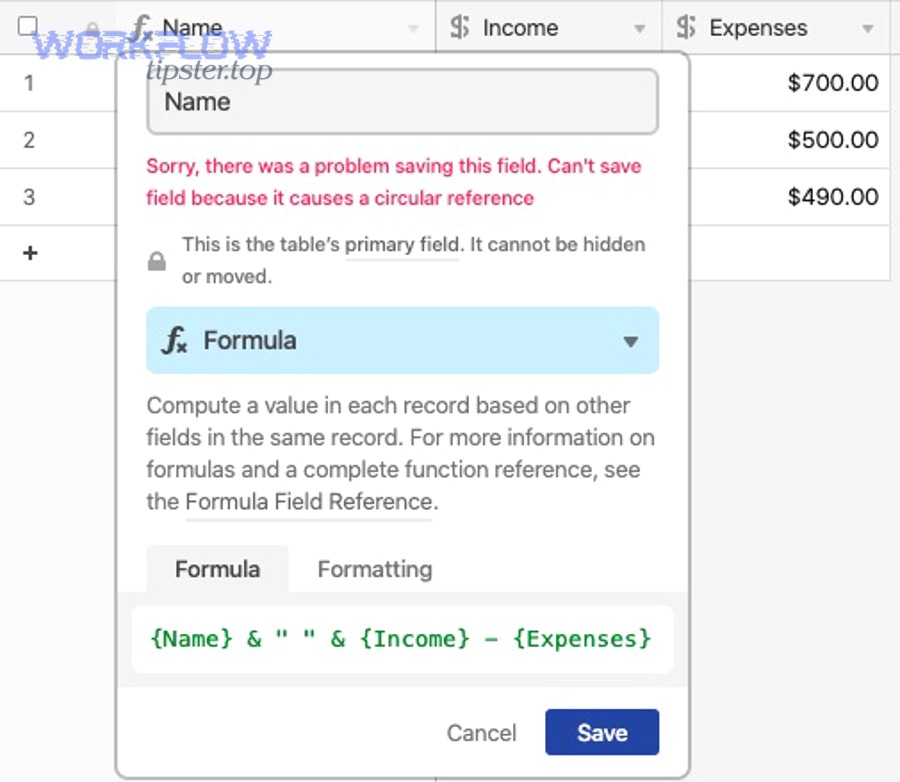
Moreover, prevention is not “more documentation.” It’s a few repeatable controls that remove the common failure modes:
- Stabilize integration fields: Create dedicated fields meant for automation writes (e.g., “API_Status,” “Integration_Date,” “Normalized_Amount”) rather than writing directly into business-critical fields that stakeholders rename frequently.
- Use buffer + compute: Write raw inbound data to a buffer field, then use formulas to compute what users see. This prevents automations from trying to write into computed fields and makes troubleshooting easier.
- Validate before write: Add a “validation step” in the workflow: parse numbers, normalize dates, enforce select options, and verify linked IDs before the update action.
- Guard against empty values: Implement conditional logic: if a required value is missing, route to an exception path instead of attempting an update.
- Adopt a schema-change playbook: When anyone changes field types, renames fields, or edits select options, your team refreshes field lists and runs a small test suite (one record per key path).
There’s also a business reason to care: bad or inconsistent data has measurable downstream costs. Gartner reports that poor data quality costs organizations $12.9 million per year on average (2020 research). ([gartner.com](https://www.gartner.com/en/data-analytics/topics/data-quality))
If you publish internal standards, keep them simple. For example, at WorkflowTipster.top, a practical guideline is: “Every integration write must pass a type check, a null check, and a permission check before it touches production fields.”
Contextual border: At this point, you have everything needed to fix mapping failures quickly (diagnosis + checklist + tool comparisons + field-type playbook). Next, we shift into edge cases where mapping still fails even when the field type appears correct—micro-level constraints that often surprise experienced builders.
Why can Airtable mapping fail even when the field type looks correct?
Airtable mapping can still fail even when the field type looks correct because the destination may be read-only, the payload shape may be subtly wrong (arrays/objects), timezone and locale can break date parsing, or schema drift can change field IDs behind the scenes even if field names look unchanged.
Especially for teams that build across multiple tools, these “looks correct” failures are the most expensive—because they survive casual inspection. So, use the four checks below to catch the hidden constraint that’s actually rejecting your write.
What read-only or computed fields should you never map into (and what should you map instead)?
You should never map into computed or system-managed fields because Airtable won’t allow writes into values it calculates or controls, and that rejection often surfaces as a mapping failure even when your value is perfectly formatted.
Then, redirect your write to a true input field. Common read-only/computed categories include:
- Formula: derived from other fields.
- Lookup/Rollup: derived from linked records.
- Autonumber, Created time, Last modified time: system-managed fields.
The reliable pattern is “write upstream, compute downstream”:
- Write your inbound value into a normal text/number/date field.
- Let formulas or rollups compute the display-ready result.
- If you need to change a lookup/rollup result, update the source record or the linked relationship—not the computed output.
This is the simplest way to turn a stubborn “mapping failed” into a stable, testable pipeline.
What linked-record and multi-select payload shapes commonly break mapping?
Linked-record and multi-select fields commonly break mapping when your tool sends a string where Airtable expects a list, when you send record names instead of record IDs, or when you send null/empty in a way that Airtable interprets as invalid rather than “clear.”
However, these errors can be deceptively subtle because the UI displays human-friendly names while the API often requires structured identifiers. The most common shape mistakes are:
- Linked record: sending “Acme Inc” instead of [recXXXXXXXXXXXXXX].
- Linked record: sending a single ID as a string instead of an array containing one ID.
- Multi select: sending “A, B, C” as one string instead of an array/list of options (depending on tool conventions).
- Empty behavior: sending an empty string where the tool expects an empty list, or vice versa.
To fix this quickly, add one “shape checkpoint” step: log the outbound payload exactly as sent, then confirm whether it’s a scalar, list, or object. If it’s the wrong shape, transform it before the Airtable write action.
How do timezone, locale, and date formats cause silent mapping failures?
Timezone, locale, and date formats cause mapping failures when your outbound date string is ambiguous, when the integration applies a different timezone than your Airtable field expects, or when a “date-only” field receives a date-time payload that becomes invalid under parsing rules.
More specifically, teams get trapped by three patterns:
- Locale ambiguity: “01/02/2026” can mean Feb 1 or Jan 2 depending on the sender’s locale.
- Timezone drift: a UTC timestamp becomes “yesterday” locally, breaking conditions and creating unexpected updates.
- Date vs date-time mismatch: a field configured as date-only receives a date-time string that the tool formats inconsistently.
The fix is to normalize dates at the source and standardize one format across your stack (commonly ISO 8601). If your workflow uses webhooks heavily, this also reduces confusing side effects where an authorization problem (airtable webhook 401 unauthorized) or throttling (airtable webhook 429 rate limit) makes retries arrive out of order and appear like “random mapping failures.”
When should you remap from scratch because the schema drifted?
You should remap from scratch when your integration is referencing old field IDs, when fields were recreated (not just renamed), when you duplicated bases/environments and swapped connections, or when “refresh fields” still shows mismatched or missing destinations after a schema update.
Then, use these “hard reset” signals as your threshold:
- Field recreated: someone deleted a field and created a new one with the same name (new internal identity).
- Environment mismatch: staging vs production bases have similar names but different structures.
- Tool caching persists: you refreshed fields, but the mapping UI still behaves like the old schema exists.
In those cases, the cleanest approach is to reselect the base/table, reselect the destination field, and retest end-to-end with a single known record. This is also the moment to audit triggers and dedupe protections so you don’t “fix mapping” only to discover the workflow now causes airtable duplicate records created due to repeated runs.
According to a study by the University of Southern Denmark from the Department of Entrepreneurship and Relationship Management, in 2011, the authors highlighted that reported field-level data error rates in case-study contexts can range from 0.5% to 30%, which helps explain why strict validation and normalization are essential before automated writes. ([jiem.org](https://www.jiem.org/index.php/jiem/article/view/232/130))